

File upload failures in cloud storage services like Google Drive and Microsoft OneDrive can disrupt your workflow, prevent critical backups, and cause unexpected data sync errors. These issues usually stem from local network instability, browser cache corruption, storage quota limits, or background software conflicts.
Whether you are using web interfaces or desktop synchronization clients, this step-by-step guide walks through the exact methods to troubleshoot and fix file upload errors across Google Drive and OneDrive.
Prerequisites & Quick Checks
-
Check Service Status: Visit the Google Workspace Status Dashboard or Microsoft Service Health page to ensure there are no ongoing cloud server outages.
-
Verify Available Storage Space: Ensure your account has remaining storage capacity. Uploads automatically fail if your Google One or OneDrive quota is full.
-
Check File Name and Size Limits: Verify that your file does not exceed maximum upload sizes (e.g., 250 GB for individual OneDrive files) and contains no illegal characters like
/ \ : * ? " < > |.
Method 1: Clear Browser Cache and Cookies (Web Uploads)
If you upload files through a web browser, accumulated cache, stale cookies, or bad temporary data can interrupt file chunking during long transfers.
Clearing Cache in Google Chrome
-
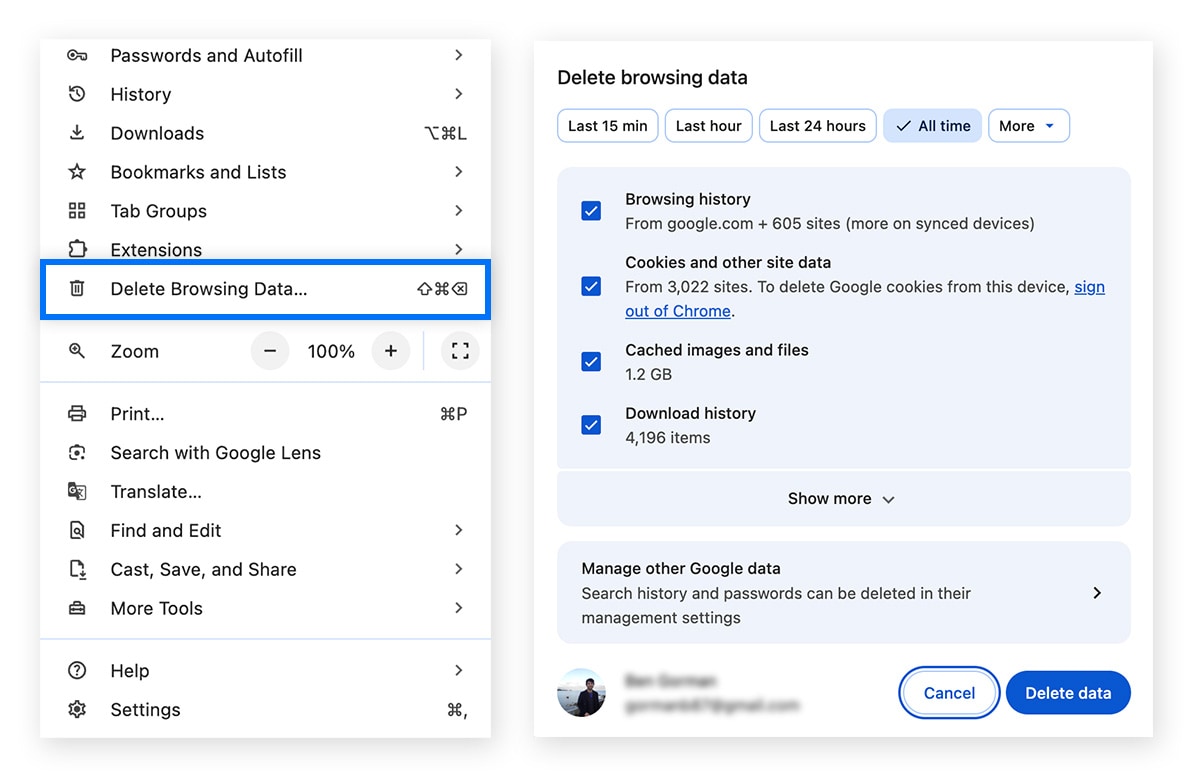
Open Google Chrome and press Ctrl + Shift + Delete (or Cmd + Shift + Delete on Mac).
-
Set the Time range dropdown to All time.
-
Check the boxes next to Cookies and other site data and Cached images and files.
-
Click Clear data.
-
Log back into Google Drive or OneDrive and retry the upload.
Method 2: Pause and Resume Syncing in Desktop Apps
Temporary sync locks can freeze active upload queues in desktop clients. Pausing and restarting the app forces a re-index of the sync directory.
Restarting Google Drive Desktop
-
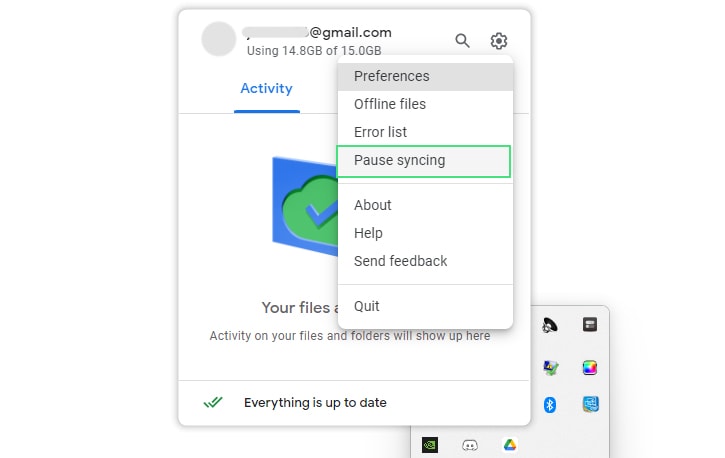
Click the Google Drive icon in the system tray (bottom-right on Windows) or menu bar (top-right on Mac).
-
Click the Settings Gear icon and select Pause Syncing.
-
Wait 10 seconds, click the Settings Gear icon again, and select Resume Syncing.
Restarting Microsoft OneDrive
-
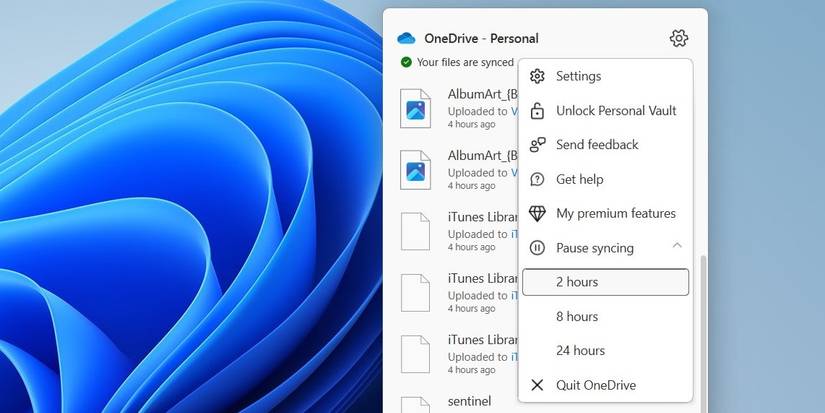
Click the OneDrive Cloud icon in the Windows taskbar or Mac menu bar.
-
Select the Settings Gear icon and click Pause syncing.
-
Choose 2 hours from the dropdown menu.
-
Re-open the OneDrive menu and click Resume syncing to clear stuck queues.
Method 3: Reset the OneDrive App (Windows)
If OneDrive consistently fails to process uploads, resetting the app rebuilds the underlying sync database without deleting your cloud files.
-
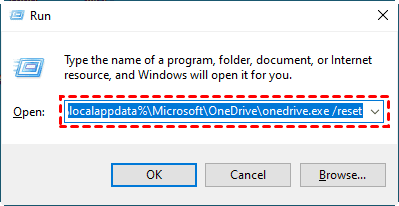
Press Windows Key + R on your keyboard to open the Run dialog box.
-
Paste the following command into the text box and press Enter:
Plaintext
%localappdata%\Microsoft\OneDrive\onedrive.exe /reset
-
If OneDrive does not restart automatically after 2 minutes, open Run again, paste the following path, and press Enter:
Plaintext
%localappdata%\Microsoft\OneDrive\onedrive.exe
Method 4: Adjust Firewall and Antivirus Restrictions
Aggressive antivirus programs, VPNs, or third-party firewalls often misidentify continuous cloud network streams as suspicious background traffic, blocking upload connections.
-
Temporarily disconnect any active VPN or proxy service.
-
Open Windows Security by searching for it in the Start menu.
-
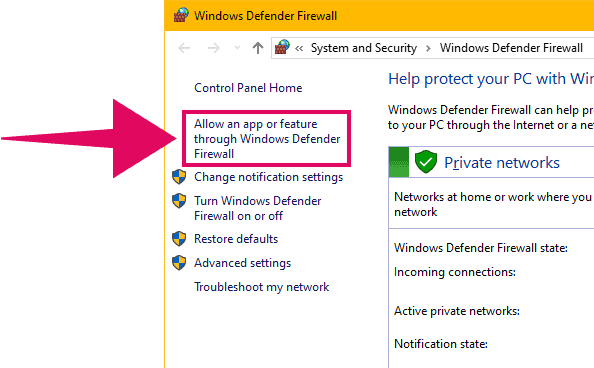
Click Firewall & network protection, then select Allow an app through firewall.
-
Click Change settings, locate Google Drive or Microsoft OneDrive, and ensure both Private and Public checkboxes are ticked.
-
Click OK to save settings and attempt your upload again.
Method 5: Convert Drives or Files to Compatible Formats
System file limits on local storage drives can block Google Drive and OneDrive from processing large temporary cache files.
-
Check Disk Format: If your local drive uses the older FAT32 file system, individual files larger than 4 GB cannot be cached or processed properly. Ensure your system drive uses NTFS (Windows) or APFS (Mac).
-
Compress Large Files: Split or zip exceptionally large folders into smaller
.zipfiles before dragging them into the web dashboard.
Frequently Asked Questions (FAQ)
Why do my file uploads keep stopping halfway through?
Mid-upload freezes are typically caused by intermittent Wi-Fi drops, browser extension conflicts (such as aggressive ad-blockers), or background power-saving modes putting network adapters to sleep. Switching to a wired Ethernet connection or using Private/Incognito mode usually resolves this.
Does changing my DNS server help fix cloud upload errors?
Yes. Switching your network DNS to a public provider like Google Public DNS (8.8.8.8 / 8.8.4.4) or Cloudflare (1.1.1.1) can bypass regional routing bottlenecks that interrupt direct connections to Google and Microsoft storage servers.
Will resetting OneDrive or signing out of Google Drive delete my local files?
No. Resetting or re-logging into cloud client applications disconnects the sync engine, but your existing local files and cloud-stored data remain safe. The client will re-scan local folders upon sign-in.
Conclusion
File upload failures in Google Drive and OneDrive are generally caused by cache corruption, sync locks, or local firewall interference. By systematically clearing browser data, resetting sync engines, and confirming your account storage limits, you can quickly restore stable cloud backups. Following these methods ensures your files upload safely and remain accessible across all your devices.

Pony Lorenzo is the lead technical writer and managing editor at Finauraly Win. With extensive experience in operating system maintenance, software diagnostic testing, and digital productivity tools, Pony specializes in breaking down complex technical errors into actionable, step-by-step troubleshooting guides for Windows, macOS, Android, and Web applications.