
You delete twenty photos, remove an app you haven’t opened in months, and free up two gigabytes of space. A few days later, the low-storage warning flashes on your screen again. You cannot download a system update, your camera refuses to snap a picture, and messaging apps stop loading incoming videos.
Phone storage rarely fills up because of a single obvious mistake. Instead, modern mobile operating systems quietly accumulate temporary application assets, background streaming downloads, full-resolution camera originals, and hidden message attachments. If you delete items at random without identifying what is actually expanding in the background, the storage will keep disappearing. Taking five minutes to diagnose where the gigabytes are going prevents you from accidentally erasing personal memories or critical work data.
What You May Notice
When phone storage reaches capacity, the symptoms go beyond a simple notification banner. You may observe several distinct behaviors:
-
Camera lockout: The Camera app warns that storage is full or closes abruptly when switching to video recording.
-
App sluggishness and crashes: Apps that require local disk buffering (such as web browsers, social media feeds, and navigation apps) stutter, freeze, or quit to the home screen.
-
Failed app updates: App stores fail to complete downloads or display “Insufficient Storage” error prompts, even for minor app patches.
-
System update stalls: Android or iOS cannot download or unpack the latest operating system security patches, which typically need several gigabytes of staging buffer.
-
Missing message media: Chat applications like WhatsApp, Signal, or Messages refuse to download incoming voice memos, photos, or documents.
-
Ghost consumption: You manually delete files, but the available storage reading fails to increase right away or drops back down within forty-eight hours.
Possible Causes
Storage fills up through visible content that you actively save and invisible data that applications store on your behalf. Understanding how each mechanism works helps you determine why your phone is running out of room.
Common Causes
-
Messaging App Media Auto-Download: Chat apps often save every photo, GIF, voice message, and video sent in group chats straight to your internal storage. Even if you never tap to view them in your camera roll, the files occupy space inside the application’s local directory.
-
Offline Media Buffers: Streaming apps (Spotify, Apple Music, Netflix, YouTube, Disney+, podcast players) store downloaded episodes and playlists for offline playback. High-definition video downloads frequently consume between 1 GB and 4 GB per movie.
-
Recently Deleted Holding Areas: Modern gallery apps do not erase media immediately when you hit delete. They move items to a “Recently Deleted” or “Trash” album, where files remain for thirty days before permanent removal. Until that folder is emptied, zero space is recovered.
-
App Cache Bloat: Social media feeds and web browsers cache high-resolution thumbnails, profile pictures, and web assets to load pages faster. Over several months of active use, cache sizes for single apps can swell past 5 GB to 10 GB.
-
High-Resolution Video and Burst Photos: 4K video recorded at 60 frames per second consumes roughly 400 MB per minute of footage. Similarly, holding down the shutter button captures high-speed burst shots that create dozens of duplicate full-resolution stills in seconds.
Less Common Causes
-
Stuck or Corrupted Diagnostic Logs: When an app or system process crashes repeatedly in the background, the operating system can continuously append text to local crash dump logs. If a cleanup routine fails, these logs can grow unchecked.
-
Orphaned System Update Staging Files: If an operating system update downloads partially and encounters an interruption, the temporary installation image may sit in system storage without cleaning itself up.
-
Cloud Sync Misconfigurations: If cloud backup features (like iCloud Photos or Google Photos) are set to “Keep Originals” rather than space-saving optimized modes, every historical picture in your cloud account is downloaded and cached on your local device.
Checks to Perform Before Changing Anything
Before deleting files or altering system settings, run these three diagnostic checks to pinpoint the true culprit.
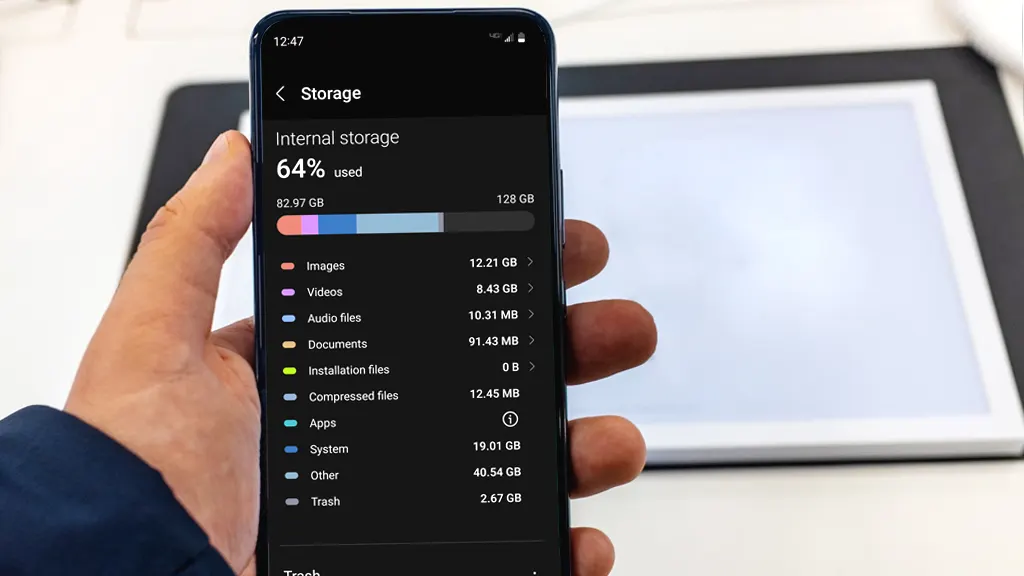
Check 1: Inspect the Storage Breakdown Graph
-
Where to find it:
-
iPhone: Open Settings > General > iPhone Storage.
-
Android: Open Settings > Storage (or Settings > Device Care / Device Maintenance > Storage, depending on your manufacturer).
-
-
What the result means: The visual graph categorizes disk usage into buckets such as Apps, Photos, Media, System Data (iOS), or System/Other (Android). If “Apps” takes up 70% of the drive, clearing photos will not solve your core issue.
-
Next action: Identify the top two largest categories in the list. Focus your troubleshooting strictly on those sections.
Check 2: Verify the “Recently Deleted” or “Trash” Bins
-
Where to find it:
-
iPhone: Open Photos > tap the Albums tab > scroll down to Recently Deleted.
-
Android: Open Google Photos (or Samsung Gallery) > tap Collections / Library > select Trash or Bin.
-
-
What the result means: If there are hundreds of items listed, your previous cleanup sessions never actually released physical storage blocks back to the file system.
-
Next action: If you see files you intentionally deleted, you will need to permanently purge them (covered in the step-by-step section below).
Check 3: Audit Cloud Backup Synchronization State
-
Where to find it:
-
iPhone: Open Settings > tap your Apple Account / Name at the top > iCloud > Photos. Check whether Optimize iPhone Storage or Download and Keep Originals is selected.
-
Android: Open the Google Photos app > tap your profile icon (top right) > Photos settings > Backup. Check your backup quality and status.
-
-
What the result means: If an iPhone has “Download and Keep Originals” enabled, it forces your phone to store full-resolution copies of your entire cloud library. On Android, if backup is disabled, Google Photos cannot safely offload local copies.
-
Next action: Note this setting so you can configure automated cloud optimization safeguards without risking your master photo copies.
Step-by-Step Solution
Follow these steps in order, moving from the safest, non-destructive actions to deeper storage recovery.
Step 1: Empty Trash & Recently Deleted Folders
                     │
                     ▼
Step 2: Review App Storage Footprints (App vs. User Data)
                     │
                     ▼
Step 3: Clear Temporary Caches (Android & In-App Browsers)
                     │
                     ▼
Step 4: Purge Hidden Messaging & Chat Media
                     │
                     ▼
Step 5: Audit Offline Media (Video & Music Downloads)
                     │
                     ▼
Step 6: Configure Cloud Optimization Safeguards
Step 1: Empty Built-in Trash Bins
Permanently erase items that are already sitting in temporary holding bins.
-
Photos Trash:
-
iPhone: Go to Photos > Albums > Recently Deleted. Tap Select (top right) > tap the three dots or Delete All > confirm Delete from This iPhone.
-
Android: Go to Google Photos > Collections (or Library) > Trash. Tap the three dots (top right) > Empty Trash > confirm permanent deletion.
-
-
Files App Trash:
-
iPhone: Open the Files app > tap Browse twice to reach the main Locations list > tap Recently Deleted > tap Select > Delete All.
-
Android: Open the Files by Google app > tap the hamburger menu (top left) > tap Trash > select All items > tap Delete.
-
Expected result: Instant recovery of storage previously occupied by items you had already decided to discard.
Step 2: Separate App Size from Documents & Data
Navigate to your phone’s granular storage breakdown to see which specific apps consume the most space.
-
On iPhone:
-
Open Settings > General > iPhone Storage.
-
Wait a few moments for the device to index the drive.
-
Review the ranked list of applications. Tap on the largest app.
-
Look at two metrics: App Size (the binary code itself) and Documents & Data (user files, offline content, caches).
-
Action: If an app has a small App Size (e.g., 100 MB) but massive Documents & Data (e.g., 12 GB), the app itself is not the problem—its saved content is. You can use Offload App to remove the app binary while preserving your login and configuration, or open the app itself to delete internal downloads.
-
-
On Android:
-
Open Settings > Apps (or Apps & notifications).
-
Tap See all apps and use the filter/sort menu to sort by Size.
-
Tap an app using disproportionate space, then tap Storage & cache.
-
Inspect the split between App size, User data, and Cache.
-
For a deeper look into stopping rogue apps from accumulating excessive local data in the background, read our complete guide on how to manage smartphone app permissions and background data usage.
Step 3: Clear Non-Essential Application Caches
Cache files are temporary files designed to speed up browsing, but apps frequently fail to prune them automatically.
-
On Android (System-wide clearing per app):
-
Go to Settings > Apps > select a high-consumption app (e.g., Chrome, TikTok, Instagram, YouTube).
-
Tap Storage & cache.
-
Tap Clear Cache (represented by a broom or trash icon).
-
Warning: Do not tap “Clear Storage” or “Clear Data” unless you are prepared to log back into the app and set up your preferences from scratch. “Clear Cache” is completely safe and deletes only temporary disposable assets.
-
-
On iPhone (In-app clearing):
iOS does not provide a universal “Clear Cache” button in system settings. Cache management is handled inside individual apps:
-
Open high-volume apps like TikTok, Snapchat, or Telegram.
-
Go to their internal settings menus (e.g., Profile > Settings and Privacy > Free up space or Data and Storage).
-
Tap Clear Cache.
-
Step 4: Purge Hidden Messaging Attachments
Messaging apps are notorious for consuming double-digit gigabytes of hidden storage.
-
WhatsApp:
-
Open WhatsApp > tap Settings (or the three dots) > Storage and Data > Manage Storage.
-
You will see a section titled Larger than 5 MB alongside a list of individual chats sorted by storage footprint.
-
Tap Larger than 5 MB, review the files, select unwanted forwarded videos, and delete them.
-
Tap individual high-volume group chats to clear specific heavy media types while keeping your text history intact.
-
-
Apple Messages (iMessage):
-
Open Settings > General > iPhone Storage > scroll down and tap Messages.
-
Review the categories listed under Documents & Data: Top Conversations, Photos, Videos, and GIFs & Stickers.
-
Tap Videos or Photos, tap Edit, and delete bulky video clips sent to you months or years ago.
-
For device-specific instructions directly from the operating system developers, consult the Apple Official Support Guide on Checking iPhone and iPad Storage.
Step 5: Audit Offline Streaming Downloads
Apps that allow offline playback often retain media indefinitely until manually unlinked.
-
Music (Spotify, Apple Music, YouTube Music):
-
Open the streaming app > navigate to your Library > filter by Downloaded.
-
Remove downloaded albums or playlists that you no longer listen to offline.
-
-
Video (Netflix, Amazon Prime Video, Disney+):
-
Open the app > navigate to the Downloads tab.
-
Tap the edit icon or swipe left on completed seasons or watched movies to delete them from internal storage.
-
-
Podcasts:
-
Podcast episodes can be up to 150 MB each. Check your podcast app settings to ensure Automatic Downloads is toggled off or configured to keep only the newest 1–2 episodes while deleting completed ones automatically.
-
Step 6: Enable Cloud Optimization Settings
Instead of buying a new phone, let the operating system automatically scale down photo footprints while safeguarding full-resolution originals in the cloud.
-
iPhone:
-
Go to Settings > tap your name > iCloud > Photos.
-
Ensure Optimize iPhone Storage is checked. When local space is needed, iOS replaces full-resolution photos and videos on your phone with lightweight device-sized versions. The high-resolution master copy remains safe in iCloud and streams down seamlessly when you tap to view or edit it.
-
-
Android:
-
Open the Files by Google app.
-
Tap Clean at the bottom left.
-
Review the suggestions card for Delete duplicates, Clean up WhatsApp media, or Free up space (which removes local copies of photos that are already verified and backed up to Google Photos).
-
To ensure your photos and files remain protected before turning on automated cleanups, explore our guide to choosing and configuring cloud storage backups for mobile devices.
What You Should NOT Change or Delete
When struggling with persistent storage limits, it is easy to make rash decisions that lead to irreversible data loss or broken device functions. Avoid these common mistakes:
-
Do not delete unknown files in file managers: On Android, using third-party file managers to browse deep into folders labeled
Android/dataorAndroid/obband deleting items at random can break app databases, remove in-game progress, or delete downloaded navigation maps. -
Do not tap “Clear Data” or “Clear Storage” casually: While “Clear Cache” is harmless, “Clear Data” resets an app to factory state. This erases offline drafts, local login credentials, secret chat histories, and locally stored cryptographic keys.
-
Do not disable basic security or system logging: Turning off critical system components or developer mode diagnostic flags without technical guidance will not recover meaningful space and can leave your device vulnerable.
-
Do not install third-party “RAM Cleaners” or “Super Booster” apps: These applications run aggressive background advertisements, harvest usage metrics, and duplicate tools that are already built natively into Android and iOS. Some even write their own bulky log files, worsening the problem.
-
Do not factory reset as a first resort: A full wipe should only be considered after systematic diagnosis proves that system partitions are irrecoverably corrupted. Resetting without an audited backup often results in the permanent loss of two-factor authentication tokens and local-only documents.
How to Verify the Fix
Do not rely solely on the disappearance of the low-storage notification. Confirm that your storage recovery is genuine and persistent:
| Verification Metric | Target Threshold | How to Check |
| Free Storage Buffer | At least 10% to 15% of total drive capacity (e.g., 12–20 GB on a 128 GB phone) | Check Settings > Storage (Android) or iPhone Storage (iOS). |
| System Data / Other Stability | Under 10–15 GB on iOS; under 12–18 GB on modern Android | Verify that the gray/black “System Data” block in the storage breakdown has stabilized. |
| Camera Functional Test | Successful recording of a 30-second 4K or 1080p video clip | Open Camera, record video, verify it saves and plays back without error prompts. |
| 48-Hour Consistency | Available space does not drop by more than 1–2 GB during normal daily usage | Note your free gigabytes today and recheck at the same hour two days later. |
If the storage level holds steady after two days of regular messaging, browsing, and media consumption, your storage cleanup was successful.
If the Problem Still Happens
If your phone storage drops back to zero within hours despite performing the cleanup steps above, you may be facing abnormal system file growth or database corruption.
1. Perform a Forced Restart
A simple restart terminates lingering background sync tasks, while a forced restart flushes volatile system caches and forces the storage indexer to recalculate drive allocation:
-
iPhone: Press and quickly release Volume Up, press and quickly release Volume Down, then press and hold the Side Button until the Apple logo appears.
-
Android: Press and hold both the Power button and Volume Down button simultaneously for 10–15 seconds until the device reboots.
2. Inspect “System Data” (iOS) or “System” (Android)
If the storage index shows that System Data or Other is consuming 30 GB to 60 GB:
-
This typically indicates an interrupted media transfer, a failed cloud sync queue, or a crashed diagnostic logging loop.
-
For iOS users: Connect the iPhone to a Mac (via Finder) or a Windows PC (via Apple Devices app / iTunes) using a USB cable. Unlock the phone and leave it connected for 20 to 30 minutes. This handshake often triggers an internal file system maintenance task that purges unreferenced cache blocks.
-
Check for Operating System Updates: An unpatched software bug can trigger memory-leak behaviors that write endlessly to storage. Install any pending official updates through Settings > Software Update.
3. Seek Professional or Manufacturer Support
If the issue persists and system storage remains completely full, review the Google Android Help Center on Freeing Up Storage Space or contact your device manufacturer’s authorized service center. In rare instances, failing internal flash storage chips (eMMC or UFS) can drop into a read-only or corrupted reporting state that misrepresents drive capacity.
Prevention: Habits to Keep Storage Open
Maintaining available space is much easier than doing an emergency cleanup when your camera refuses to open. Adopt these lightweight maintenance habits:
-
Disable Auto-Saving in Chat Apps:
-
In WhatsApp, go to Settings > Chats > toggle off Save to Photos (iOS) or Media visibility (Android).
-
In Telegram, go to Settings > Data and Storage > disable Save to Gallery for channels and group chats.
-
-
Set Camera Formats Efficiently:
-
On iPhone, go to Settings > Camera > Formats and select High Efficiency (HEIF/HEVC), which cuts photo and video file sizes roughly in half compared to Most Compatible (JPEG/H.264) with no discernible loss in everyday quality.
-
On Android, open the Camera app settings and enable HEIF pictures and High efficiency video if supported by your hardware.
-
-
Configure Video Recording Defaults:
-
Unless you are producing content for professional editing, set your everyday video recording resolution to 1080p at 30 fps or 60 fps instead of 4K. This single change saves hundreds of megabytes for every minute of home video recorded.
-
-
Schedule a Monthly 2-Minute Review:
-
On the first day of each month, take two minutes to empty your photo trash bin, check your streaming video app downloads, and remove any podcasts you have already finished.
-
Frequently Asked Questions
Why does my phone say storage is full right after I deleted a bunch of photos?
Modern smartphones move deleted photos into a “Recently Deleted” or “Trash” folder for 30 days to prevent accidental loss. Until you open that album and choose “Delete All” or “Empty Trash,” those files still occupy space on your internal flash drive. Additionally, the storage breakdown menu can take a few minutes (or a device restart) to recalculate and display the updated drive capacity.
What is “System Data” or “Other,” and why is it taking up so much space?
“System Data” (on iOS) and “System/Other” (on Android) encompass the operating system core files, system caches, offline Siri/Google Assistant voices, font libraries, and active logging databases. It also acts as a temporary holding pen for streaming buffers and incomplete file downloads. Under normal conditions, it ranges from 8 GB to 15 GB. If it climbs above 25 GB, connecting your phone to a computer or restarting the device can help trigger internal housekeeping routines.
Will clearing an app’s cache log me out or delete my game progress?
No. Clearing the cache removes only temporary files, such as downloaded image thumbnails and cached web formatting. Your accounts, login tokens, saved games, and preferences are stored separately under User Data. As long as you select “Clear Cache” and avoid “Clear Storage” or “Clear Data,” your app will remain logged in and functional.
Why does WhatsApp use so much storage even when I don’t save photos to my camera roll?
WhatsApp maintains its own internal database to display chat history, voice notes, and media within your conversations. Even if an image does not appear in your phone’s main Photos or Gallery app, a copy is stored inside WhatsApp’s private directory on your phone. You must use WhatsApp’s built-in tool (Settings > Storage and Data > Manage Storage) to delete these files.
Does offloading an app on iPhone delete my personal information?
No. Offloading an app deletes only the core application binary code (the app itself) while leaving all of its personal data, configurations, and documents intact on your device. When you tap the app icon to reinstall it later, it resumes exactly where you left off, provided the app is still available on the App Store.
Final Takeaway
The most effective way to solve recurring phone storage problems is to diagnose before you delete. Instead of guessing and wiping out apps or photos you actually care about, inspect your device’s built-in storage graph to identify whether the culprit is an unemptied trash folder, bloated social media caches, or hidden chat attachments. Work methodically from the safest diagnostic steps to granular app cleanup, and leave a permanent 10% to 15% buffer of free storage to allow your operating system to function smoothly.
Linked Resources Inside Article
-
Internal Link 1 (Step 2): how to manage smartphone app permissions and background data usage
-
Internal Link 2 (Step 6): choosing and configuring cloud storage backups for mobile devices
-
External Authority 1 (Step 4): Apple Official Support Guide on Checking iPhone and iPad Storage
-
External Authority 2 (Fallback Section): Google Android Help Center on Freeing Up Storage Space

Pony Lorenzo is the lead technical writer and managing editor at Finauraly Win. With extensive experience in operating system maintenance, software diagnostic testing, and digital productivity tools, Pony specializes in breaking down complex technical errors into actionable, step-by-step troubleshooting guides for Windows, macOS, Android, and Web applications.