

Two-factor authentication (2FA) adds a vital second layer of security to your online accounts. Instead of relying solely on a password—which can be stolen, leaked, or guessed—2FA requires two separate pieces of evidence to verify your identity. Usually, this combines something you know (your password) with something you have (an authenticator app code, physical security key, or temporary push notification).
Setting up 2FA across your essential apps significantly reduces the risk of unauthorized account access, identity theft, and credential stuffing attacks.
Prerequisites and Quick Checks Before Setting Up 2FA
Before enabling 2FA across your accounts, prepare these essential tools to avoid getting locked out:
-
Download an Authenticator App: Install a trusted authenticator application on your smartphone, such as Google Authenticator, Microsoft Authenticator, or 2FAS, rather than relying exclusively on SMS text messages.
-
Prepare a Safe Location for Backup Keys: Ensure you have a secure physical notebook or a encrypted password manager (like Bitwarden or 1Password) ready to store single-use recovery backup codes.
-
Keep Your Mobile Device Charged: Ensure your smartphone is active and connected to a cellular or Wi-Fi network to scan setup QR codes and receive verification texts during configuration.
Method 1: Secure Your Google / Gmail Account
Your Google Account often acts as the central hub for password resets, cloud storage, and smartphone ecosystem logins. Securing it is your highest priority.
Open your web browser, sign in to your Google Account, and click your profile icon in the top-right corner. Select Manage your Google Account, then click Security on the left navigation menu.
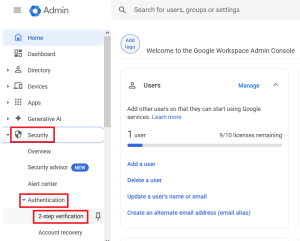
Under the How you sign in to Google section, click 2-Step Verification.
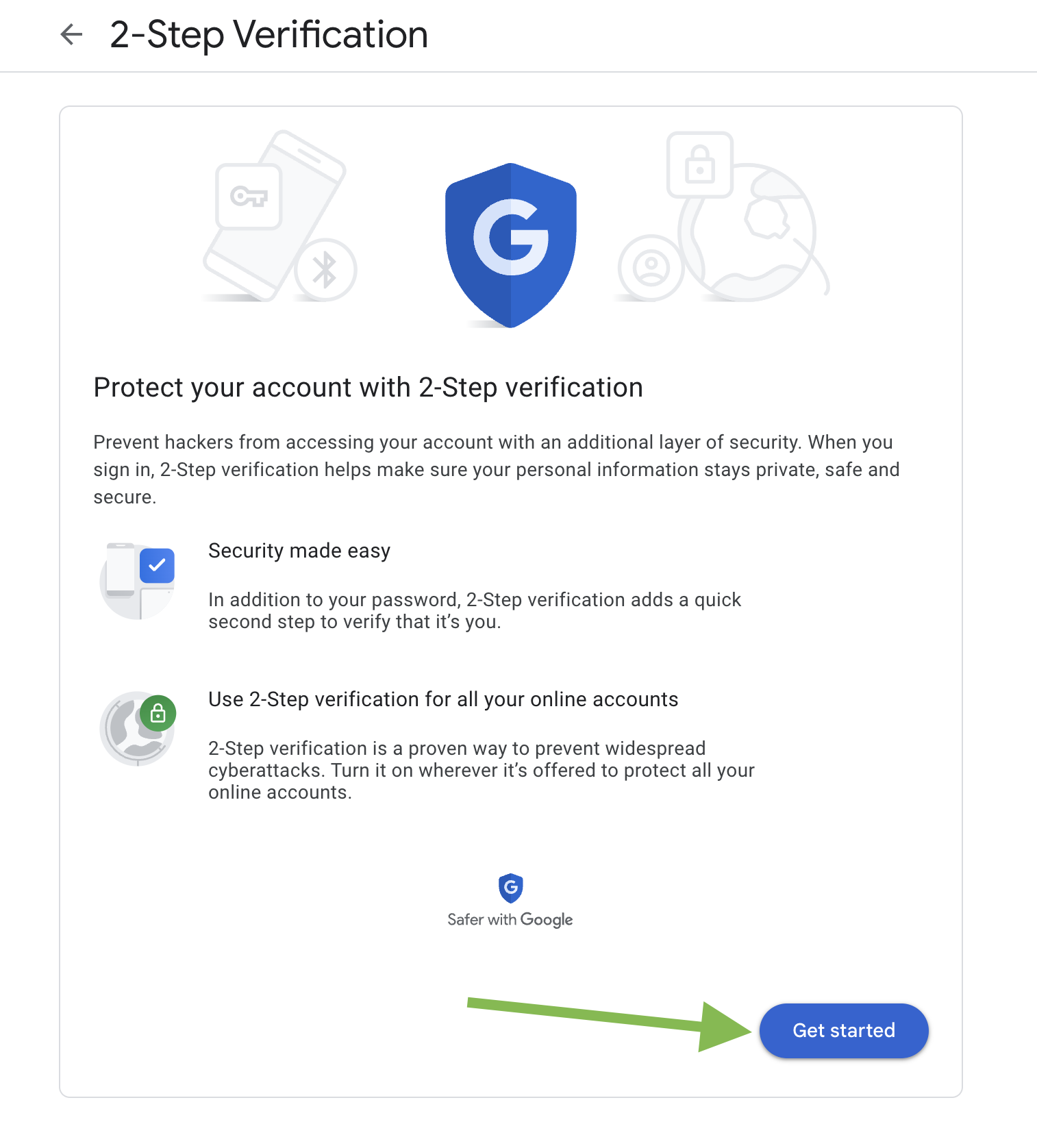
Scroll down to Add more second steps to verify it’s you and select Authenticator app. Click + Set up authenticator.
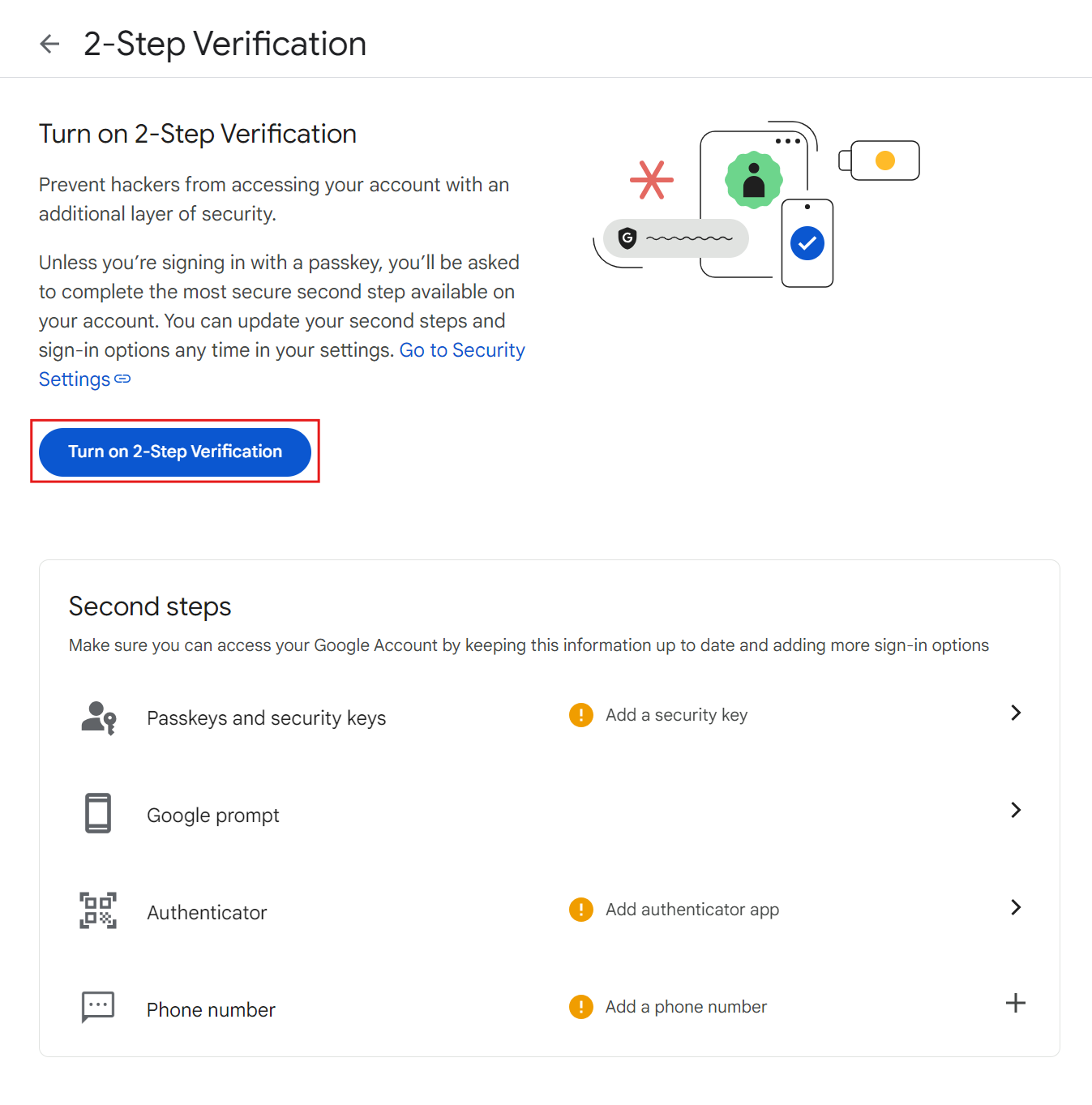
Open your smartphone’s authenticator app, tap Add Account, and scan the QR code displayed on your screen. Enter the 6-digit code generated by the app to verify setup. Finally, click Get backup codes and save them in a secure location.

To verify success, log out of your Google account on an incognito browser window and sign back in. The login screen should prompt you for a 6-digit authenticator code after entering your password.
Method 2: Enable 2FA on Microsoft Accounts
Microsoft accounts control access to Outlook, Windows OS logins, OneDrive, and Xbox services.
-
Go to account.microsoft.com and sign in.
-
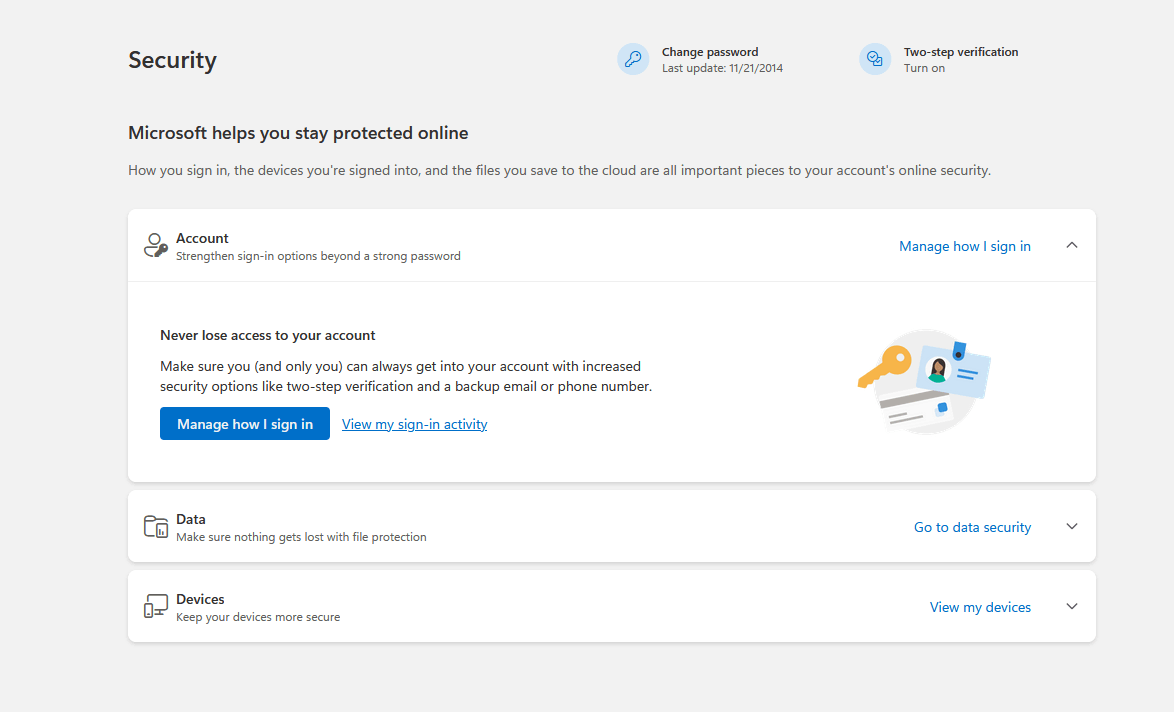
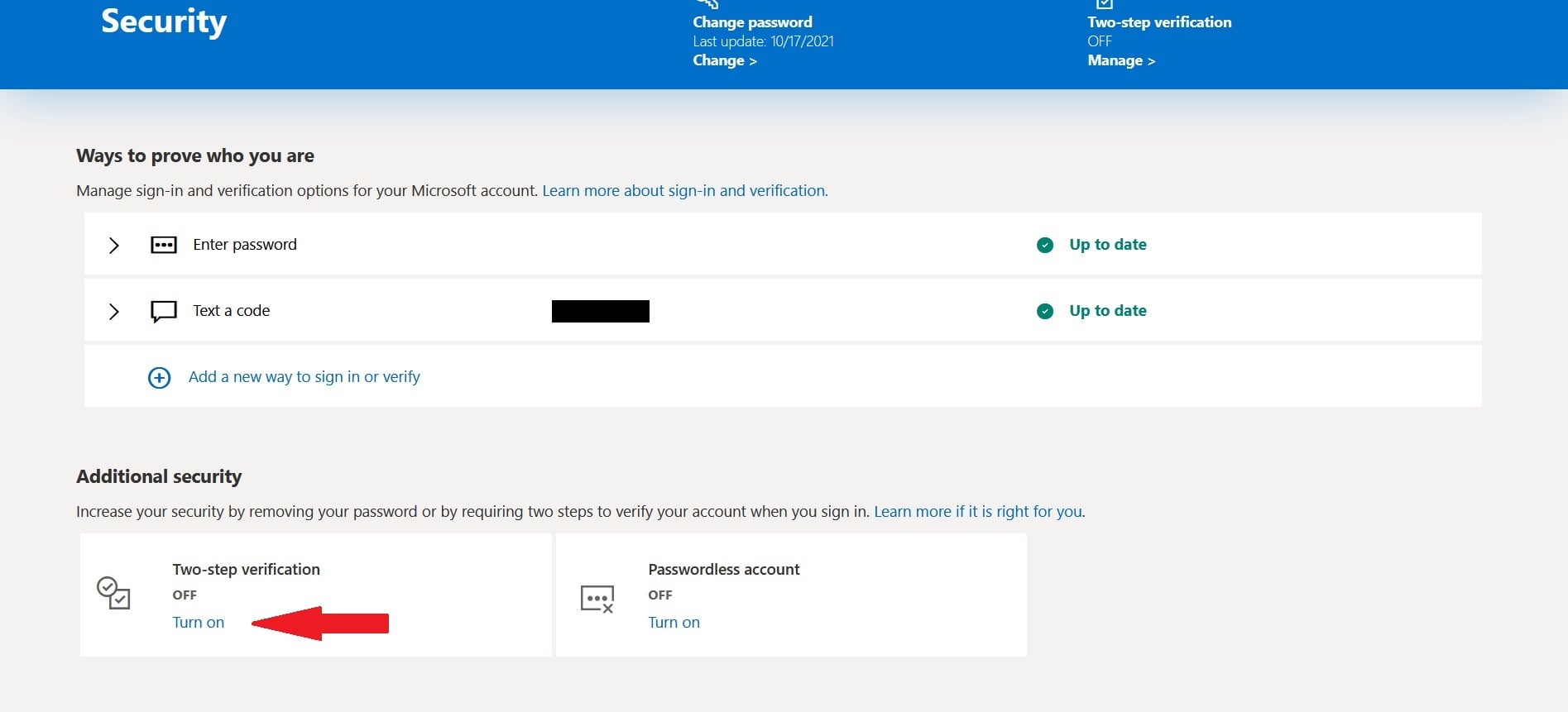
Select Security from the top menu bar, then click Advanced security options.
-
Under the Additional security section, locate Two-step verification and click Turn on.
-
Follow the setup wizard prompts, choose An app as your primary verification method, and scan the provided QR code with your authenticator app.
-
Save the 25-character recovery code displayed at the end of the process.
To verify success, sign into outlook.com on a secondary device to confirm the 2FA prompt appears.
Method 3: Enable Two-Factor Authentication on Apple ID / Apple Account
Apple uses built-in device verification prompts across trusted iPhones, iPads, and Macs for its primary 2FA method.
On iPhone or iPad
-
Open Settings and tap your Apple ID / Name Banner at the top.
-
Select Sign-In & Security (or Password & Security).
-
Tap Turn On Two-Factor Authentication and select Continue.
-
Enter a trusted phone number where you can receive verification codes via SMS or phone call.
-
Enter the verification code sent to your phone to finish activation.
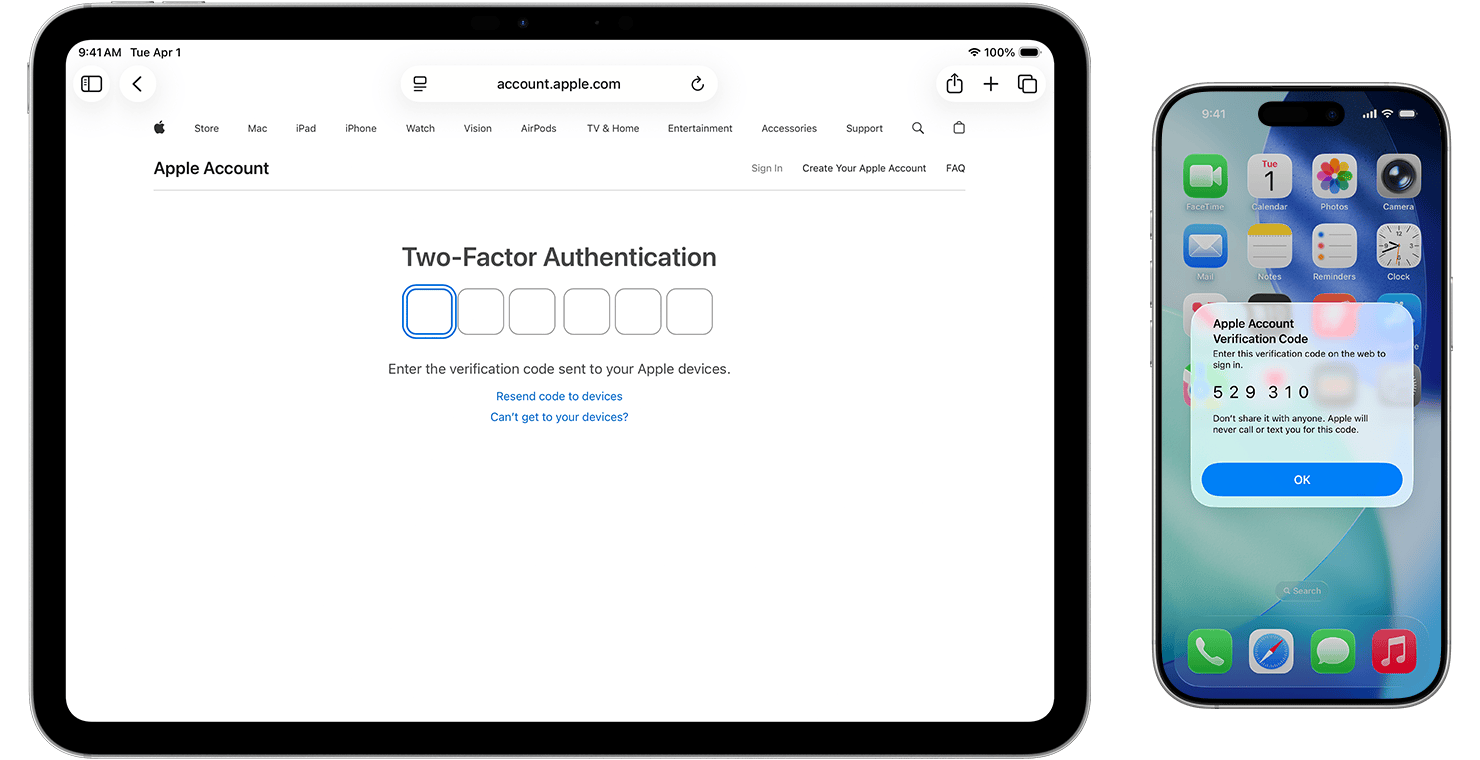
To verify success, attempt signing in to icloud.com on a web browser. A trusted device prompt with a 6-digit code will display on your Apple devices.
Method 4: Enable 2FA on Social Media Apps (Meta & WhatsApp)
Social media platforms are frequent targets for account takeover attacks. Enabling 2FA across Facebook, Instagram, and WhatsApp protects your social identity.
On WhatsApp (Android & iOS)
-
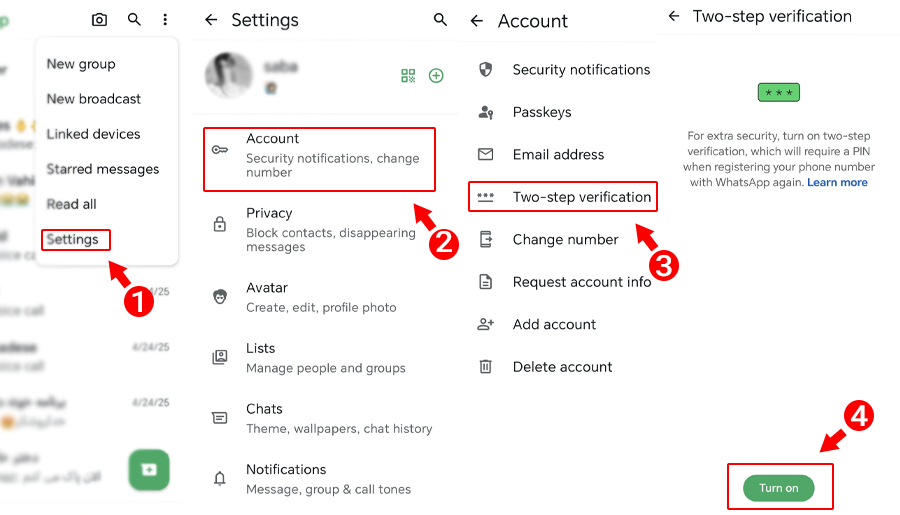
Open WhatsApp and navigate to Settings.
-
Tap Account, then select Two-step verification.
-
Tap Turn On (or Enable).
-
Enter a 6-digit PIN of your choice and confirm it.
-
Provide a valid email address to restore access if you ever forget your PIN.
To verify success, close and re-open WhatsApp; the app will occasionally request your 6-digit PIN upon launch.
Method 5: Save and Manage Recovery Backup Codes
Every time you activate 2FA on an online account, the platform generates a set of single-use Backup / Recovery Codes.
-
Copy or print the recovery codes immediately during the 2FA configuration process.
-
Store physical copies inside a secure, fireproof safe, or save digital copies within a master-password-protected password manager.
-
Never store unencrypted recovery codes in plain text
.txtfiles or emails.
Frequently Asked Questions
What is the safest 2FA method: SMS, Authenticator Apps, or Hardware Keys?
Hardware security keys (like YubiKey) are the most secure, followed by Authenticator Apps (TOTP). SMS-based 2FA is the least secure due to the risk of “SIM-swapping” attacks, where hackers trick mobile carriers into transferring your phone number to their SIM card.
What happens if I lose my phone with my authenticator app?
If you lose your phone, you can use one of your single-use recovery codes to sign into your account. Once logged in, you can disable the old authenticator connection and register your new phone.
Can I use the same authenticator app for all my accounts?
Yes. Standard authenticator applications (such as Google Authenticator, Microsoft Authenticator, or Bitwarden) support time-based one-time password (TOTP) protocols used by almost all web platforms.
Implementing two-factor authentication across your core Google, Microsoft, Apple, and social media accounts builds a robust defense against cyber threats. Using authenticator apps and securely storing backup codes ensures your digital accounts remain protected and accessible.

Pony Lorenzo is the lead technical writer and managing editor at Finauraly Win. With extensive experience in operating system maintenance, software diagnostic testing, and digital productivity tools, Pony specializes in breaking down complex technical errors into actionable, step-by-step troubleshooting guides for Windows, macOS, Android, and Web applications.
1 thought on “How to Enable and Configure Two-Factor Authentication (2FA) Across Essential Apps?”