
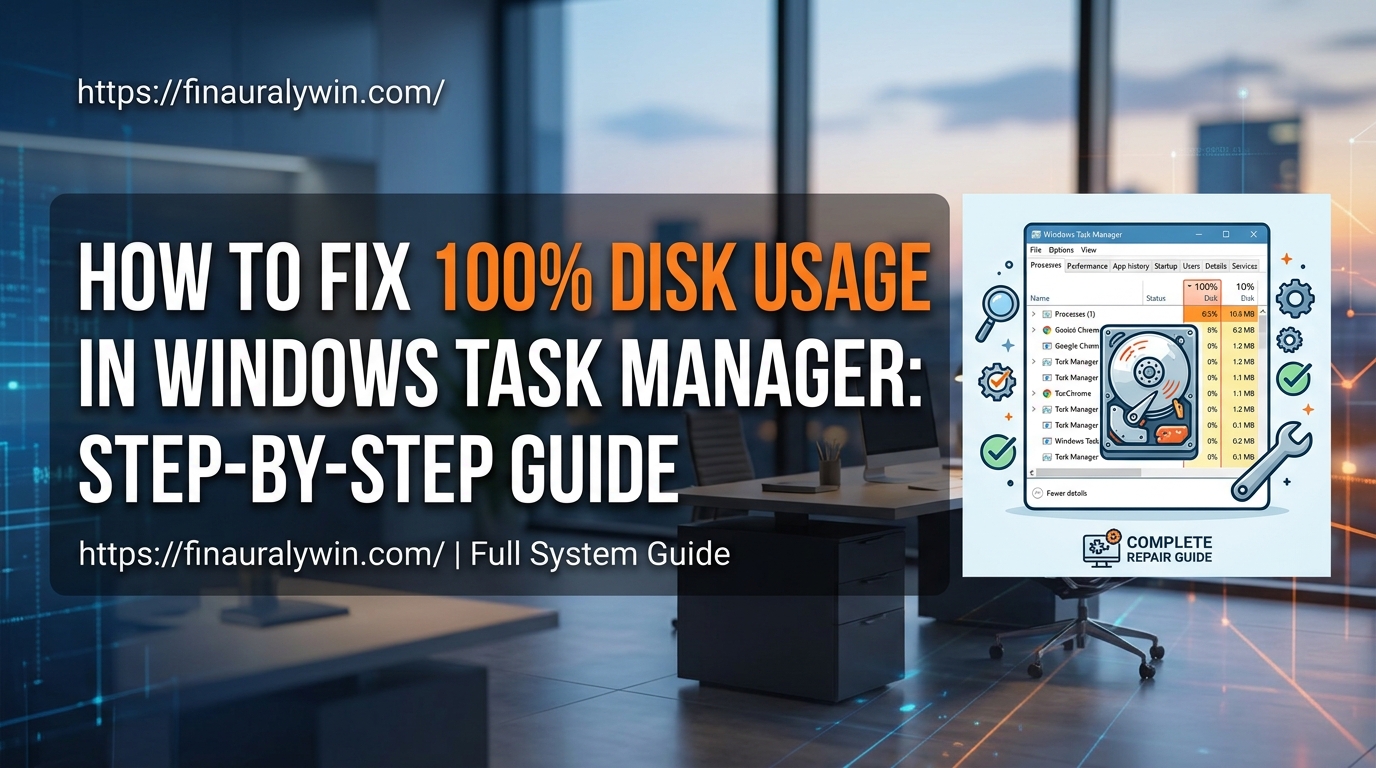
Experiencing severe system slowdowns due to your storage drive maxing out can make your computer almost unusable. When Task Manager displays solid high utilization, simple tasks like opening a browser or launching an application lag significantly.
This issue commonly stems from background system services, corrupted system files, outdated storage drivers, or virtual memory misconfigurations. Solid State Drives (SSDs) and older Hard Disk Drives (HDDs) can both encounter this state due to aggressive indexing or stuck Windows updates.
By following this guide, you will systematically diagnose the root cause and apply proven fixes to restore normal system responsiveness.
Prerequisites & Quick Checks
Before attempting deep system changes, rule out the most common temporary triggers:
-
Perform a Clean Restart: Reboot your PC through Start > Power > Restart to clear temporary system memory locks.
-
Disconnect External Drives: Unplug all non-essential USB flash drives or external hard drives to ensure they aren’t causing read/write loops.
-
Check for Active Scans: Verify that your antivirus software isn’t currently running a full system scan in the background.

Method 1: Disable Problematic Windows Services
Several built-in Windows services optimize system performance in the background. However, these services frequently lock up disk read/write access when indexing corrupted files or fetching system updates.
Disable the SysMain (Superfetch) Service
SysMain preloads frequently used applications into RAM. On many systems, this causes continuous drive activity.
-
Press Windows Key + R to open the Run dialog box.
-
Type services.msc and press Enter.
-
Scroll down to locate SysMain in the service list.
-
Right-click SysMain and select Properties.
-
Change the Startup type dropdown menu to Disabled.
-
Click the Stop button under Service status, then click Apply and OK.

Disable Windows Search Indexing
Windows Search indexes drive contents to speed up file discovery, but a corrupted search index can spike disk usage to maximum capacity.
-
Press Windows Key + R, type services.msc, and press Enter.
-
Locate Windows Search in the list.
-
Right-click Windows Search and choose Properties.
-
Set the Startup type to Disabled.
-
Click Stop under Service status, then select Apply and OK.
Method 2: Check and Repair File System Corruption
Corrupted system files or bad sectors on your storage drive can force Windows into an infinite read/write loop as it repeatedly attempts to access damaged data blocks.
Run System File Checker (SFC) and DISM
-
Press the Windows Key, type cmd, right-click Command Prompt, and select Run as administrator.
-
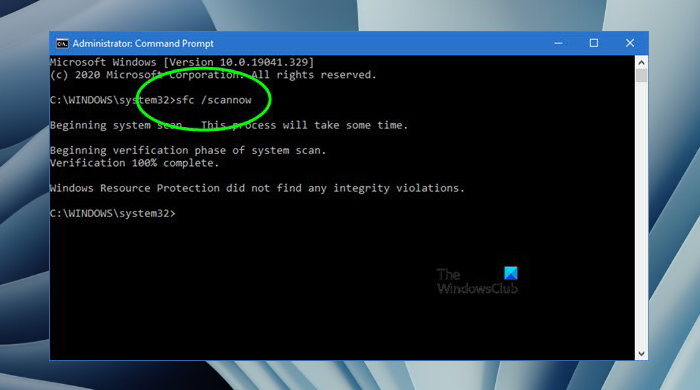
Type
sfc /scannowand press Enter. -
Wait for the verification process to reach 100%.
-
If corruption is found, type
DISM /Online /Cleanup-Image /RestoreHealthand press Enter. -
Restart your computer after both scans complete.
Run the CHKDSK Utility
-
Open Command Prompt as administrator.
-
Type
chkdsk C: /f /rand press Enter. -
Type Y when prompted to schedule the check for the next system restart.
-
Restart your PC to allow Windows to scan and repair storage disk sectors during boot.
Method 3: Reset Virtual Memory Settings
Virtual memory treats a portion of your physical storage drive as an extension of system RAM (a paging file). If the size settings are improperly managed, your storage drive may read and write continuously.
-
Press Windows Key + Pause/Break or search for Advanced system settings in the Start menu.
-
Under the Performance section on the Advanced tab, click Settings.
-
Select the Advanced tab in the Performance Options window and click Change.
-
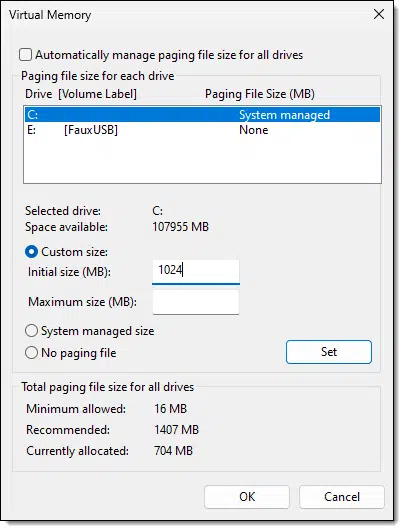
Uncheck Automatically manage paging file size for all drives.
-
Select your system drive (usually C:) and choose Custom size.
-
Set Initial size (MB) to the Recommended value listed at the bottom of the window.
-
Set Maximum size (MB) to 1.5 times your total RAM in MB (for example, 12288 MB for 8GB RAM).
-
Click Set, then click OK and restart your system.
Method 4: Update AHCI PCIe Drivers and Fix StorAHCI.sys Bug
A known bug in certain StorAHCI.sys drivers causes solid-state drives (SSDs) to freeze up when Message Signaled Interrupts (MSI) are enabled.
-
Right-click the Start button and select Device Manager.
-
Expand the IDE ATA/ATAPI controllers category.
-
Right-click Standard SATA AHCI Controller and select Properties.
-
Navigate to the Driver tab and click Driver Details.
-
Check if storahci.sys is listed as the driver path; if so, click OK.
-
Go to the Details tab, select Device instance path from the Property dropdown menu, and copy the value shown.
-
Press Windows Key + R, type regedit, and press Enter.
-
Navigate to:
HKEY_LOCAL_MACHINE\System\CurrentControlSet\Enum\PCI\ -
Match the key path to the Device Instance Path you copied earlier.
-
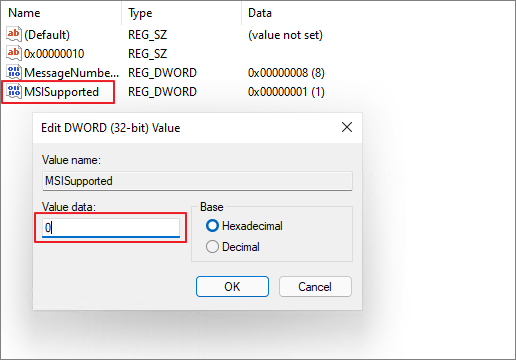
Navigate to Device Parameters > Interrupt Management > MessageSignaledInterruptProperties.
-
Double-click MSISupported in the right pane and change the value from 1 to 0.
-
Click OK and restart your computer.
Frequently Asked Questions
Why does Task Manager show 100% disk usage when no heavy applications are open? Background system services like SysMain, automatic Windows updates, or corrupted search indexes can exhaust drive read/write bandwidth, even while the system appears idle.
Will disabling SysMain or Windows Search harm my computer? No, disabling these services will not destabilize Windows. Disabling SysMain can actually improve performance on standard HDDs, and disabling Windows Search simply slows down file searches made directly through the Start Menu.
What if my disk usage remains at 100% after trying all these methods? Persistent maximum disk usage often signals physical drive failure or severe malware infection. Run a thorough malware scan, check your drive’s health status using S.M.A.R.T. diagnostic software, and consider replacing older HDDs with an SSD.
Unresolved high disk utilization directly lowers system responsiveness and shortens storage hardware lifespan. By systematic application of these service tweaks, system file repairs, and driver updates, you can permanently normalize your storage activity. Monitor Task Manager after each method to confirm your disk utilization has returned to standard baseline levels.

Pony Lorenzo is the lead technical writer and managing editor at Finauraly Win. With extensive experience in operating system maintenance, software diagnostic testing, and digital productivity tools, Pony specializes in breaking down complex technical errors into actionable, step-by-step troubleshooting guides for Windows, macOS, Android, and Web applications.
1 thought on “How to Fix 100% Disk Usage in Windows Task Manager: Step-by-Step Guide?”