
When Windows 11 fails to discover nearby Bluetooth devices, a communication breakdown occurs between your system software and the physical wireless adapter. This issue typically stems from corrupted device drivers, misconfigured background services, or power management conflicts.
By systematically applying targeted operating system fixes, you can restore full wireless pairing capabilities to your PC.
Quick Pre-Check Checklist
Before diving into advanced settings, run through these rapid sanity checks to rule out simple connectivity traps:
-
Toggle Airplane Mode: Open the Action Center (Win + A) and toggle Airplane Mode on for 5 seconds, then turn it back off to reset wireless radios.
-
Verify Pairing Mode: Ensure your Bluetooth accessory is actively in pairing mode—usually indicated by a rapidly blinking LED indicator—and is placed within 3 feet of your PC.
-
Check Hardware Switch: Ensure your laptop’s physical wireless switch or keyboard function key (e.g., Fn + F2) has not disabled the Bluetooth radio.
Method 1: Adjust Bluetooth Devices Discovery Settings
Windows 11 includes a native discovery filter that can silently block non-standard or dual-mode Bluetooth accessories from appearing in your scan list.
-
Press Windows Key + I to launch the Settings application.
-
Select Bluetooth & devices from the left navigation panel.
-
Click on the Devices tile located in the main pane.
-
Scroll down to the Device settings section.
-
Locate Bluetooth devices discovery and click the drop-down menu on the right.
-
Change the selection from Standard to Advanced.

-
Scroll back up, click Add device, select Bluetooth, and verify if your device now appears in the scan list.
Method 2: Restart and Configure Bluetooth Support Services
The system relies on background processes to manage device discovery and key exchanges. If the core Bluetooth Support Service stops or uses incorrect startup parameters, pairing fails.
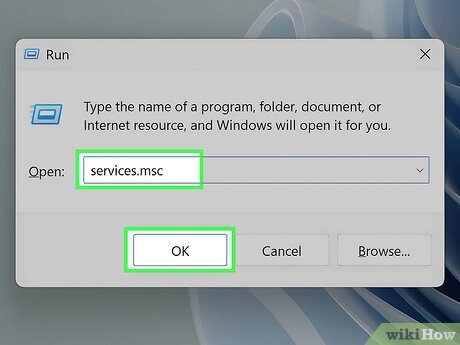
Press Windows Key + R to open the Run dialog box. Type services.msc into the text field and press Enter or click OK.
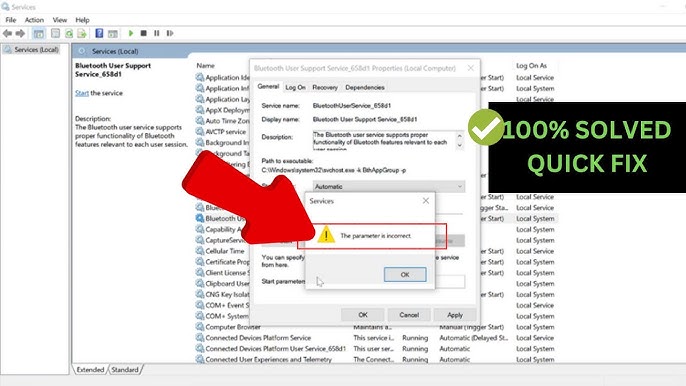
Scroll down through the alphabetical list to find Bluetooth Support Service. Right-click it and select Properties from the context menu.
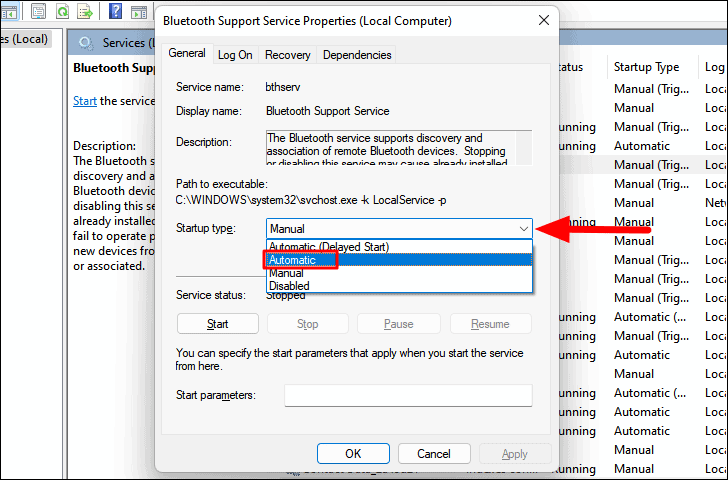
In the General tab, change the Startup type drop-down menu to Automatic. If the service status reads Stopped, click the Start button below it.
Click Apply, then click OK. Repeat this identical process for Bluetooth Audio Gateway Service and Bluetooth User Support Service if present.
To verify this fix succeeded, open Settings > Bluetooth & devices and trigger a fresh scan to see if nearby hardware populates immediately.
Method 3: Reinstall and Refresh the Bluetooth Adapter Driver
Outdated, missing, or corrupted device drivers are a primary root cause of discovery failures. Reinstalling the physical adapter forces Windows 11 to rebuild device connections.
-
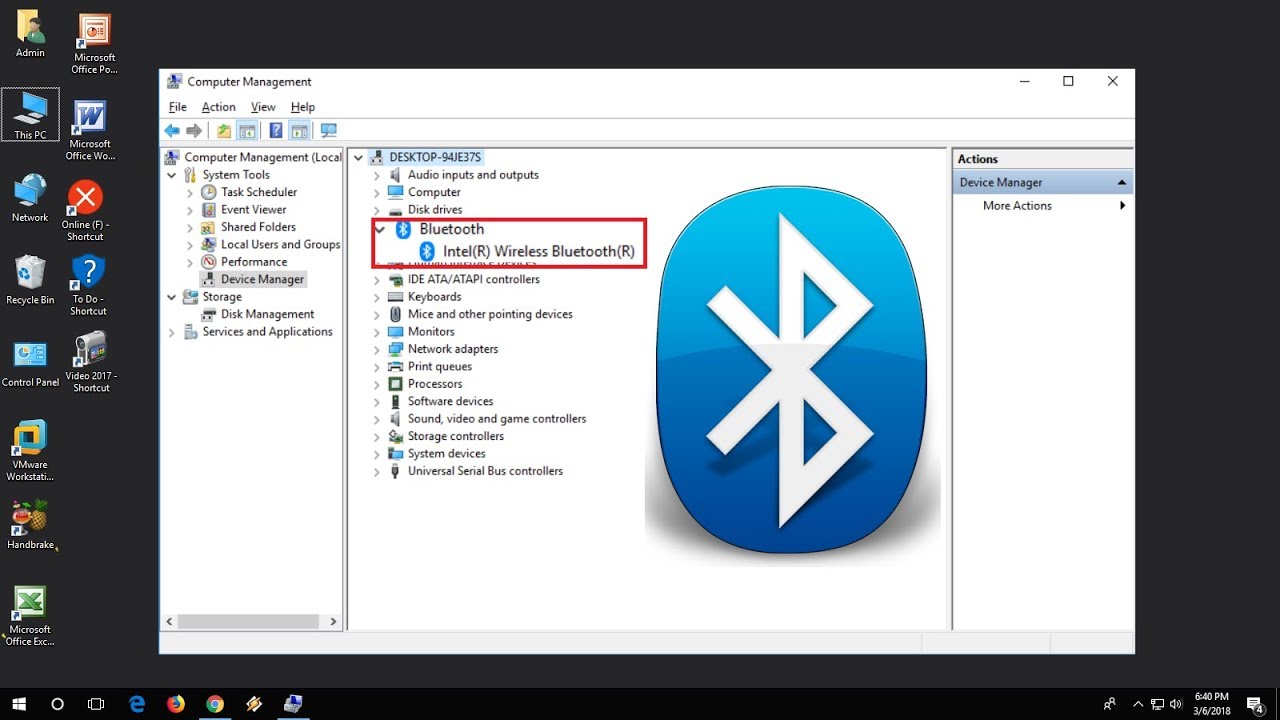
Right-click the Start button on your taskbar and select Device Manager from the Power User menu.
-
Expand the Bluetooth category by clicking the arrow next to it.
-
Identify your primary Bluetooth adapter (e.g., Intel Wireless Bluetooth, Realtek Bluetooth Adapter, or Generic Bluetooth Adapter).
-
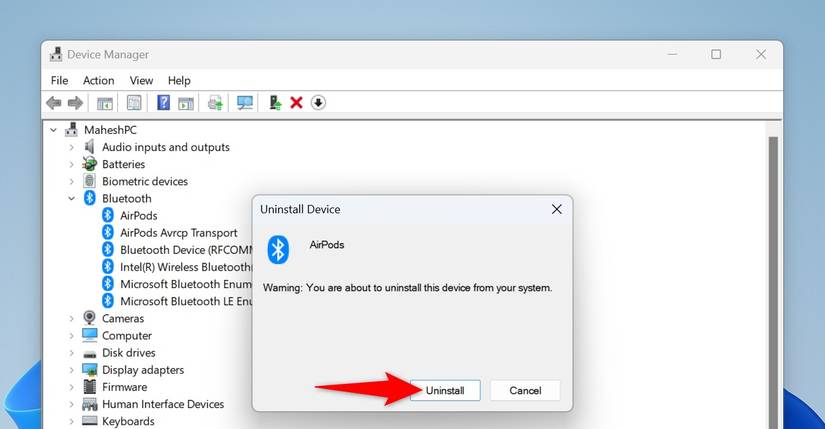
Right-click your main Bluetooth adapter and select Uninstall device.
-
In the confirmation prompt, check the box for Attempt to remove the driver for this device if available, then click Uninstall.
-
Once removed, restart your computer. Windows 11 will automatically detect the missing hardware during startup and reinstall a fresh driver copy.
Method 4: Modify Adapter Power Management Settings
Windows 11 aggressive power-saving protocols can turn off the Bluetooth card to conserve energy, preventing it from broadcasting or listening for incoming pairing signals.
-
Open Device Manager by pressing Windows Key + X and selecting Device Manager.
-
Click View on the top menu bar and select Devices by type.
-
Expand the Bluetooth category and right-click your main Bluetooth controller card.
-
Select Properties from the context menu.
-
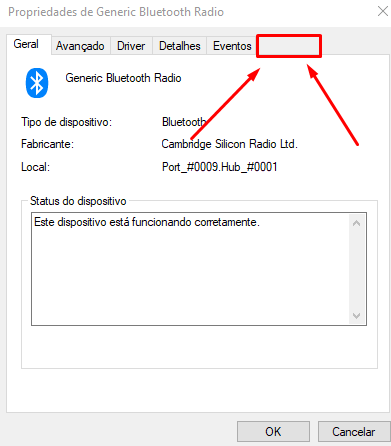
Navigate to the Power Management tab at the top of the window.
-
Uncheck the box labeled Allow the computer to turn off this device to save power.
-
Click OK to save changes, then restart your PC.
Method 5: Run the Automated Windows Bluetooth Troubleshooter
Windows 11 includes dedicated automated diagnostic routines capable of detecting registry errors, driver glitches, and disabled radio states.
-
Open Settings by pressing Windows Key + I.
-
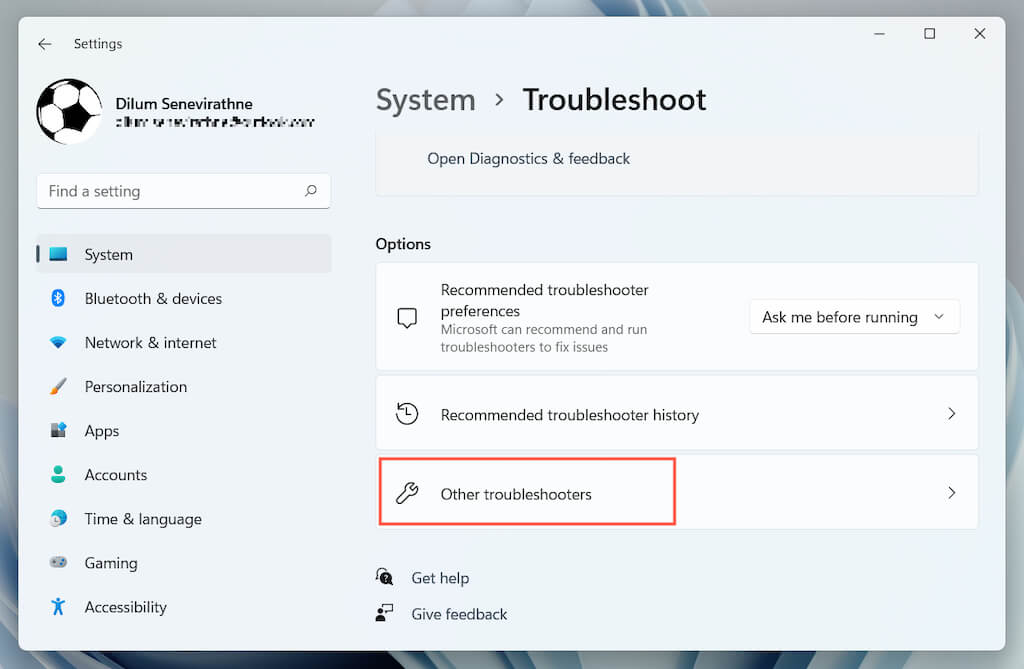
Stay on the System tab and scroll down to click on Troubleshoot.
-
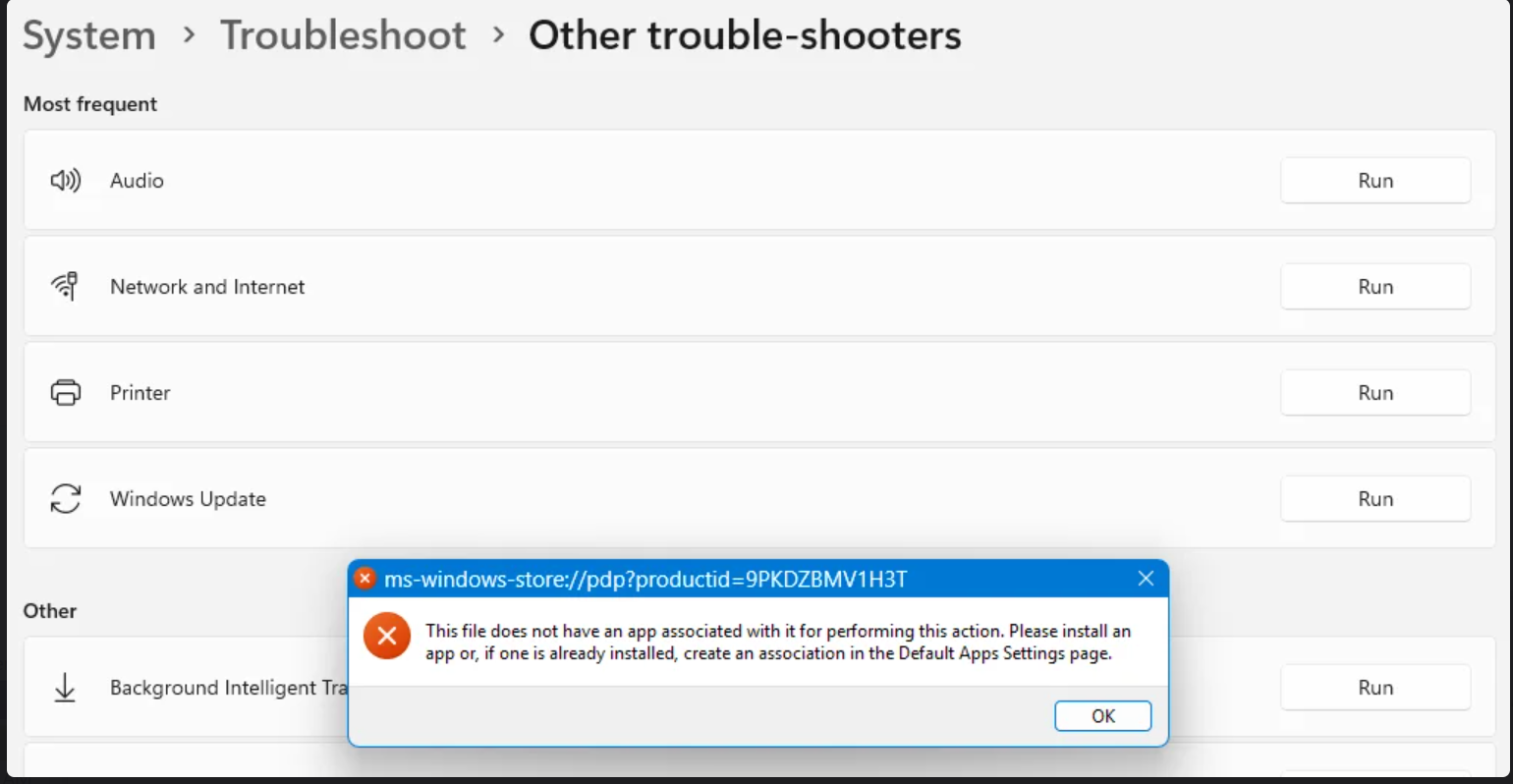
Click on Other troubleshooters to view the available automated diagnostics.
-
Locate the Bluetooth entry and click the Run button next to it.
-
Allow the diagnostic tool to scan your system. If it identifies issues, click Apply this fix and follow any remaining on-screen instructions.
Frequently Asked Questions
Why does my Bluetooth device connect to my phone but not my Windows 11 PC?
Mobile devices usually default to broad discovery protocols, whereas Windows 11 may restrict discovery based on default privacy and driver profiles. Adjusting your Windows Bluetooth devices discovery setting to Advanced resolves this gap in most instances.
How do I fix Bluetooth missing entirely from Windows 11 Quick Settings?
If the Bluetooth toggle disappears completely, open Device Manager and check for driver errors marked with a yellow warning triangle under the Bluetooth section. Running a full system restart or downloading the latest chipset drivers directly from your PC manufacturer’s website restores the toggle.
Can a corrupted USB port cause a Bluetooth dongle to fail discovery?
Yes. External Bluetooth USB adapters require stable power distribution and clean data throughput. Try moving the dongle to a rear USB 3.0 port directly on your motherboard rather than using an unpowered external USB hub.
Final Thoughts
Systematically working through these solutions restores full wireless connectivity to your Windows 11 system. Starting with basic settings toggles before advancing to driver updates and service configurations ensures you isolate the exact software barrier. Keeping your network drivers updated through Windows Update prevents discovery bugs from recurring in future OS builds.

Pony Lorenzo is the lead technical writer and managing editor at Finauraly Win. With extensive experience in operating system maintenance, software diagnostic testing, and digital productivity tools, Pony specializes in breaking down complex technical errors into actionable, step-by-step troubleshooting guides for Windows, macOS, Android, and Web applications.