

Is your computer running slow, heating up, or making loud fan noises whenever you open Google Chrome or Microsoft Edge? High CPU usage caused by web browsers is a frustratingly common issue that bogs down system performance, drains laptop batteries, and causes frustrating lag.
Modern web browsers are resource-heavy applications designed to prioritize speed and functionality, often at the expense of system resources. This guide breaks down why Chrome and Edge consume excessive CPU power and provides actionable, step-by-step solutions to fix the problem permanently.
Prerequisites & Quick Checks
Before diving into advanced troubleshooting steps, complete these quick checks to rule out simple glitches:
-
Restart Your Browser: Close all tabs and restart Chrome or Edge to clear temporary memory leaks.
-
Reboot Your PC: A simple system restart resets background processes and frees up system resources.
-
Close Unused Tabs: Every active tab consumes memory and CPU cycles, especially those streaming media or running complex scripts.
Method 1: Identify and Close Resource-Hogging Tabs via Built-In Task Manager
Both Google Chrome and Microsoft Edge feature a built-in Task Manager that isolates the exact tabs, extensions, or background tasks consuming high CPU power.
-
Open Google Chrome or Microsoft Edge.
-
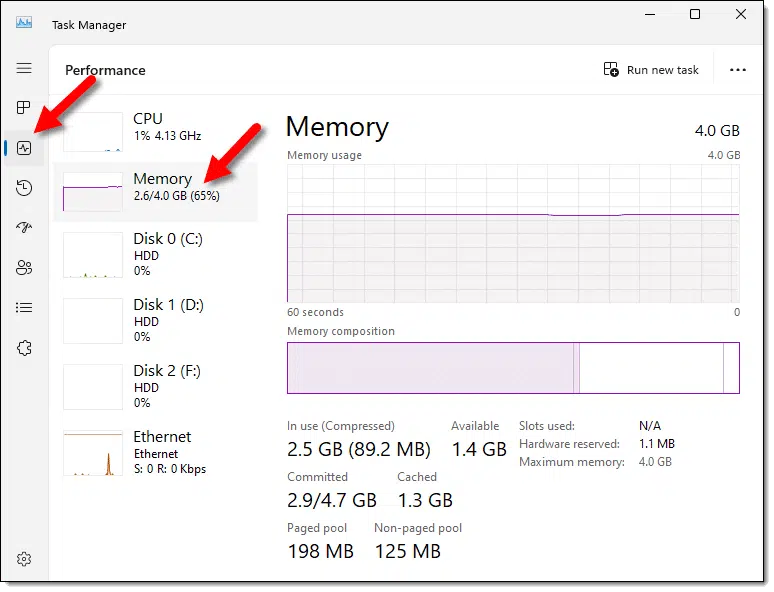
Press Shift + Esc on your keyboard to open the browser Task Manager. Alternatively, click the three dots menu in the top-right corner, navigate to More Tools, and select Task Manager.
-
Click on the CPU column header to sort processes by highest resource usage.
-
Select the process or tab using an abnormally high percentage of CPU power.
-
Click End Process at the bottom-right corner to instantly terminate the task.
Method 2: Disable Hardware Acceleration
Hardware acceleration offloads graphics-heavy processing tasks from the CPU to your GPU. However, outdated display drivers or hardware incompatibilities can cause this feature to malfunction, spiking CPU load to 100%.
Disabling Hardware Acceleration in Google Chrome
-
Launch Google Chrome and click the three dots menu in the top-right corner.
-
Select Settings from the drop-down menu.
-
In the left sidebar, click on System.
-
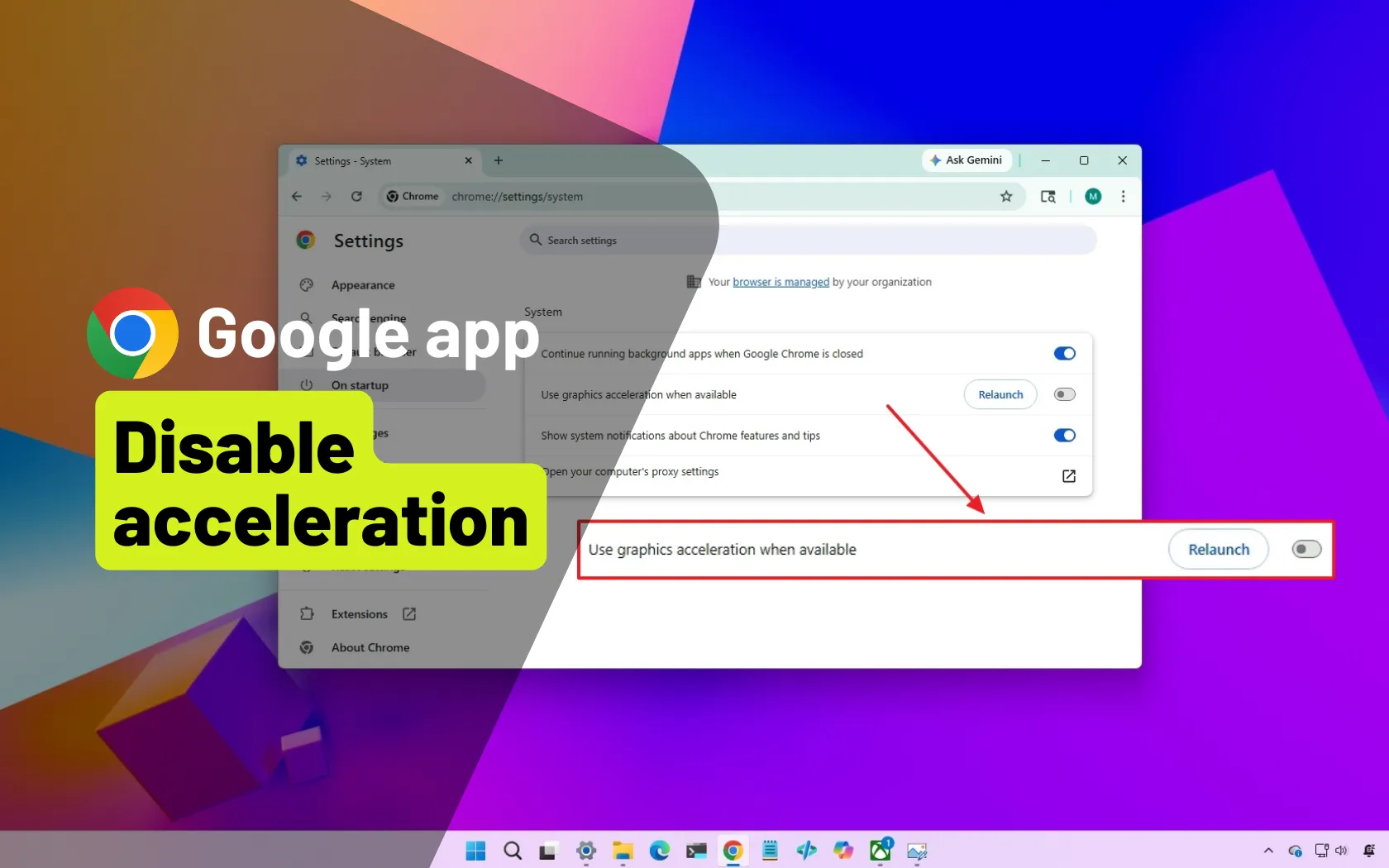
Toggle off the switch next to Use graphics acceleration when available (or Use hardware acceleration when available).

-
Click Relaunch to restart Chrome with the new setting applied.
Disabling Hardware Acceleration in Microsoft Edge
-
Open Microsoft Edge and click the three dots menu.
-
Choose Settings and navigate to System and performance in the left sidebar.
-
Locate Use graphics acceleration when available under the System section.
-
Toggle the setting Off.
-
Click Restart to finalize the changes.
Method 3: Disable or Remove Unnecessary Browser Extensions
Faulty, outdated, or malicious browser extensions often run background scripts that consume excessive CPU power without your knowledge.
-
Open your browser and access the extensions management page:
-
For Chrome: Type
chrome://extensions/in the address bar and press Enter. -
For Edge: Type
edge://extensions/in the address bar and press Enter.
-
-
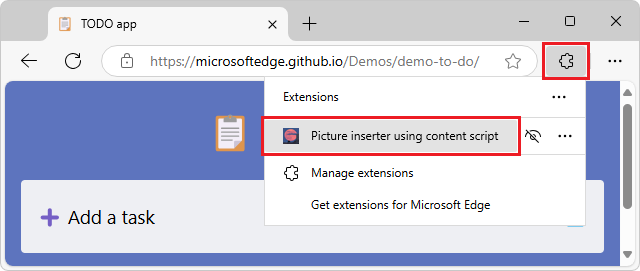
Review your list of installed extensions.
-
Turn off the toggle switch for each extension to disable them all temporarily.
-
Monitor system CPU usage in the Windows Task Manager (Ctrl + Shift + Esc).
-
Re-enable extensions one by one to isolate the specific extension causing the CPU spike, then click Remove.
Method 4: Enable Efficiency Mode and Memory Saver Features
Both Chrome and Edge include native performance optimization tools built to reduce CPU overhead and RAM usage automatically.
Enabling Memory Saver in Google Chrome
-
Open Google Chrome and go to Settings.
-
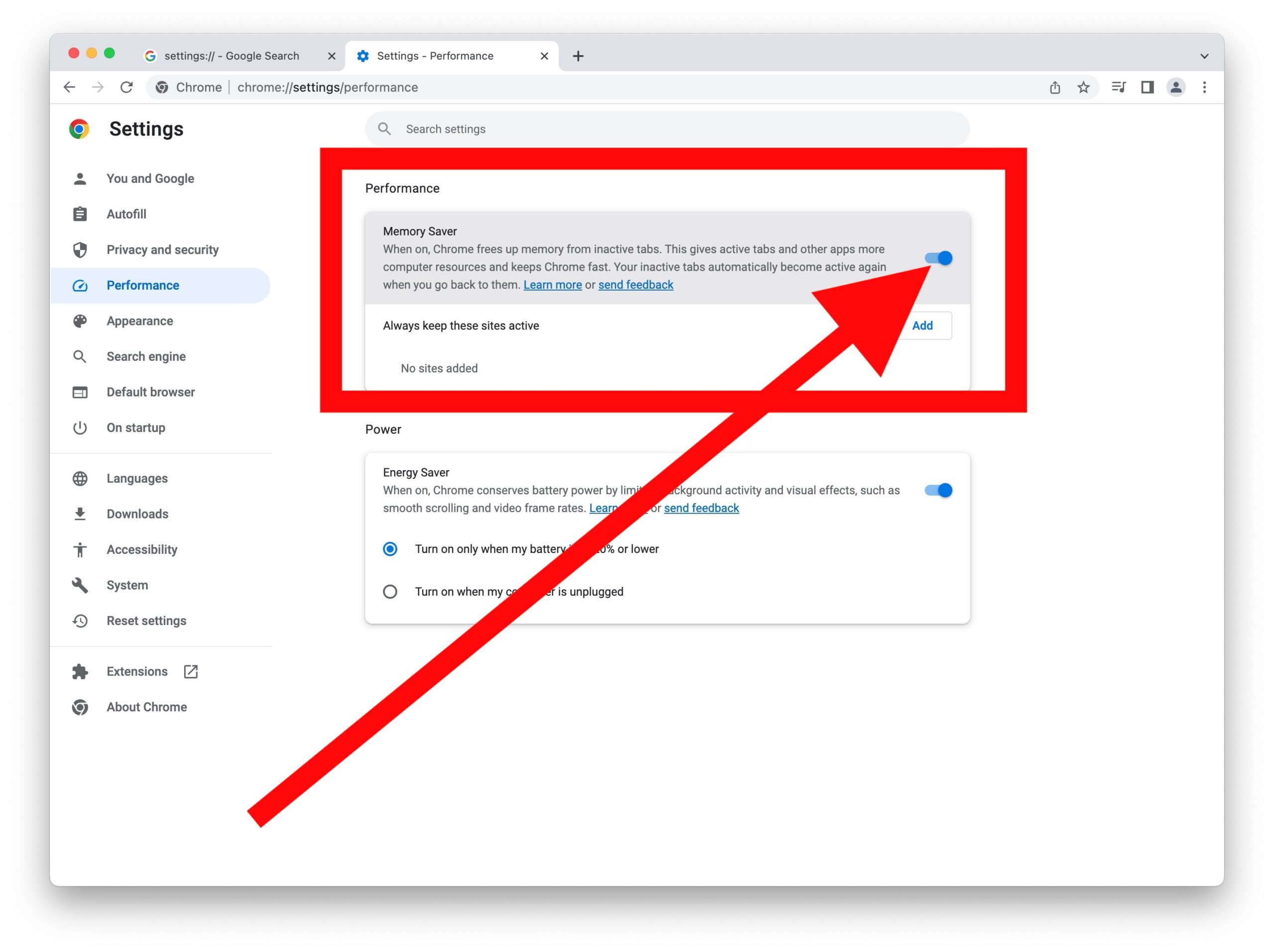
Click Performance on the left menu.
-
Toggle on Memory Saver to automatically free up memory from inactive tabs.
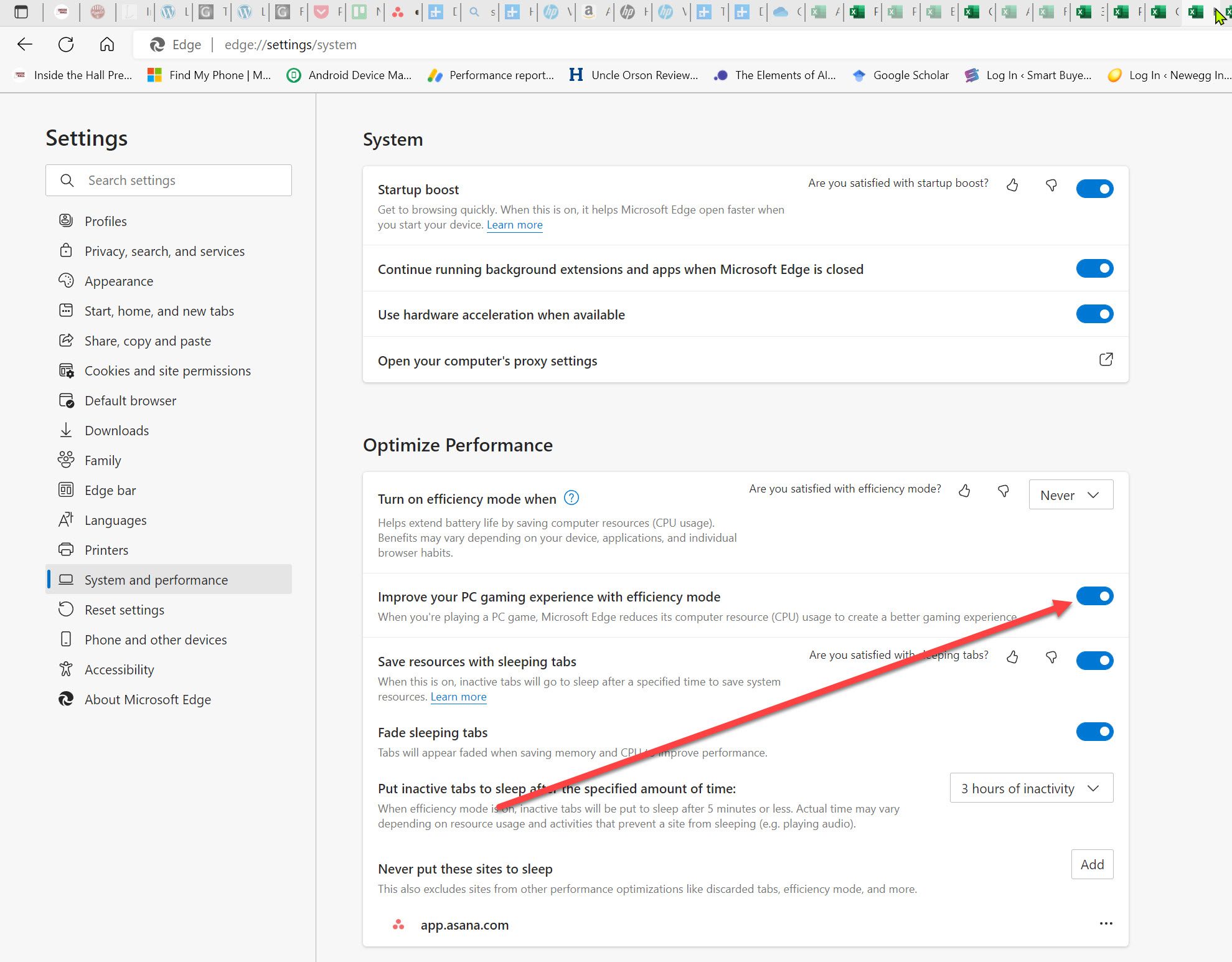
Enabling Efficiency Mode in Microsoft Edge
-
Launch Microsoft Edge and open Settings.
-
Navigate to System and performance.
-
Scroll down to the Optimize Performance section.
-
Toggle on Efficiency mode and select Maximum savings or Balanced.
Method 5: Clear Browser Cache and Reset Settings to Default
Corrupted temporary cache files or misconfigured browser settings can force the CPU into continuous loop processing. Resetting settings restores default configurations without deleting saved bookmarks or passwords.
-
Open your browser settings menu.
-
Access the reset option:
-
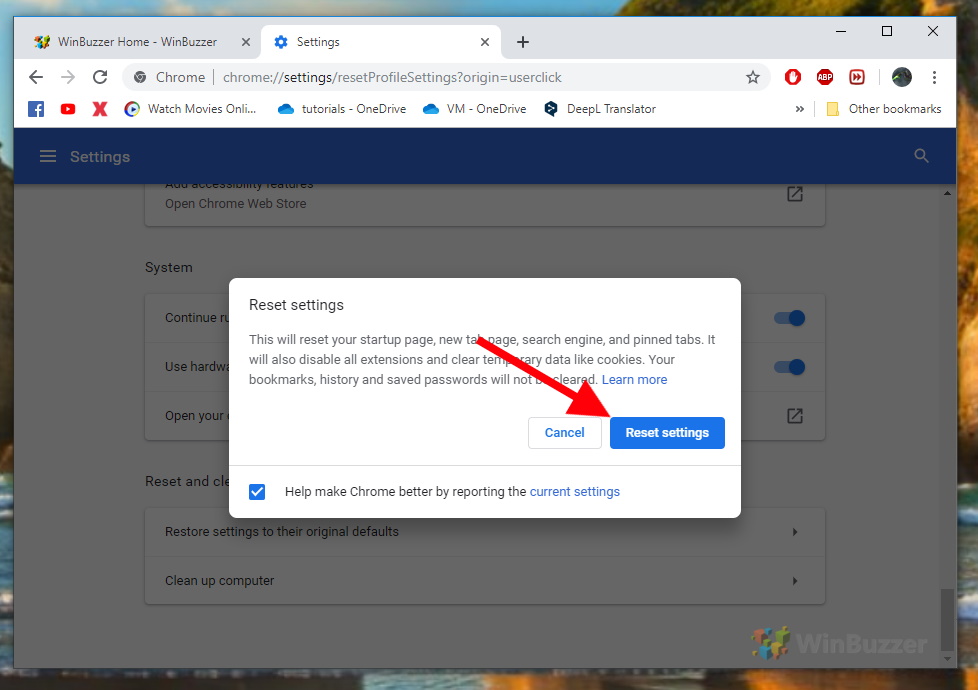
For Chrome: Select Reset settings from the sidebar, then click Restore settings to their original defaults.
-
For Edge: Select Reset settings, then click Restore settings to their default values.
-
-
Click Reset to confirm the action.
-
Restart your computer and check if CPU usage returns to normal levels.
Frequently Asked Questions (FAQ)
Why does Chrome or Edge use so much CPU when no tabs are open?
Background processes, startup apps, active extensions, or pre-loading features continue to run even when all main windows are closed. Disabling background apps under browser settings resolves this behavior.
Will disabling hardware acceleration slow down my browsing experience?
Disabling hardware acceleration slightly impacts high-definition video playback or 3D web games, but it stabilizes general browsing performance and eliminates severe CPU spikes caused by buggy GPU drivers.
How much CPU usage by a web browser is considered normal?
During active page loading or video streaming, temporary CPU spikes of 15% to 30% are normal. However, idle browser usage consistently exceeding 50% indicates an underlying configuration issue or extension conflict.
Conclusion
High CPU usage in Google Chrome and Microsoft Edge is almost always tied to faulty extensions, misconfigured graphics acceleration, or resource-heavy background tabs. By using the built-in browser Task Manager and optimizing performance settings, you can drastically reduce system load. Following these steps ensures a faster, smoother browsing experience while keeping your computer running cool and quiet.

Pony Lorenzo is the lead technical writer and managing editor at Finauraly Win. With extensive experience in operating system maintenance, software diagnostic testing, and digital productivity tools, Pony specializes in breaking down complex technical errors into actionable, step-by-step troubleshooting guides for Windows, macOS, Android, and Web applications.