
Exporting saved passwords from your web browser creates a plain-text file (typically a CSV) that contains your sensitive logins, usernames, and passwords. Because these files are completely unencrypted, saving them safely requires strict precautions.
Prerequisites & Security Warm-Ups
-
Secure Your Environment: Ensure you are on a private Wi-Fi network and no one is watching your screen.
-
Prepare Storage: Have an encrypted USB drive, an offline folder, or a dedicated password manager ready before exporting.
-
Know System Credentials: Prepare your Windows Password/PIN or Mac Administrator Password, as your browser will prompt for OS authentication before exporting.
Method 1: Export Passwords from Google Chrome
Google Chrome allows you to export credentials directly from its built-in Password Manager.
-
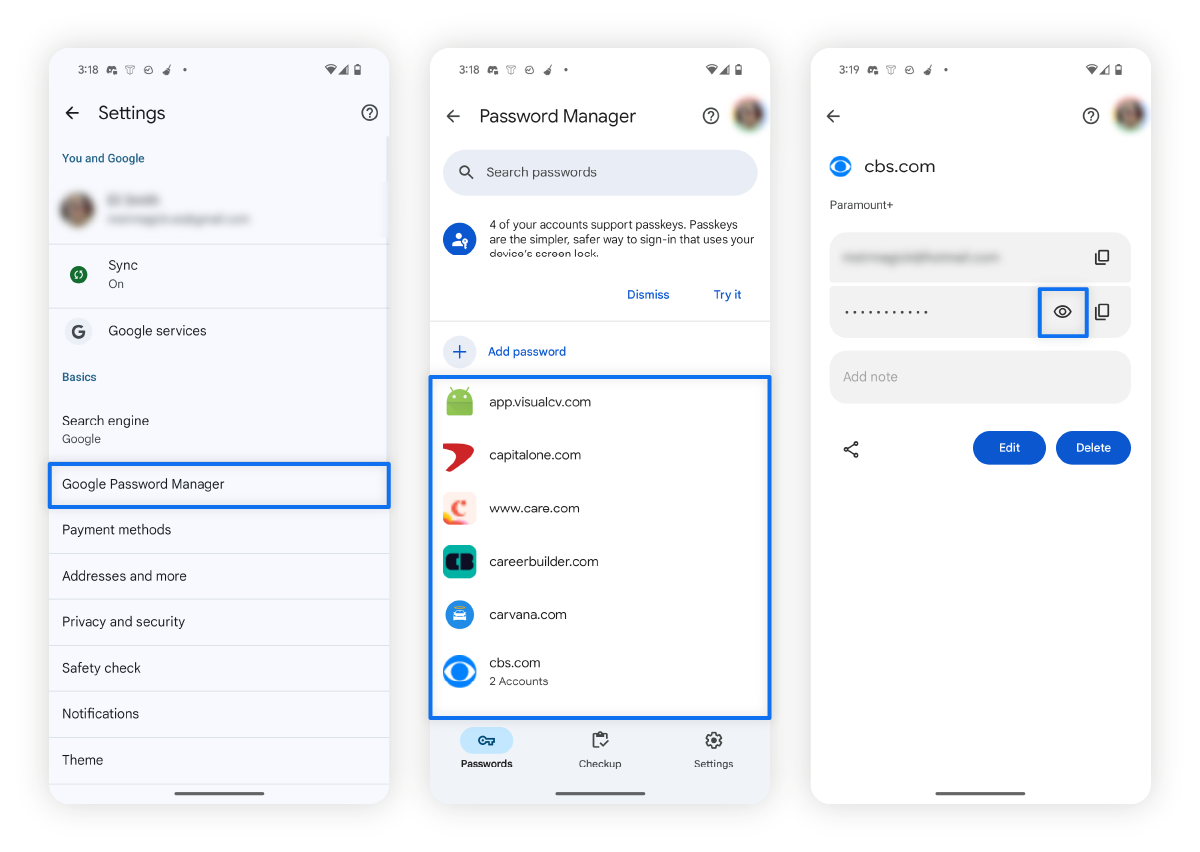
Open Google Chrome and click the Three Dots Menu in the top-right corner.
-
Hover over Passwords and autofill and select Google Password Manager.
-
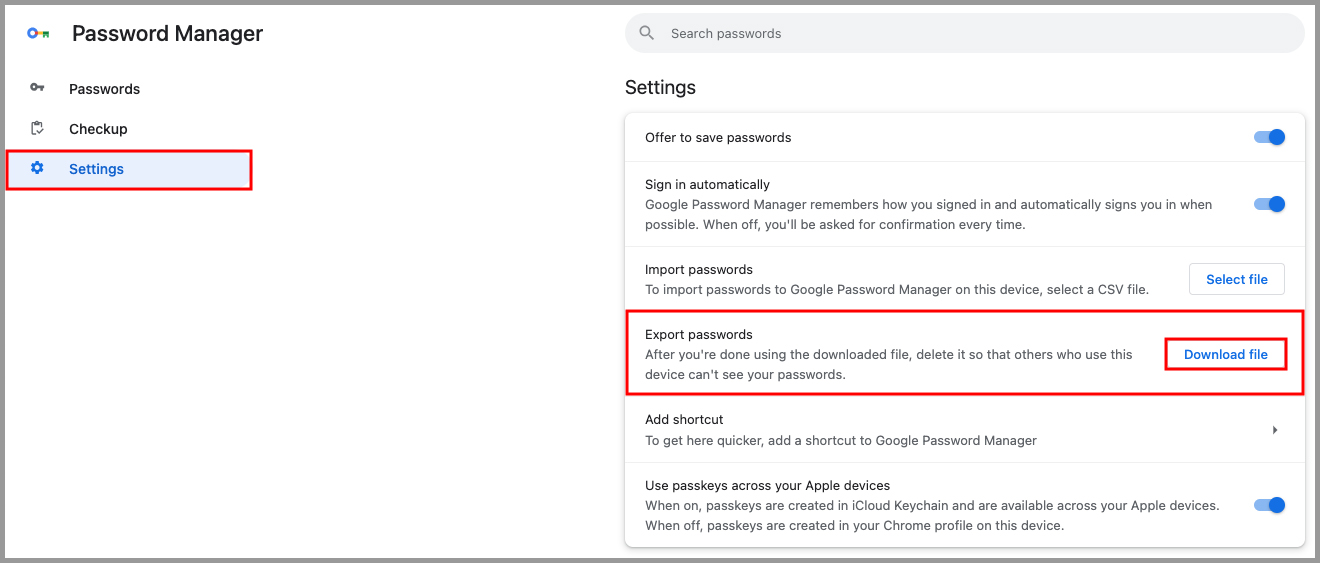
Click Settings from the left-side navigation panel.
-
Locate the Export passwords section and click Download file.
-
Take a Fresh Screenshot: Open Google Chrome, navigate to
chrome://password-manager/settingsin your address bar, and capture a clean screenshot directly from your own browser window.
-
Enter your Windows PIN or Mac Administrator password to confirm your identity.
-
Choose a local destination and save the
.csvfile.
Method 2: Export Passwords from Microsoft Edge
Microsoft Edge routes password management through its Wallet interface.
-
Launch Microsoft Edge and click the Three Dots Menu.
-
Select Settings and navigate to Profiles in the left sidebar.
-
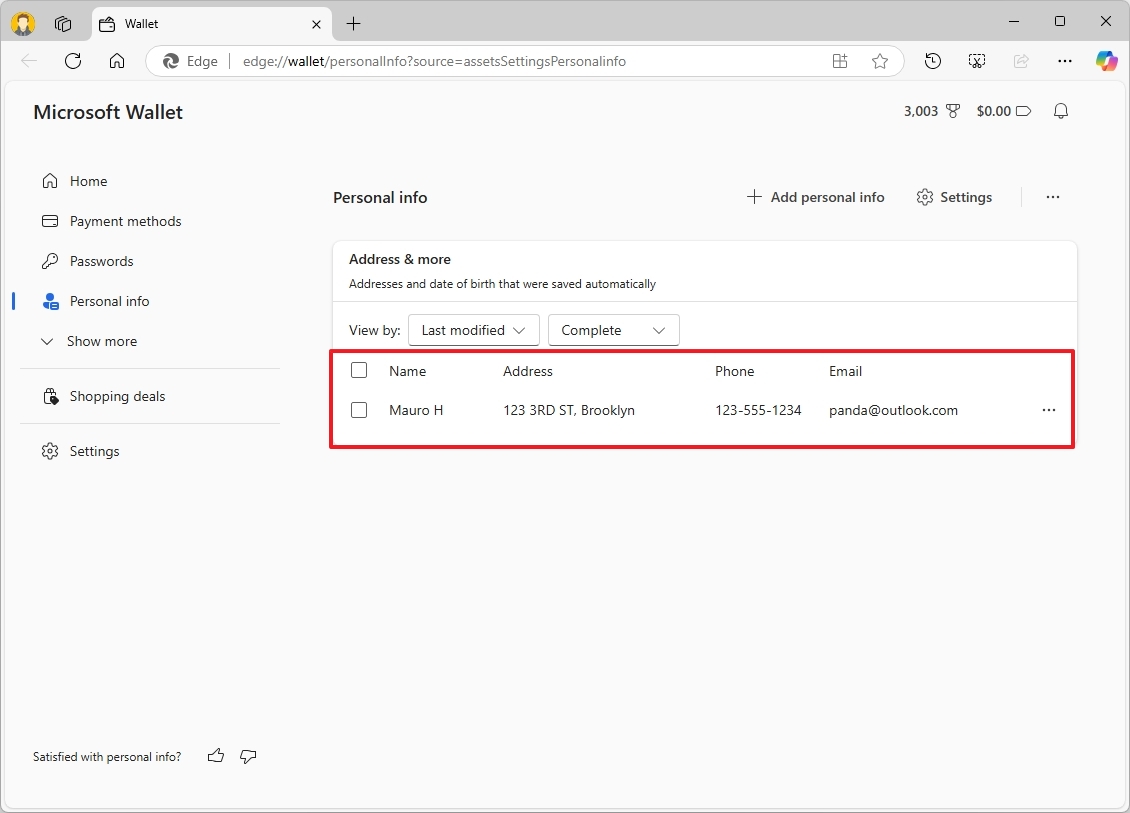
Click on Passwords (or Wallet).
-
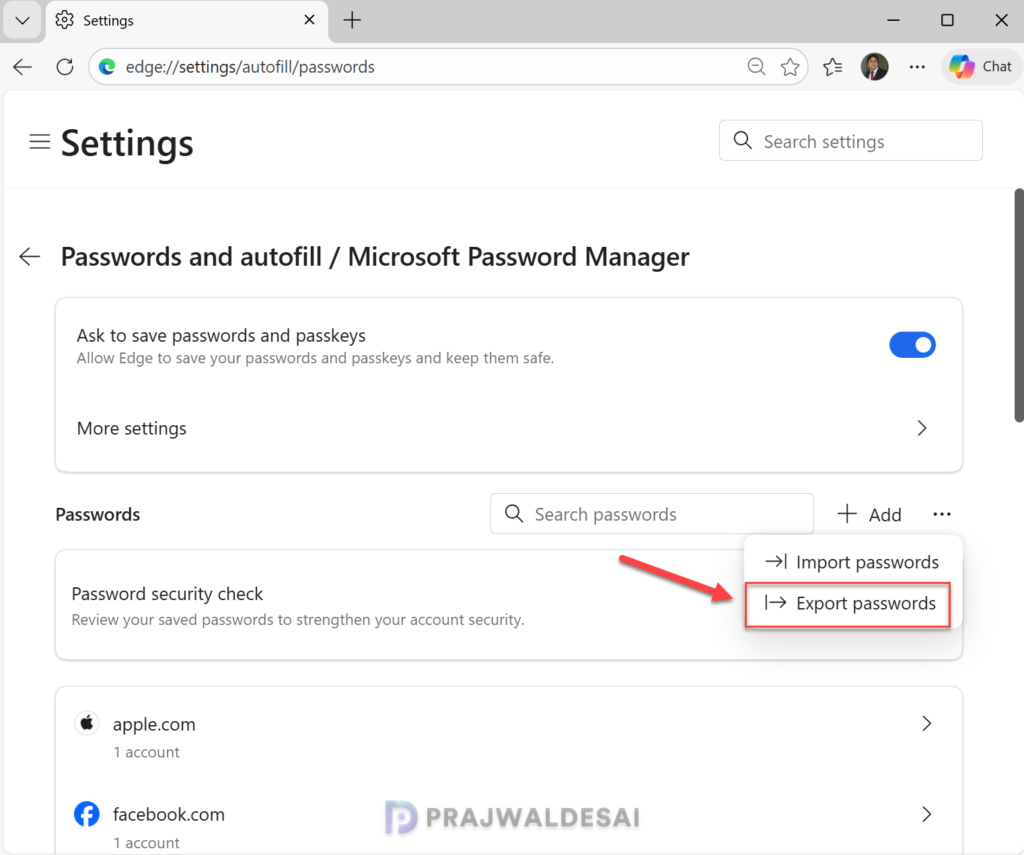
Scroll to the Saved passwords section and click the Three Dots Menu next to the section heading.
-
Select Export passwords.
-
Click Export passwords on the warning prompt, enter your OS login password, and save the CSV file.
Method 3: Export Passwords from Mozilla Firefox
Firefox uses a dedicated lockbox page for managing login credentials.
-
Open Mozilla Firefox and click the Application Menu (three horizontal lines) in the top-right corner.
-
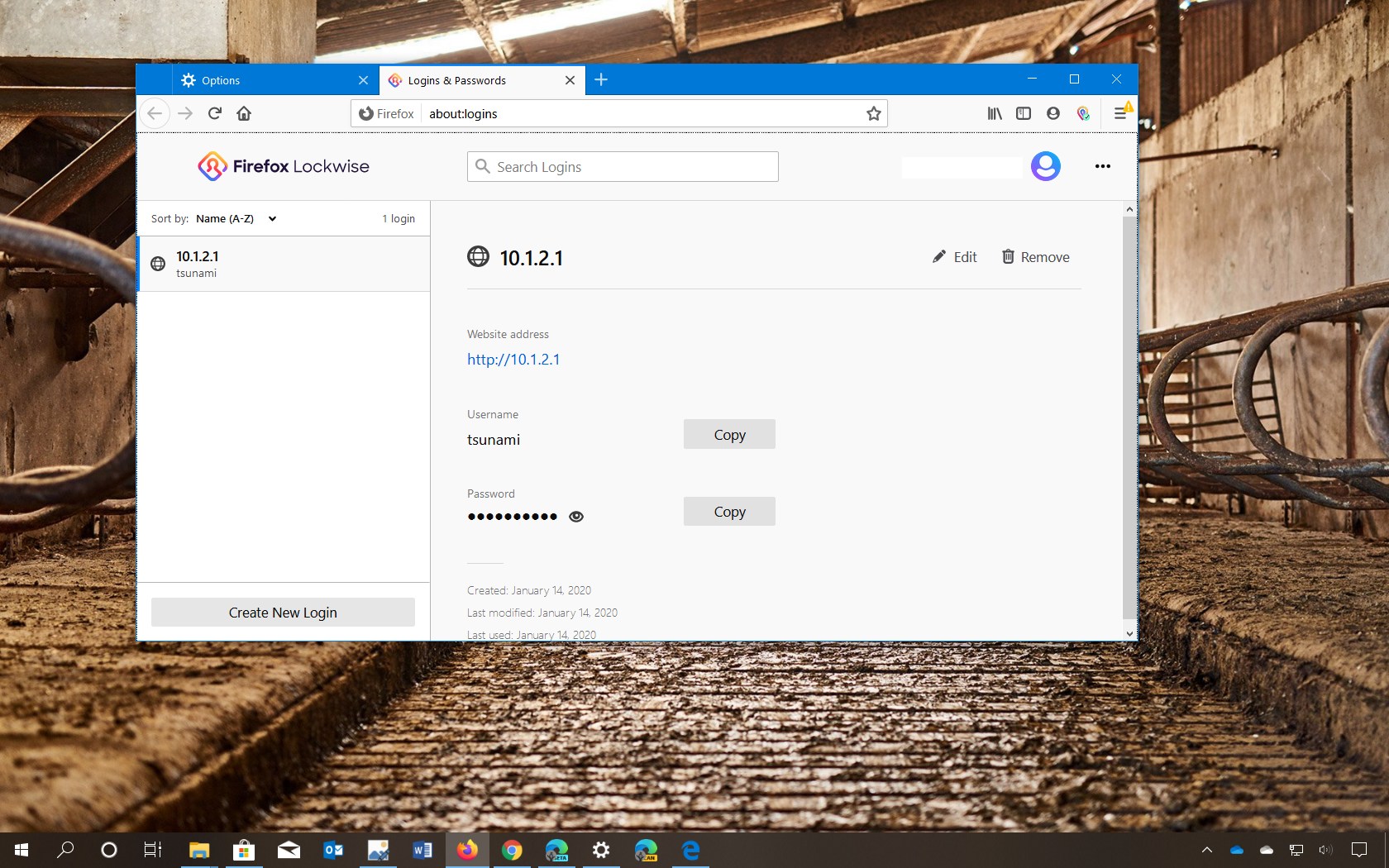
Click Passwords (or Logins and Passwords).
-
Click the Three Dots Menu in the top-right corner of the
about:loginspage. -
Click Export Logins…
-
Read the plain-text security warning and click Export…
-
Enter your device password or Primary Password if prompted, then click Save.
Method 4: Export Passwords from Brave Browser
Brave shares a Chromium framework with Chrome, making its export process almost identical.
-
Open Brave and click the Main Menu (three lines).
-
Select Settings and navigate to Autofill and passwords.
-
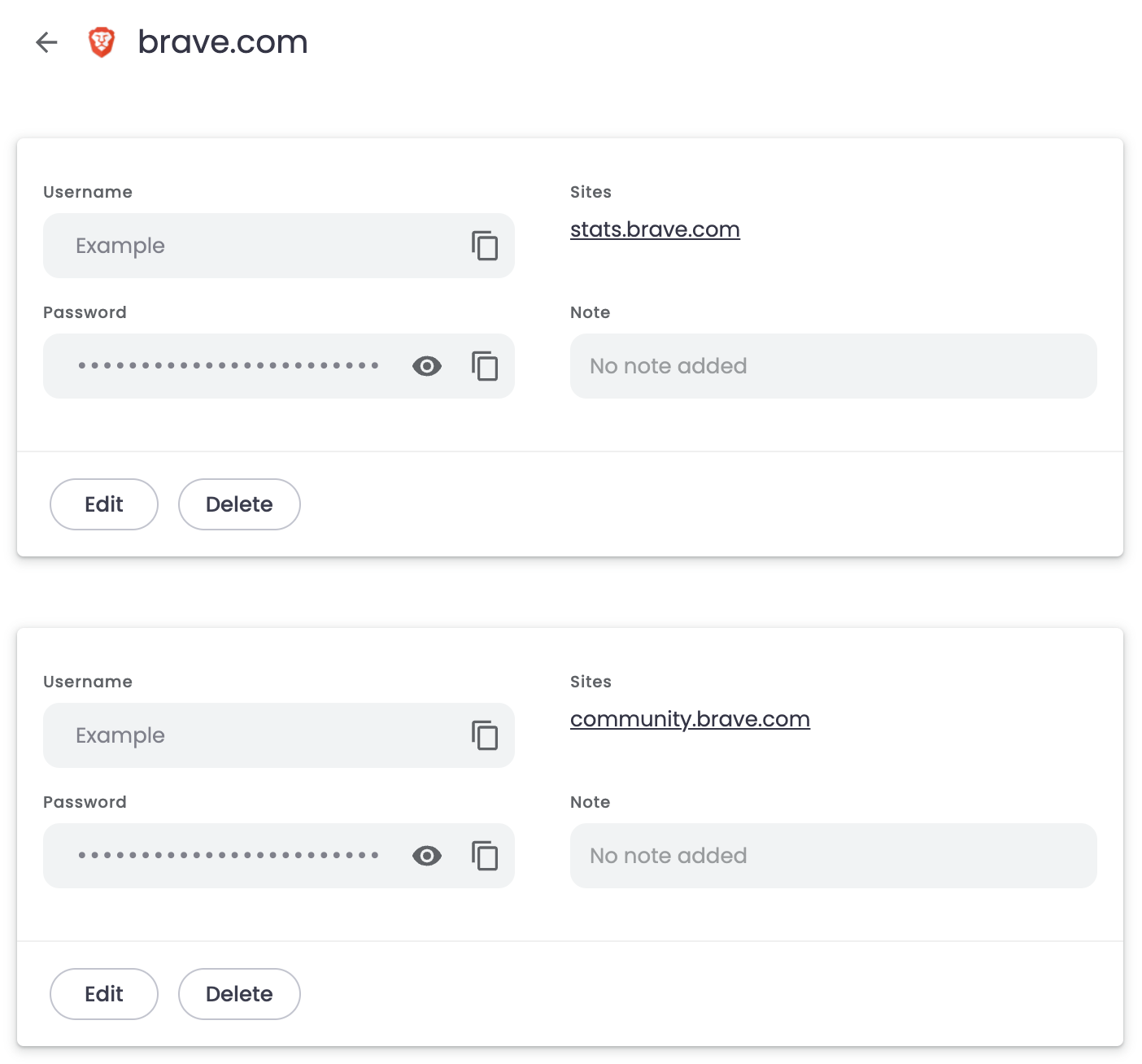
Click Password Manager.
-
Select Settings from the left panel.
-
Under Export passwords, click Download file.
-
Authenticate with your device PIN/Password and choose your target directory.
Method 5: Safely Store, Encrypt, and Delete Unencrypted Backup Files
Exporting raw password files creates an extreme security hazard if left unprotected on your local disk.
-
Import Immediately: Import the CSV file into a secure, end-to-end encrypted password manager (such as Bitwarden or 1Password).
-
Encrypt the File (If Storing Locally):
-
Use an open-source encryption tool like 7-Zip or VeraCrypt.
-
Right-click the saved CSV file, choose 7-Zip > Add to archive…, set an AES-256 encryption algorithm, and set a complex password.
-
-
Permanently Shred the Original CSV:
-
Do not simply send the file to the Recycle Bin or Trash.
-
Use a secure file shredder or empty your Recycle Bin immediately after clearing local temporary storage.
-
Frequently Asked Questions (FAQ)
Why is my exported password file saved as an unencrypted CSV?
CSV (Comma Separated Values) is a standardized format accepted by virtually all web browsers and password managers. Because it stores raw text without built-in encryption, you must protect or delete the file manually after use.
Can I export passwords from my mobile browser?
Yes. Both Chrome and Edge on iOS and Android support password exports via their respective Settings > Password Manager menus, requiring biometric authentication (Face ID/Fingerprint) before generating the file.
What happens if I lose my exported CSV file?
Anyone who accesses or opens the file can view all your saved accounts, usernames, and plain-text passwords. If you lose an unencrypted file, immediately change the passwords for all sensitive accounts contained within that file.
Conclusion
Exporting saved passwords from modern web browsers is a straightforward process, but handling the resulting plain-text file requires absolute care. By using native browser tools, authenticating through your operating system, and immediately encrypting or deleting raw CSV files, you can back up your login credentials safely without exposing your digital identity.

Pony Lorenzo is the lead technical writer and managing editor at Finauraly Win. With extensive experience in operating system maintenance, software diagnostic testing, and digital productivity tools, Pony specializes in breaking down complex technical errors into actionable, step-by-step troubleshooting guides for Windows, macOS, Android, and Web applications.