

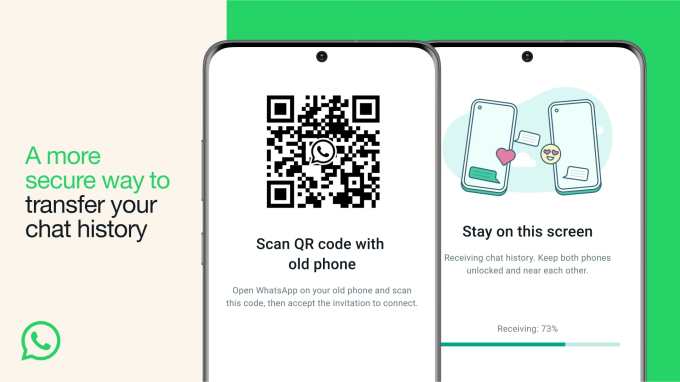
Switching between Android and iOS used to mean leaving your entire WhatsApp message history behind. Because Android stores chat backups on Google Drive while iPhone uses Apple iCloud, direct cloud restores across ecosystems are incompatible. WhatsApp now includes native data migration tools that transfer text messages, media, voice notes, and group chats safely across operating systems.
This guide provides step-by-step instructions for transferring WhatsApp chat history from Android to iPhone and from iPhone to Android without losing data.
Prerequisites and Quick Checks
Before beginning the migration process, review these mandatory technical requirements:
-
Matching Phone Numbers: Ensure both your old and new phones use the exact same mobile phone number for WhatsApp verification.
-
Network & Battery Readiness: Connect both devices to the same Wi-Fi network and plug them into chargers to prevent shutdown during transfer.
-
App Version Check: Update WhatsApp on both devices to the latest available version via the Google Play Store or Apple App Store.
-
Target Device State: The receiving device must be factory reset or restored to its initial setup screen to pair with native system migration utilities.
Solution 1: Transfer WhatsApp Chats from Android to iPhone
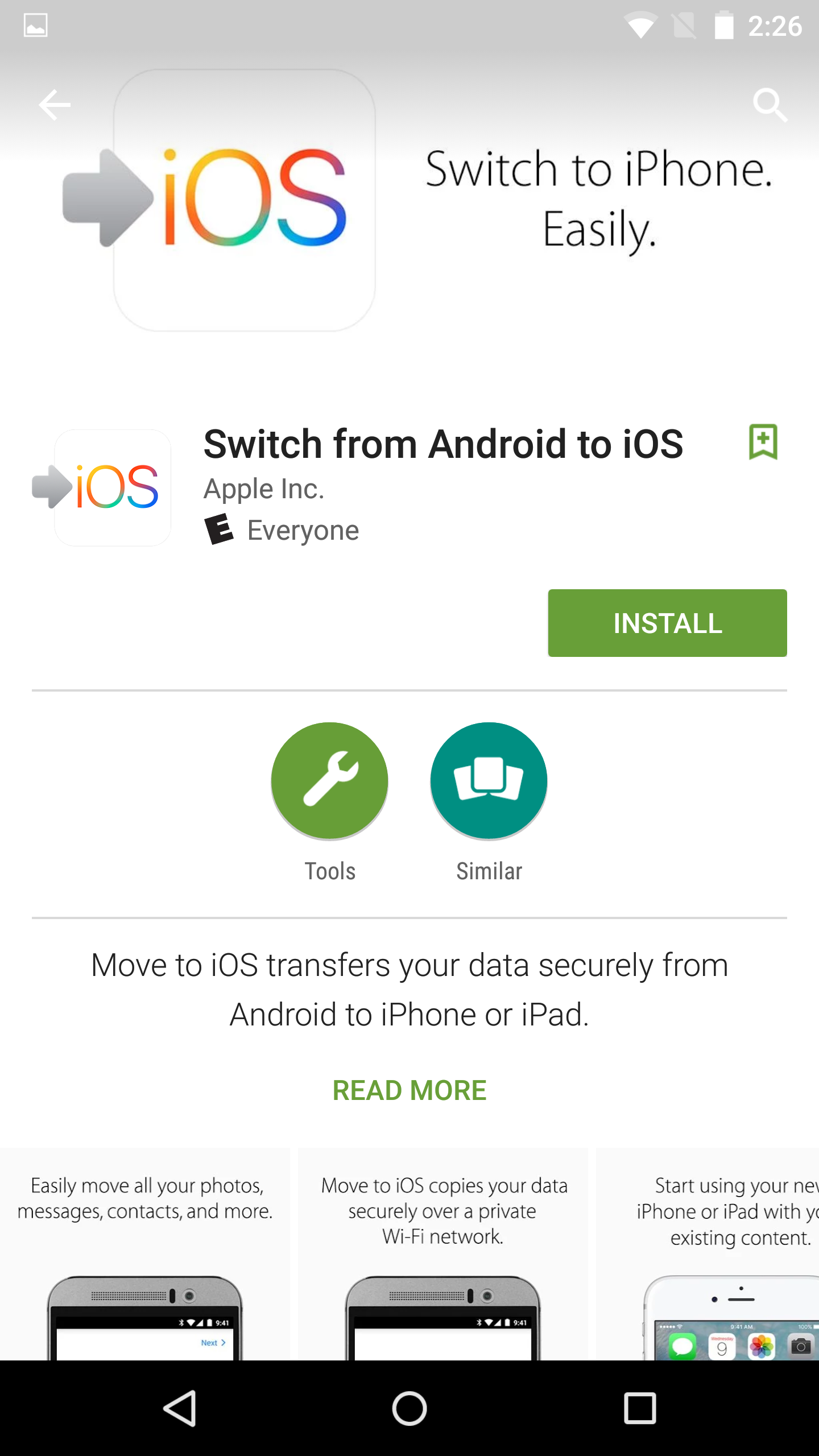
To move WhatsApp chats from Android to iOS, you will use Apple’s official Move to iOS companion app. This tool transfers your WhatsApp chat database directly over a encrypted Wi-Fi connection.
Download and install the Move to iOS app from the Google Play Store on your old Android device. Open the app and accept the permissions.
Turn on your new or factory-reset iPhone and begin initial setup. When you reach the Apps & Data screen, tap Move Data from Android.
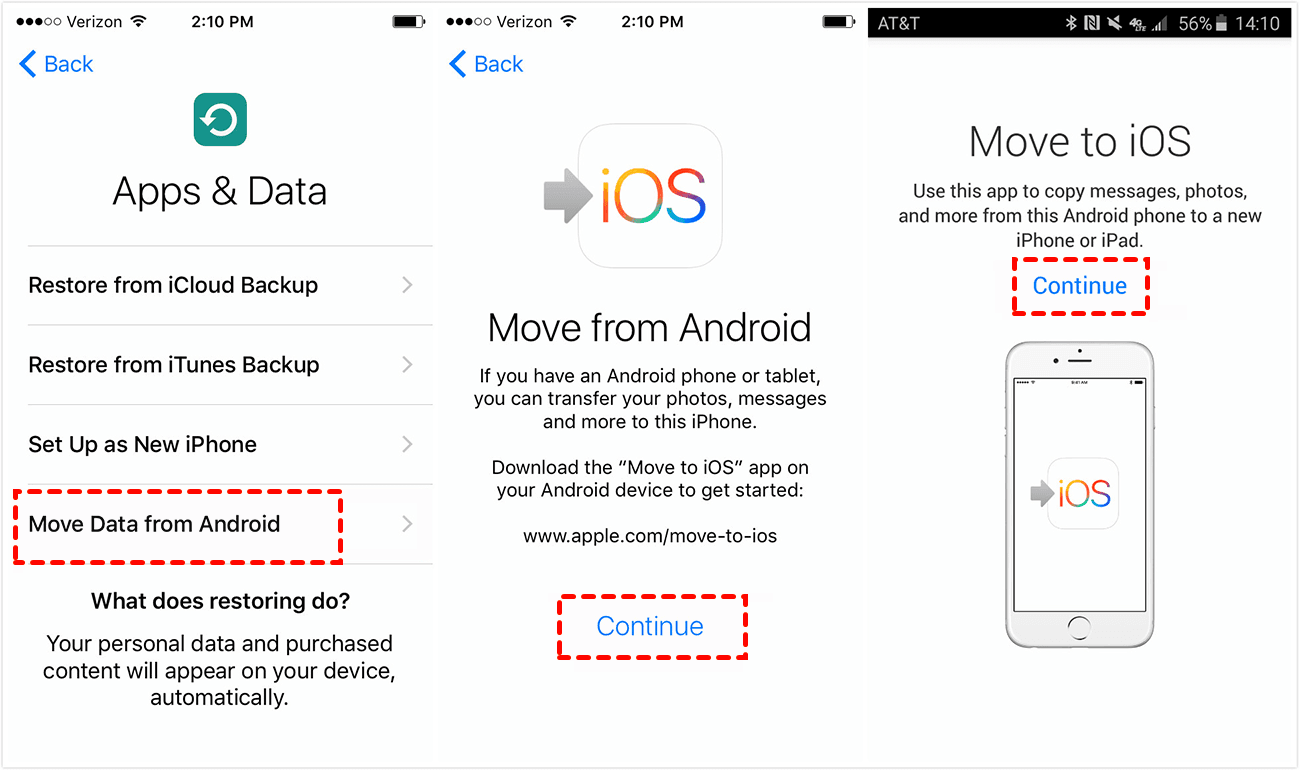
A six-digit or ten-digit code will display on your iPhone screen. Open Move to iOS on your Android phone, enter this code, and establish a local Wi-Fi pairing.
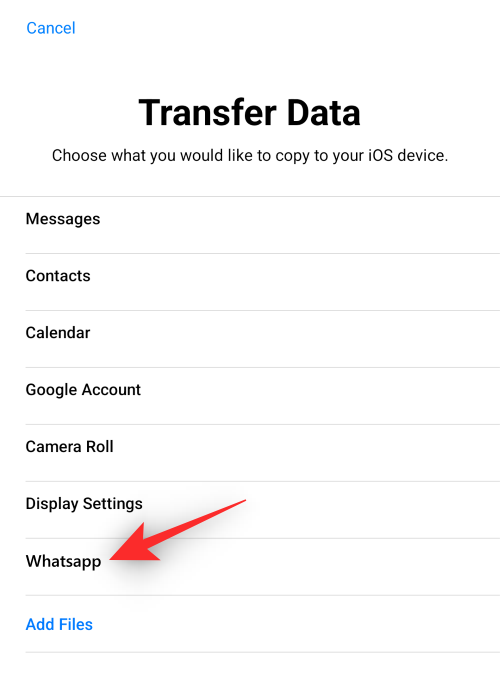
On the Transfer Data screen on your Android phone, select WhatsApp from the list of transferable categories.
Tap Start on the WhatsApp overlay screen. WhatsApp will package your messages and media for migration. Once processed, tap Next to continue in Move to iOS.
Wait for the data transfer progress bar to complete on both devices. Finish setting up your iPhone, download WhatsApp from the App Store, and log in using your phone number.
To verify success, open WhatsApp on your iPhone. Tap Start when prompted to import your chat history, and confirm that all message threads and attached media load into your inbox.
Solution 2: Transfer WhatsApp Chats from iPhone to Android
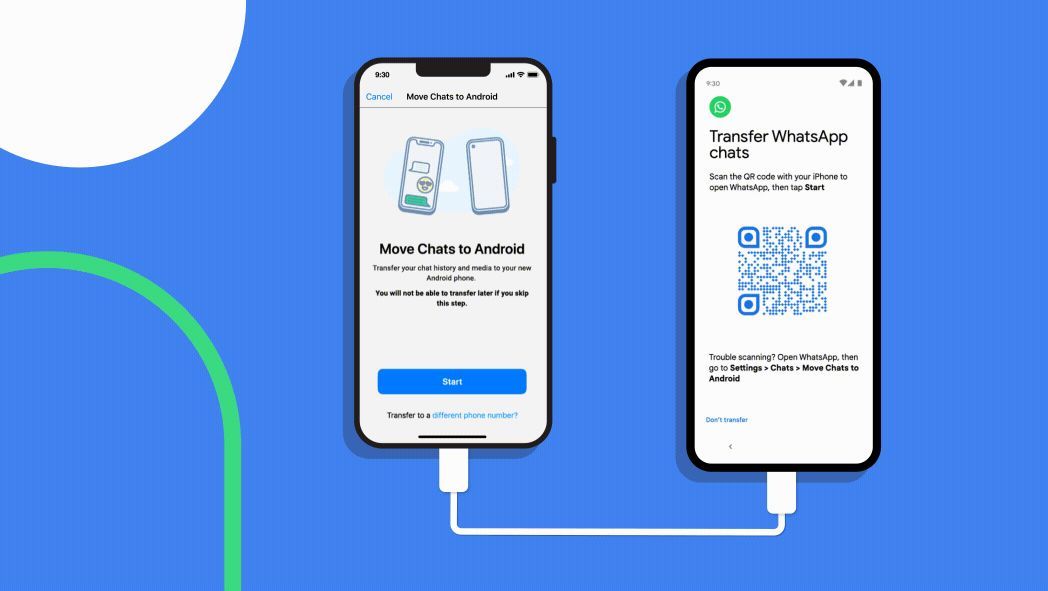
Moving your chats from an iPhone to an Android device relies on a physical cable connection (USB-C to Lightning or USB-C to USB-C) during the initial Android setup process.
-
Turn on your new Android device and tap Start to initiate setup.
-
Connect your iPhone and Android phone together using a compatible cable.
-
Tap Trust on your iPhone screen if prompted.
-
On the Android setup screen, select Copy apps and data.
:max_bytes(150000):strip_icc()/copy-data-iphone-to-android-61c266facf8347aaac43320f5570f256.png)
-
Select WhatsApp when prompted to choose content types for transfer.
-
A QR code will display on your Android screen. Open the Camera on your iPhone and scan the QR code.
-
Alternatively, open WhatsApp on your iPhone, go to Settings > Chats > Transfer Chats to Android, and tap Start.
-
Keep both devices connected and unlocked while the transfer finishes.
-
Complete the Android phone setup, install WhatsApp from the Google Play Store, and verify your phone number.
To verify success, launch WhatsApp on your new Android phone. The app will detect the local database transfer and import all your messages and media automatically.
Solution 3: Export Chats Manually via Email (Individual Threads)
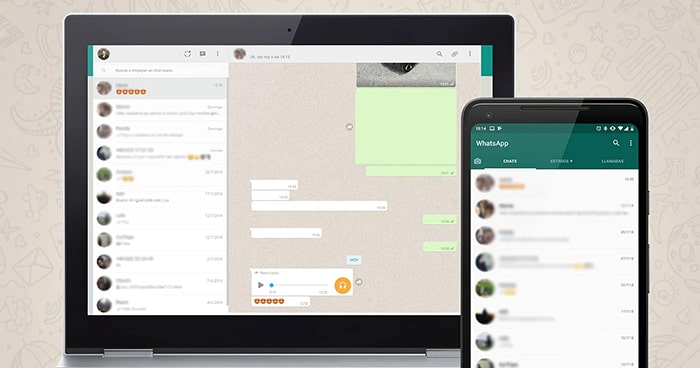
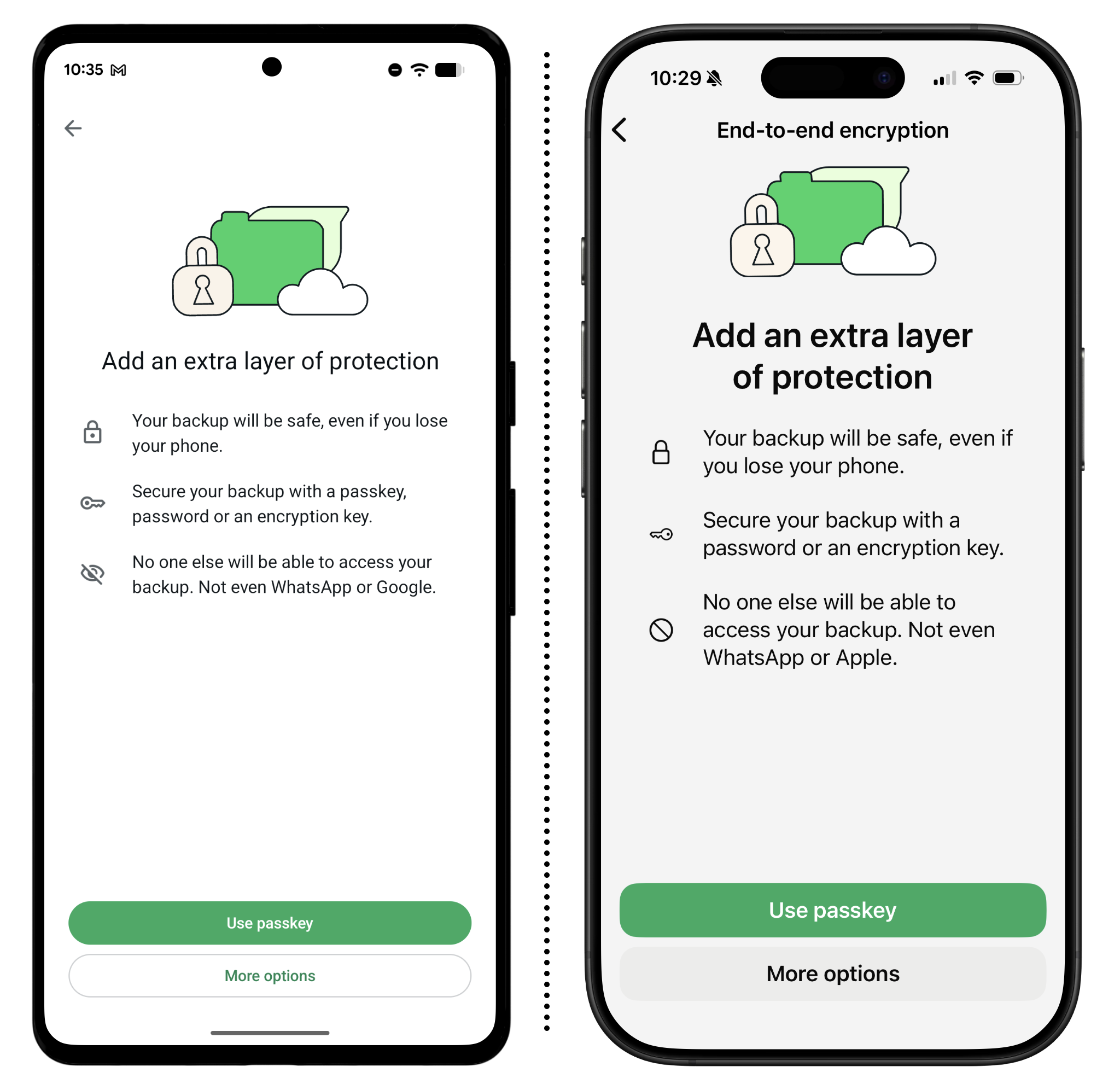
If you only need to back up select conversations without performing a full device migration or factory reset, you can export individual chat logs via email.
-
Open WhatsApp and select the chat thread you want to back up.
-
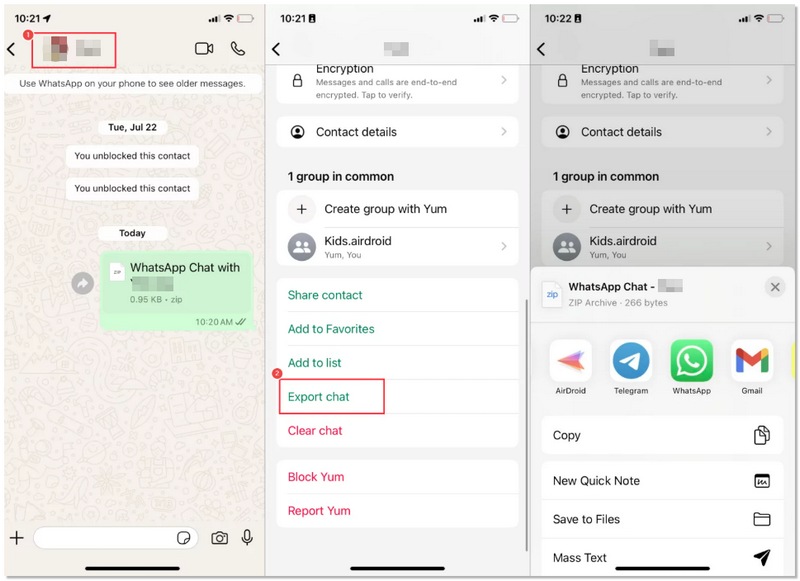
Tap the Contact Name at the top (iOS) or tap the Three Dots in the upper-right corner (Android).
-
Scroll down and tap Export Chat.
-
Choose either Attach Media or Without Media.
-
Select Mail (or your preferred email client) from the share menu.
-
Enter your own email address in the recipient field and tap Send.
To verify success, check your email inbox on any device to confirm that the compressed ZIP folder containing your .txt chat log and attached media files has arrived.
Frequently Asked Questions
Does WhatsApp transfer my call history and status updates?
Your chat threads, media files, voice messages, group chats, and settings transfer completely. However, peer-to-peer call history, star ratings, and uploaded status updates do not migrate across operating systems.
Why does WhatsApp require a physical cable to move from iPhone to Android?
Due to platform security restrictions, iOS blocks direct cloud database access for third-party apps. A physical cable connection allows the system installer to decrypt and re-map the WhatsApp database directly onto the Android OS partition.
What happens to my old WhatsApp data after the transfer?
Your local chat data remains intact on your old phone until you delete the app or factory reset the device. However, your WhatsApp account will log out of the old device as soon as you verify your number on the new phone.
Transferring your WhatsApp message history across operating systems requires proper preparation, matching phone numbers, and using native tools like Move to iOS or direct cable transfer. Following these steps preserves your essential chats and media safely during a platform switch.

Pony Lorenzo is the lead technical writer and managing editor at Finauraly Win. With extensive experience in operating system maintenance, software diagnostic testing, and digital productivity tools, Pony specializes in breaking down complex technical errors into actionable, step-by-step troubleshooting guides for Windows, macOS, Android, and Web applications.