
Encountering the “App Not Installed” or “App Not Installed as Package Appears to be Invalid” error can prevent you from sideloading essential Android applications (APKs). This issue occurs when the Android Package Installer fails to parse, verify, or extract the APK file.
Common triggers include corrupted APK downloads, strict Google Play Protect blocks, OS architecture mismatches, insufficient storage space, or conflicting signature keys from an older app version.
This guide details five effective solutions to resolve the error and successfully install your app.
Prerequisites and Quick Checks
Before attempting advanced fixes, perform these immediate troubleshooting checks:
-
Re-download the APK File: The downloaded file may be incomplete or corrupted. Download it again using a stable connection, preferably from a reputable source like APKMirror.
-
Verify Free Storage Space: Ensure your device has at least 1 GB of free internal storage. Android blocks package installation if memory is critically low.
-
Reboot Your Device: A system restart clears temporary package installer caches and unfreezes system background tasks.
Solution 1: Enable Installation from Unknown Sources
Android blocks installations from third-party browsers and file managers by default. You must explicitly grant permission to the app sourcing the APK file.
Open Settings on your Android device and tap Apps (or Apps & Notifications). Scroll down and select Special app access.

Tap Install unknown apps to view the list of installed applications.
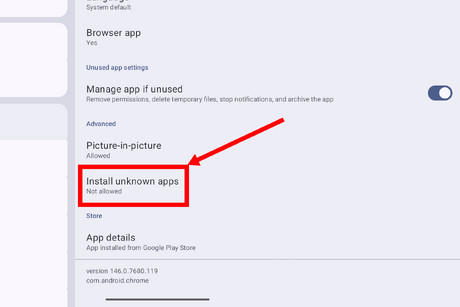
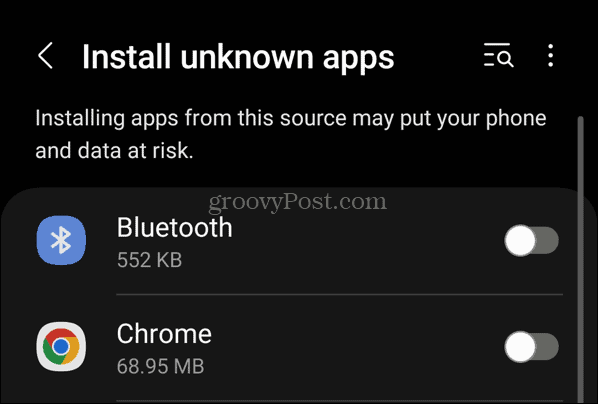
Select the app you are using to launch the APK (e.g., Chrome or My Files). Toggle the switch next to Allow from this source to the On position.
To verify success, open your file manager, tap the APK file again, and check if the package installer prompt launches normally.
Solution 2: Temporarily Disable Google Play Protect
Google Play Protect scans third-party APK files for security threats. If it flags an unsigned or modified application, it actively blocks installation and throws the “App Not Installed” error.
-
Open the Google Play Store app.
-
Tap your Profile Icon in the top-right corner.
-
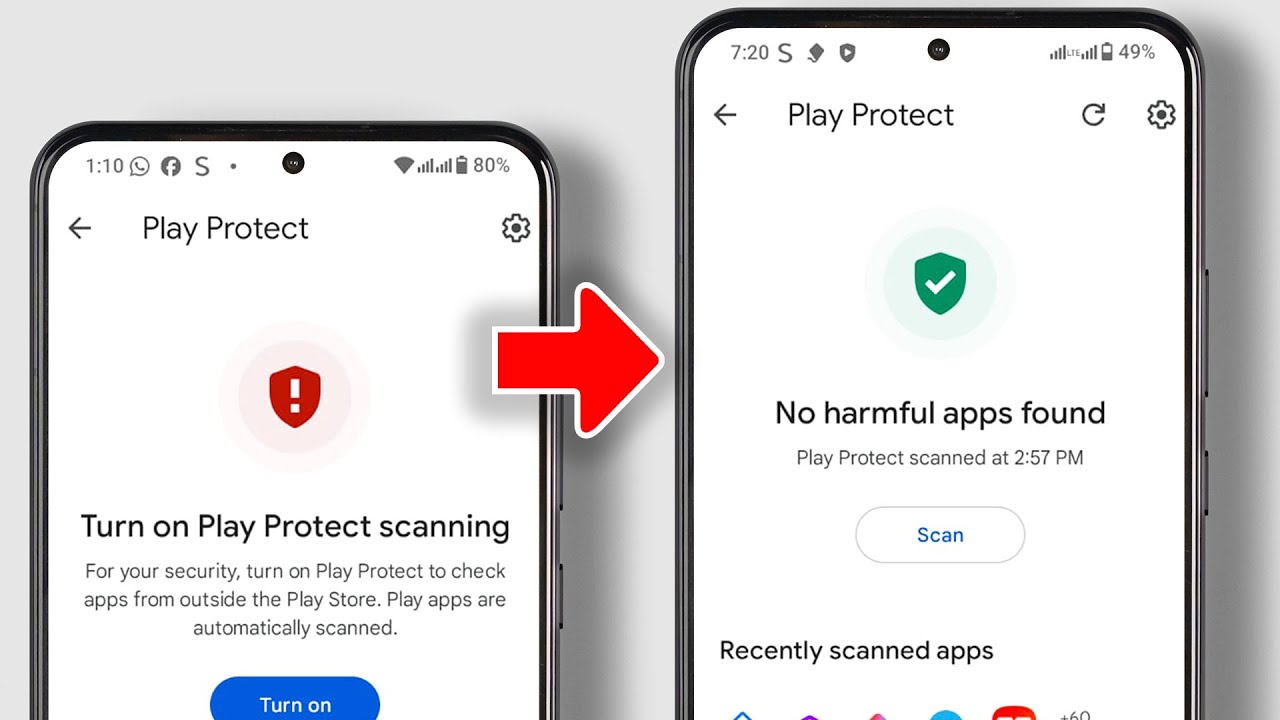
Tap Play Protect.
-
Tap the Gear Icon (Settings) in the top-right corner.
-
Toggle off Scan apps with Play Protect and tap Turn off to confirm.
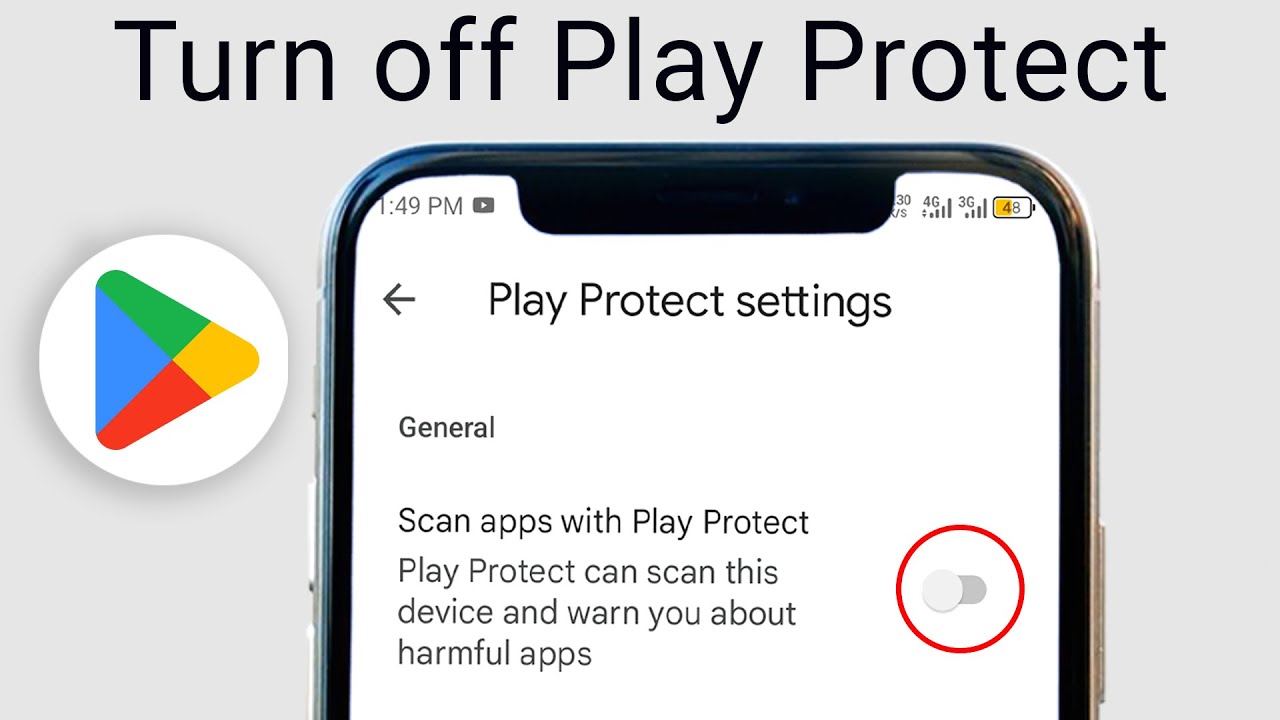
To verify success, launch the APK file installer. If Play Protect was causing the issue, the installation should complete without being blocked.
Solution 3: Uninstall Conflicting App Versions
Android cannot install an APK if an older or official version of the same app already exists on your phone with a different cryptographic signature key.
-
Locate the existing version of the app on your home screen or App Drawer.
-
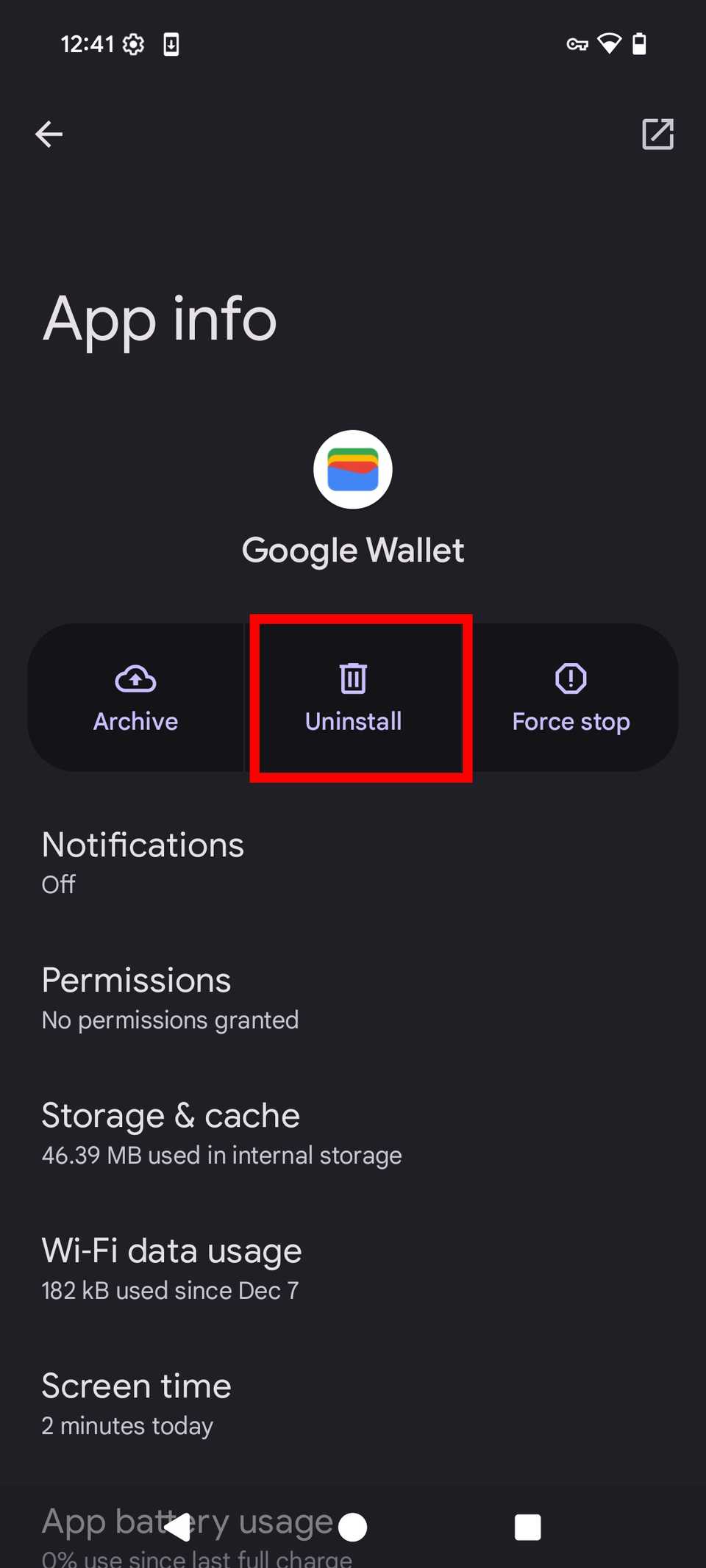
Long-press the App Icon and select App info (or tap the “i” icon).
-
Tap Uninstall and select OK to remove it completely.
-
Open your File Manager, navigate to the Downloads folder, and tap the new APK file to begin installation.
To verify success, check that the package installer creates a clean installation without referencing pre-existing data.
Solution 4: Reset Package Installer Cache and Data
If the system’s native Package Installer app accumulates corrupted cache files, it fails to parse valid application packages.
-
Open Settings and tap Apps.
-
Tap the Three Dots in the top-right corner and select Show system apps.
-
Scroll down and tap Package Installer.
-
Tap Storage & cache.
-
Tap Clear Cache, then tap Clear Storage (or Clear Data).
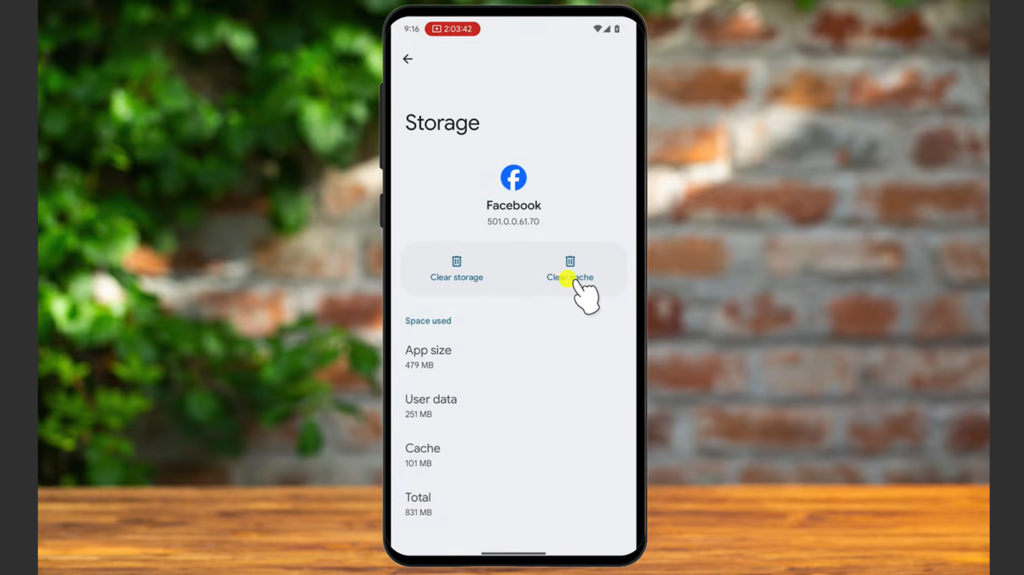
To verify success, launch your APK file once more to confirm the Package Installer runs smoothly.
Solution 5: Reset System App Preferences
Resetting app preferences restores default permissions, background data restrictions, and installer defaults without deleting your personal files or app data.
-
Open Settings and select System (or General Management).
-
Tap Reset options.
-
Select Reset app preferences.
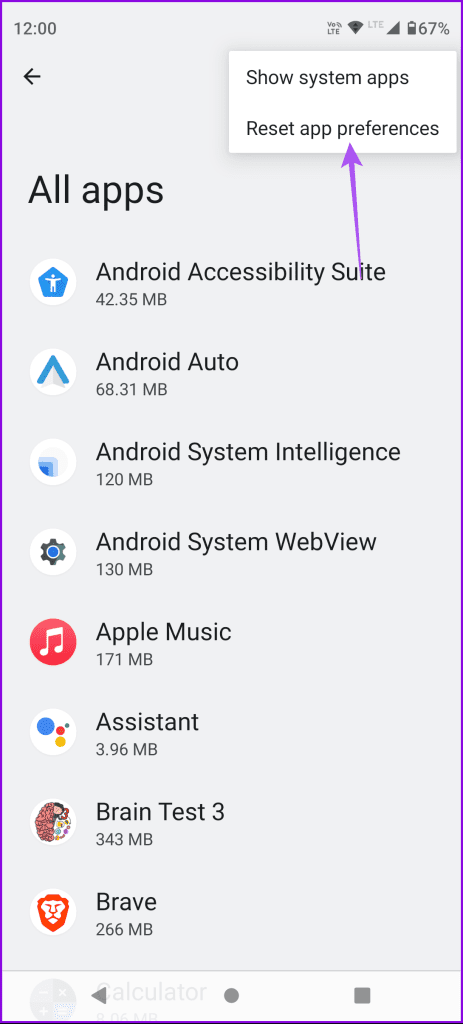
-
Tap Reset apps on the confirmation dialog prompt.
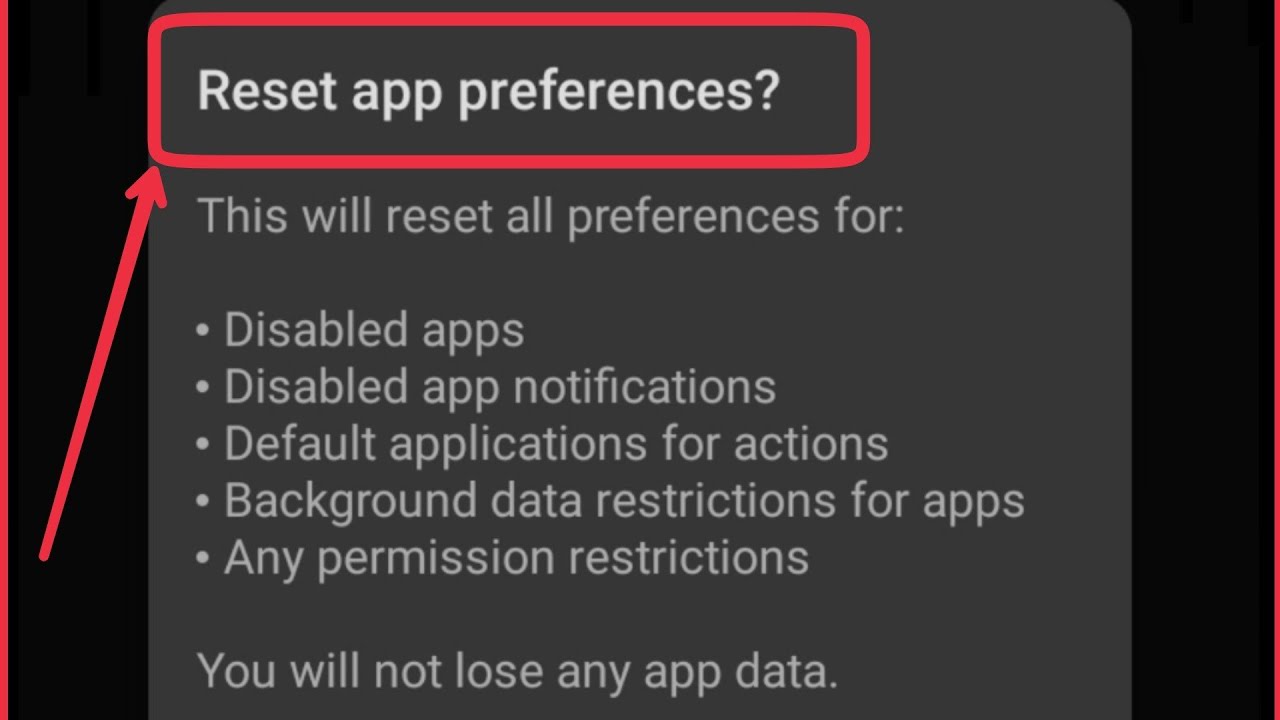
To verify success, tap your APK file. The system will prompt you to choose an installer app and proceed with the setup.
Frequently Asked Questions
Why does Android say “Package appears to be invalid”?
This error usually means the APK file was corrupted during download, incomplete, or compiled for a different processor architecture (e.g., trying to install a 64-bit APK on a 32-bit operating system).
Is it safe to install APK files from unknown sources?
It depends on the source. Official app stores and trusted repositories like APKMirror scan files for safety. Downloading APKs from unverified websites poses malware and security risks.
Can I install an APK file that has a lower version than my current app?
No. Android’s native installer prevents downgrading apps over existing installations. You must uninstall the newer version completely before installing an older APK build.
Clearing system installer caches, allowing installation permissions for your file manager, and disabling temporary Play Protect scans resolves the vast majority of package installation errors on Android.

Pony Lorenzo is the lead technical writer and managing editor at Finauraly Win. With extensive experience in operating system maintenance, software diagnostic testing, and digital productivity tools, Pony specializes in breaking down complex technical errors into actionable, step-by-step troubleshooting guides for Windows, macOS, Android, and Web applications.