
Camera and microphone blocking usually comes down to two issues: browser-level permissions (which typically affect web-based tools like Google Meet) or operating system privacy controls (which often block installed applications like Zoom).
Prerequisites & Quick Checks
-
Check Physical Switches: Inspect your laptop frame or webcam for a physical camera slider, switch, or a functional keyboard shortcut (often F10 or Fn + F6) that toggles hardware power off.
-
Close Competing Apps: Ensure no other app (e.g., Teams, Skype, or a local camera app) is running in the background and locking the hardware.
-
Check In-App Mute Controls: Verify that your mic or video is not simply toggled off within the call window itself.
Method 1: Unblock Permissions in Your Web Browser (Google Meet & Zoom Web)
Google Meet operates entirely in your web browser, and Zoom often runs via the web client. If permissions were accidentally denied, the browser prevents the site from triggering hardware prompts.
Unblocking Access in Google Chrome
-
Open Google Chrome and navigate to
[https://meet.google.com](https://meet.google.com)or[https://zoom.us](https://zoom.us). -
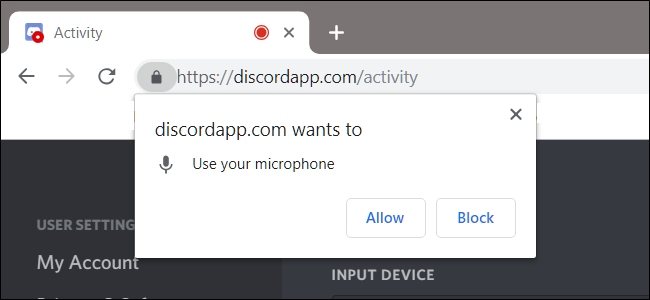
Click the View site information icon (or lock icon) on the left side of the address bar.
-
Locate Camera and Microphone in the drop-down menu.
-
Change both options from Block to Allow.
-
If permissions are not listed, click Site settings, locate Permissions, and toggle Camera and Microphone to Allow.
-
Refresh the page to apply changes.
Unblocking Access in Microsoft Edge
-
Open Microsoft Edge and load your meeting site (
meet.google.comorzoom.us). -
Click the Lock icon next to the URL in the address bar.
-
Change the dropdown selections for Permissions for this site to Allow for both Camera and Microphone.
-
Reload the page.
Method 2: Enable System-Level Privacy Settings in Windows
Windows features global privacy filters that override browser and application settings. If system permissions are switched off, apps like the Zoom desktop client will fail to detect hardware.
Configuring Camera Privacy Settings
-
Open the Start menu and select Settings (or press Windows Key + I).
-
Click Privacy & security (Windows 11) or Privacy (Windows 10) in the left panel.
-
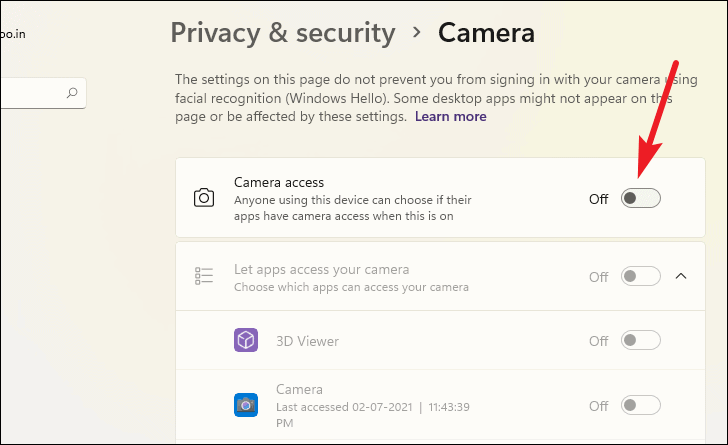
Scroll down under App permissions and click Camera.
-
Toggle Camera access to On.
-
Ensure Let apps access your camera is turned On.
-
Scroll further down to Let desktop apps access your camera and toggle it On (this step is critical for Zoom Desktop and web browsers).
Configuring Microphone Privacy Settings
-
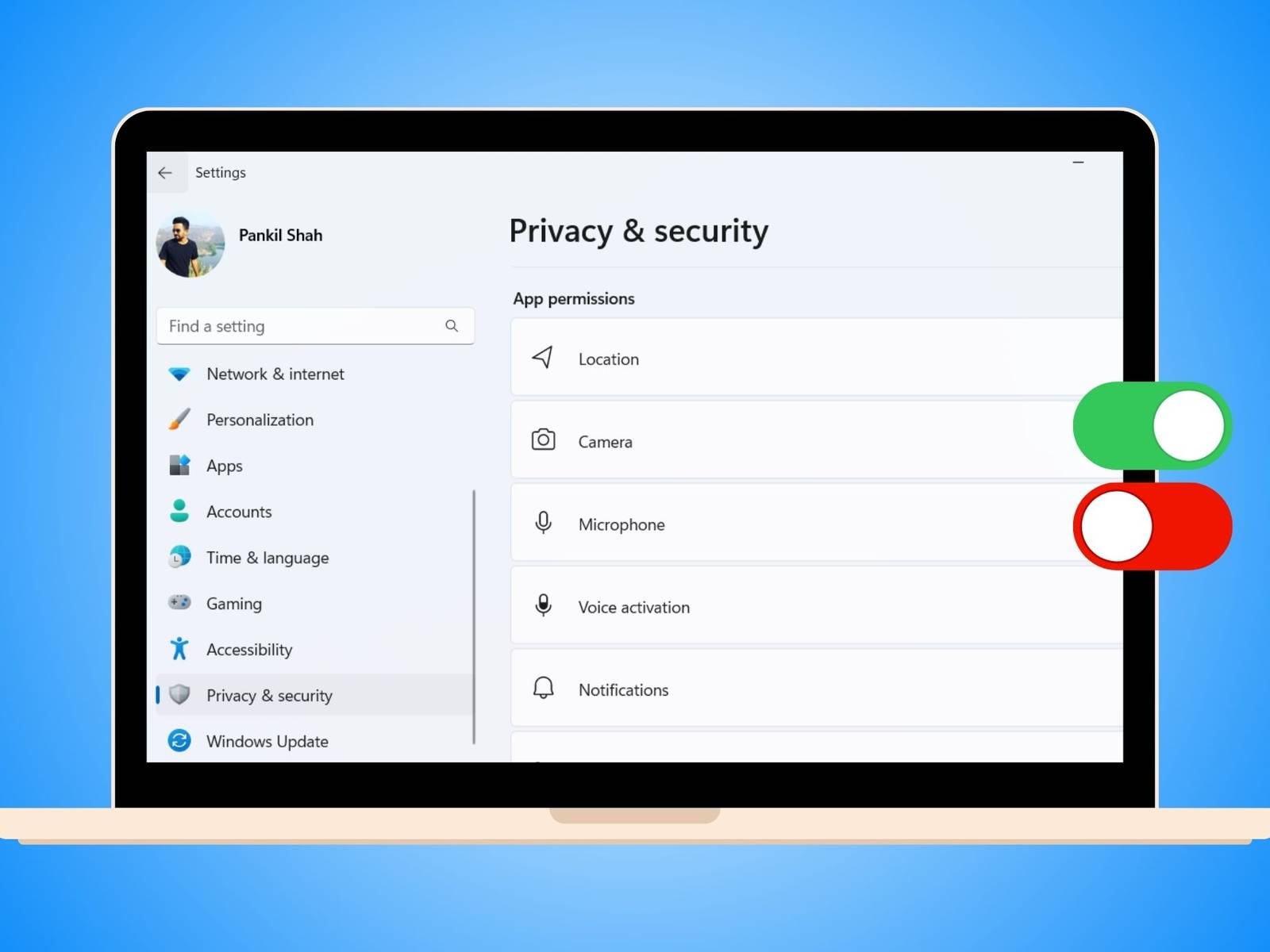
Go back to Privacy & security and select Microphone.
-
Toggle Microphone access to On.
-
Switch Let apps access your microphone to On.
-
Scroll down to Let desktop apps access your microphone and turn the switch On.
Method 3: Enable Camera & Microphone Permissions on macOS
macOS requires explicit authorization for each application accessing media capture hardware.
-
Click the Apple Menu in the top-left corner and select System Settings (or System Preferences).
-
Click Privacy & Security in the sidebar.
-
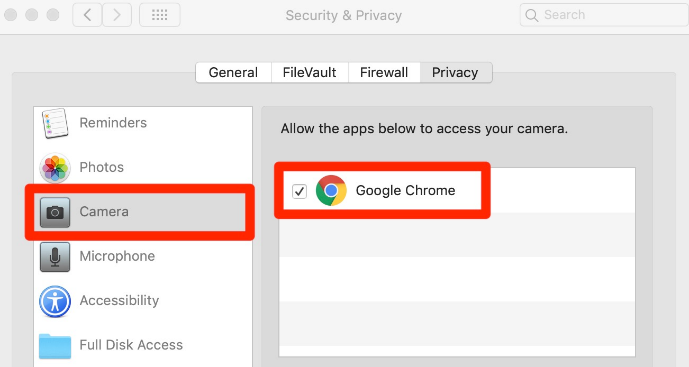
Select Camera from the right pane.
-
Turn on the toggle switch next to Zoom and your primary web browser (Google Chrome or Microsoft Edge).
-
Click the back arrow, select Microphone, and turn on access for Zoom and your web browser.
-
Restart Zoom or your browser when prompted to save changes.
Method 4: Select the Correct Audio & Video Input Device Inside Apps
Even when OS permissions are allowed, Zoom or Google Meet may be connected to an inactive audio driver, virtual camera, or disconnected headset.
Adjusting Google Meet Hardware Settings
-
On the Google Meet ready screen or inside a meeting, click the Three Dots icon at the bottom of the interface.
-
Click Settings.
-
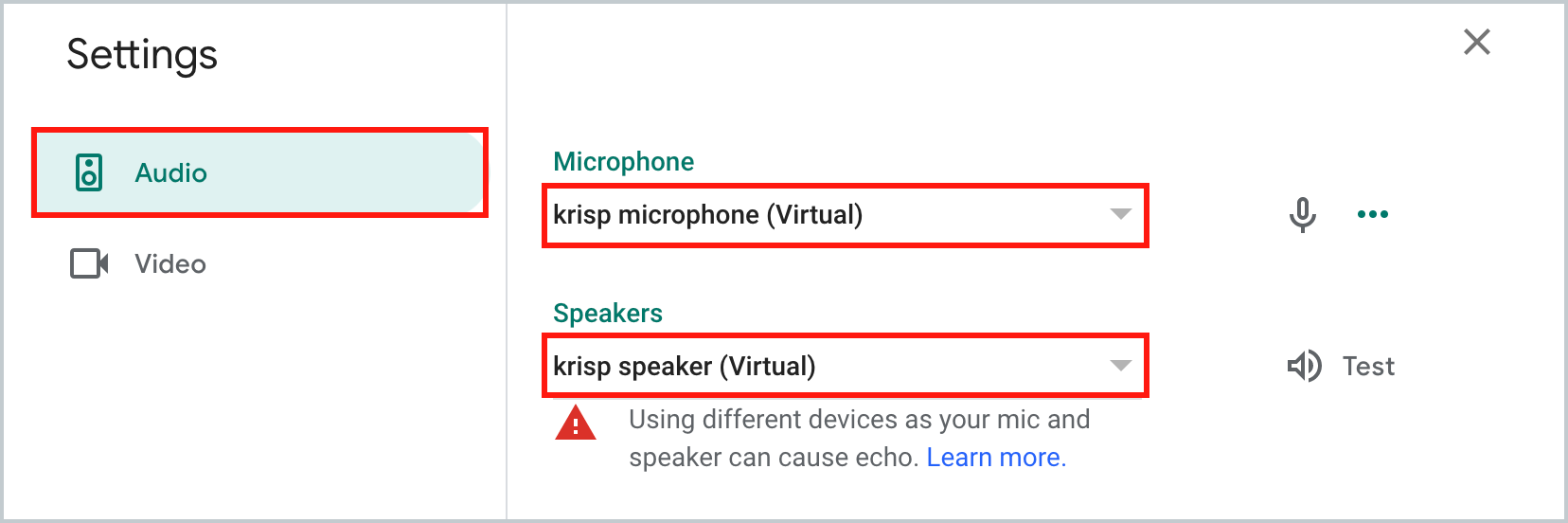
Select Audio and ensure the Microphone dropdown matches your physical input device.
-
Select Video and check that the Camera dropdown displays your active webcam instead of a virtual camera.
Adjusting Zoom Settings
-
Open the Zoom app and click the Settings Gear icon in the top-right corner.
-
Click Video in the left menu and select your active device from the Camera dropdown.
-
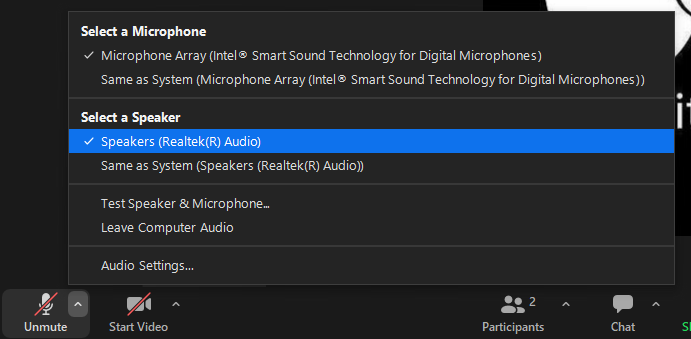
Click Audio in the left menu, select your input source under Microphone, and click Test Mic to verify input levels.
Method 5: Update or Reinstall Audio and Camera Drivers (Windows)
Corrupted device drivers can cause Windows to report hardware errors to Zoom or Google Meet.
-
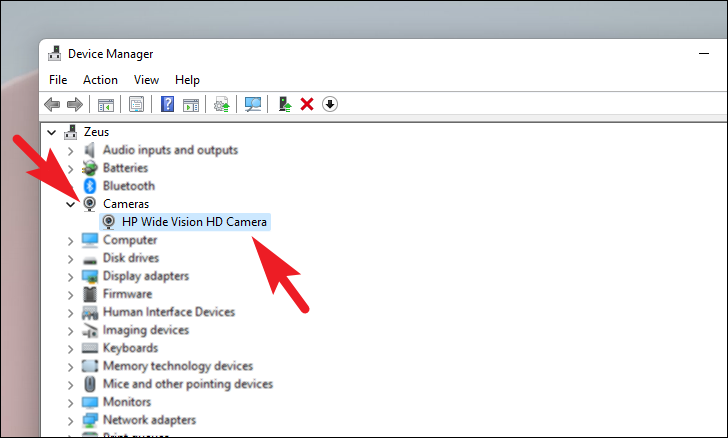
Right-click the Start button and select Device Manager.
-
Expand the Cameras section, right-click your webcam, and select Update driver.
-
Choose Search automatically for drivers.
-
Expand Audio inputs and outputs, right-click your microphone, and select Update driver.
-
If updating does not work, right-click the device, choose Uninstall device, and restart your PC to force Windows to reinstall clean default drivers.
Frequently Asked Questions (FAQ)
Why does Google Meet say “Camera is blocked,” but my settings show “Allowed”?
This usually happens when another application (like Zoom or Discord) is using the camera in the background, or if system-level OS privacy settings are blocking desktop browser access. Close competing apps and verify Windows/macOS camera settings.
Why can other people not hear me even though my microphone is turned on?
Your browser or system permissions may be active, but the wrong input device is selected inside the app settings. Open the audio settings in Zoom or Google Meet and select your specific physical microphone rather than “Default”.
Do browser extensions block camera or microphone permissions?
Yes. Ad-blockers, privacy extensions, or custom security plugins can block media streams even if native browser settings allow them. Try disabling browser extensions or running your meeting in an Incognito/Private window.
Conclusion
Microphone and camera issues in Zoom and Google Meet are almost always resolved by granting proper permissions in site settings or system privacy controls. Ensuring your OS allows desktop application access and selecting the correct input device guarantees smooth video calls. Following these steps systematically eliminates hardware blocks and keeps your meeting setup working reliably.

Pony Lorenzo is the lead technical writer and managing editor at Finauraly Win. With extensive experience in operating system maintenance, software diagnostic testing, and digital productivity tools, Pony specializes in breaking down complex technical errors into actionable, step-by-step troubleshooting guides for Windows, macOS, Android, and Web applications.