
Bluetooth connectivity issues can prevent wireless headphones, smartwatches, and car infotainment systems from linking to your smartphone. When Bluetooth pairing fails, your device may display errors like “Connection Unsuccessful,” fail to discover nearby devices, or drop active wireless connections entirely. These disruptions stem from corrupted pairing keys, radio frequency interference, outdated system software, or misconfigured device permissions.
This step-by-step guide explains how to fix Bluetooth pairing errors on both Android and iOS devices.
Prerequisites and Quick Checks
Before executing advanced system resets, perform these initial hardware checks:
-
Verify Proximity and Battery: Keep both devices within 3 to 5 feet of each other and ensure both have at least 30% battery charge. Low power modes often disable Bluetooth scanning.
-
Toggle Flight Mode: Swipe down for Control Center (iOS) or Quick Settings (Android), enable Flight Mode for 10 seconds, and turn it off to reset wireless radios.
-
Disconnect Secondary Accessories: Disconnect other active Bluetooth peripherals (like smartwatches or fitness trackers) to eliminate radio frequency conflicts.
Solution 1: Restart Bluetooth and Re-Pair the Accessory
Corrupted temporary pairing tokens can block your phone from establishing a secure wireless handshake with a Bluetooth accessory. Removing the device profile forces a clean key exchange.
On Android
-
Open Settings and tap Connected devices.
-
Tap Saved devices (or Bluetooth).
-
Tap the Gear Icon next to the malfunctioning accessory.
-
Tap Forget (or Unpair), then confirm by tapping Forget device.
-
Turn off the Bluetooth toggle, wait 5 seconds, and turn it back on.
-
Place your accessory into Pairing Mode (usually by holding its power/pairing button until an LED flashes).
-
Tap Pair new device and select your accessory from the available list.
To verify success, play audio or initiate a test call. Sound should stream smoothly through the accessory.
On iOS (iPhone)
-
Open Settings and select Bluetooth.
-
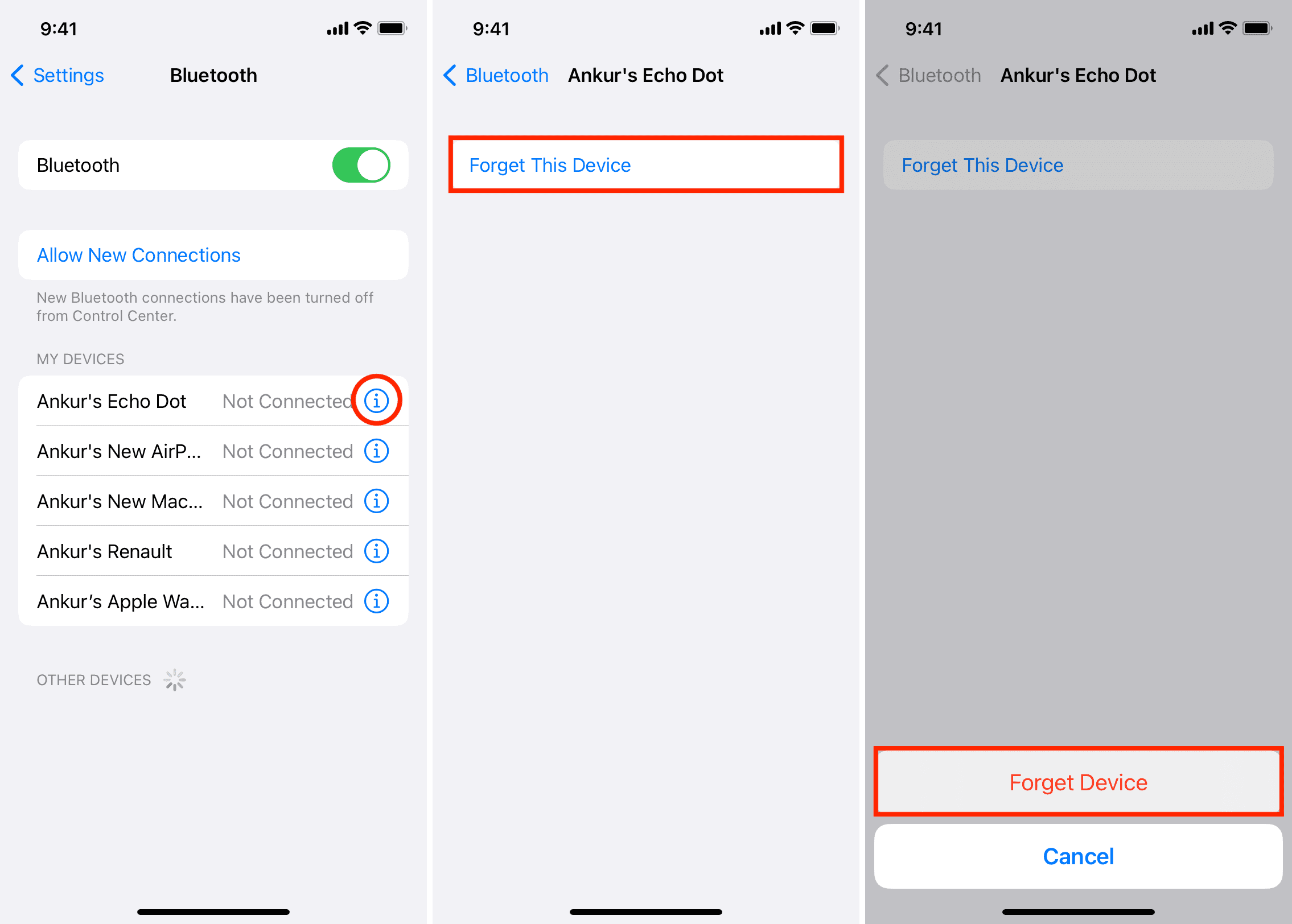
Locate the accessory under My Devices and tap the “i” Information Icon next to it.
-
Tap Forget This Device and select Forget Device on the confirmation banner.
-
Toggle Bluetooth off and back on at the top of the screen.
-
Put your Bluetooth accessory into active pairing mode.
-
Tap the device name when it appears under Other Devices to pair.
To verify success, check that the status next to your device name changes to Connected.
Solution 2: Clear Bluetooth System Cache (Android Only)
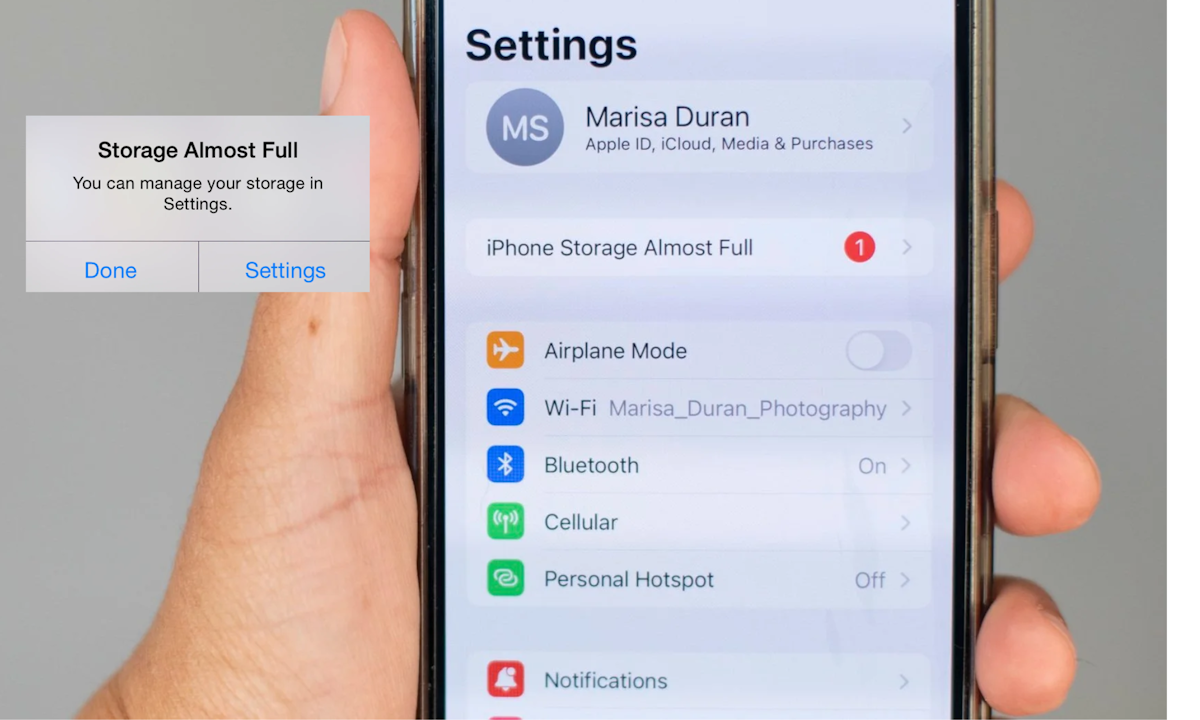
Android processes Bluetooth tasks through a dedicated system application called Bluetooth Legacy or Bluetooth MIDI Service. Corrupted cache entries in this app can permanently freeze pairing protocols.
Open Settings on your Android device and tap Apps. Tap the filter menu or Three Dots in the upper-right corner and select Show system apps.
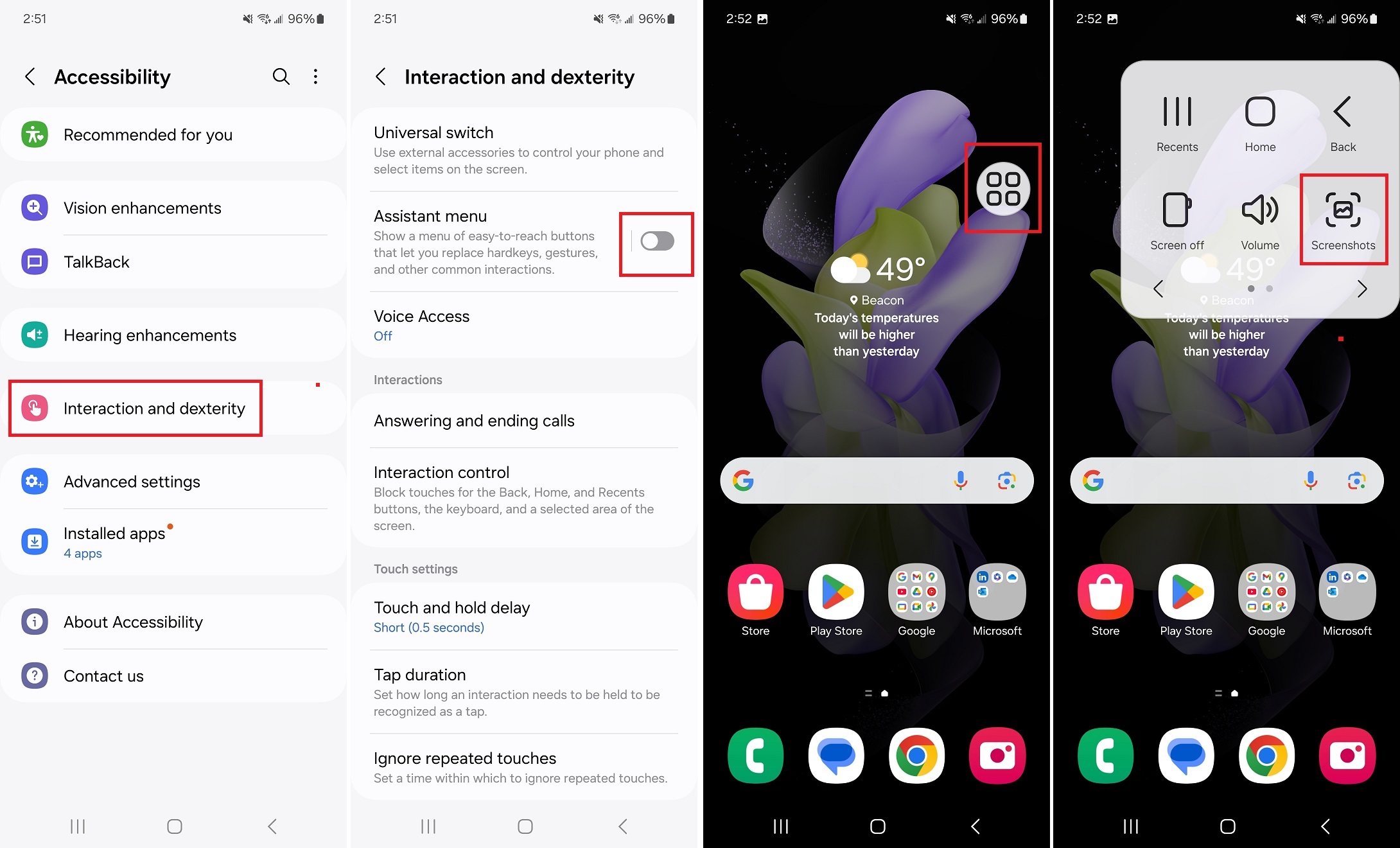
Scroll down the list and select Bluetooth (or Bluetooth Legacy).
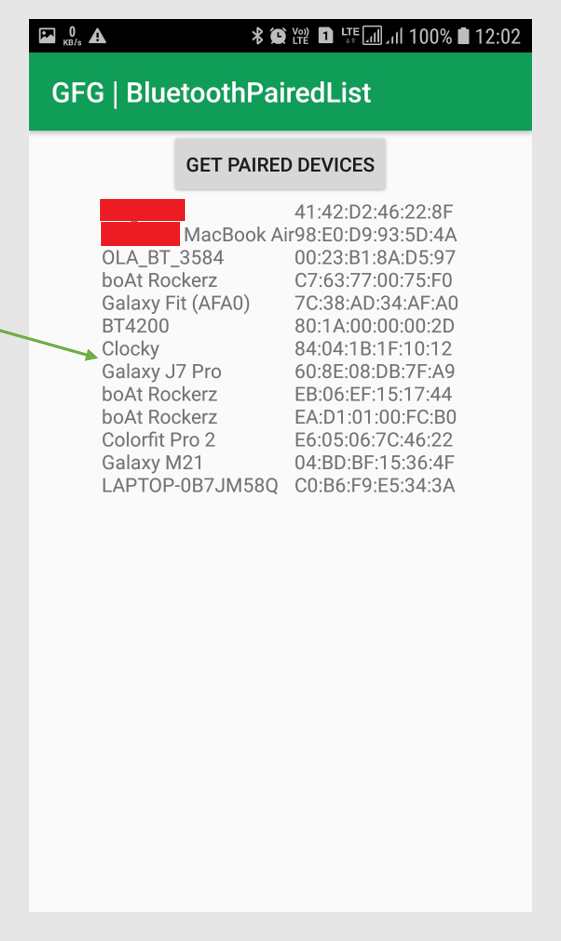
Tap Storage & cache, then tap Clear Cache. Next, tap Clear Data (or Clear Storage) and confirm with OK.
To verify success, restart your phone, open Settings > Bluetooth, and attempt to pair your accessory.
Solution 3: Reset Bluetooth App Permissions (iOS)
On iOS, third-party companion apps (such as Bose Connect, Sony Headphones, or Garmin Connect) require explicit Bluetooth permission to communicate with accessories.
-
Open Settings on your iPhone.
-
Scroll down and tap Privacy & Security.
-
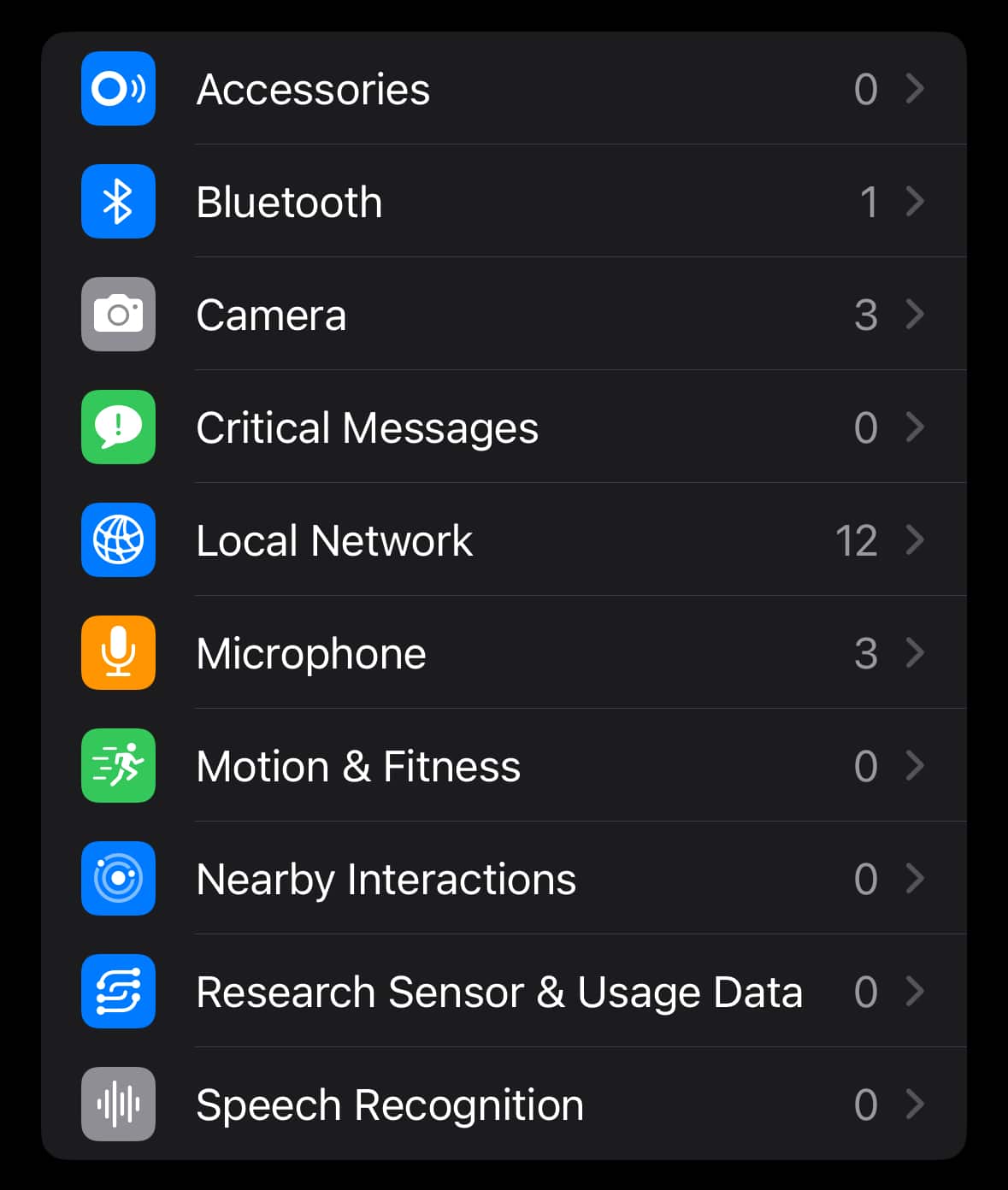
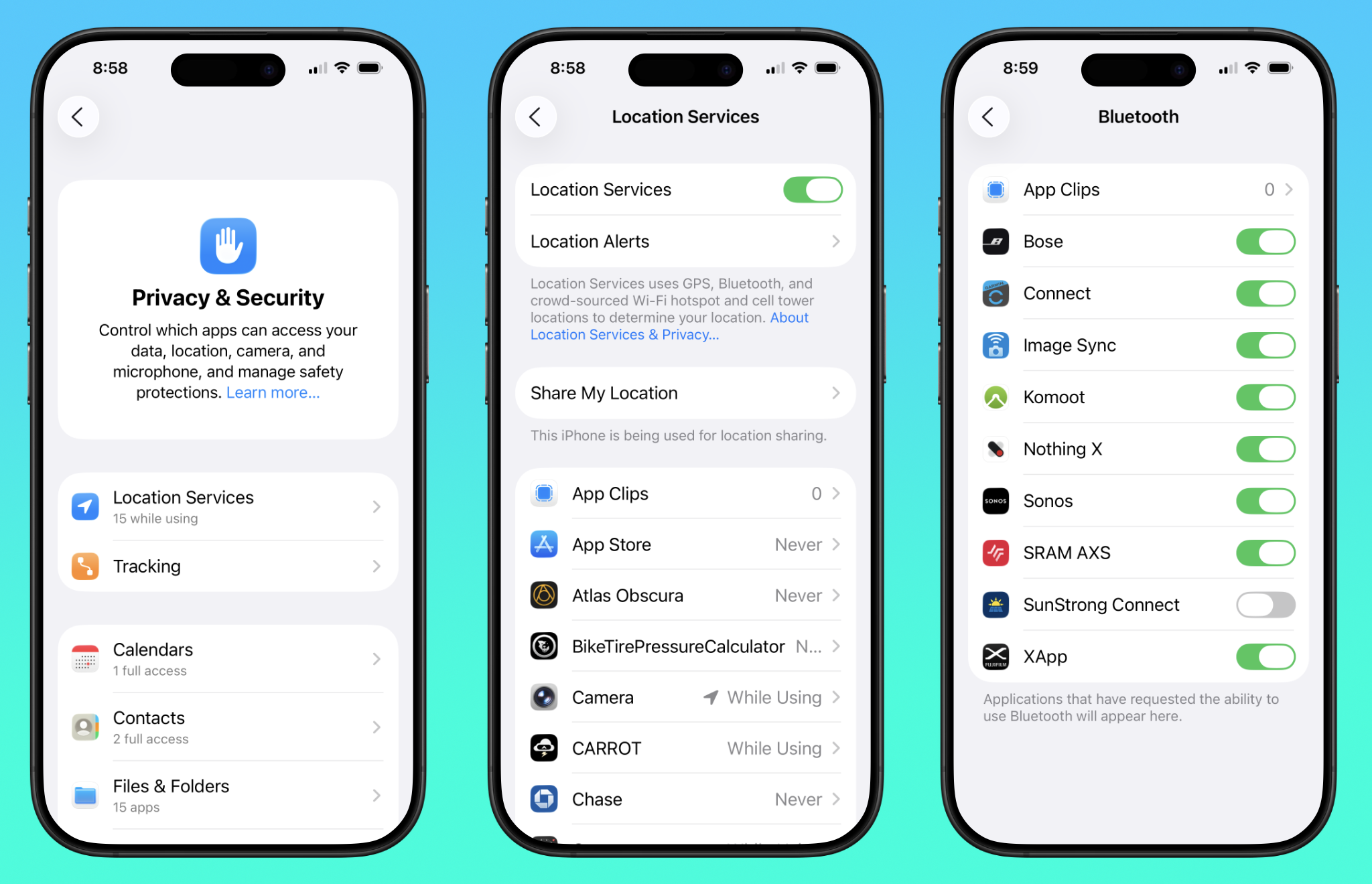
Tap Bluetooth.
-
Locate the app associated with your accessory and ensure its toggle is switched to the green On position.
-
If permission was already active, toggle it off, wait 3 seconds, and toggle it back on.
To verify success, launch the companion app and verify that it discovers and connects to your device.
Solution 4: Reset Network Settings
If underlying network configurations become corrupted, resetting your system’s network stack cleans out damaged Wi-Fi, cellular, and Bluetooth configurations simultaneously.
On Android
-
Open Settings and tap System (or General Management).
-
Tap Reset options.
-
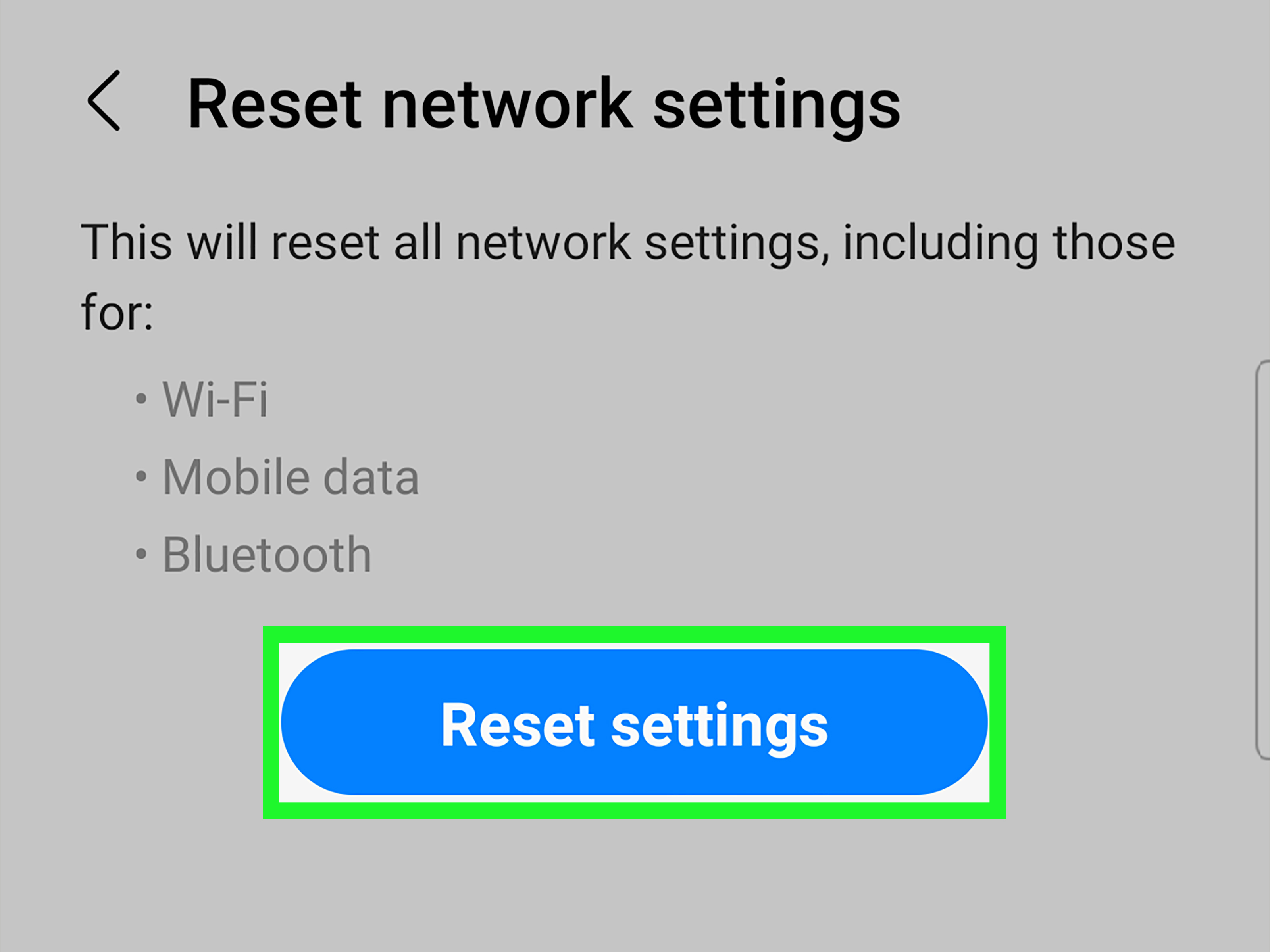
Select Reset Wi-Fi, mobile & Bluetooth (or Reset network settings).
-
Tap Reset settings and enter your PIN or pattern to confirm.
On iOS
-
Open Settings and tap General.
-
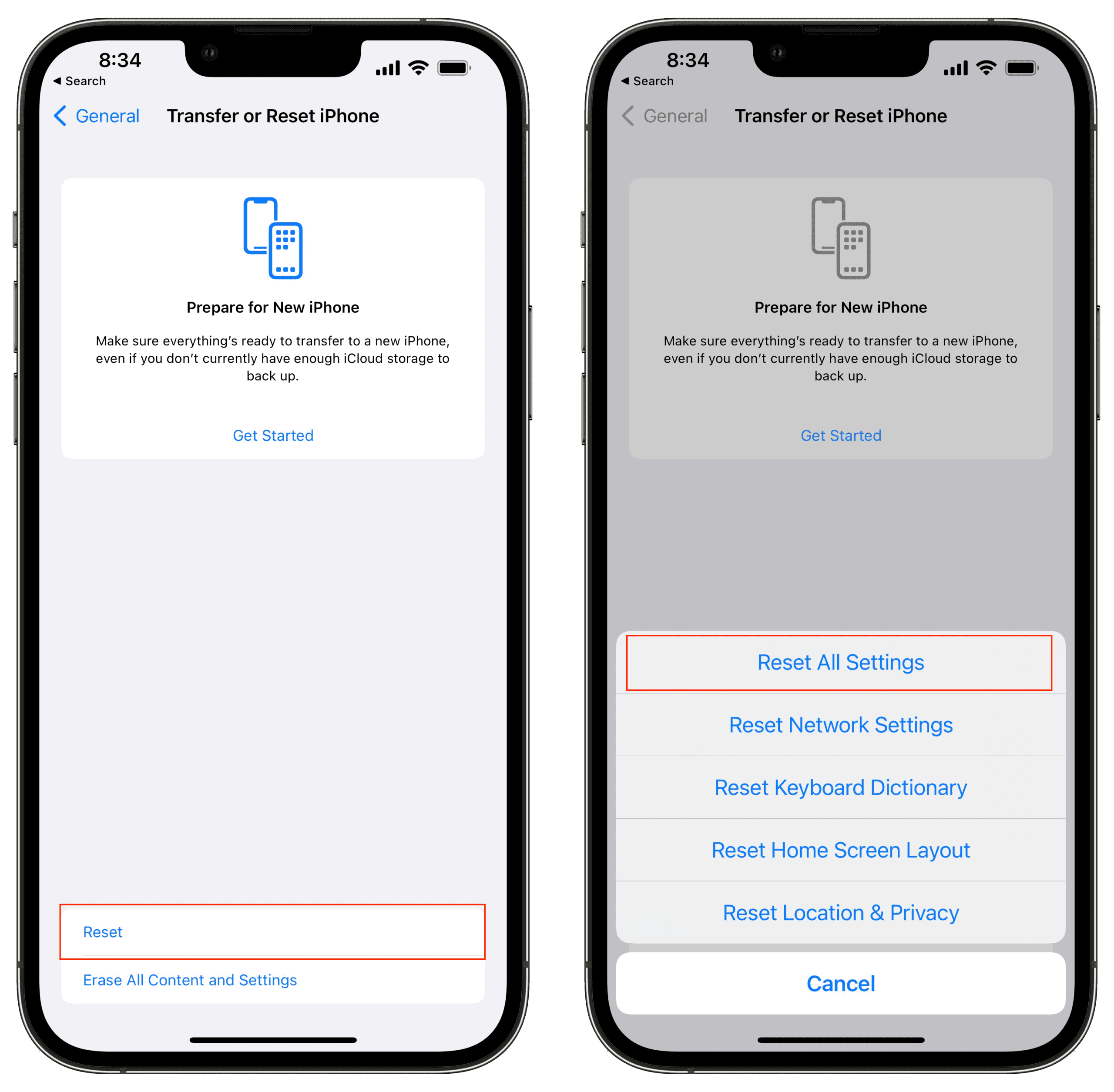
Scroll to the bottom and select Transfer or Reset iPhone.
-
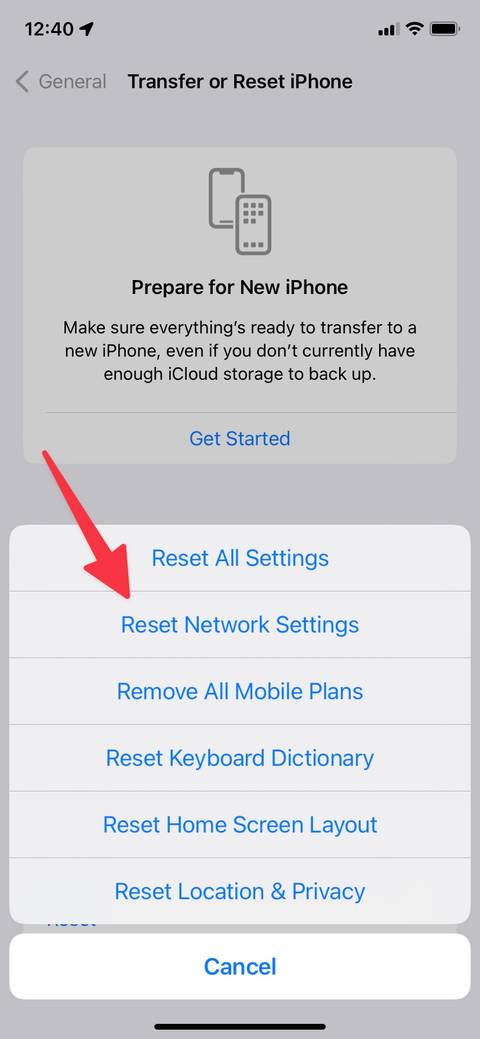
Tap Reset, then select Reset Network Settings.
-
Enter your passcode to initiate the reboot sequence.
To verify success after your phone reboots, turn on Bluetooth, place your accessory into pairing mode, and establish a new connection.
Solution 5: Reset the Bluetooth Accessory Hardware
Smartphones often fail to pair because the target accessory reached its maximum paired device capacity or retains corrupted connection memory.
-
Locate the hardware reset procedure for your specific accessory (e.g., holding the power button on headphones for 10-15 seconds until the LED flashes red/blue).
-
For wireless earbuds, place both earbuds inside their charging case, leave the lid open, and hold the case setup button for 15 seconds until the status light changes color.
-
Once reset, initiate pairing mode on the accessory.
-
Open your phone’s Bluetooth menu and select the accessory from the discovered list.
To verify success, monitor the status LED on the accessory to ensure it establishes a solid connection light.
Frequently Asked Questions
Why does my phone ask for a PIN or Passkey when pairing Bluetooth?
Legacy Bluetooth devices or car stereos require a security PIN during initial pairing. The default factory PINs are usually 0000, 1234, or 8888. Check your accessory’s instruction manual for its specific security code.
Why does my Bluetooth device keep disconnecting automatically?
Frequent dropouts are caused by battery saver restrictions, signal interference from 2.4 GHz Wi-Fi routers, or physical barriers. Disable battery optimization for your Bluetooth companion app and stay clear of microwave ovens and Wi-Fi routers.
Can an outdated phone OS cause Bluetooth pairing errors?
Yes. Mobile operating system updates frequently include security patches and updated Bluetooth protocol drivers (such as Bluetooth Low Energy updates). Ensure your phone runs the latest available software version via Settings > System Update.
Toggling wireless radios, clearing system caches, resetting network settings, and executing a hardware reset on your accessory resolves most Bluetooth pairing errors on mobile devices.

Pony Lorenzo is the lead technical writer and managing editor at Finauraly Win. With extensive experience in operating system maintenance, software diagnostic testing, and digital productivity tools, Pony specializes in breaking down complex technical errors into actionable, step-by-step troubleshooting guides for Windows, macOS, Android, and Web applications.