

When Telegram stops downloading photos, videos, or files in the background, you are forced to keep the app open and active to complete downloads. This issue typically occurs when background data access is limited, aggressive battery optimization kills the app process, or the automatic media download settings within Telegram are misconfigured.
This guide provides step-by-step solutions to restore automatic background media downloads on both Android and iOS devices.
Prerequisites and Quick Checks
Before adjusting system permissions and app configurations, verify these fundamental settings:
-
Verify Storage Space: If your phone runs out of available storage, Telegram automatically halts incoming background media downloads. Ensure you have at least 1–2 GB of free space.
-
Disable Low Data / Low Power Modes: Disable Data Saver or Low Power Mode on your device, as these OS features immediately restrict background network access.
-
Keep Telegram in Recents: Avoid swiping Telegram away from your recent apps switcher. Force-closing the app prevents background tasks from running on most mobile operating systems.
Solution 1: Enable Automatic Media Download in Telegram
Telegram allows users to customize automatic media downloads separately for cellular data, Wi-Fi, and roaming. If these settings are toggled off, media files will not download unless manually tapped.
-
Open Telegram and access settings:
-
Android: Tap the Menu Icon (three horizontal lines) in the top-left corner and select Settings.
-
iOS: Tap the Settings gear icon in the bottom-right corner.
-
-
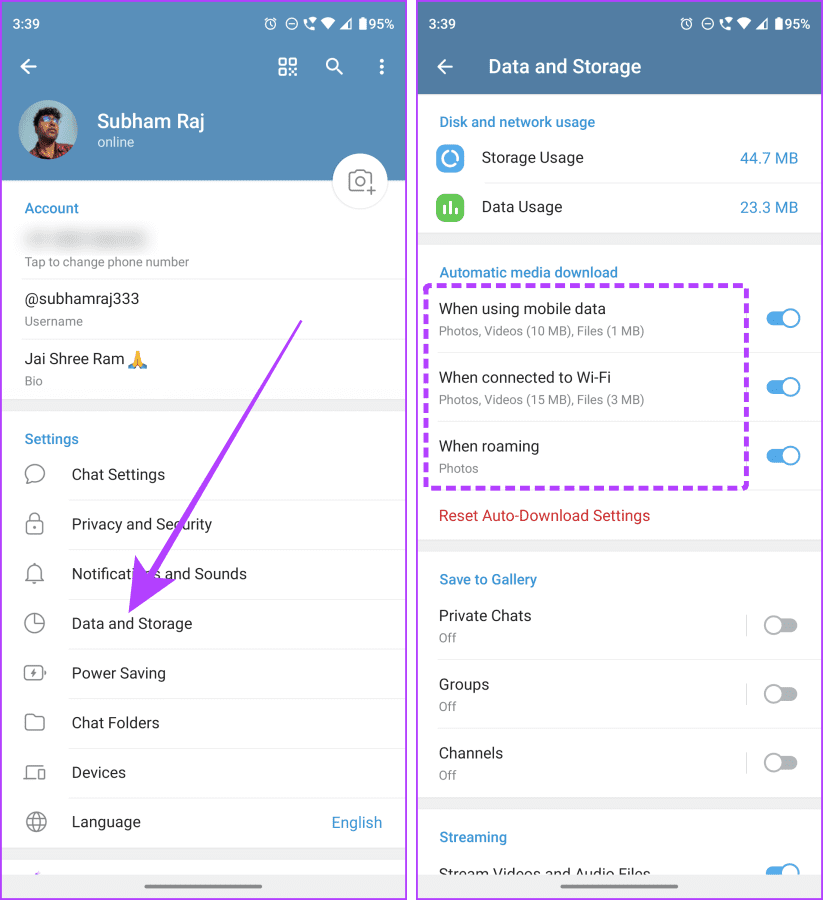
Select Data and Storage.
-
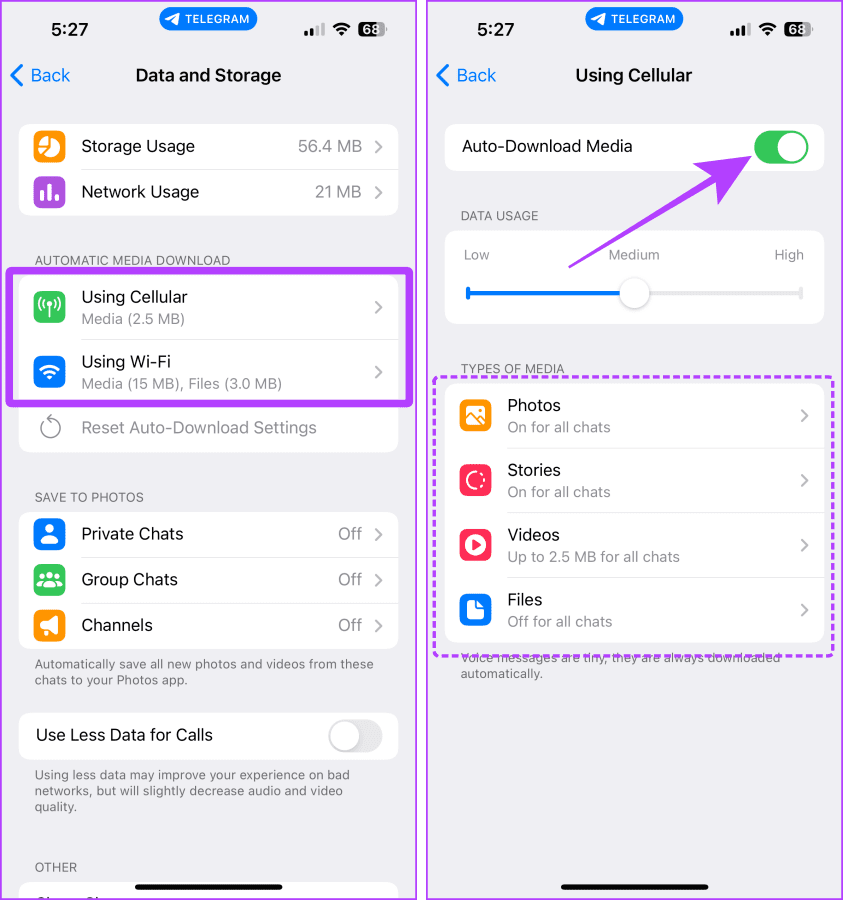
Locate the Automatic media download section.
-
Enable the toggles for When using cellular and When connected to Wi-Fi.
-
Tap into each category (When using cellular / When connected to Wi-Fi) and ensure Photos, Videos, and Files are toggled On. Adjust the maximum file size slider to allow larger media downloads.
To verify success, ask a contact to send a test photo while you navigate to another app. Check your gallery or notification panel to confirm the image downloaded automatically.
Solution 2: Grant Unrestricted Background Data Access
If your operating system restricts Telegram from using data when running in the background, downloads will pause the moment you switch apps or lock your screen.
On Android
Go to Settings > Apps > See all apps and select Telegram.
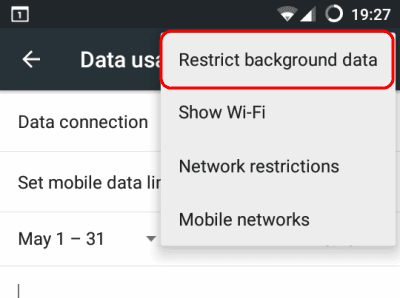
Tap Mobile data & Wi-Fi (or Data usage).
Toggle on Background data and enable Unrestricted data usage (this allows background downloads even when Data Saver is active).
To verify success, initiate a file download in Telegram, lock your device screen for 30 seconds, unlock it, and verify that the download progress continued.
On iOS (iPhone)
-
Open Settings on your iPhone.
-
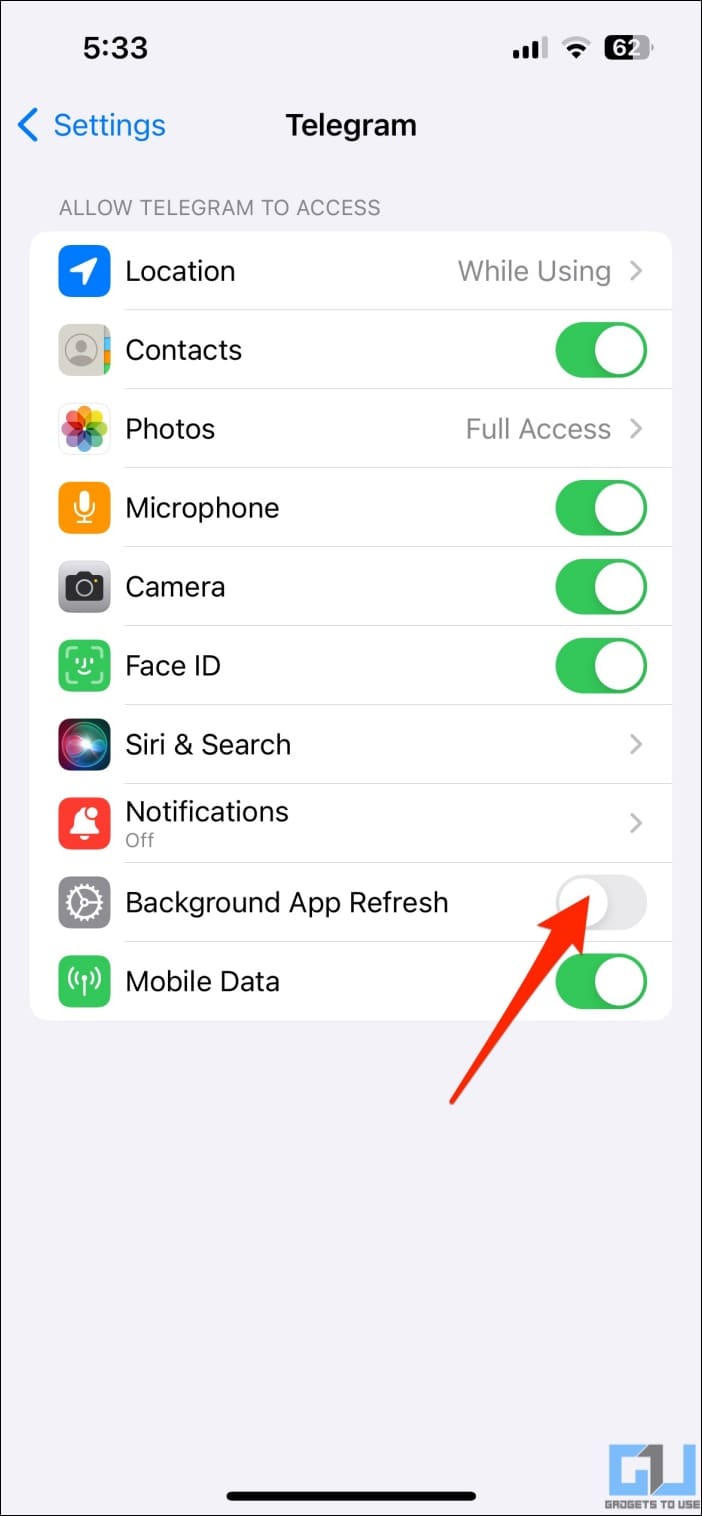
Scroll down and select Telegram.
-
Toggle on Background App Refresh.
-
Go back to main Settings > General > Background App Refresh and ensure the master switch is set to Wi-Fi & Cellular Data.

To verify success, minimize Telegram during a download and re-open it to confirm progress advanced in the background.
Solution 3: Disable Battery Optimization for Telegram
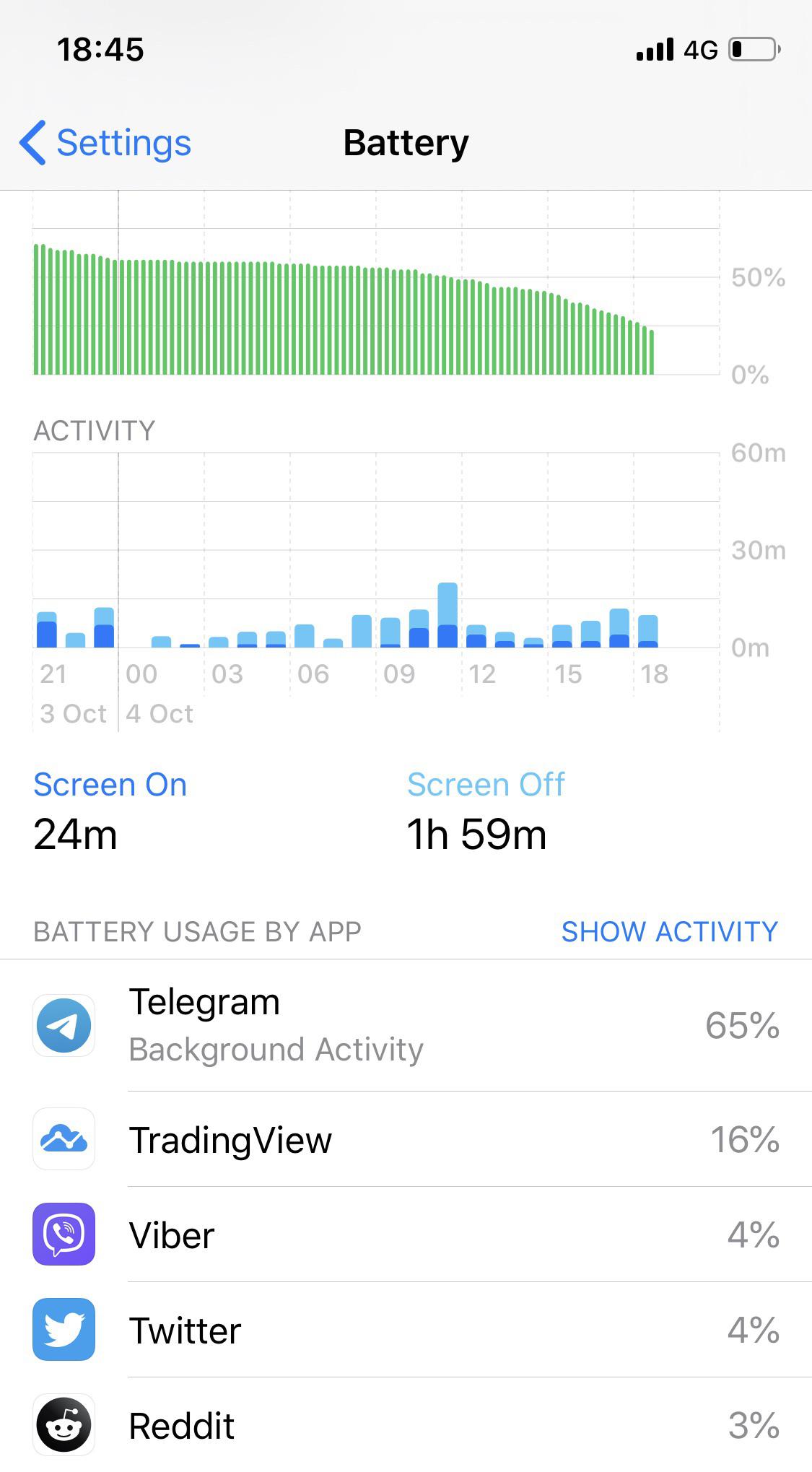
Aggressive battery management features put background applications to sleep, stopping active network streams and file downloads.
On Android
-
Open Settings and select Apps > Telegram.
-
Tap App battery usage (or Battery).
-
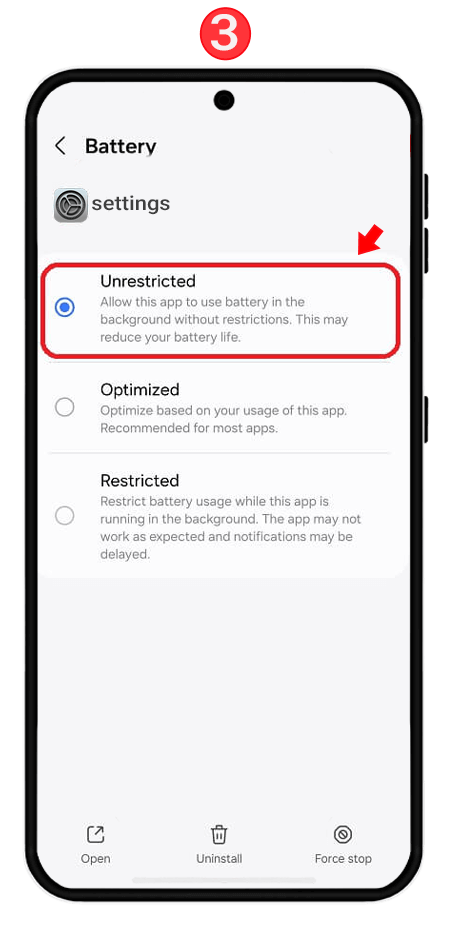
Select Unrestricted (or turn off Manage battery usage / Optimize depending on your phone’s Android skin).
To verify success, leave Telegram downloading a large video file in the background for a few minutes; the process should finish without being killed by the OS.
Solution 4: Turn On Background Download in Telegram (iOS Only)
Telegram for iOS includes a specific built-in toggle designed to process background downloads for a short duration after closing the app.
-
Launch Telegram on your iPhone and tap Settings.
-
Scroll down to the bottom and select Data and Storage.
-
Scroll down and tap Background Download.
-
Select Enabled or choose Maximal background activity.
To verify success, start downloading a video in a channel, swipe to your iPhone home screen, and check if the download notification finishes loading.
Solution 5: Clear Telegram Local Storage Cache
An overcrowded local cache database can freeze background processes and prevent new media files from writing to disk properly.
-
Open Telegram and go to Settings.
-
Tap Data and Storage, then select Storage Usage.

-
Tap Clear Telegram Cache.
-
Confirm by tapping Clear Cache. (Note: This will not delete your cloud messages or account media; it only clears locally cached copies).
To verify success, re-open a channel with media and check if new items download smoothly without freezing.
Frequently Asked Questions
Why do large video files pause downloading when I switch to another app?
Both iOS and Android enforce strict background execution limits for third-party applications. To download large files (over 500 MB), set your device’s battery optimization for Telegram to “Unrestricted” and ensure Background App Refresh is enabled.
Will clearing the Telegram cache delete my photos permanently?
No. Telegram stores all your messages, media, and files on secure cloud servers. Clearing the local cache only removes temporary files from your phone’s storage. You can re-download any media item from your chat history at any time.
Why are background downloads working on Wi-Fi but failing on Mobile Data?
This typically happens when your cellular plan or system settings restrict background data usage, or when Telegram’s “When using cellular” auto-download option is configured with a strict file size limit. Adjust the cellular limits in Settings > Data and Storage.
Configuring Telegram’s automatic media settings, removing background battery restrictions, and granting unrestricted background data usage resolves media download failures on mobile devices.

Pony Lorenzo is the lead technical writer and managing editor at Finauraly Win. With extensive experience in operating system maintenance, software diagnostic testing, and digital productivity tools, Pony specializes in breaking down complex technical errors into actionable, step-by-step troubleshooting guides for Windows, macOS, Android, and Web applications.