
Running out of storage on an iPhone is a common headache, especially when you are greeted by the persistent “Storage Almost Full” system alert. Photos and videos often occupy a major portion of local storage, but deleting precious memories is rarely the ideal solution. iOS accumulates gigabytes of unseen caches, offline media, app data, and system logs over time.
This guide provides tested, step-by-step methods to reclaim gigabytes of storage space on your iPhone without deleting a single photo from your library.
Prerequisites and Quick Checks
Before attempting advanced fixes, perform these immediate checks to identify easy targets:
-
Check Your Storage Breakdown: Go to Settings > General > iPhone Storage to review which apps consume the most space.
-
Empty the Recently Deleted Album: Deleting items places them in a trash folder for 30 days. Go to Photos > Albums > Recently Deleted and tap Delete All.
-
Restart Your iPhone: A quick device reboot forces iOS to flush temporary memory caches and system logs.
Solution 1: Optimize Photo Storage via iCloud
If you want to preserve your photo library locally without sacrificing internal storage, Apple’s built-in optimization feature compresses local copies while keeping full-resolution originals safe in iCloud.
-
Open Settings on your iPhone.
-
Tap your Apple ID banner at the top of the menu.
-
Tap iCloud, then select Photos.
-
Turn on Sync this iPhone if it is disabled.
-
Tap Optimize iPhone Storage to place a checkmark next to it.
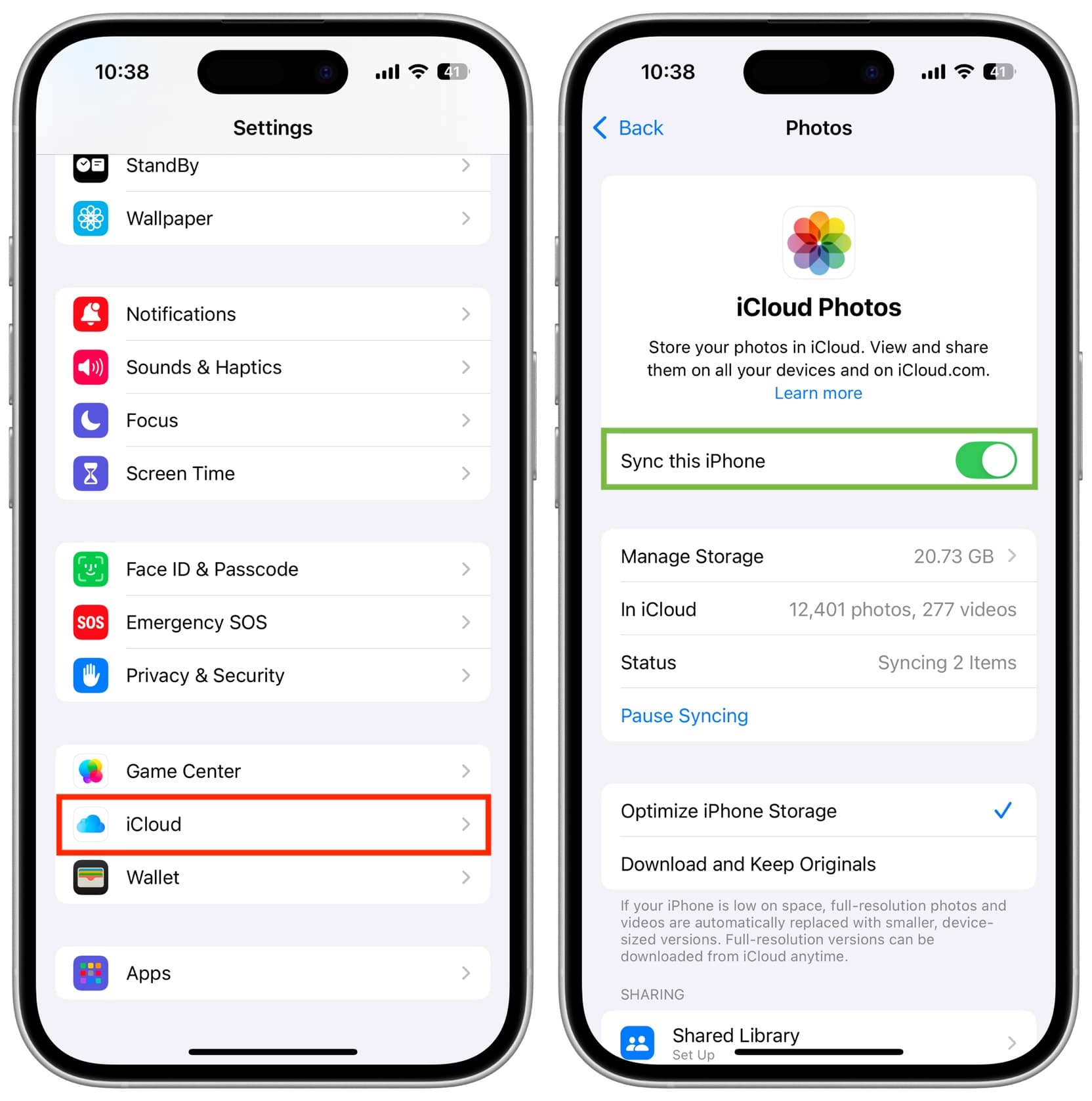
When internal storage runs low, iOS automatically replaces full-resolution photos with lightweight, device-sized versions. The full-resolution versions remain securely stored in iCloud and download instantly when viewed.
To verify success, return to Settings > General > iPhone Storage after a few minutes to confirm that photo storage usage has dropped significantly.
Solution 2: Offload Unused Apps Without Losing App Data
Deleting an app removes both the installation file and all user data. However, offloading an app removes the app bundle while preserving your personal settings, documents, and local saves.
Enable Automatic Offloading
-
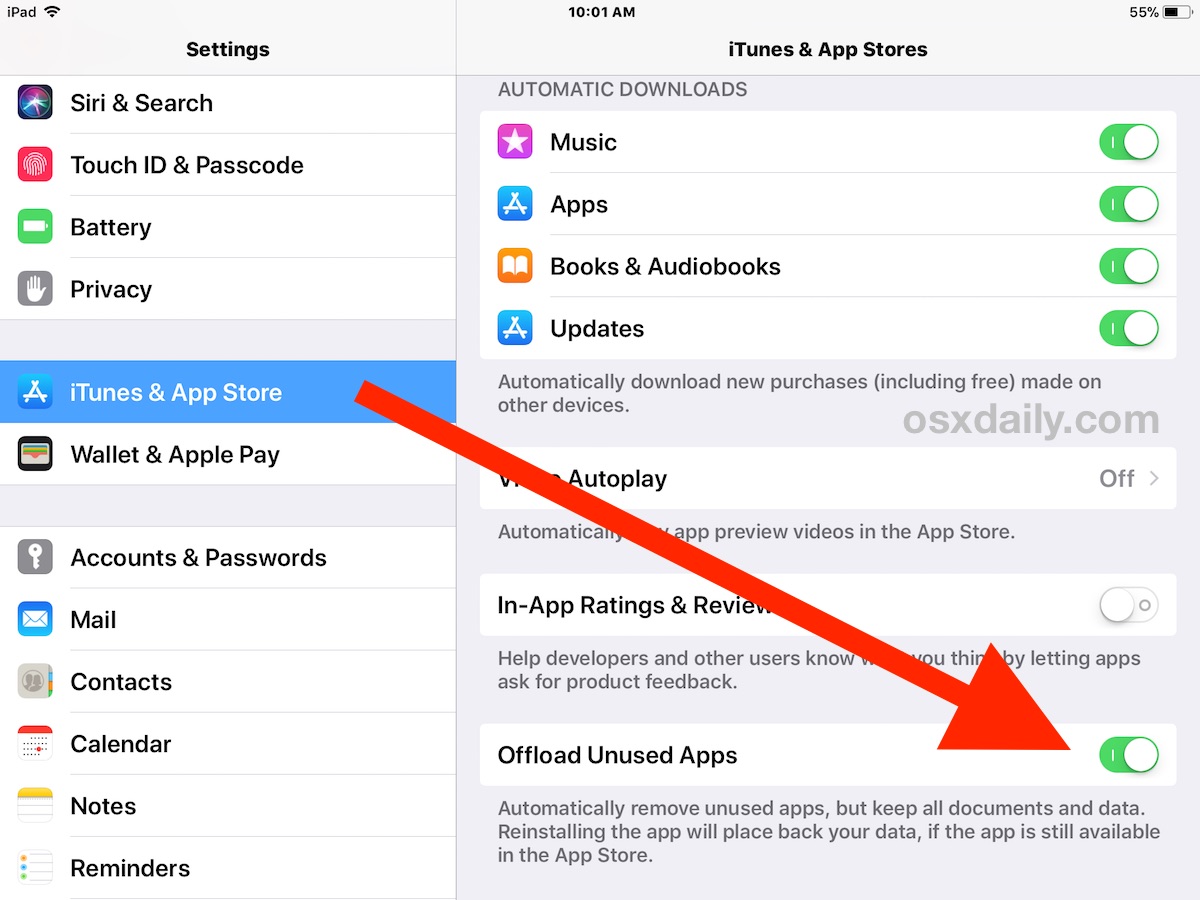
Open Settings and tap App Store.
-
Scroll down to the bottom of the screen.
-
Toggle the switch next to Offload Unused Apps to the green On position.
Offload Apps Manually
-
Go to Settings > General > iPhone Storage.
-
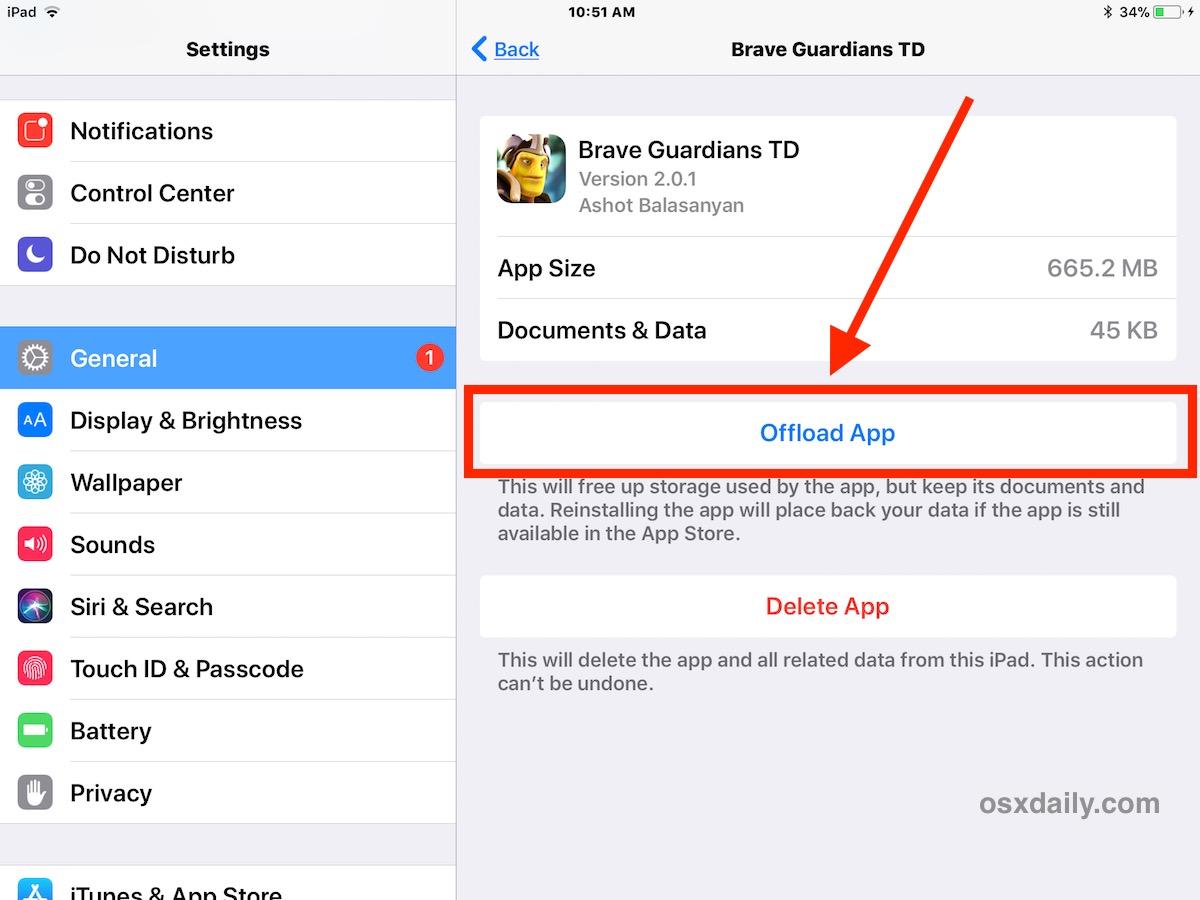
Scroll down and tap any large app you do not use daily.
-
Tap Offload App and confirm the prompt.

To verify success, check your home screen. The offloaded app icon will display a cloud download symbol next to its name. Tapping the icon reinstalls the application instantly with all your saved data intact.
Solution 3: Clear Browser Caches and Streaming Downloads
Web browsers, streaming media apps, and podcast players accumulate massive amounts of offline data and temporary file caches over time.
Clear Safari Cache
-
Open Settings on your iPhone.
-
Scroll down and select Safari.
-
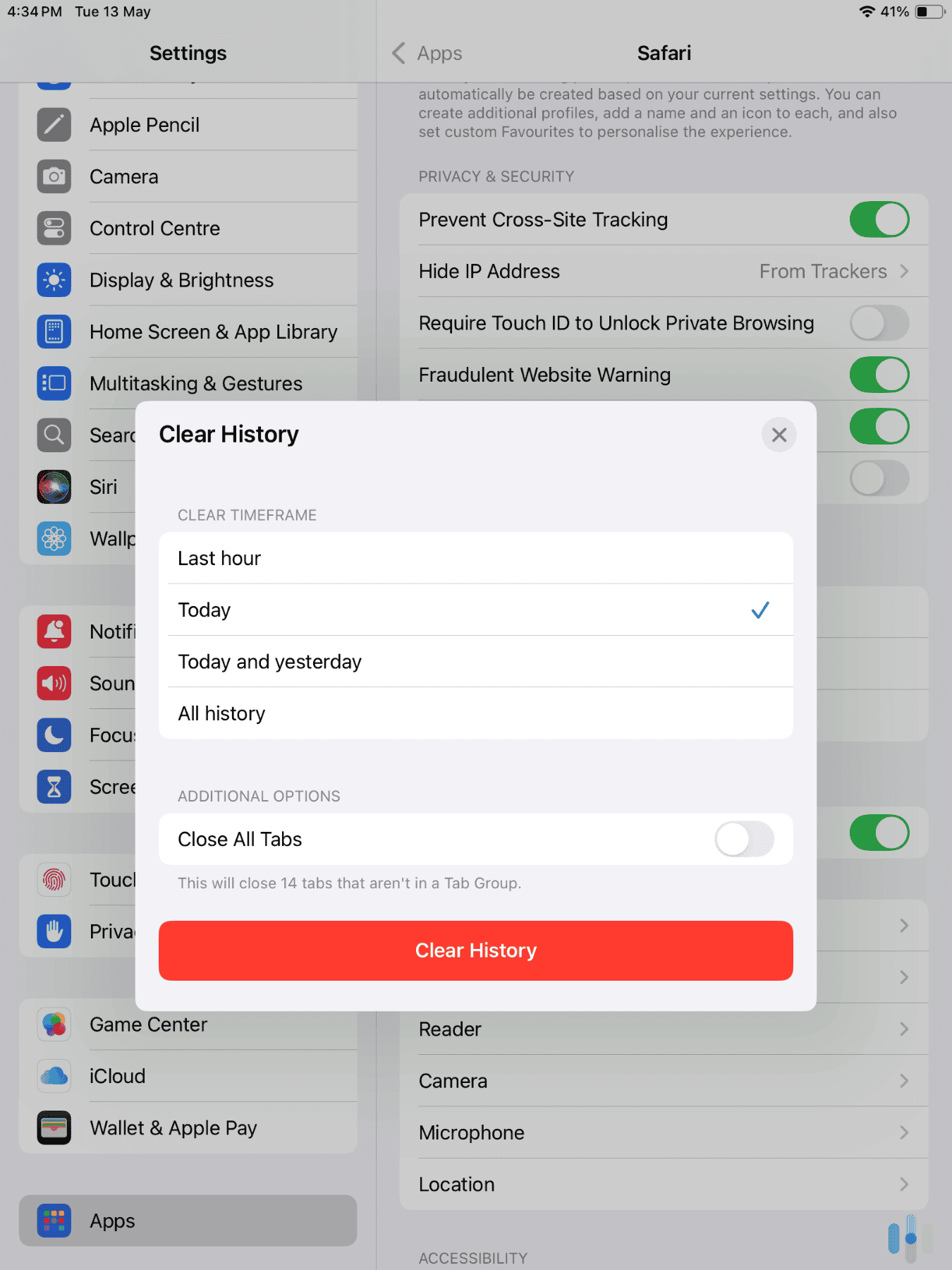
Scroll down and tap Clear History and Website Data.
-
Select All history under the timeframe options and tap Clear History.

Delete Streaming Media Downloads
-
Open media apps such as Netflix, Spotify, YouTube, or Apple Podcasts.
-
Navigate to the Downloads or Library tab within each app.
-
Swipe left on downloaded movies, episodes, or offline music tracks and select Delete.
To verify success, open iPhone Storage in Settings to check that the cache and app size for these services has decreased.
Solution 4: Clear WhatsApp and iMessage Media Caches
Messaging apps automatically store incoming photos, videos, GIFs, and voice notes locally on your phone.
Manage WhatsApp Storage
-
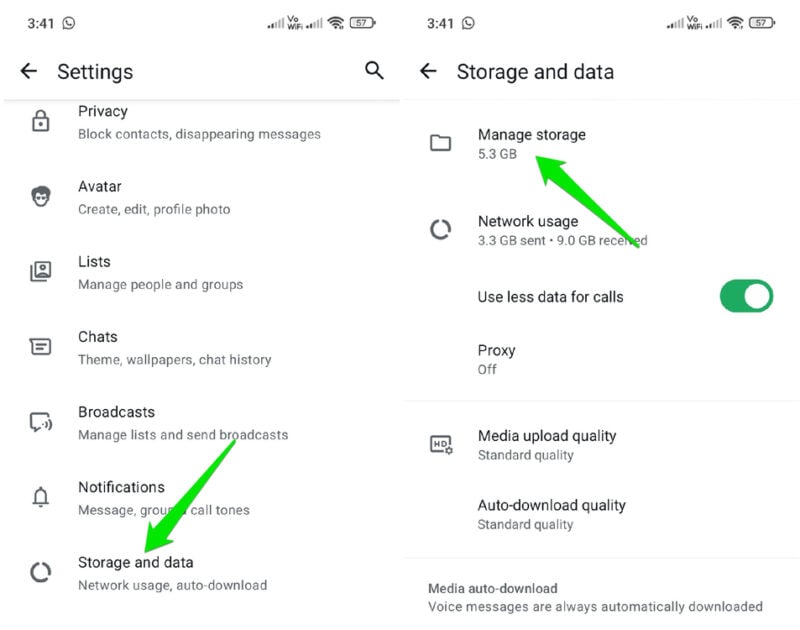
Open WhatsApp and tap Settings in the bottom-right corner.
-
Tap Storage and Data, then select Manage Storage.
-
Tap Larger than 5 MB to review bulky videos and documents.
-
Tap Select All or pick specific items, then tap the Trash Can icon to remove them.
Auto-Delete Old iMessage Threads
-
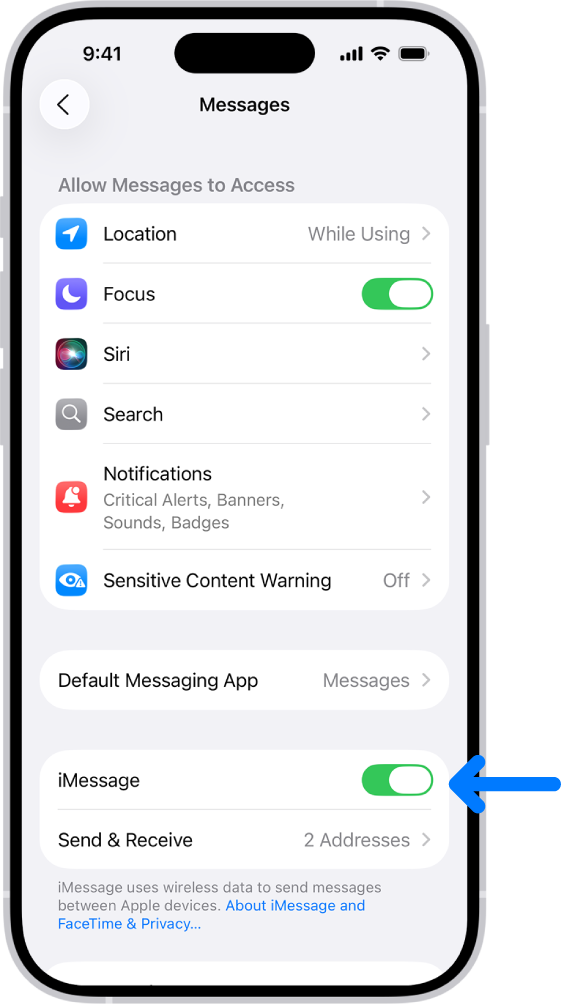
Open Settings and tap Messages.
-
Scroll down to the Message History section and tap Keep Messages.
-
Change the setting from Forever to 30 Days or 1 Year.
-
Tap Delete when prompted to confirm the removal of old message attachments.
To verify success, re-check iPhone Storage under Messages and WhatsApp to confirm freed storage.
Solution 5: Clear Hidden “System Data” Caches
The System Data category includes system caches, logs, Siri voices, and offline updates. If System Data consumes an excessive amount of space, clearing it restores available capacity.
-
Connect your iPhone to a Mac or Windows PC using a lightning or USB-C cable.
-
Open Finder (on Mac) or Apple Devices / iTunes (on Windows).
-
Unlock your iPhone and select Trust This Computer if prompted.
-
Select your iPhone in Finder or Apple Devices.
-
Leave the phone connected for 10 to 15 minutes. This prompts iOS to sync with the computer, clearing temporary cache logs automatically.
To verify success, check Settings > General > iPhone Storage, scroll to the bottom, and verify that System Data has shrunk.
Frequently Asked Questions
Will enabling iCloud Photos delete photos from my phone completely?
No. iCloud Photos syncs your full photo library to the cloud. When “Optimize iPhone Storage” is active, lightweight thumbnail previews remain on your phone, while full-resolution originals download seamlessly whenever you view or edit them.
What is the difference between deleting an app and offloading it?
Deleting an app completely removes the application along with all saved documents, login credentials, and local data. Offloading deletes only the app installation file, preserving your data and settings so you can resume right where you left off upon reinstalling.
Why is my System Data storage category so large?
System Data consists of temporary caches, active downloads, system logs, streaming buffers, and Siri voices. It expands and contracts dynamically based on iOS system tasks, but connecting your device to a computer or performing a system backup helps clear it out.
Clearing system storage on an iPhone does not require sacrificing your photo library. By offloading unused apps, clearing messaging attachments, purging web caches, and optimizing iCloud storage, you can free up gigabytes of internal space while keeping your media safe.

Pony Lorenzo is the lead technical writer and managing editor at Finauraly Win. With extensive experience in operating system maintenance, software diagnostic testing, and digital productivity tools, Pony specializes in breaking down complex technical errors into actionable, step-by-step troubleshooting guides for Windows, macOS, Android, and Web applications.