
The DPC Watchdog Violation error (stop code
0x00000133) is a common Blue Screen of Death (BSOD) crash in Windows 11. It occurs when a Deferred Procedure Call (DPC) runs longer than the operating system permits, forcing Windows to shut down to prevent data corruption.
This error usually stems from outdated or corrupted hardware drivers, incompatible third-party software, conflicting fast startup settings, or corrupted system files. By following the structured solutions below, you can diagnose the root cause and restore system stability.
Quick Checks Before Advanced Troubleshooting
Before performing system-level repairs, complete these basic checks to rule out minor glitches:
- Disconnect External Peripherals: Unplug all non-essential USB devices, external hard drives, webcams, and adapters. Restart your PC to verify if a device driver is causing the conflict.
- Restart in Safe Mode: If Windows crashes before reaching the desktop, hold Shift while clicking Restart on the login screen. Go to Troubleshoot > Advanced options > Startup Settings > Restart, then select key 4 or F4 to enable Safe Mode.
Method 1: Update the SATA AHCI Controller Driver
Incompatible or outdated SATA AHCI storage drivers are the primary trigger for DPC Watchdog errors on modern Windows systems.
-
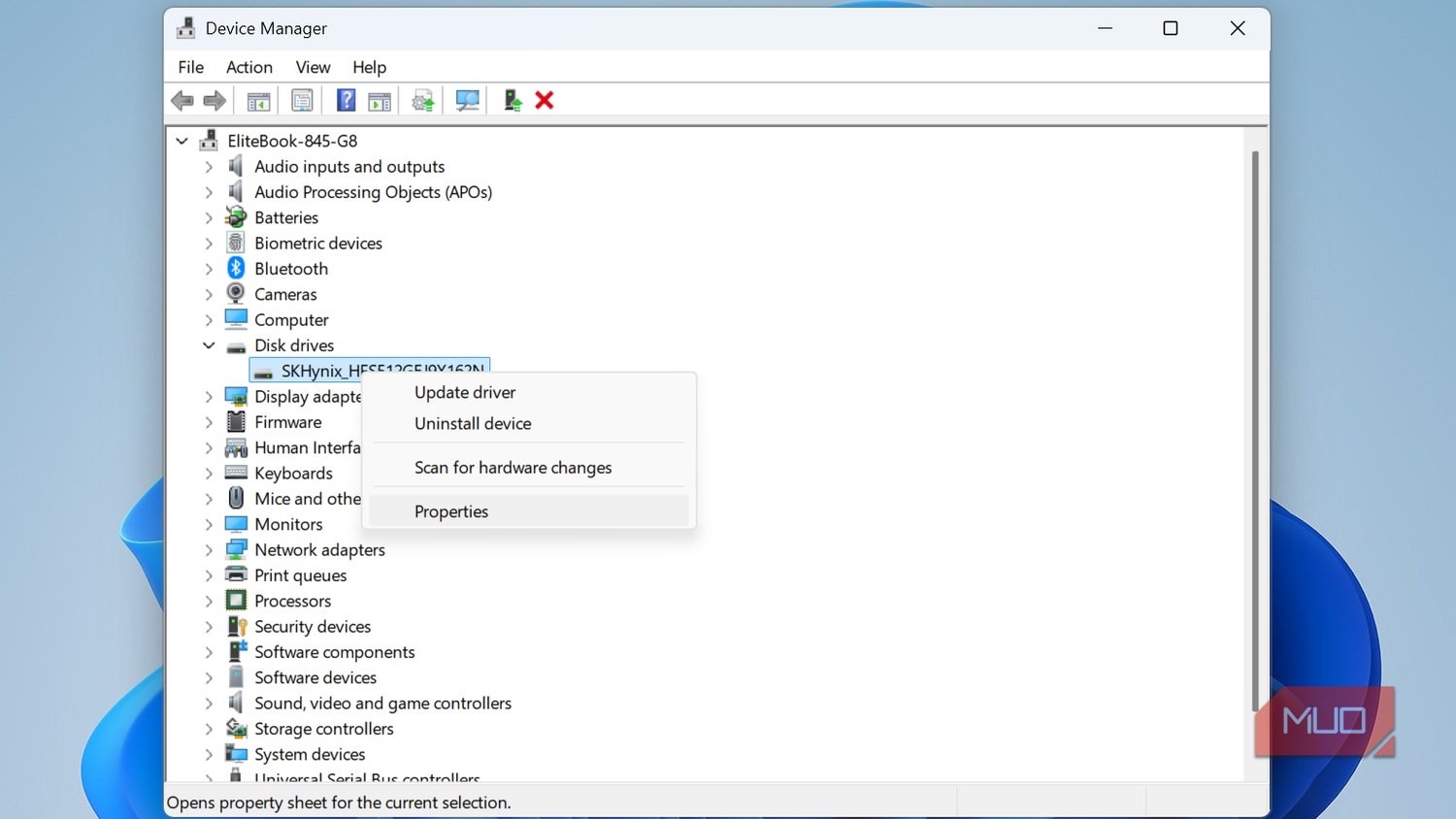
Right-click the Start button on your taskbar and select Device Manager.
-
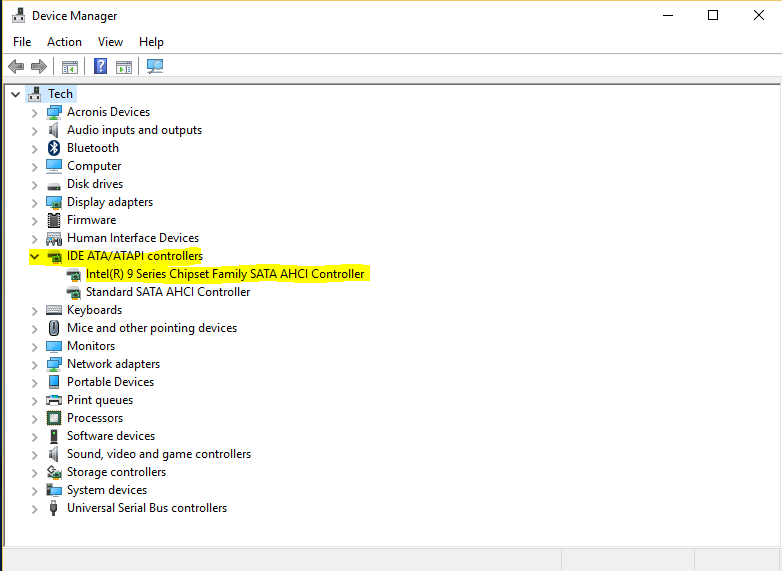
Expand the IDE ATA/ATAPI controllers section by clicking the arrow next to it.
-
Right-click Standard SATA AHCI Controller and select Properties.
-
Navigate to the Driver tab and click Update Driver.
-
Choose Browse my computer for drivers, then click Let me pick from a list of available drivers on my computer.
-
Select Standard SATA AHCI Controller from the list and click Next.
-
Complete the wizard and restart your computer to apply the changes. Verify that your system boots without triggering a crash.

Method 2: Turn Off Windows Fast Startup
Fast Startup caches core boot processes to the hard drive during shutdown, which can reload corrupted driver states upon reboot.
-
Press Windows Key + R to open the Run dialog box.
-
Type
controland press Enter to open the Control Panel.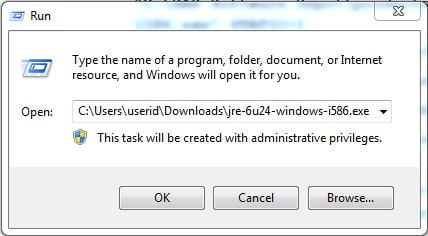
-
Set View by to Large icons in the top right corner, then click Power Options.
-
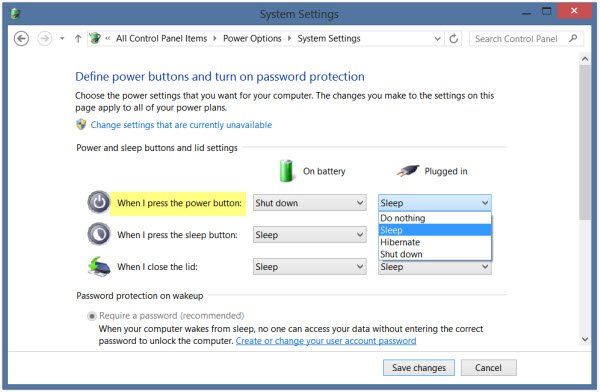
In the left-hand menu, select Choose what the power buttons do.
-
Click Change settings that are currently unavailable at the top to unlock restricted settings.
-
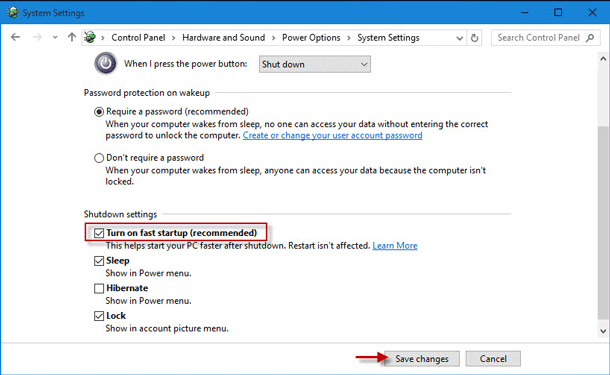
Uncheck the box labeled Turn on fast startup (recommended) under Shutdown settings.
-
Click Save changes at the bottom of the window and restart your system. Test your device during standard operation to ensure stability.
Method 3: Run System File Checker and DISM Tool
Corrupted system files can disrupt kernel procedures, triggering Watchdog timeouts during routine operations.
-
Press the Windows Key, type
cmd, right-click Command Prompt, and select Run as administrator. -
Type the following command and press Enter to repair system file corruption:
DOS
sfc /scannow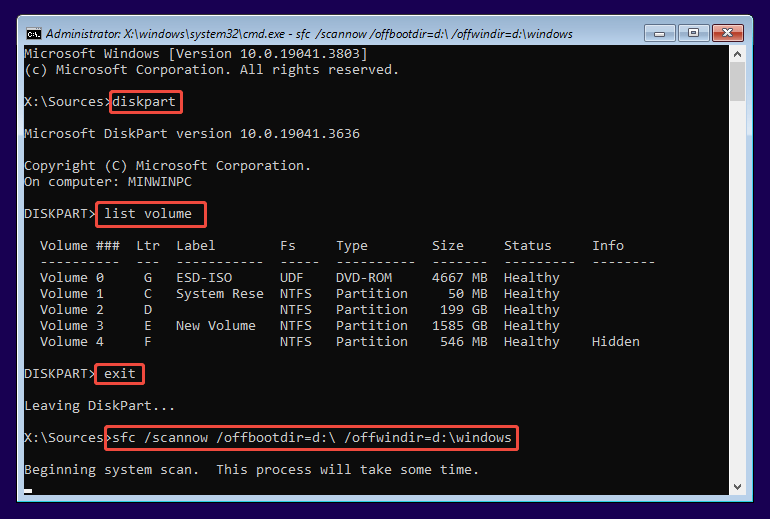
-
Wait for the verification process to reach 100%. If SFC reports unfixable errors, run the DISM tool by executing the following command:
DOS
DISM /Online /Cleanup-Image /RestoreHealth -
Restart your computer once the operation completes to confirm whether system repairs resolved the error.
Method 4: Update or Roll Back Graphics Drivers
Display driver conflicts frequently cause DPC Watchdog crashes during video playback or high-load tasks.
-
Right-click the Start menu and open Device Manager.
-
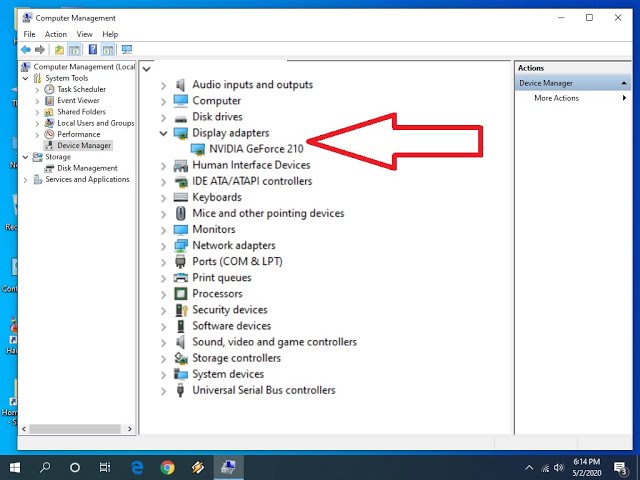
Expand the Display adapters category.
-
Right-click your dedicated graphics card (NVIDIA, AMD, or Intel) and select Properties.
-
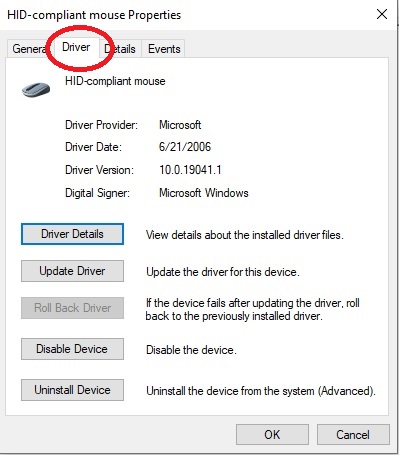
Select the Driver tab. If you recently updated your driver before the crashes started, click Roll Back Driver.
-
If the option is unavailable, click Update Driver, then select Search automatically for drivers.
-
Alternatively, download the latest stable driver package directly from your GPU manufacturer’s official download page. Restart your system after installation.
Method 5: Check Hard Drive Health and Fix File System Errors
Disk read errors or bad sectors prevent Windows from processing operations on time, resulting in a BSOD loop.
-
Open Command Prompt as an administrator using the search bar.
-
Type the following command and press Enter:
DOS
chkdsk C: /f /r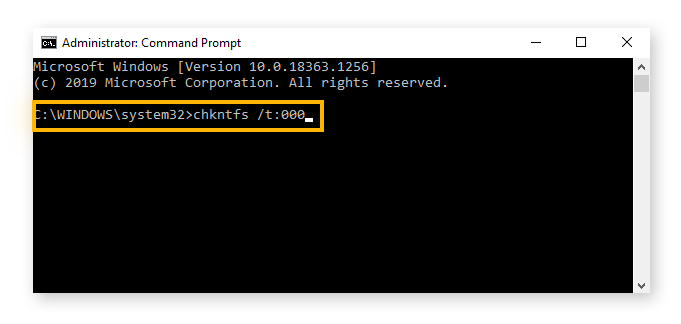
-
If prompted to schedule the volume check for the next restart, type
Yand press Enter. -
Save your open work and restart your PC. Windows will scan and repair drive errors automatically during reboot.
Frequently Asked Questions (FAQ)
What causes DPC Watchdog Violation in Windows 11?
It is primarily caused by outdated SATA AHCI drivers, corrupted system files, fast startup errors, or incompatible third-party software like antivirus programs.
Will fixing this error delete my files?
No, the standard troubleshooting methods described above repair system files, drivers, and configuration settings without modifying personal data or personal files.
What should I do if my PC is trapped in a reboot loop?
Boot Windows 11 into Safe Mode or WinRE (Windows Recovery Environment) using an installation USB media, then perform the driver updates and SFC scans from there.
Conclusion
The DPC Watchdog Violation error is usually resolved by updating disk controller drivers, turning off Fast Startup, or restoring damaged system files. Systematic troubleshooting will isolate the exact software or hardware conflict causing the crash. If crashes persist after completing these methods, perform a clean reinstall of Windows 11 or inspect hardware components like RAM and SSDs for physical failure.

Pony Lorenzo is the lead technical writer and managing editor at Finauraly Win. With extensive experience in operating system maintenance, software diagnostic testing, and digital productivity tools, Pony specializes in breaking down complex technical errors into actionable, step-by-step troubleshooting guides for Windows, macOS, Android, and Web applications.