

The “Aw, Snap!” error screen appears in Google Chrome when a webpage crashes unexpectedly. This usually happens when Chrome runs into resource limitations, conflicting browser extensions, corrupted cache files, or system-level configuration conflicts.
When this error occurs, Chrome fails to render the page content properly. This guide provides step-by-step methods to fix the issue and get your browser running smoothly again.
Prerequisites and Quick Checks
Before attempting detailed software fixes, run through these quick preliminary checks:
-
Reload the Webpage: Click the Reload button on the crash page or press Ctrl + R (Cmd + R on Mac) to refresh the site.
-
Check Your Internet Connection: Verify that your network is active by opening a different website or restarting your router.
-
Close Unnecessary Tabs: Chrome consumes significant system memory. Close inactive tabs to free up RAM.
Core Solutions to Resolve Chrome “Aw, Snap!” Errors
Corrupted cache files and cookies can prevent pages from loading correctly.
-
Open Google Chrome, click the Three Dots icon in the upper-right corner, and hover over Delete browsing data.
-
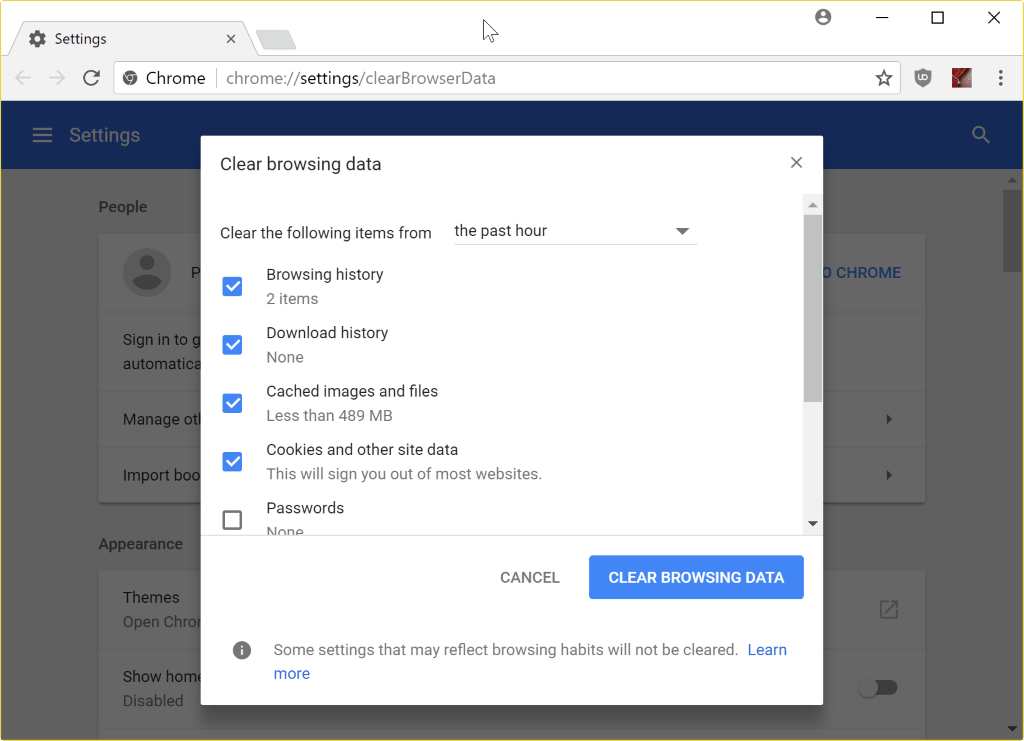
Click Clear browsing data.
-
Set the Time range to All time.
-
Select the checkboxes for Browsing history, Cookies and other site data, and Cached images and files.
-
Click Delete data and restart your browser.
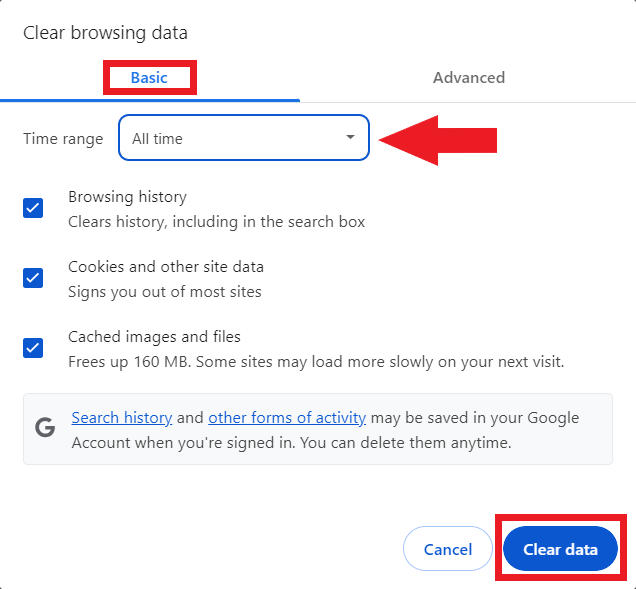
Verification Check: Reopen the target website to verify if it loads without crashing.
Third-party extensions can interfere with script processing and trigger page crashes.
-
Open Chrome and press Ctrl + Shift + N (Cmd + Shift + N on Mac) to open an Incognito window.
-
Try navigating to the crashing webpage. If it loads normally, an extension is causing the error.
-
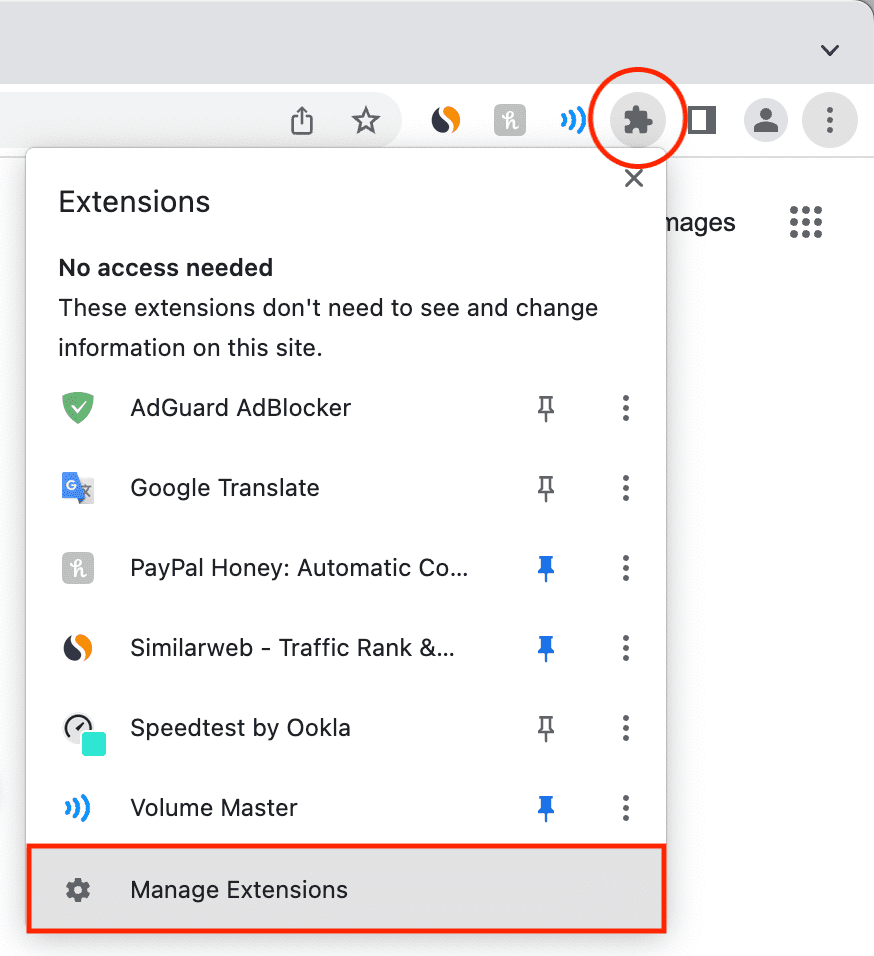
Type
chrome://extensionsinto your address bar and press Enter.
-
Toggle off all extensions to disable them.
-
Re-enable extensions one by one while reloading the page to identify the culprit.
Verification Check: Once the problematic extension is toggled off, the webpage should load continuously without crashing.
Hardware acceleration offloads visual processing to your GPU, but outdated graphics drivers can trigger crashes.
-
Click the Three Dots menu in Chrome and select Settings.
-
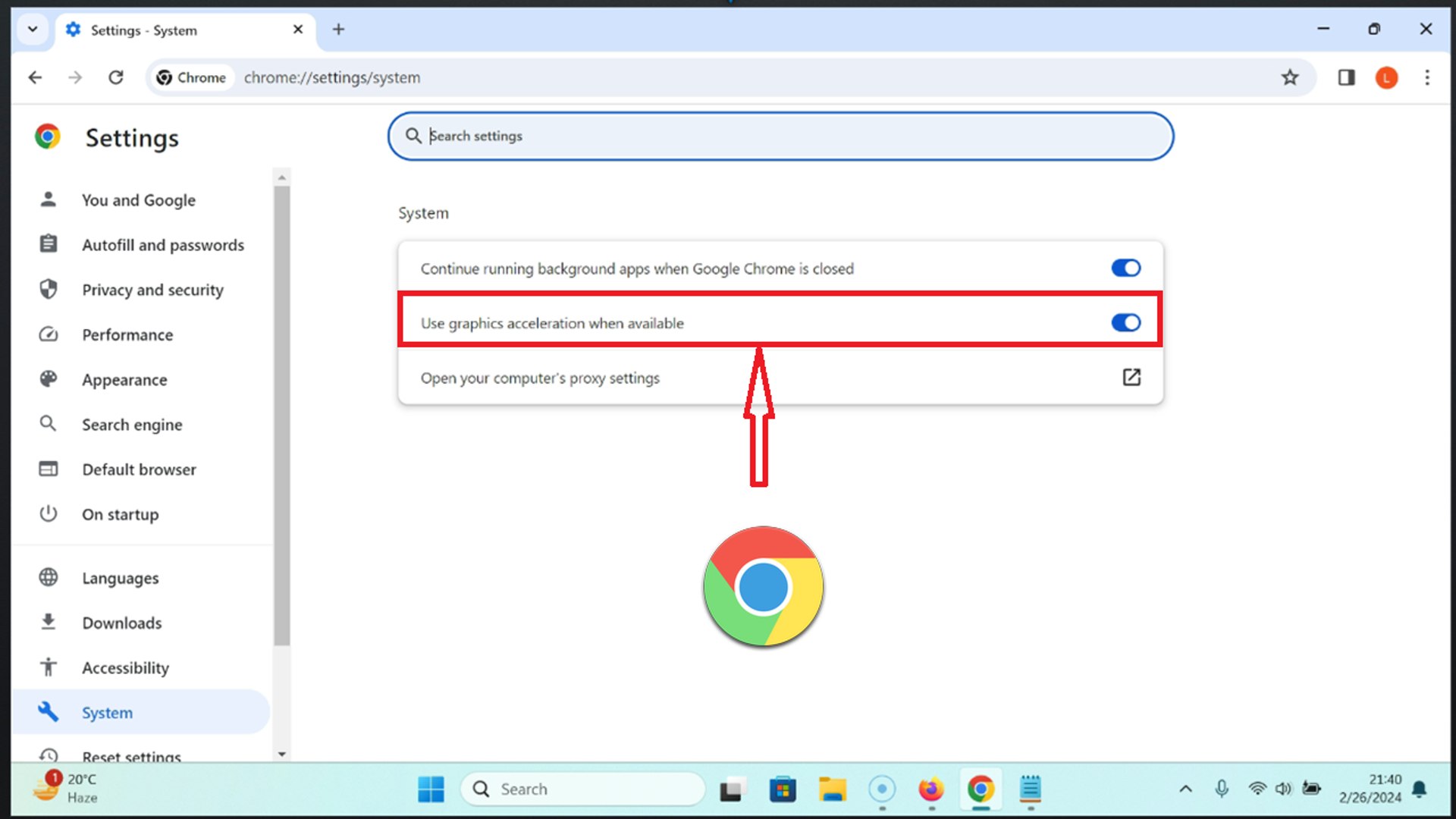
Click on System in the left navigation sidebar.

-
Find the option Use graphics acceleration when available.
-
Toggle the switch to the Off position.
-
Click Relaunch to restart Chrome with the setting applied.
Verification Check: Navigate back to the crashing page to check if GPU rendering was causing the instability.
Modifying experimental flags or corrupted browser profiles can cause instability. Resetting Chrome restores default behavior.
-
Open Chrome Settings and click Reset settings from the left-hand panel.
-
Click Restore settings to their original defaults.

-
Click the Reset settings button to confirm.
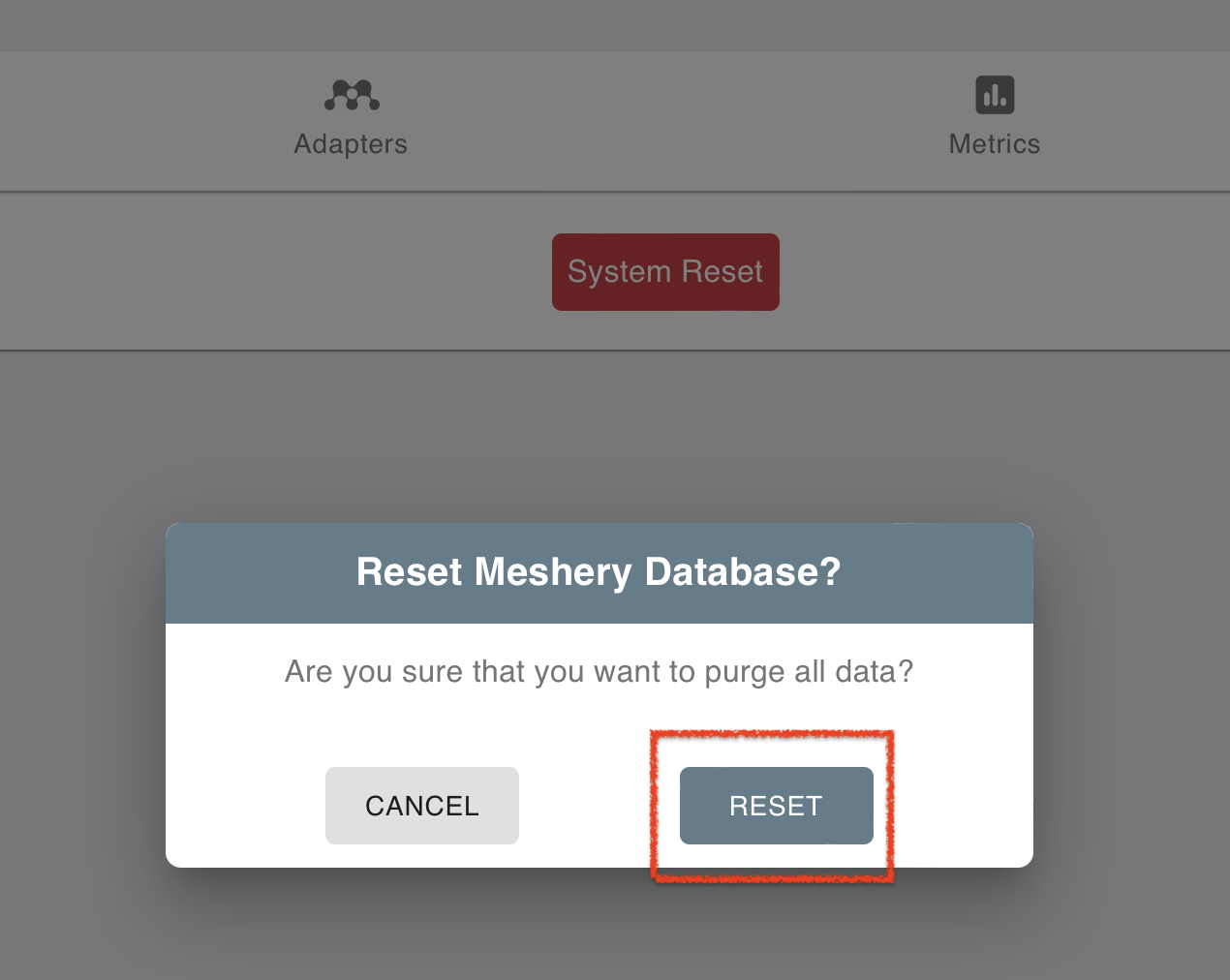
Verification Check: Check if Chrome opens pages normally without generating the “Aw, Snap!” prompt.
On Windows systems, strict exploit protection settings can sometimes conflict with Chrome’s sandbox model.
-
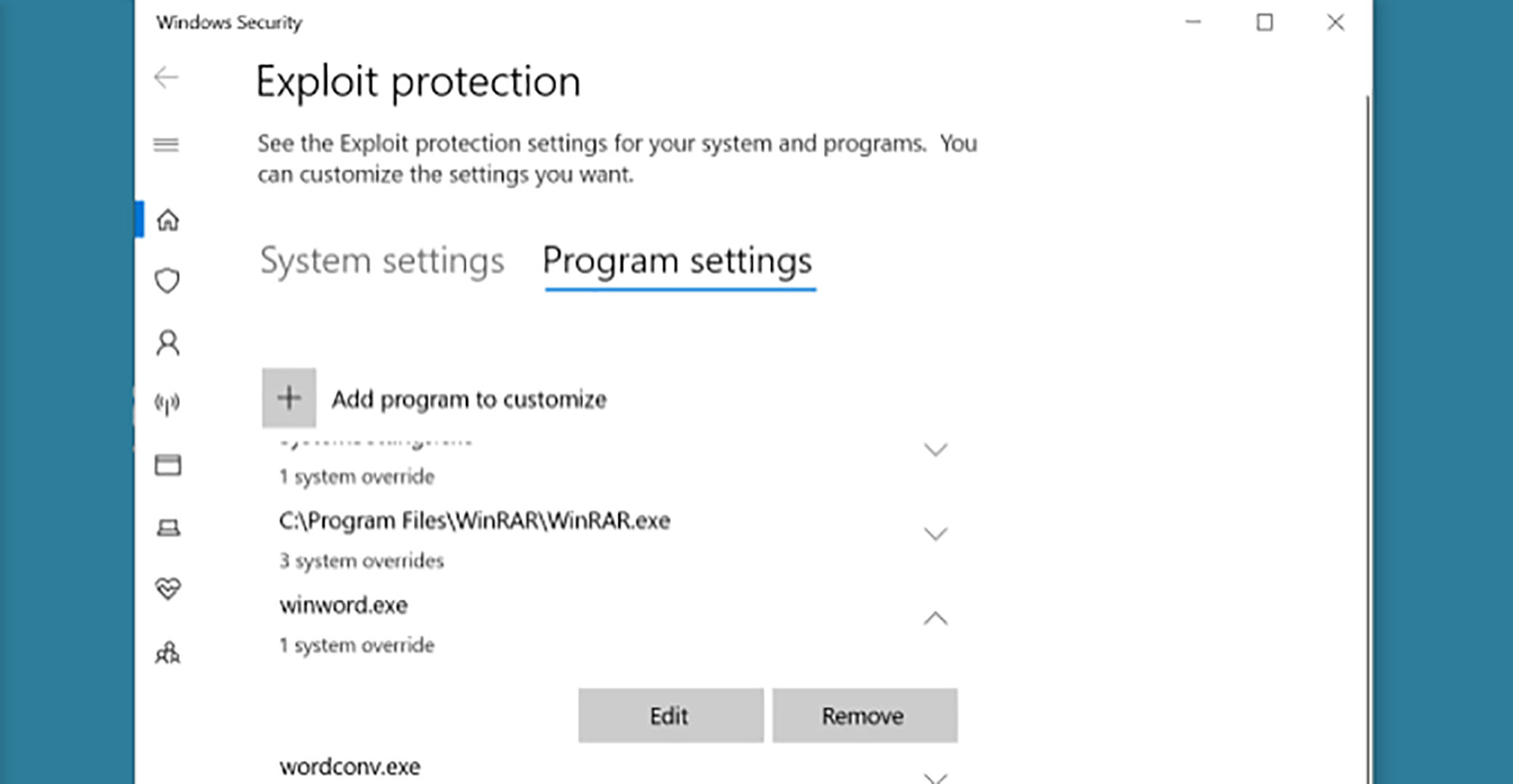
Press the Windows Key, type Exploit protection, and press Enter.
-
Go to the Program settings tab and click Add program to customize.
-
Choose Add by program name and type
chrome.exe.
-
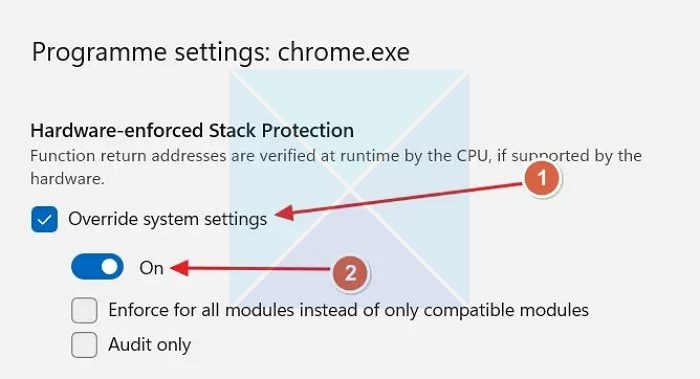
Scroll down to Hardware-enforced Stack Protection.
-
Check Override system settings, turn the setting Off, and click Apply.
Verification Check: Launch Chrome and check if high-resource webpages now render stability.
Frequently Asked Questions
What does the error code “STATUS_BREAKPOINT” mean on Chrome?
This error code indicates that Chrome’s memory management encountered a breakpoint while executing page scripts. It usually stems from unstable overclocked RAM, corrupt browser cache, or aggressive extensions.
Will resetting Chrome delete my saved passwords and bookmarks?
No. Resetting Chrome clears temporary cookies, site permissions, and extensions, but your saved passwords, bookmarks, and browsing history will remain untouched.
Why does “Aw, Snap!” keep happening on only one specific website?
If the error occurs on a single site, the issue is likely caused by corrupt cookies stored for that domain, heavy web scripts exceeding memory limits, or compatibility issues with that website’s server.
System memory limitations, extension conflicts, and hardware acceleration errors account for most Chrome crash scenarios. Following these structured steps will help resolve browser instability and prevent recurring “Aw, Snap!” errors.

Pony Lorenzo is the lead technical writer and managing editor at Finauraly Win. With extensive experience in operating system maintenance, software diagnostic testing, and digital productivity tools, Pony specializes in breaking down complex technical errors into actionable, step-by-step troubleshooting guides for Windows, macOS, Android, and Web applications.