
Few things trigger panic like opening Google Drive and finding your important document missing, or having your browser crash mid-paragraph. Because Google Docs automatically saves your work to the cloud in real time, losing a document is rare—but it still happens due to account sync glitches, accidental deletion, or misplaced files.
This step-by-step troubleshooting guide will walk you through exact methods to recover your lost or unsaved Google Docs. You will learn how to locate misplaced files, restore deleted items, use Version History to recover lost text, and contact Google support for hard-to-find documents.
Prerequisites & Quick Checks
Before diving into advanced recovery methods, rule out simple visual or filter issues:
- Check your active Google account: If you use multiple accounts, verify you are logged into the correct profile. Click your profile icon in the top-right corner to switch accounts.
- Refresh your browser: Press Ctrl + R (Windows) or Cmd + R (Mac) to clear temporary rendering glitches.
- Look in alternate locations: Open Shared with me from the left sidebar to confirm the file wasn’t created by someone else.
Method 1: Locate Misplaced Files Using Advanced Search
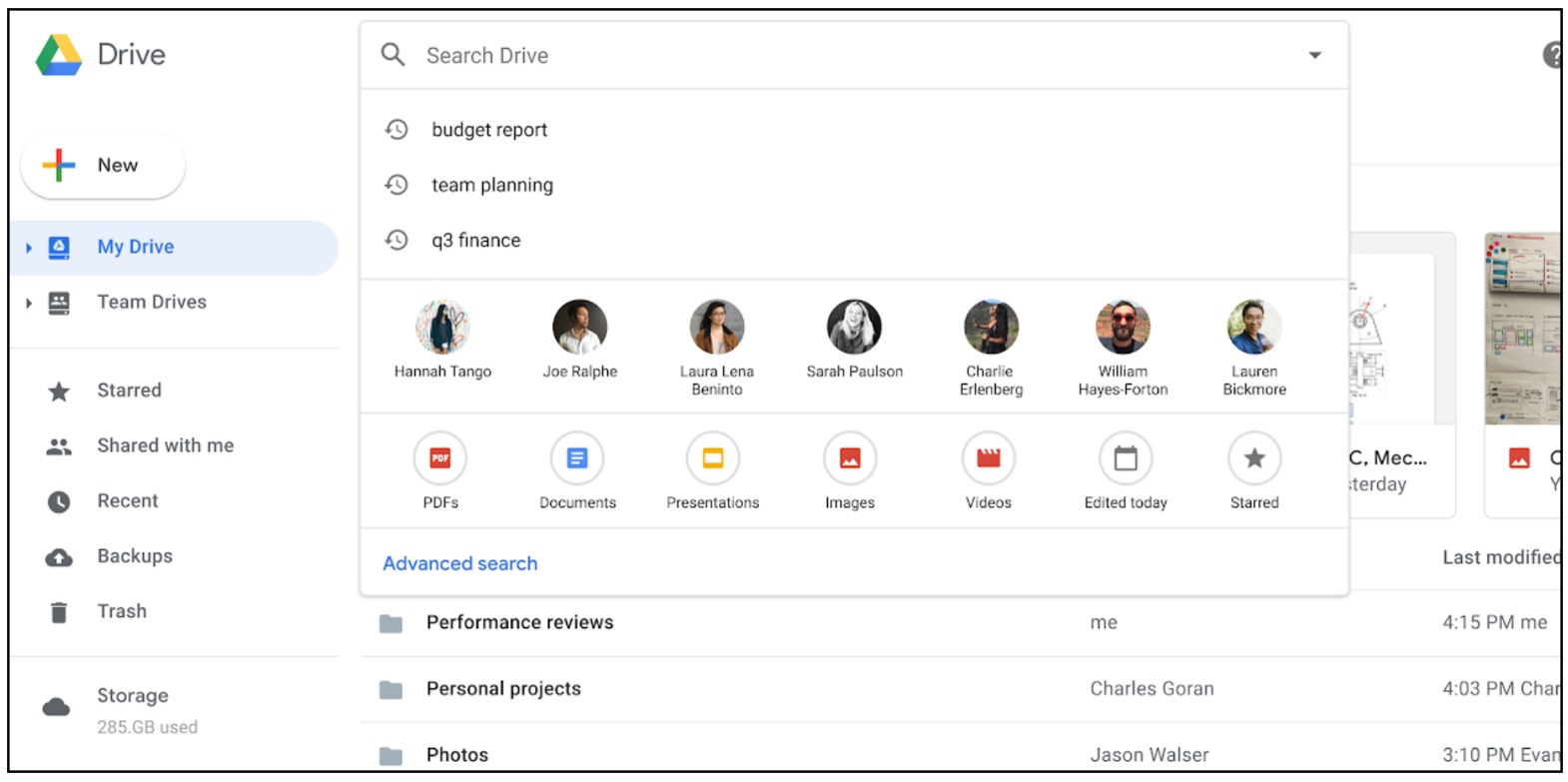
Google Drive stores millions of files, making it easy to accidentally drag a document into the wrong folder. Instead of manually opening folders, use Drive’s built-in search filters to scan hidden directory trees.
Step-by-Step Execution
-
Open Google Drive in your browser.
-
Click the Search options icon located on the right side of the main search bar at the top.
-
Set the Type dropdown to Documents.
-
Set Owner to Owned by me (or Not owned by me if working on a shared project).
-
Enter any key phrase you remember from the document inside the Includes the words field.
![Search Bar Examples: 30 Inspiring UI Designs [+ UX Tips]](https://finauralywin.com/wp-content/uploads/2026/09/685ea807e14cbd083bef9267_32.png)
-
Click Search at the bottom right of the panel.
Method 2: Restore Deleted Files from Google Drive Trash
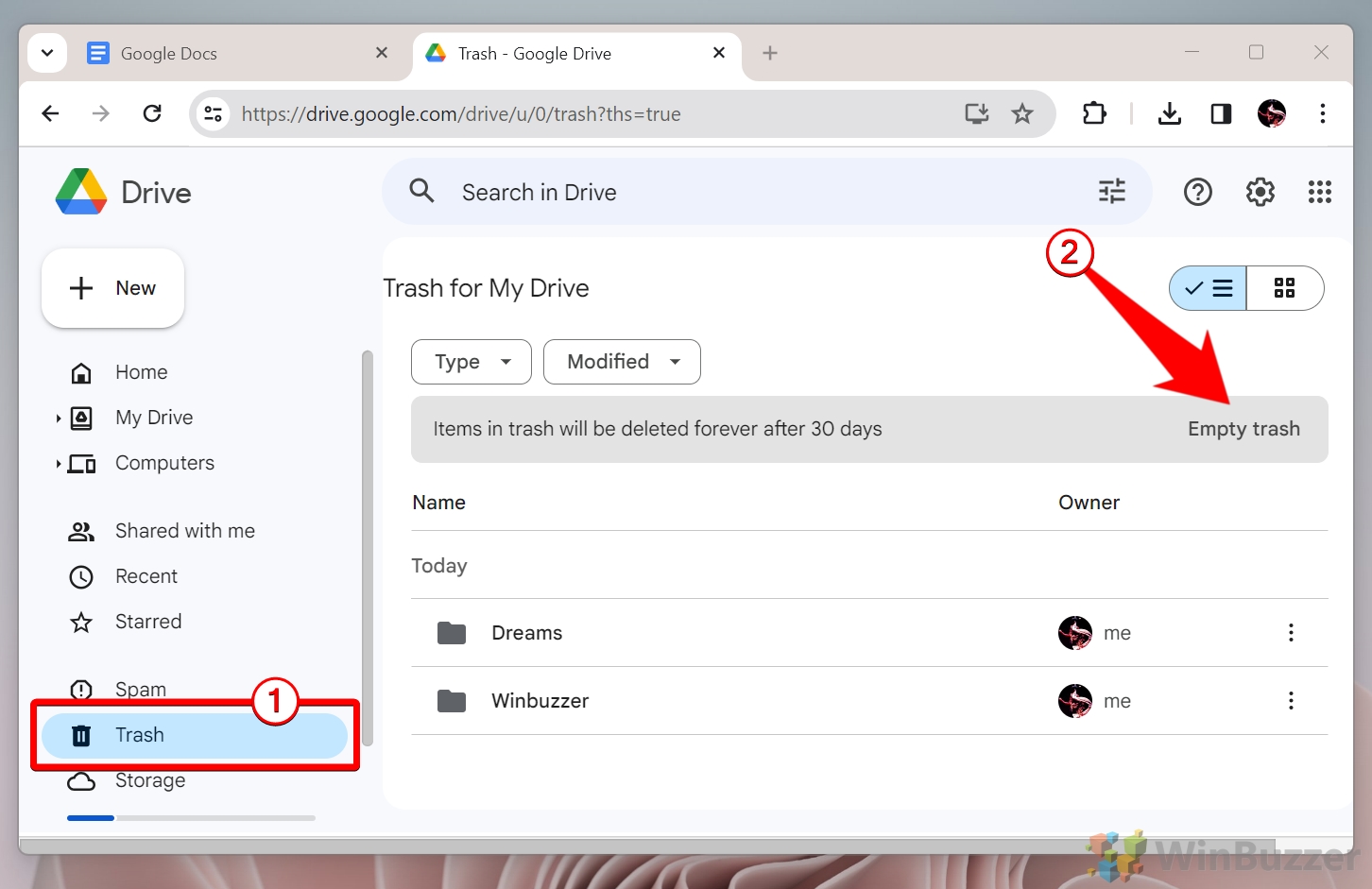
If you accidentally deleted a file, Google Drive moves it to the Trash folder. Items remain in the Trash for 30 days before being permanently removed automatically.
Step-by-Step Execution
-
Navigate to Google Drive.
-
Click Trash in the left-hand navigation sidebar.
-
Browse the list or sort by Date deleted to locate your missing document.
-
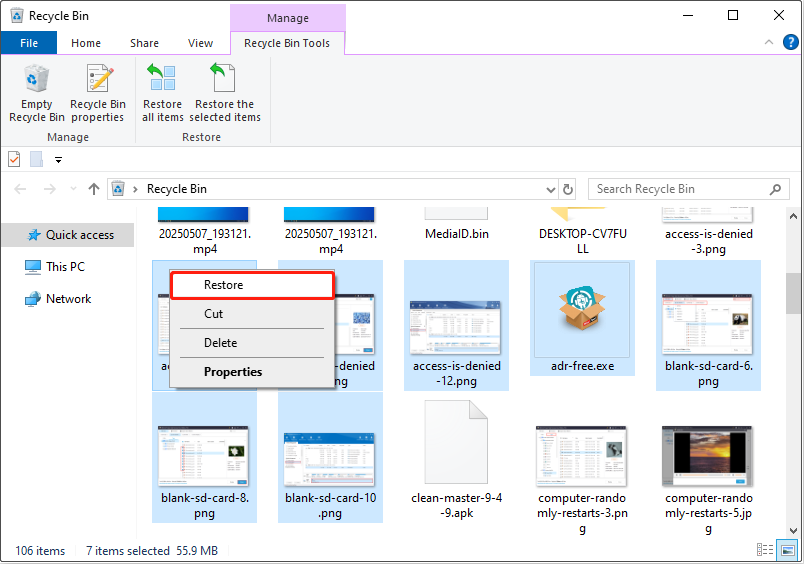
Right-click on the document title.
-
Select Restore from the contextual menu.
-
Return to My Drive to access your restored document.
Method 3: Roll Back Edits Using Google Docs Version History
If your document is open but large portions of text disappeared, Google Docs’ real-time auto-save likely recorded over your previous draft. You can roll back the document to an earlier state using Version History.
Step-by-Step Execution
-
Open the target document in Google Docs.
-
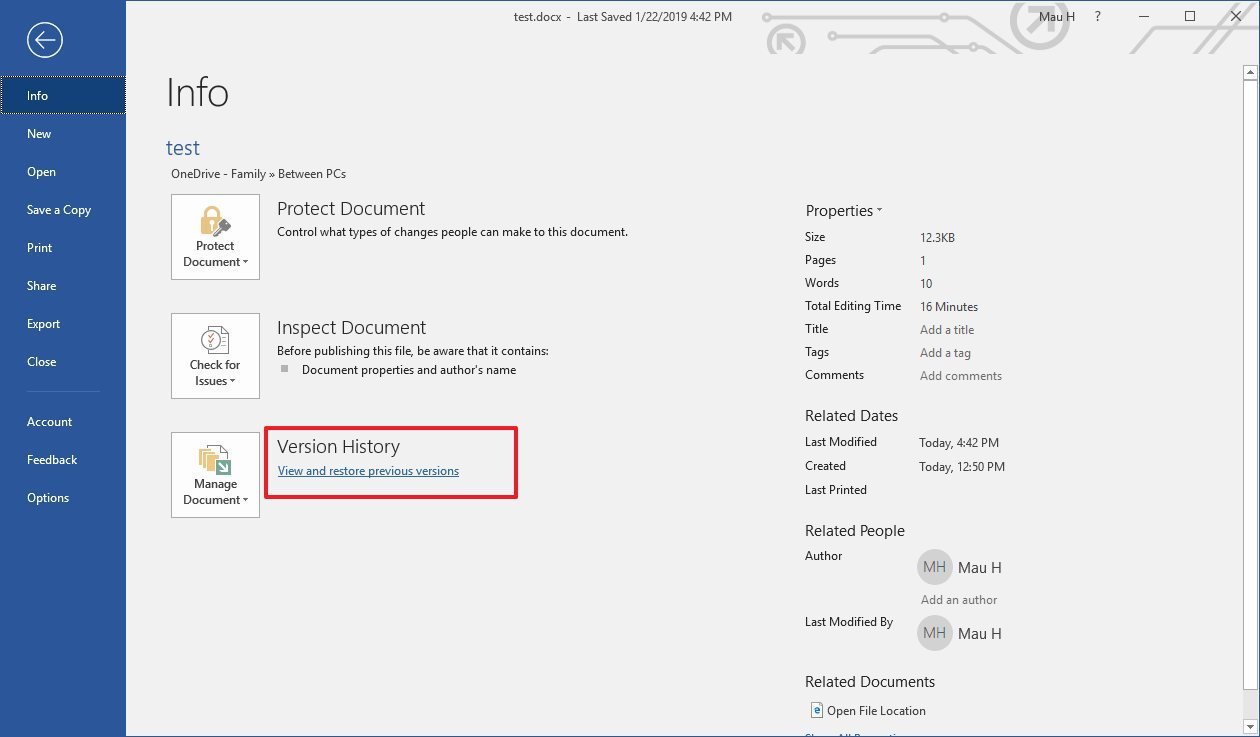
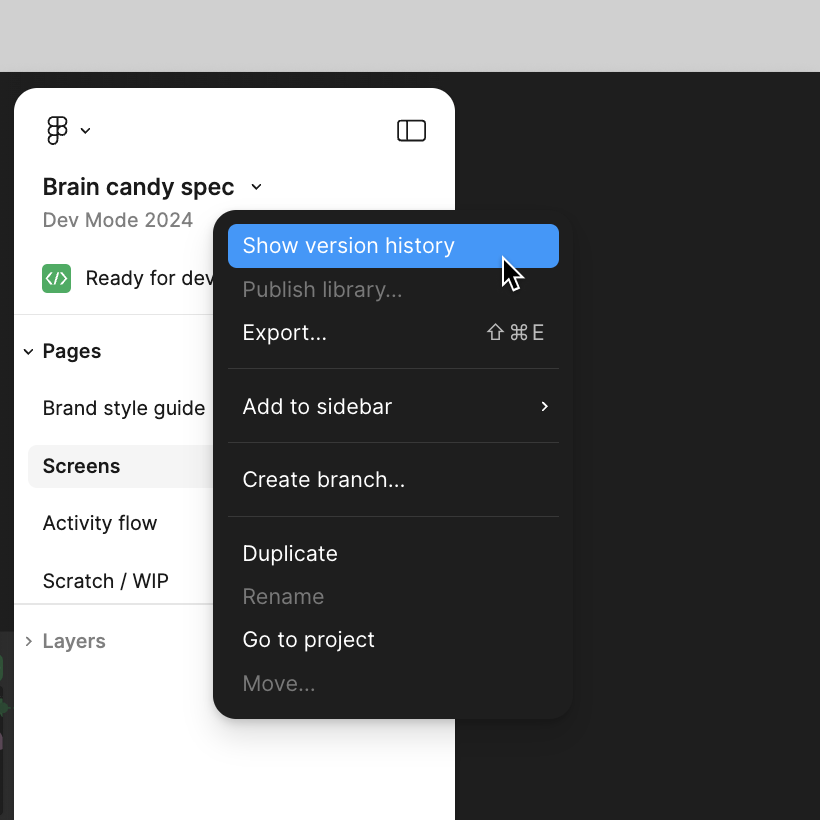
Click File in the top menu bar, hover over Version history, and select See version history. (Shortcut: Ctrl + Alt + Shift + H on Windows, Cmd + Option + Shift + H on Mac).
-
Look at the right-hand panel showing timestamped revisions.
-
Click through earlier timestamps to preview past versions of your text.
-
Toggle the Show changes checkbox at the bottom to highlight additions and deletions.
-
Once you find the desired draft, click the blue Restore this version button at the top of the screen.

-
Click Restore in the confirmation pop-up window.
Method 4: Search for Unorganized or Orphaned Files
Orphaned files occur when you create a file inside a shared folder owned by someone else, and the owner subsequently deletes that parent folder. The file still exists in your storage, but its folder path is gone.
Step-by-Step Execution
-
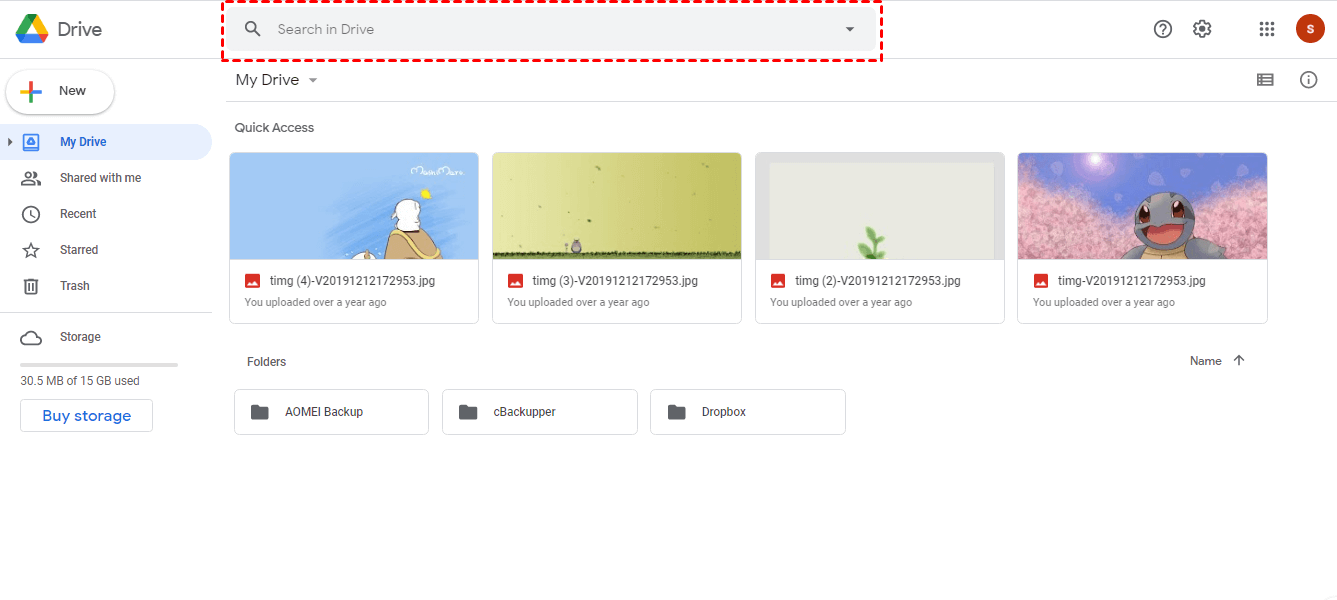
Place your cursor inside the main Google Drive search bar.
-
Type the following search command exactly as shown:
is:unorganized owner:me
-
Press Enter to run the query.
-
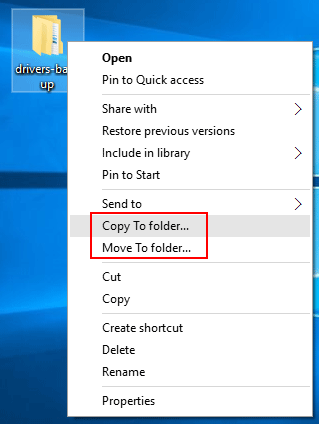
If your lost document appears in the results, right-click it and select Move to.
-
Choose a folder in My Drive to re-home the document safely.
Method 5: Request File Recovery from Google Support
If you deleted a file permanently from the Trash within the last 30 days, Google Support may be able to restore it for you. This option is available for personal Google Workspace/Drive accounts.
Step-by-Step Execution
-
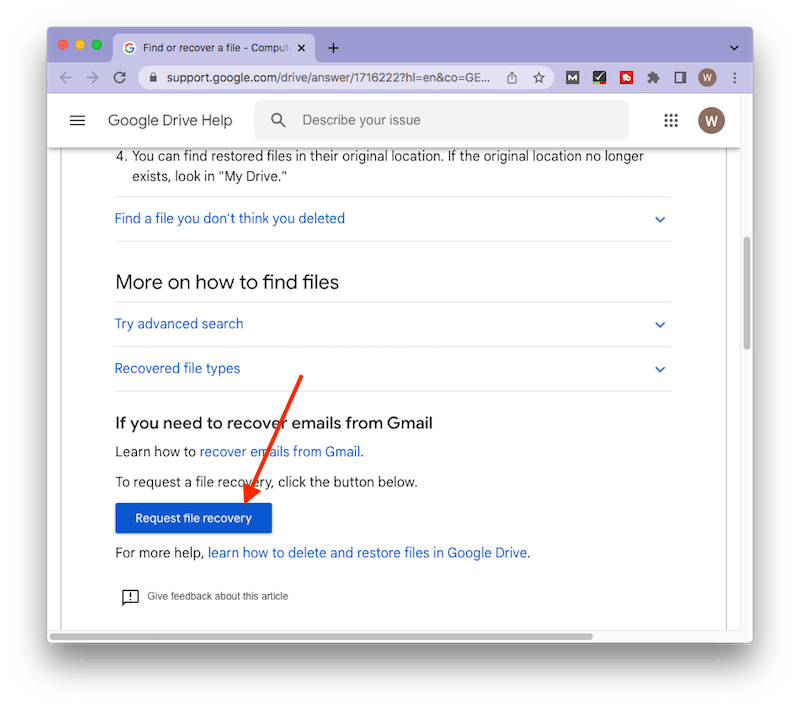
Go to the official Google Drive Help Center recovery page.
-
Log into your primary Google account.
-
Scroll down to the File Recovery Request section.
-
Fill out the form with your First Name, Last Name, and check the consent box confirming you are requesting recovery for recently deleted files.
-
Click Submit.
-
Check your Gmail inbox for an automated confirmation email. Recovery usually takes between 24 to 48 hours.
Frequently Asked Questions (FAQ)
Can I recover a Google Doc if I was working offline?
Yes. When your internet connection drops, Google Docs saves changes locally to your browser cache (if offline mode was previously enabled). Once your connection is restored, open the document in your browser, and the offline changes will automatically sync to your cloud storage.
How long do deleted files stay in Google Drive Trash?
Deleted files remain in the Trash folder for 30 consecutive days. After 30 days, Google’s automated systems permanently purge the files, after which standard user recovery is no longer possible without Google Support intervention.
Why did my text disappear while I was actively typing?
This typically happens when another user with edit permissions modifies the document simultaneously, or if an unstable internet connection causes a temporary sync conflict. Open File > Version history > See version history to locate and restore the lost edits.
Conclusion
Losing an important document can interrupt your workflow, but Google Drive offers several built-in safety nets to retrieve missing data. By leveraging advanced search queries, checking the Trash, and inspecting Version History, you can recover almost any lost Google Doc. If self-service steps fail, reach out to Google Support quickly before the automated purge window closes.

Pony Lorenzo is the lead technical writer and managing editor at Finauraly Win. With extensive experience in operating system maintenance, software diagnostic testing, and digital productivity tools, Pony specializes in breaking down complex technical errors into actionable, step-by-step troubleshooting guides for Windows, macOS, Android, and Web applications.