

Seeing the “Waiting for this message. This may take a while” error in WhatsApp can interrupt important conversations. This message appears when end-to-end encryption delays message delivery between devices.
WhatsApp uses end-to-end encryption to protect every conversation. When you or the sender reinstall WhatsApp, switch phones, or link a new device, security keys must regenerate. Until your app receives the updated public key, it cannot decrypt and display the incoming message.
This guide provides practical methods to resolve the error on Android and iOS devices quickly.
Quick Checks Before You Begin
Try these quick checks before attempting advanced solutions:
-
Ask the Sender to Open WhatsApp: The fastest fix is asking the sender to open WhatsApp on their phone. This forces their app to transmit the key required to decrypt the message.
-
Verify Your Internet Connection: Ensure your phone has a stable Wi-Fi or cellular network connection to send and receive encryption keys.
-
Keep WhatsApp Open: Leave the chat screen open for a few minutes while connected to Wi-Fi to give the app time to finish key synchronization.
Solution 1: Backup and Restore WhatsApp Chats
Backing up and reinstalling WhatsApp forces the app to resynchronize all encryption keys and download pending messages.
On Android
-
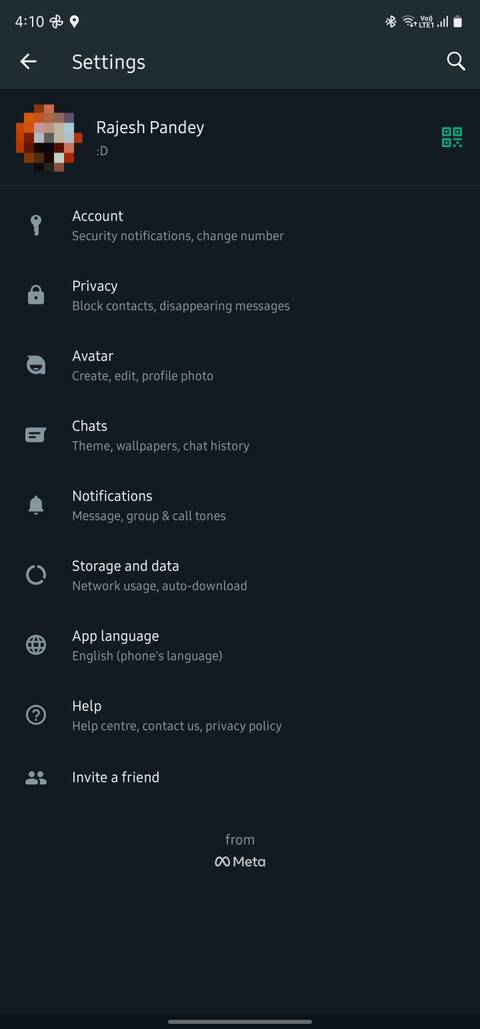
Open WhatsApp and tap the Three Dots in the top-right corner.
-
Select Settings and tap Chats.
-
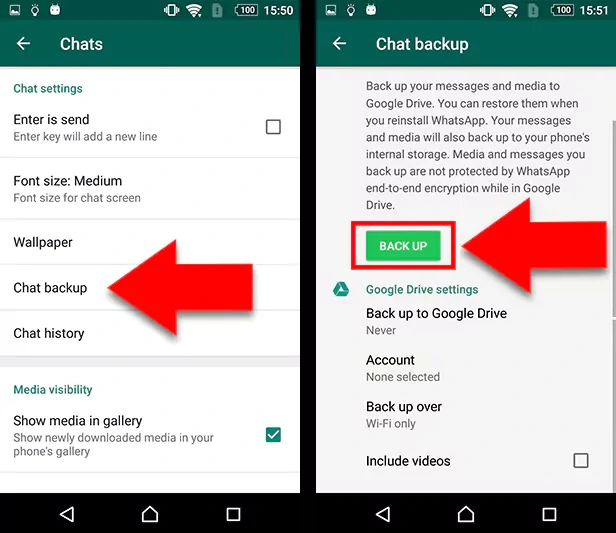
Tap Chat backup, then tap Back Up to save your latest messages.
-
Return to your phone’s home screen, long-press the WhatsApp icon, and tap Uninstall.
-
Open the Google Play Store, search for WhatsApp, and tap Install.
-
Open WhatsApp, verify your phone number, and tap Restore when prompted to retrieve your chat history.
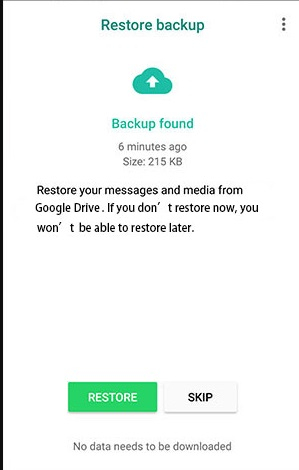
To verify this worked, open the affected chat thread. The placeholder text should be replaced by the original message content once synchronization completes.
On iOS (iPhone)
-
Open WhatsApp and tap Settings in the bottom-right corner.
-
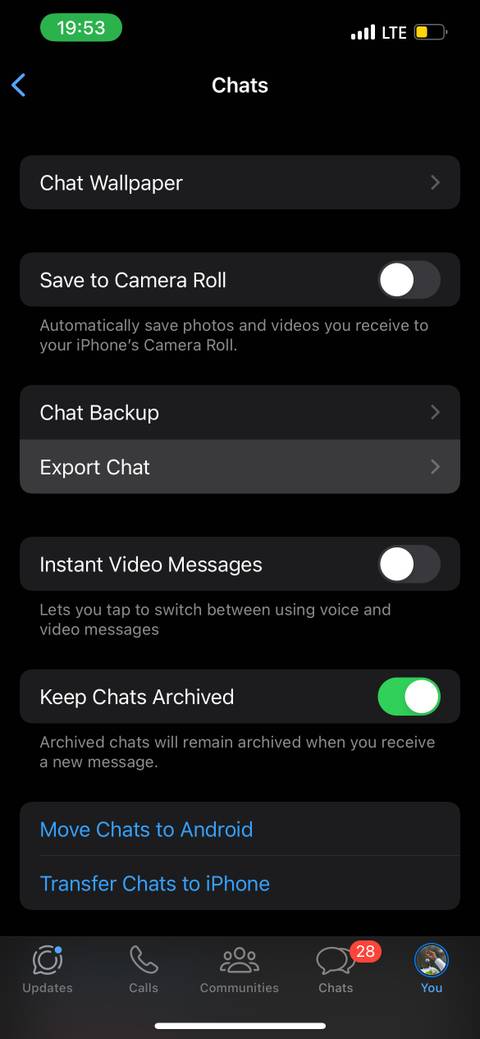
Tap Chats, then select Chat Backup.
-
Tap Back Up Now and wait for the process to complete.
-
Go to your home screen, press and hold the WhatsApp icon, tap Remove App, and select Delete App.
-
Open the App Store, search for WhatsApp, and tap the Download icon.
-
Launch WhatsApp, complete the phone number verification, and select Restore Chat History.
To verify success, open the chat thread. The message should display normally without encryption placeholders.
Solution 2: Update WhatsApp to the Latest Version
Outdated versions of WhatsApp often encounter encryption key exchange bugs. Updating ensures your app has the latest security patches and protocols.
On Android
-
Open the Google Play Store on your Android device.
-
Tap your Profile Icon in the top-right corner and select Manage apps & device.
-
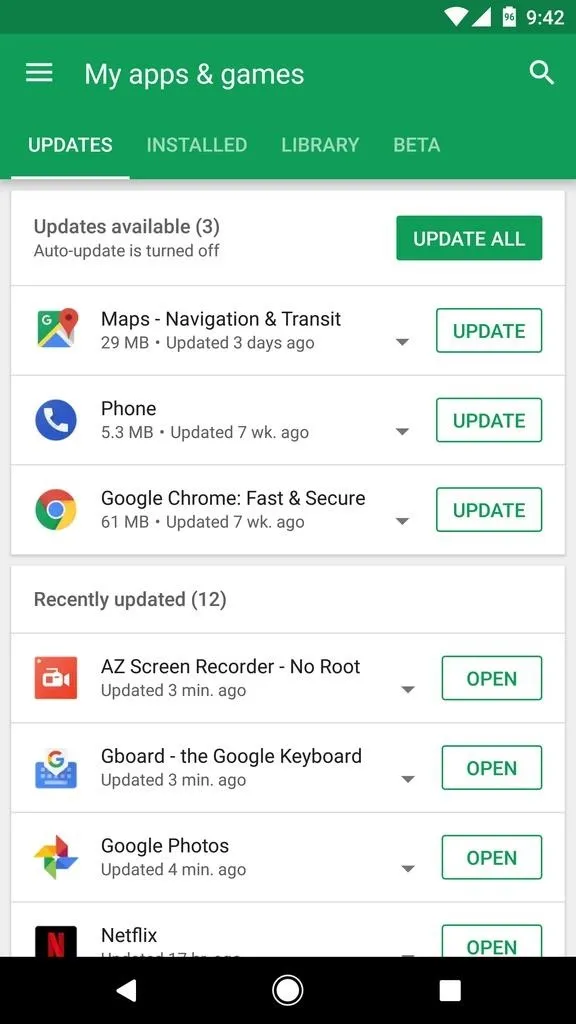
Tap Updates available and look for WhatsApp Messenger.
-
Tap Update next to WhatsApp and wait for the installation to complete.
Verify the fix by re-opening WhatsApp and checking if the encryption key synchronization finishes.
On iOS
-
Open the App Store on your iPhone.
-
Tap your Profile Picture in the upper-right corner.
-
Scroll down to Upcoming Automatic Updates.

-
Locate WhatsApp and tap Update alongside it.
Verify that the application launches smoothly and processes pending messages.
Solution 3: Re-link WhatsApp Web or Desktop Apps
Linked devices like WhatsApp Web or WhatsApp Desktop can interfere with main device key handshakes if their active sessions become corrupted.
-
Open WhatsApp on your primary smartphone.
-
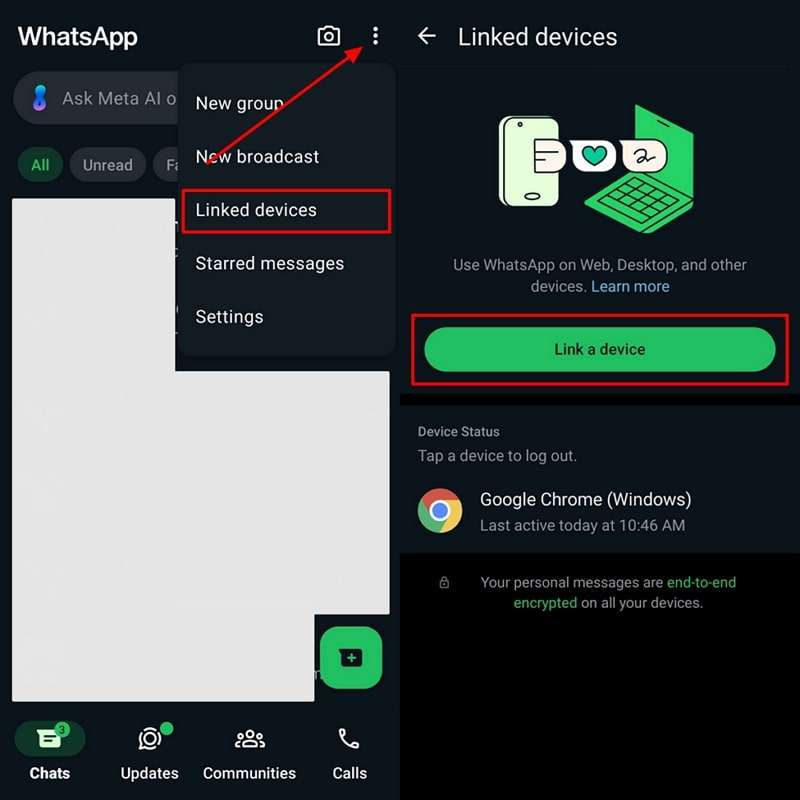
Go to Settings (iOS) or tap the Three Dots (Android).
-
Tap Linked Devices.
-
Tap each active device listed under Device Status and select Log Out.
-
Restart WhatsApp on your mobile phone and ask the sender to send a test message.
Verify that messages now load immediately without holding in the encryption queue.
Solution 4: Clear WhatsApp Cache (Android Only)
Accumulating temporary cached files can corrupt app background tasks and stop encryption key synchronization.
-
Open your phone’s Settings app.
-
Scroll down and tap Apps or Apps & Notifications.
-
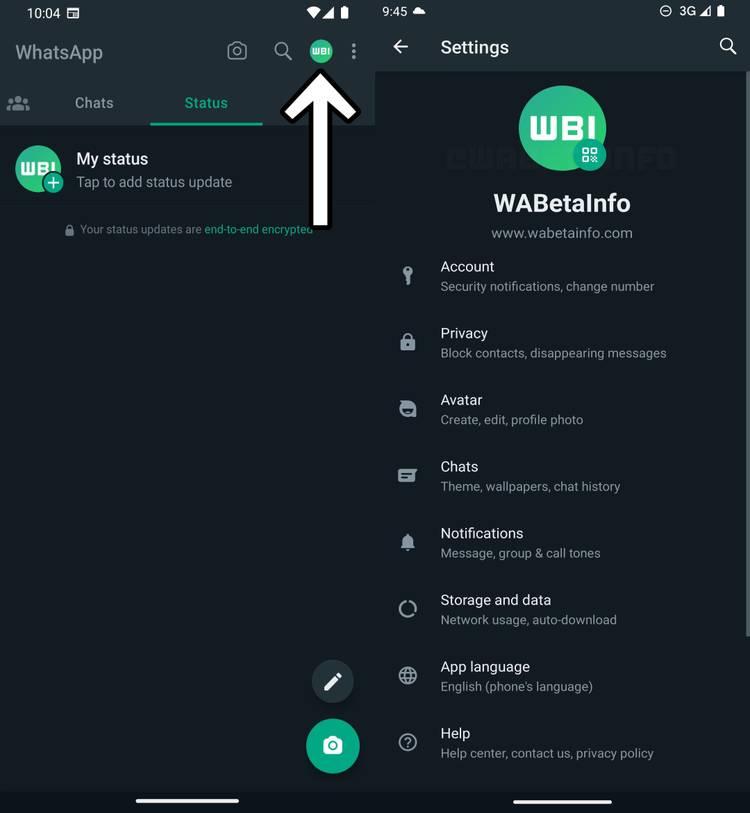
Select See all apps and tap WhatsApp.
-
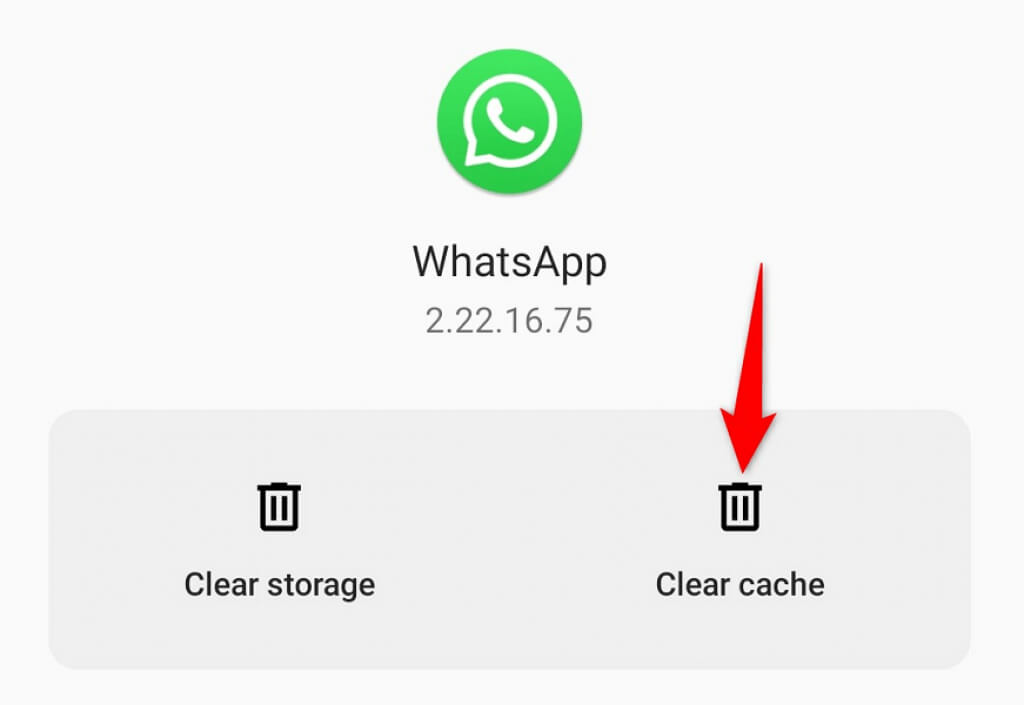
Tap Storage & cache.
-
Tap Clear Cache.
Restart WhatsApp and check if the message decrypts successfully.
Solution 5: Reset Network Settings
System-level network glitches can block WhatsApp background connections from reaching synchronization servers.
On Android
-
Open Settings and tap System or General Management.
-
Tap Reset options and select Reset Wi-Fi, mobile & Bluetooth.
-
Tap Reset settings and enter your device passcode to confirm.
On iOS
-
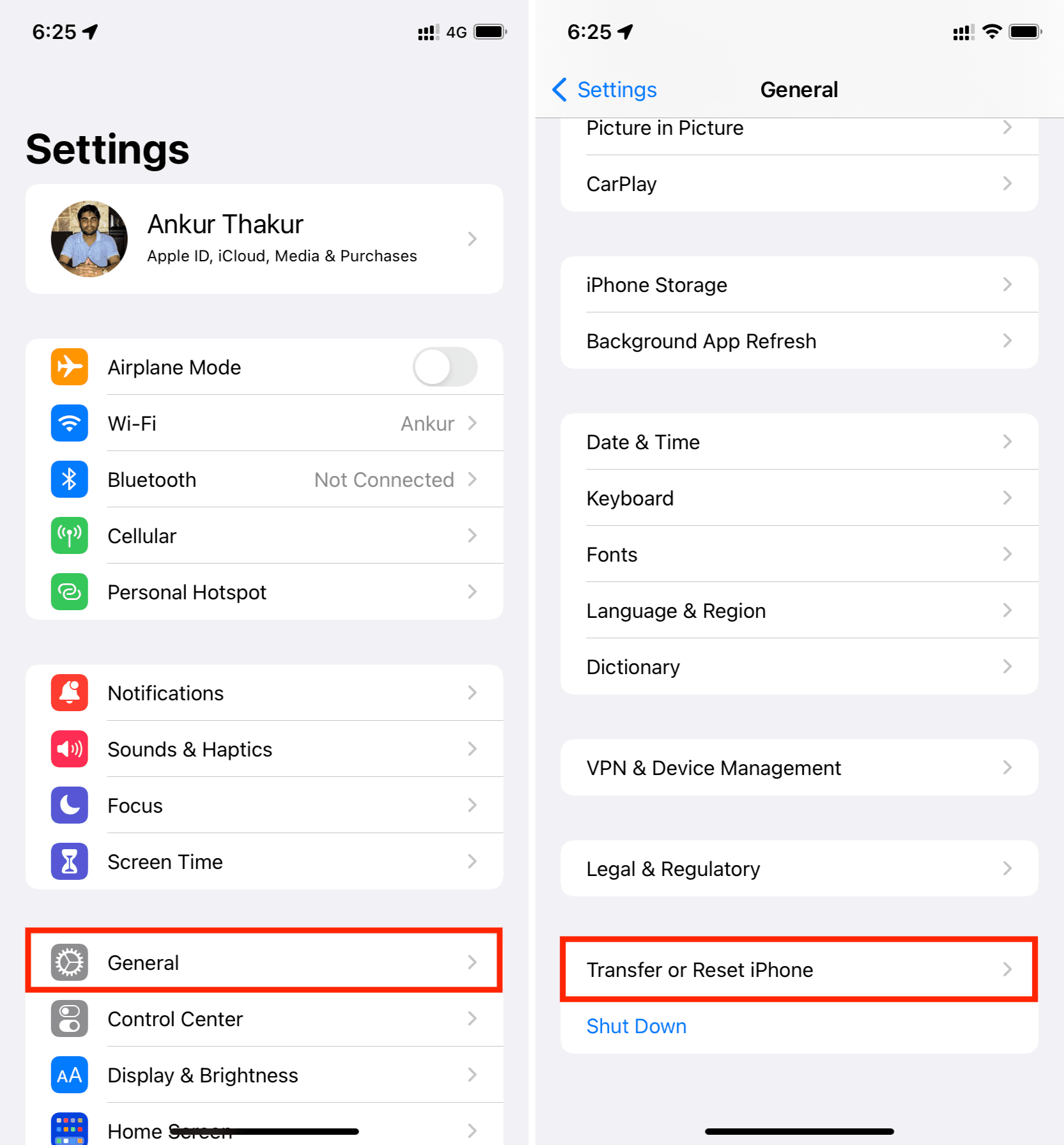
Open Settings and tap General.
-
Scroll to the bottom and select Transfer or Reset iPhone.
-
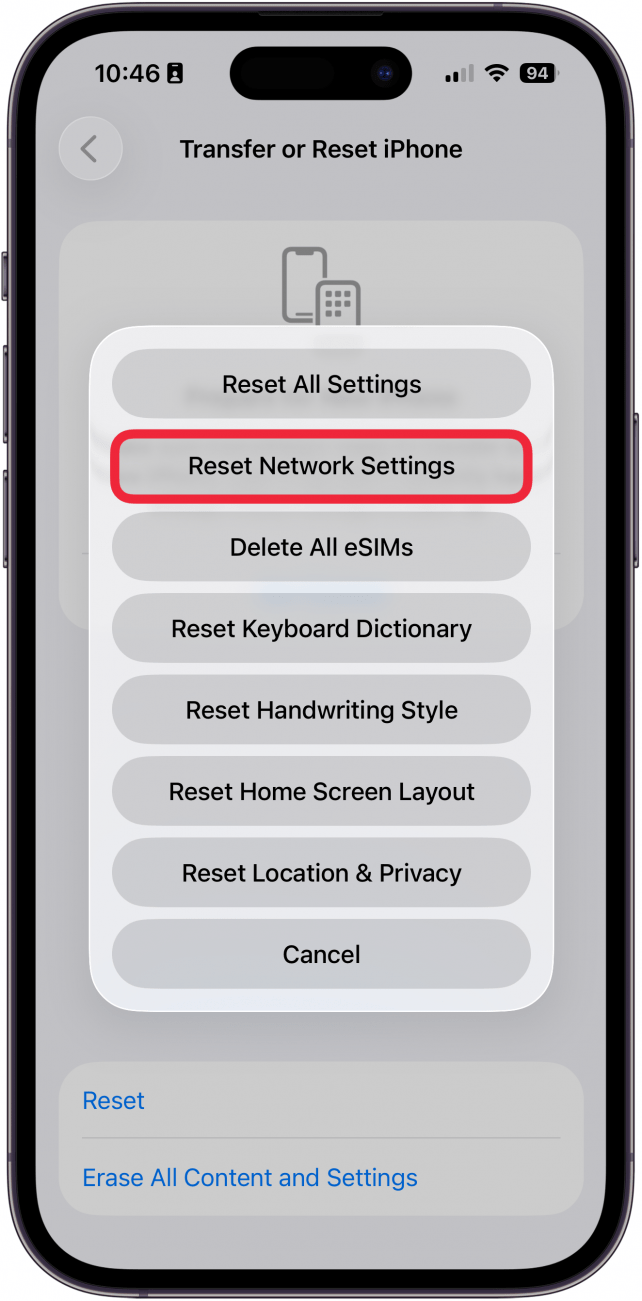
Tap Reset, then select Reset Network Settings.
-
Enter your passcode to initiate the restart process.
Reconnect to Wi-Fi, open WhatsApp, and verify that encryption key downloads resume normally.
Frequently Asked Questions
Why does this error occur even when both users are online?
This error happens when end-to-end encryption keys out-of-sync. If one user reinstalled the app or changed devices recently, the new public key must sync across servers before messages decrypt.
Will I lose my messages if I wait for the error to clear?
No, your messages are secure. The encrypted payload remains safe on your phone until the correct decryption key is transferred.
How long does it typically take for the message to appear?
If both parties remain active on a stable internet connection, the key exchange usually resolves within a few minutes. If the sender remains offline, it persists until they re-open WhatsApp.
Restarting the application, keeping both users online, and maintaining updated app software resolves most key delivery errors. Following these step-by-step methods ensures your end-to-end encrypted chats stay synchronized and accessible on Android and iOS.

Pony Lorenzo is the lead technical writer and managing editor at Finauraly Win. With extensive experience in operating system maintenance, software diagnostic testing, and digital productivity tools, Pony specializes in breaking down complex technical errors into actionable, step-by-step troubleshooting guides for Windows, macOS, Android, and Web applications.