
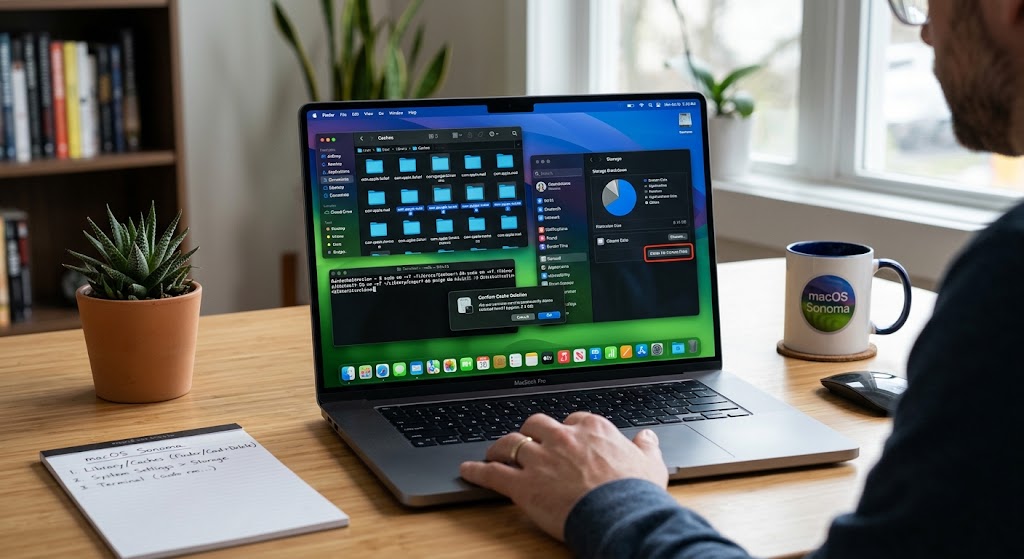
Is your Mac running slower than usual or showing a “Storage Full” warning? Over time, macOS Sonoma accumulates gigabytes of system cache, app data, and temporary files. While these files help apps load faster initially, outdated cache can become corrupted, waste valuable space, and degrade performance.
In this comprehensive guide, you will learn how to safely delete system cache, application caches, and lingering temporary files on macOS Sonoma. Following these steps will free up gigabytes of storage and help restore your Mac to peak performance.
Prerequisites & Quick Checks
Before diving into manually clearing system files, perform these brief preliminary checks to avoid losing important data or work.
-
Back Up Your Mac: Create a fresh Time Machine backup before deleting system files. This ensures you can easily recover if you accidentally delete an important file.
-
Close Active Applications: Quit all open software by pressing Command + Q to prevent file conflicts during the cleanup process.
-
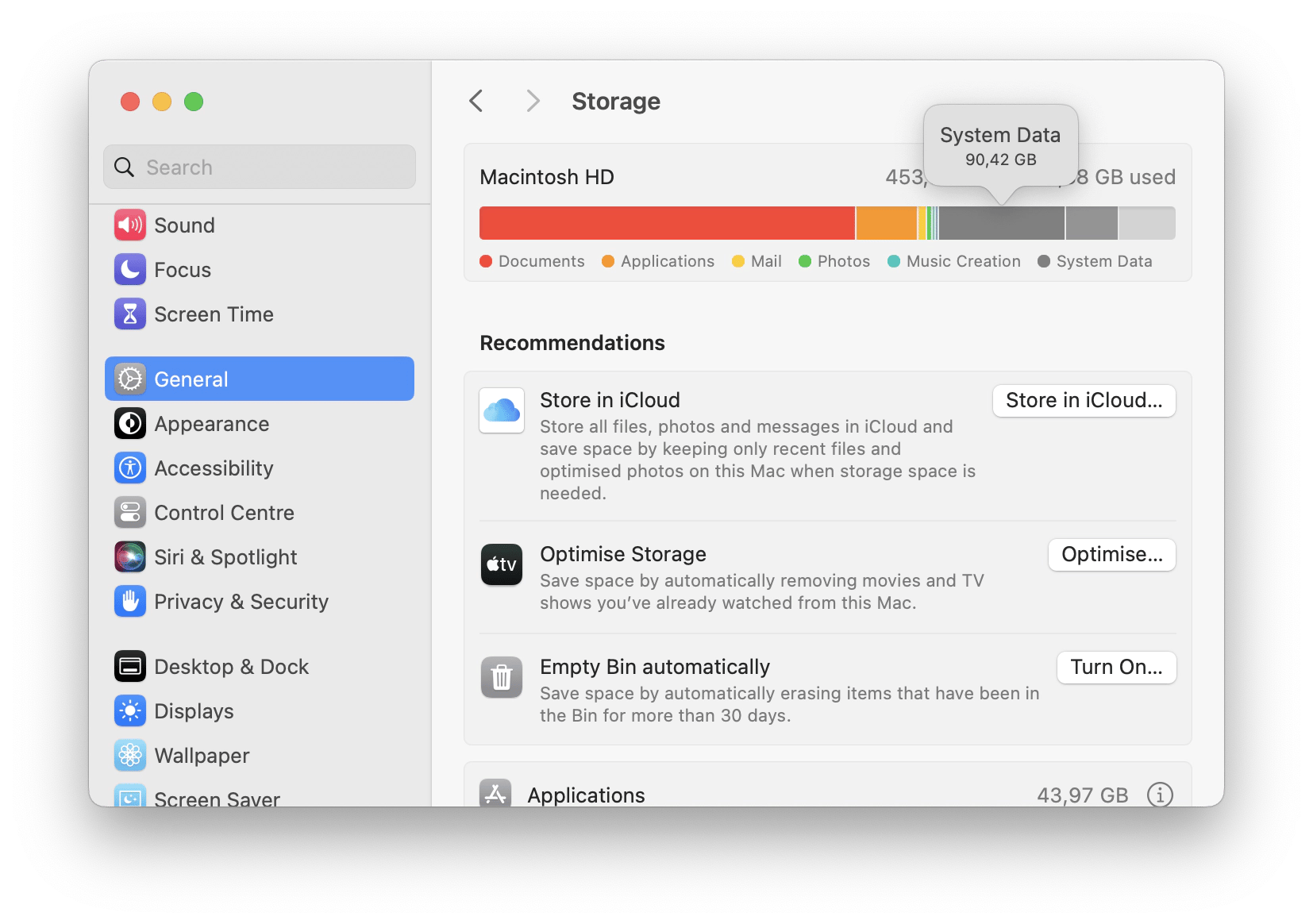
Check Storage Usage: Click the Apple logo in the top-left corner, select System Settings, and navigate to General > Storage. Wait for the bar to calculate your storage layout to see how much space “System Data” is currently consuming.
Method 1: Manually Clear User & Application Cache
User cache files store temporary data for installed applications like web browsers, photo editors, and streaming tools. Safely clearing them forces applications to rebuild fresh data structures.
-
Open Finder from your Dock.
-
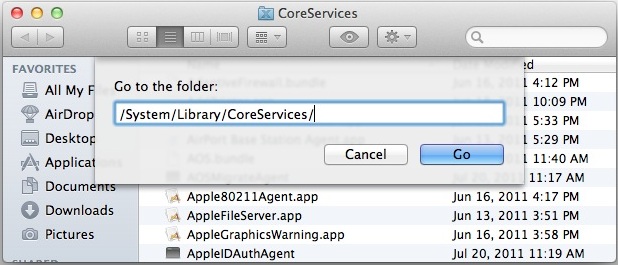
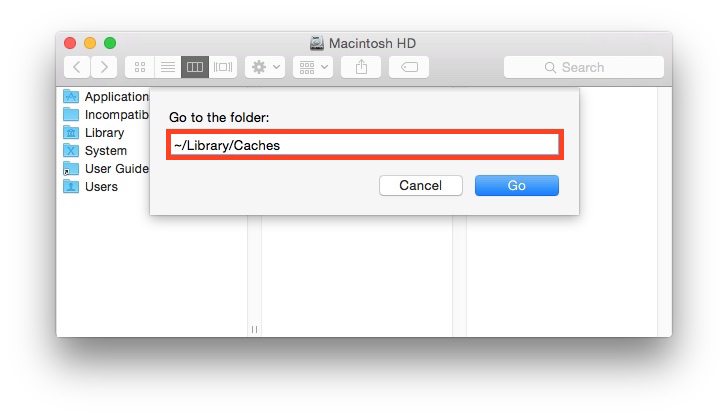
Press Command + Shift + G on your keyboard to open the Go to Folder search box.
-
Type
~/Library/Cachesinto the search field and press Return.
-
Press Command + A to select all folders inside the Caches directory.
-
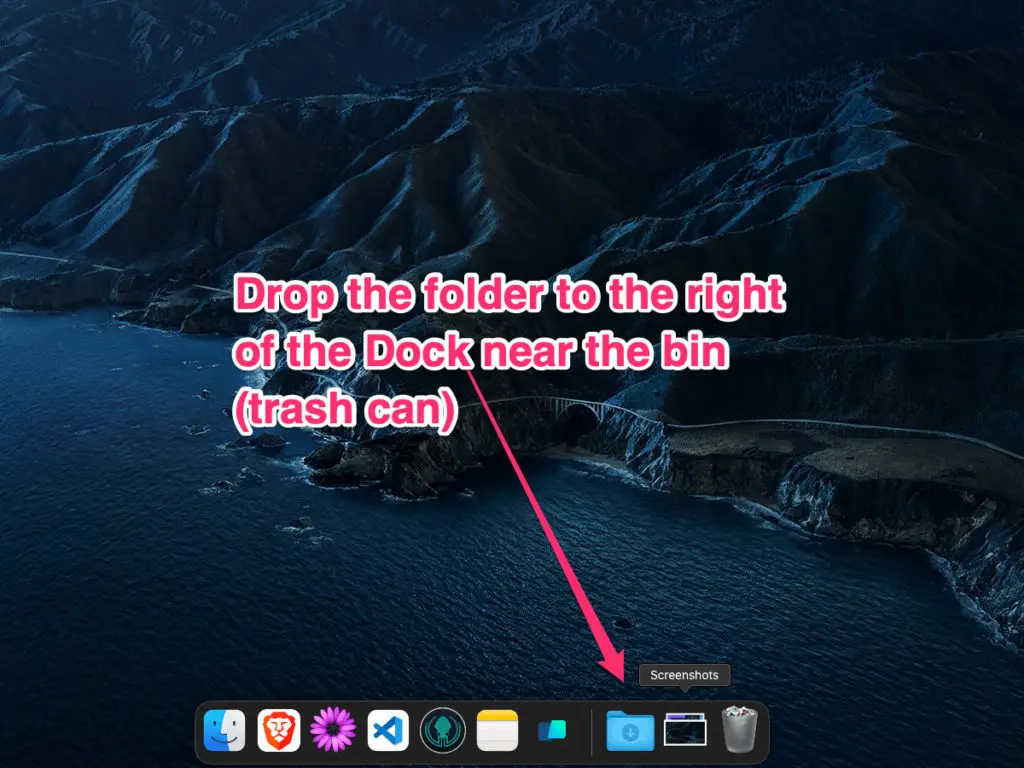
Drag the selected folders to the Trash in your Dock (or press Command + Delete).
-
Open Finder, click Finder in the top menu bar, and select Empty Trash.
Method 2: Clear macOS System Cache & Logs
System caches are generated by core macOS services. Deleting these requires caution, as you should only remove the contents inside the cache folders rather than the main system folders themselves.
-
Open Finder and press Command + Shift + G.
-
Input
/Library/Caches(without the tilde~) and hit Return.
-
Review the folders, select the contents inside, and drag them to the Trash. You may be prompted to enter your administrator password.
-
Next, open the Go to Folder box again using Command + Shift + G.
-
Type
/var/logand press Return to open the system logs directory. -
Select outdated
.logfiles and move them to the Trash. -
Right-click the Trash icon in your Dock and click Empty Trash.

Method 3: Remove Xcode & Developer Caches (If Applicable)
If you compile software, design iOS apps, or use Xcode on macOS Sonoma, developer caches and derive data can easily take up 30 GB or more of storage space.
-
Open Finder and press Command + Shift + G.
-
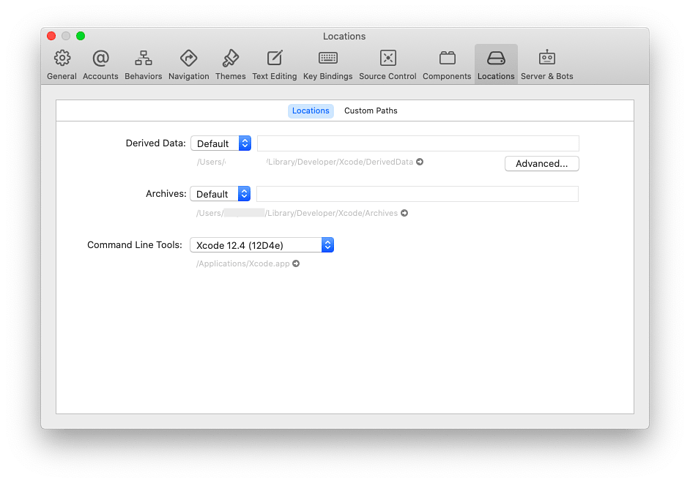
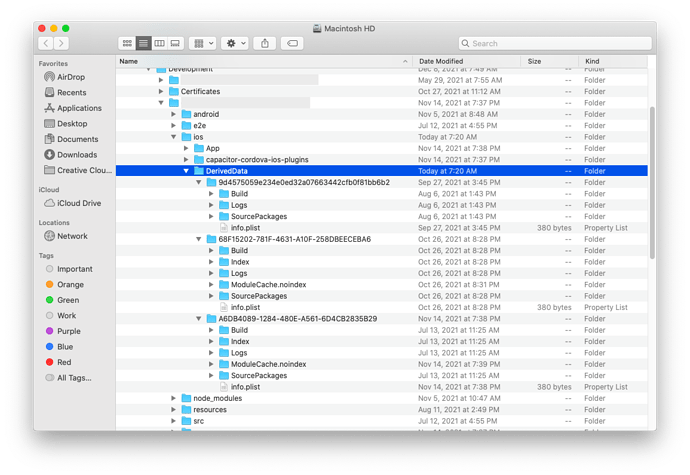
Paste
~/Library/Developer/Xcode/DerivedDatainto the input bar and press Return.
-
Select all folders within the DerivedData folder.
-
Move the selected items to the Trash.
-
Repeat the process for
~/Library/Developer/Xcode/Archivesif you no longer need old app build archives. -
Empty your Trash to permanently reclaim the space.
Method 4: Clear Temporary Files via Storage Optimization
macOS Sonoma includes built-in storage management features that automatically purge temporary installer files, cache, and unused media downloads.
-
Open the Apple Menu in the top-left corner and click System Settings.
-
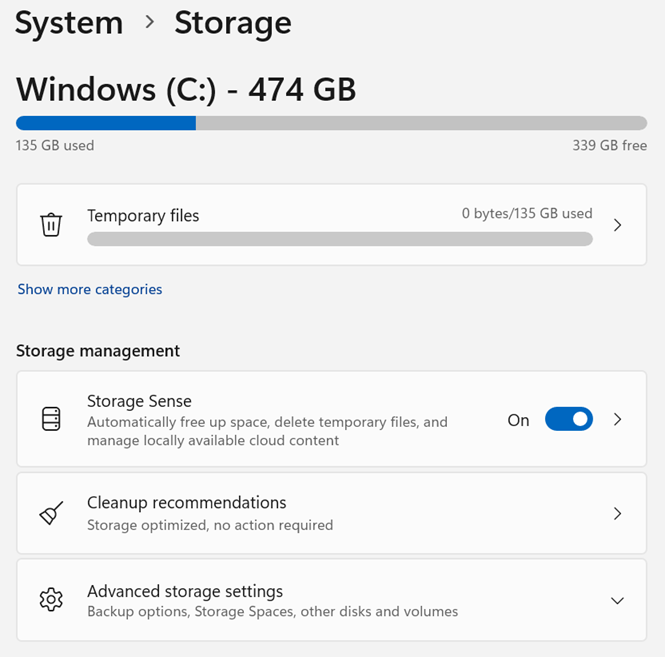
Select General from the sidebar, then click Storage.
-
Review the Recommendations section directly under the storage bar.
-
Click Optimize next to Optimize Storage to automatically clean up temporary movie and TV show downloads you have already watched.
-
Review the Applications and Documents sections to manually clear large installer
.dmgfiles that are no longer needed.
Method 5: Clear Web Browser Cache and Temporary Data
Web browsers store massive amounts of temporary cached images and scripts that can slow down web browsing and consume multiple gigabytes of drive space.
Clear Safari Cache
-
Open Safari.
-
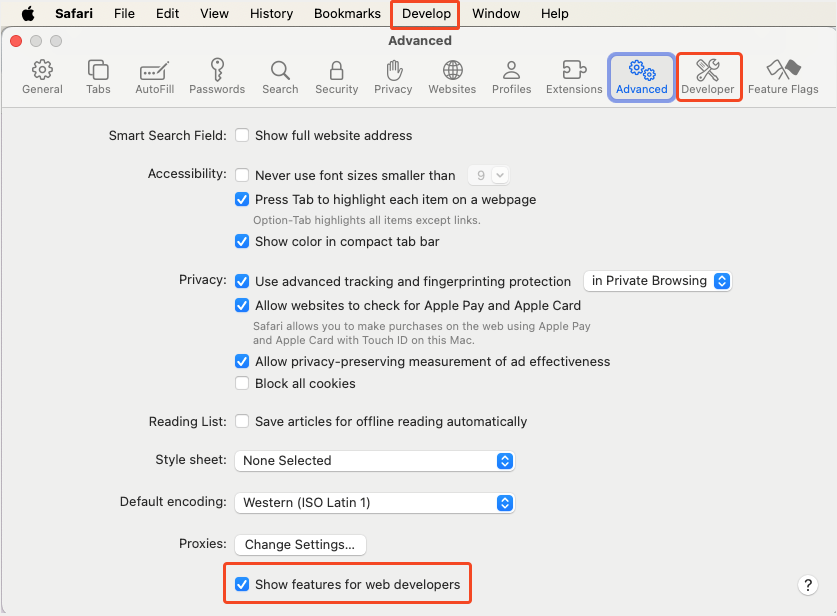
Click Safari in the top menu bar and choose Settings.
-
Select the Advanced tab and check the box marked Show features for web developers.
-
Click Developer in the top menu bar and select Empty Caches.
Clear Google Chrome Cache
-
Open Google Chrome.
-
Press Command + Shift + Delete to open the Clear browsing data menu.
-
Set the Time Range to All time.
-
Check Cached images and files and click Clear data.
Frequently Asked Questions (FAQ)
Is it safe to delete everything in the Caches folder on macOS Sonoma?
Yes, it is generally safe to delete the contents inside the
~/Library/Caches folder. However, do not delete the parent Caches folder itself. macOS and your apps will automatically recreate necessary cache files as needed.Will clearing the system cache delete my personal files or photos?
No, clearing system and app caches only removes temporary operational data generated by applications and the operating system. Your personal documents, photos, downloads, and desktop files remain untouched.
How often should I clear system cache on macOS Sonoma?
You do not need to clear your cache on a daily or weekly basis. It is best to perform a cache cleanup every 2 to 3 months, or whenever you experience performance sluggishness or unexplainable storage capacity drops.
Conclusion
Clearing system cache and temporary files on macOS Sonoma is a quick and effective way to recover lost disk space and solve system sluggishness. By regularly maintaining your user caches, system logs, and browser data, your Mac will stay running efficiently. Make sure to restart your computer after completing these steps to allow macOS to rebuild fresh, uncorrupted temporary files.

Pony Lorenzo is the lead technical writer and managing editor at Finauraly Win. With extensive experience in operating system maintenance, software diagnostic testing, and digital productivity tools, Pony specializes in breaking down complex technical errors into actionable, step-by-step troubleshooting guides for Windows, macOS, Android, and Web applications.