
Clearing app cache and data is one of the most effective ways to fix crashing apps, free up internal storage, and clear temporary glitches on Android. However, knowing the difference between Cache and Data is crucial so you don’t accidentally erase your photos, downloads, or custom settings.
App Cache vs. App Data: What’s the Difference?
Understanding what each option does prevents accidental loss of important information:
| Action | What It Clears | What You Keep | Risk Level |
| Clear Cache | Temporary junk files, cached images, web pages, stream buffers. | Accounts, logins, settings, files, offline content. | Zero Risk |
| Clear Data | App settings, saved logins, offline databases, local profiles. | Personal files stored in /sdcard or shared storage (Photos, Downloads). |
Low Risk (Requires re-login) |
Quick Checks Before Clearing App Data
Before resetting an app’s stored data, take these precautions:
-
Verify Accounts and Passwords: Ensure you know your log-in credentials for the app, as clearing data will sign you out.
-
Sync App Progress: If clearing data for a game or note-taking app, ensure cloud sync (e.g., Google Play Games, Google Drive) is active.
-
Locate Personal Files: Check that personal documents, audio, or photos are stored in shared folders like
/Documentsor/Picturesrather than inside the app’s hidden internal directory.
How to Clear App Cache (100% Safe)
Clearing the cache removes temporary files used to load screens faster. It will never delete your account, settings, or personal media.
Go to Settings on your phone, select Apps (or Apps & Notifications), and tap See all apps. Scroll down and tap the specific app you want to clean.
On the App Info page, tap Storage & cache (or Storage depending on your brand’s UI).
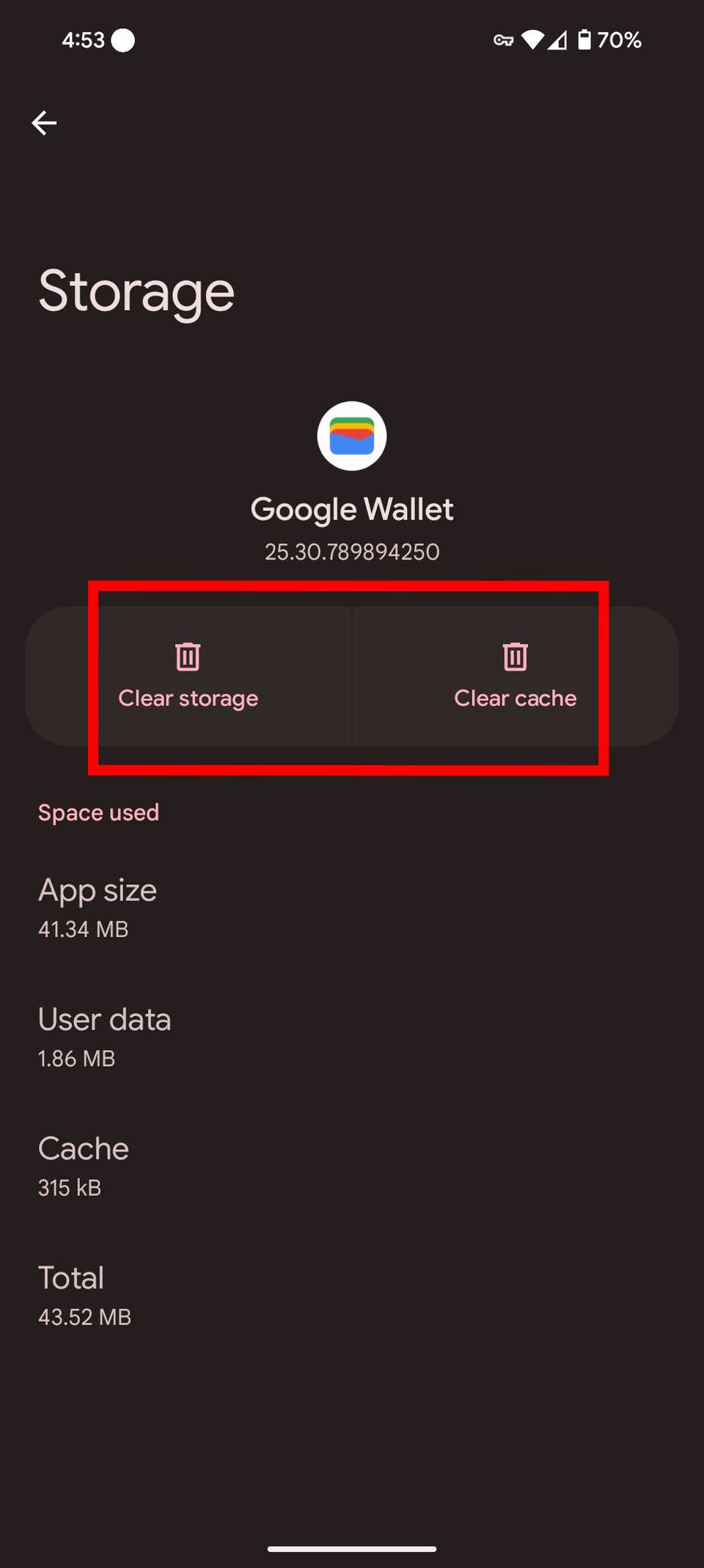
Tap Clear cache. The Cache size indicator will drop to 0 B.
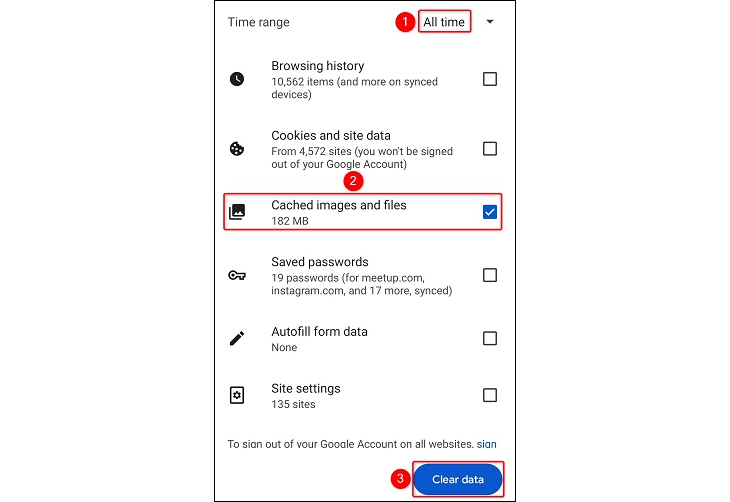
To verify success, open the app. It may take a second longer to load initially as it rebuilds clean cache files.
How to Clear App Data Safely Without Losing Personal Media
Clearing App Data (or Clear Storage) resets the app to its fresh factory-installed state. This action deletes local app settings and login tokens, but does not delete personal photos, videos, or documents stored on your main phone memory.
On Stock Android, Google Pixel, and Motorola
-
Open Settings and tap Apps.
-
Select the target app from the list.
-
Tap Storage & cache.
-
Tap Clear storage (or Clear data).
-
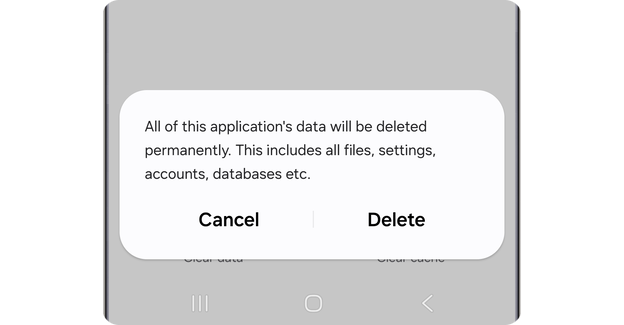
Confirm by tapping Delete or OK.
Verify success by launching the app. You should see the initial setup or sign-in screen.
On Samsung Galaxy (One UI)
-
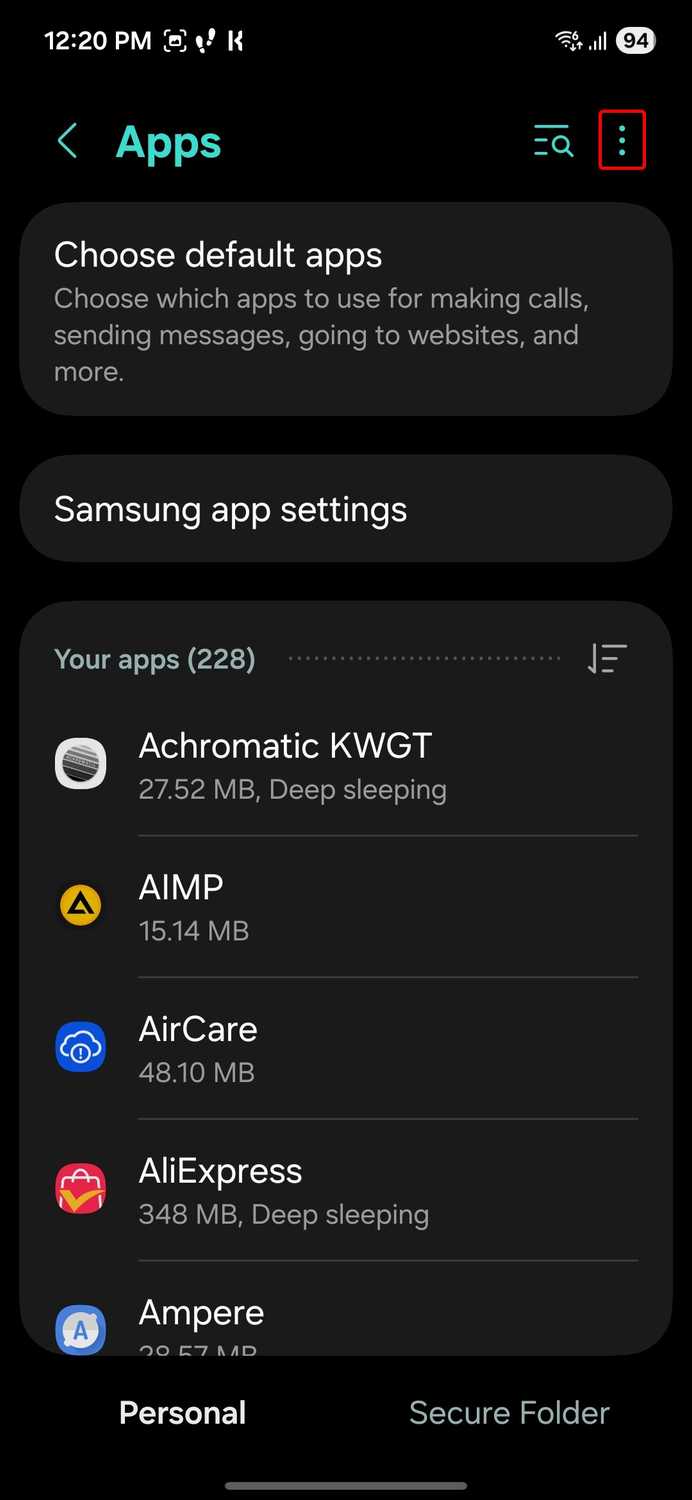
Open Settings and scroll down to tap Apps.
-
Tap the target app from your list.
-
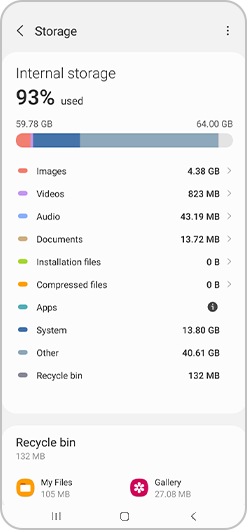
Tap Storage located under the Usage section.
-
Tap Clear data at the bottom-left corner of the screen.
-
Tap Delete when prompted.
To verify, open the app to confirm it starts with default settings.
Frequently Asked Questions
Does clearing app data delete my photos and videos in Gallery?
No. Your personal photos, downloaded pictures, and camera videos are stored in public media directories (such as
/DCIM or /Pictures) and remain untouched when clearing app cache or data.What happens if I clear data on Google Photos or WhatsApp?
Clearing data on Google Photos only resets local app settings; your uploaded photos in the cloud remain safe. Clearing data on WhatsApp will log you out and clear local chat history unless you restore your backup after logging back in.
How often should I clear app cache on my phone?
You only need to clear cache when an app behaves unexpectedly, fails to update content, or runs low on internal device storage. Modern Android OS manages cache automatically.
Clearing cache fixes temporary performance lags safely, while clearing app data acts as a complete application reset without impacting your personal files in shared storage. Following these steps restores malfunctioning apps to normal operation quickly.

Pony Lorenzo is the lead technical writer and managing editor at Finauraly Win. With extensive experience in operating system maintenance, software diagnostic testing, and digital productivity tools, Pony specializes in breaking down complex technical errors into actionable, step-by-step troubleshooting guides for Windows, macOS, Android, and Web applications.