
Experiencing frequent Wi-Fi disconnects can interrupt work, video calls, and online streaming. This issue usually occurs due to outdated network drivers, aggressive power management settings, conflicting network configurations, or misconfigured router bands.
When Windows automatically turns off your network adapter to save power or when your driver encounters a minor bug, your connection drops without warning. Following the steps in this guide will help you identify the root cause and permanently restore a stable Wi-Fi connection on your Windows 10 or Windows 11 system.
Quick Checks Before Advanced Troubleshooting
Before changing system settings, perform these rapid preliminary checks to rule out simple connectivity issues:
-
Restart Your Router and PC: Unplug your Wi-Fi router’s power cable, wait 30 seconds, and plug it back in. Restart your Windows device at the same time.
-
Test Other Devices: Check if smartphones or other laptops lose connection simultaneously. If they do, the issue lies with your Internet Service Provider (ISP) or router.
-
Check Physical Distance: Ensure you are within a reasonable range of your router and clear of heavy physical obstructions like thick concrete walls.
Method 1: Adjust Wi-Fi Adapter Power Management Settings
Windows includes an automated power-saving feature that disables idle hardware. Disabling this setting stops Windows from turning off your wireless card during routine usage.
-
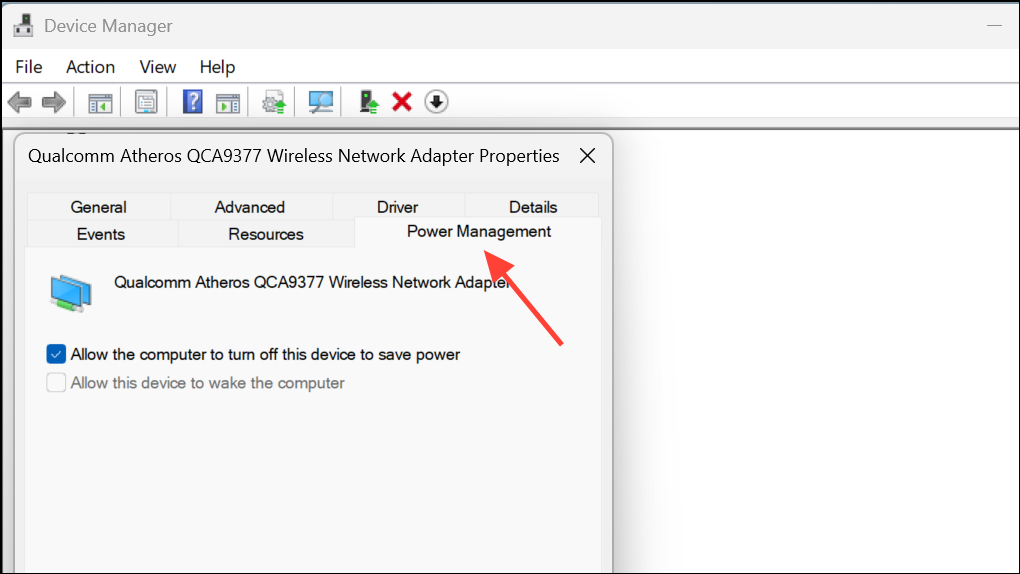
Right-click the Start button on your taskbar and select Device Manager.
-
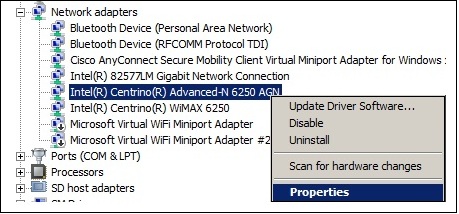
Click the arrow next to Network adapters to view your installed hardware.
-
Right-click your primary wireless adapter (e.g., Intel Wi-Fi 6, Realtek Wireless LAN) and click Properties.
-
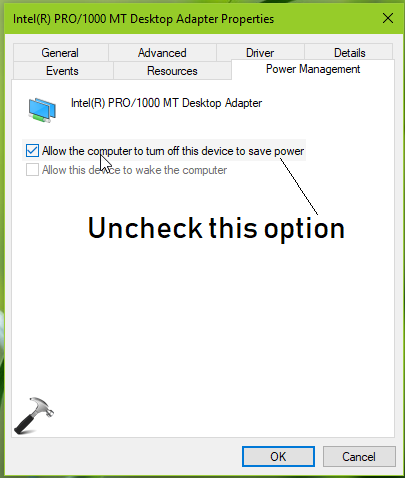
Select the Power Management tab at the top of the window.
-
Uncheck the box labeled Allow the computer to turn off this device to save power.
-
Click OK to apply changes and reboot your computer.
Method 2: Update or Roll Back Network Adapter Drivers
Faulty or corrupted network drivers frequently trigger random disconnections. Installing an updated driver fixes stability bugs, while rolling back a recent update can resolve new issues.
Option A: Update Your Wi-Fi Driver
-
Press Windows Key + X and select Device Manager.
-
Expand the Network adapters category.
-
Right-click your Wi-Fi adapter and select Update driver.
-
Select Search automatically for drivers.
-
Allow Windows to download and install the latest available driver, then restart your PC.
Option B: Roll Back to a Previous Driver Version
-
In Device Manager, right-click your Wi-Fi adapter and choose Properties.
-
Switch to the Driver tab.
-
Click the Roll Back Driver button if it is clickable.
:max_bytes(150000):strip_icc()/002_how-to-roll-back-a-driver-in-windows-2619217-19450095889f40178e2c973990e402a1.jpg)
-
Select a reason for rolling back and click Yes.
-
Restart your system to restore the previous stable driver state.
Method 3: Reset TCP/IP Stack and Flush DNS
Corrupted network configurations and DNS caches can cause temporary routing failures, causing Windows to drop its wireless connection. Clearing these caches refreshes your connection parameters.
-
Click the Start menu, type
cmd, right-click Command Prompt, and select Run as administrator.
-
Type
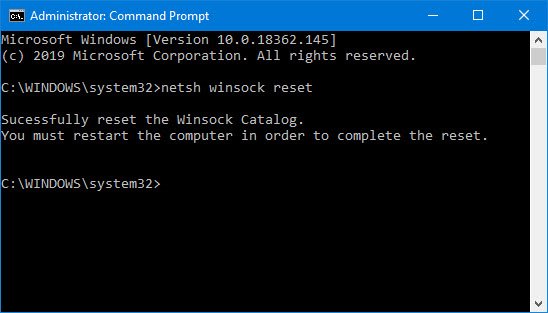
netsh winsock resetand press Enter. -
Type
netsh int ip resetand press Enter.
-
Type
ipconfig /releaseand press Enter. -
Type
ipconfig /renewand press Enter. -
Type
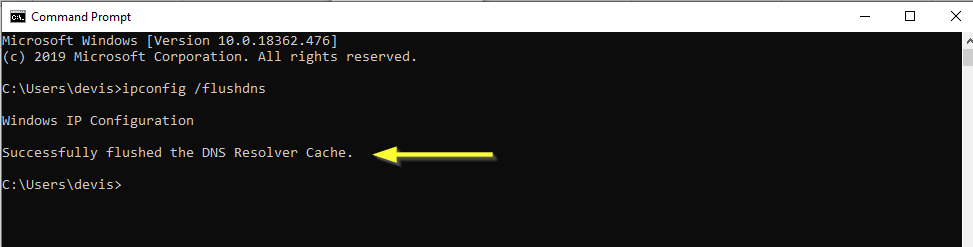
ipconfig /flushdnsand press Enter.
-
Close the Command Prompt window and restart your PC to finalize the changes.
Method 4: Change Wi-Fi AutoSwitching and Wireless Mode Settings
Roaming aggressiveness and dual-band switching can force Windows to endlessly drop and reconnect to your network as it searches for a marginally better signal.
-
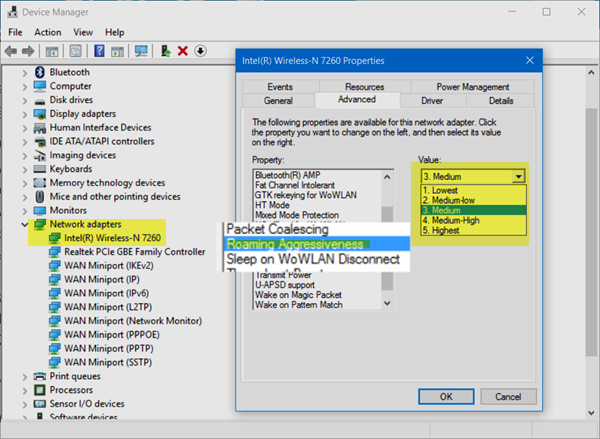
Open Device Manager and double-click your wireless adapter under Network adapters.
-
Navigate to the Advanced tab.
-
Select Roaming Aggressiveness (or Roaming Sensitivity) from the Property list.
-
Change the Value dropdown to 1. Lowest or 2. Medium-Low.
-
Select Preferred Band from the Property list.
-
Set the Value to Prefer 5GHz band for higher speeds near the router, or Prefer 2.4GHz band if you are far away.
-
Click OK to apply settings.
Method 5: Switch Network Profile to Private and Disable Metered Connection
Windows treats Public network profiles differently by applying strict firewall rules and power thresholds that can destabilize long sessions. Setting your home network to Private ensures stable performance.
-
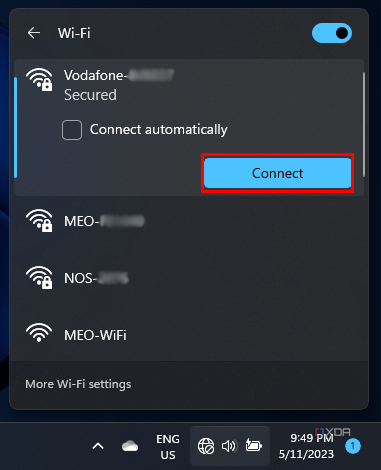
Click the Network/Wi-Fi icon in your system tray (near the clock).
-
Click Properties underneath your connected Wi-Fi network name.
-
Under Network profile type, select Private network.
-
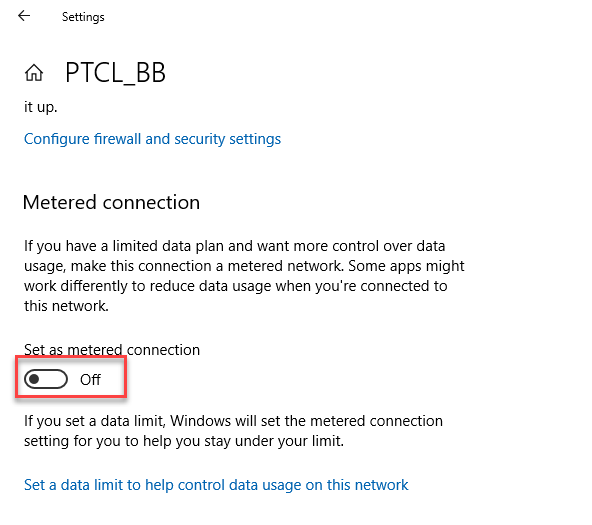
Scroll down to the Metered connection toggle switch.
-
Ensure Set as metered connection is toggled to Off.
-
Close the Settings window and check your connection stability.
Frequently Asked Questions (FAQ)
Why does my Wi-Fi keep dropping only on my Windows computer?
This issue typically points to system-specific power management settings or an outdated wireless driver on your PC, rather than an issue with your internet provider or router hardware.
Will resetting network settings delete my saved Wi-Fi passwords?
Yes, running a complete network reset or manually clearing network stacks will clear saved Wi-Fi passwords and paired Bluetooth devices. Make sure you know your network password before proceeding.
Should I connect to the 2.4 GHz or 5 GHz Wi-Fi band?
Use 5 GHz if your PC is close to the router, as it offers faster speeds with less interference. Use 2.4 GHz if you are several rooms away, as it penetrates walls and obstacles much better.
Resolving frequent Wi-Fi drops on Windows 10 and 11 usually comes down to disabling aggressive power management, updating outdated network drivers, and clearing corrupted network caches. Following these methods step-by-step will secure a stable, persistent internet connection for your everyday tasks. If disconnections continue across all devices, consider updating your router’s firmware or contacting your Internet Service Provider for hardware diagnostics.

Pony Lorenzo is the lead technical writer and managing editor at Finauraly Win. With extensive experience in operating system maintenance, software diagnostic testing, and digital productivity tools, Pony specializes in breaking down complex technical errors into actionable, step-by-step troubleshooting guides for Windows, macOS, Android, and Web applications.