
Missing an important email due to Gmail sync errors can disrupt work and daily communication. When Gmail stops syncing on Android or iOS, emails fail to send, notifications do not trigger, and the inbox remains stuck on outdated threads. These issues typically stem from network interruptions, outdated software, misconfigured sync settings, or corrupted background caches.
This comprehensive guide provides step-by-step solutions to restore automatic Gmail synchronization on Android smartphones and iPhones.
Prerequisites and Quick Checks
Before attempting advanced troubleshooting steps, perform these initial checks to identify surface-level connectivity problems:
-
Verify Network Connectivity: Open a browser tab and load a webpage to ensure your Wi-Fi or cellular data connection is fully functional.
-
Disable Battery Saver Mode: Low Power Mode on iOS and Battery Saver on Android limit background app refresh, which actively prevents Gmail from fetching new messages.
-
Check Google Account Storage: If your Google Drive or Gmail storage is 100% full, Google servers cannot accept new incoming emails. Visit one.google.com to verify available storage space.
Solution 1: Enable Auto-Sync Settings in Gmail
If synchronization settings are toggled off within the app or system settings, Gmail stops checking for new messages automatically.
On Android
-
Open the Gmail app on your Android device.
-
Tap the Menu Icon (three horizontal lines) in the top-left corner and select Settings.
-
Tap your email address from the list.
-
Scroll down to the Data usage section and check the box next to Sync Gmail.
[Insert Screenshot showing: Gmail Data Usage menu highlighting Sync Gmail checkbox]
To verify success, return to your main inbox screen and pull down from the top of the list. A refresh spinner should appear, loading any pending emails.
On iOS (Apple Mail or Gmail App)
-
Open Settings on your iPhone.
-
Scroll down and tap Mail, then select Accounts.
-
Tap Fetch New Data.
-
Ensure Push is toggled on at the top. Tap Gmail under the accounts list and select Fetch or Automatic.
To verify success, open your preferred mail app on iOS and swipe down on the inbox to trigger an instant server fetch.
Solution 2: Clear Gmail App Cache and Data (Android Only)
Corrupted temporary files can stall background synchronization. Clearing the cache purges bugged temporary data without deleting your actual emails.
-
Open your phone’s Settings app and tap Apps.
-
Select Gmail from the application list.
-
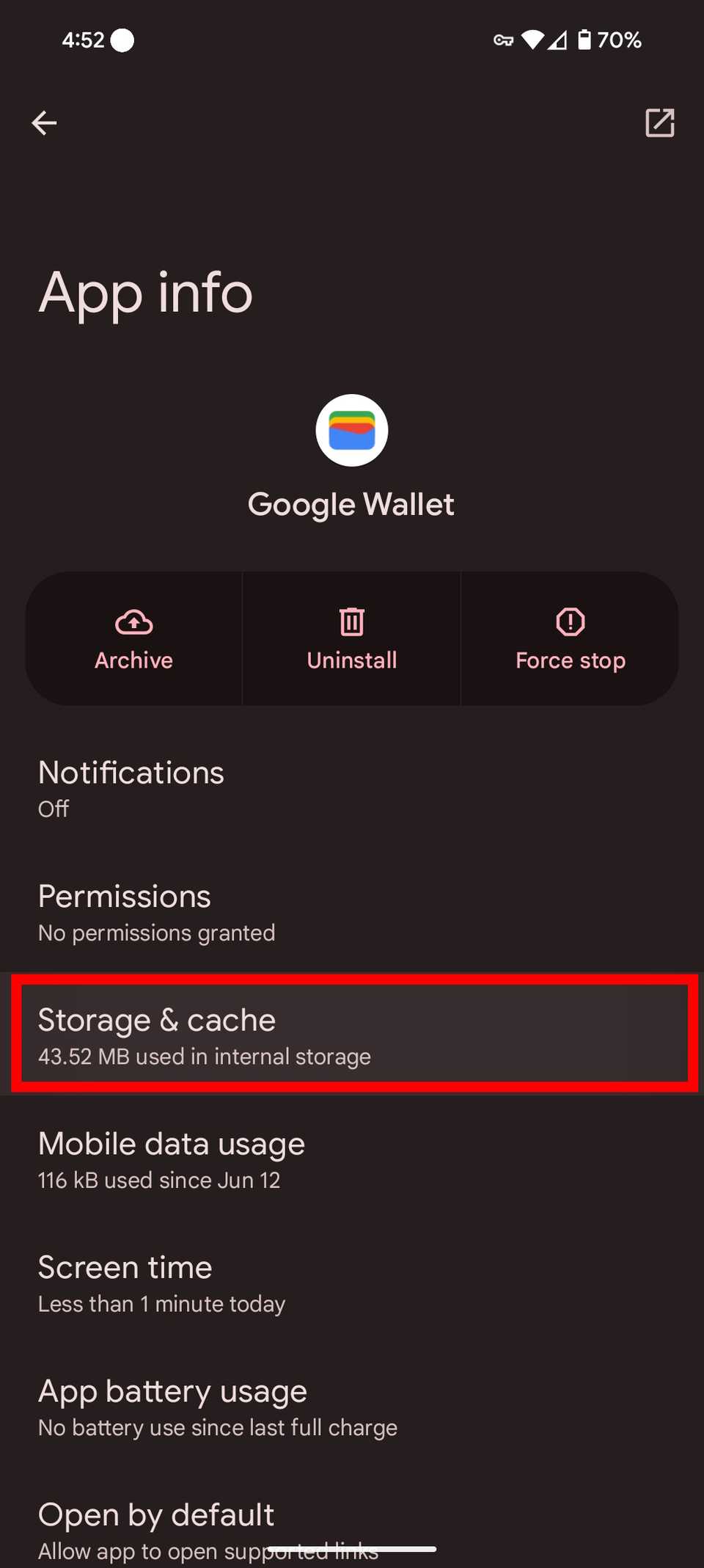
Tap Storage & cache.
-
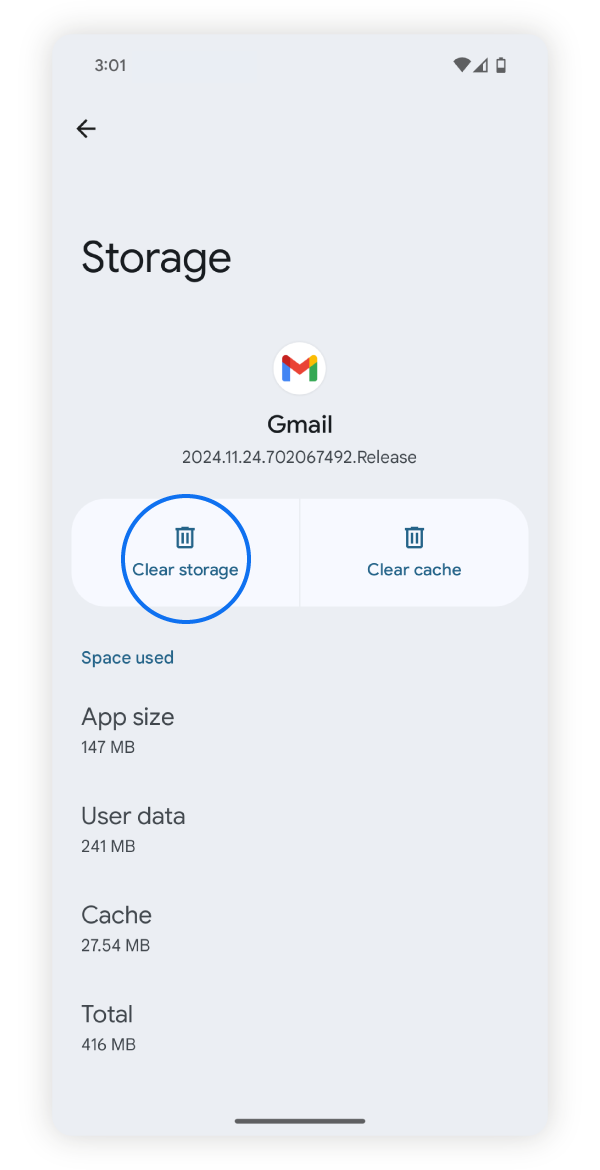
Tap Clear Cache.
-
If sync issues persist, tap Clear Storage (or Clear Data) and tap OK to reset the local app state.
To verify success, re-open the Gmail app. It will take a few seconds to rebuild local indices and fetch your messages cleanly.
Solution 3: Update or Reinstall the Gmail App
Outdated application builds frequently experience compatibility bugs with Google’s updated authentication or push servers.
Updating Gmail
-
Open the Google Play Store (Android) or App Store (iOS).
-
Search for Gmail in the top search bar.
-
If an Update button appears next to the app, tap it to install the latest build.

Reinstalling Gmail (iOS)
-
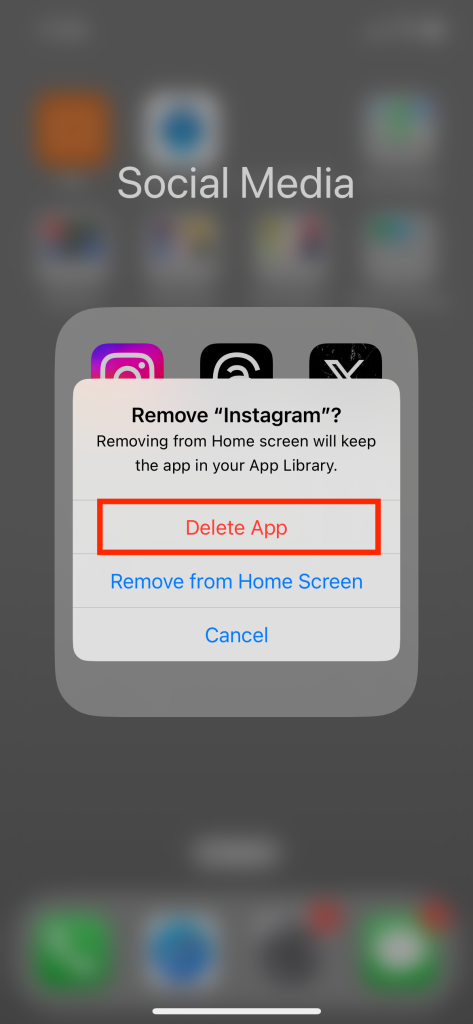
Press and hold the Gmail icon on your iPhone home screen.
-
Tap Remove App, then select Delete App.
-
Open the App Store, search for Gmail, and download it again.
-
Sign in with your Google account credentials upon launch.
To verify success, send a test email to yourself from another account or device and confirm that a push notification arrives promptly.
Solution 4: Remove and Re-add Your Google Account
Re-authenticating your account resets security tokens and repairs corrupted sync handshakes between the device OS and Google servers.
On Android
-
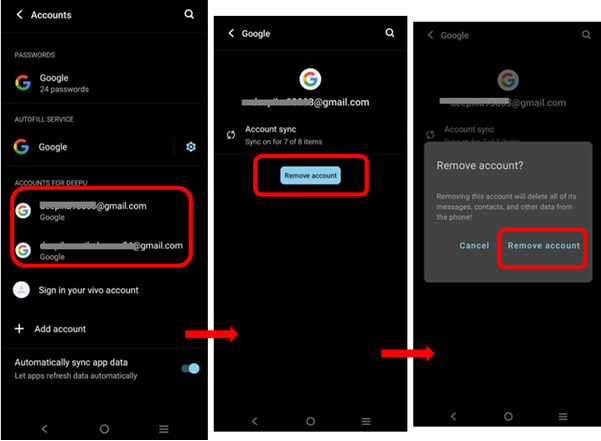
Open Settings and tap Passwords & accounts (or Users & accounts).
-
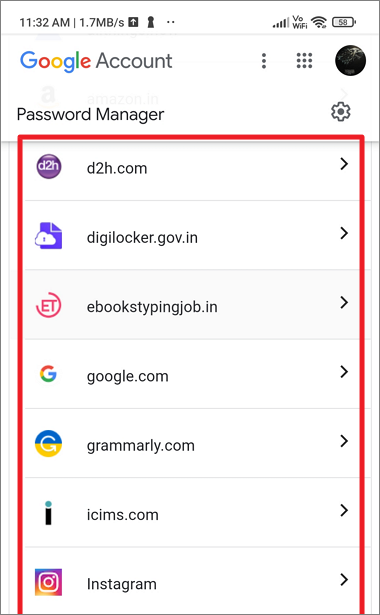
Tap your Google Account address under the accounts list.
-
Tap Remove account and confirm the selection when prompted.
-
Restart your device.
-
Return to Passwords & accounts, tap Add account, select Google, and sign back in.
To verify success, launch Gmail and wait for your messages to populate automatically.
On iOS
-
Open Settings and tap Mail (or Gmail).
-
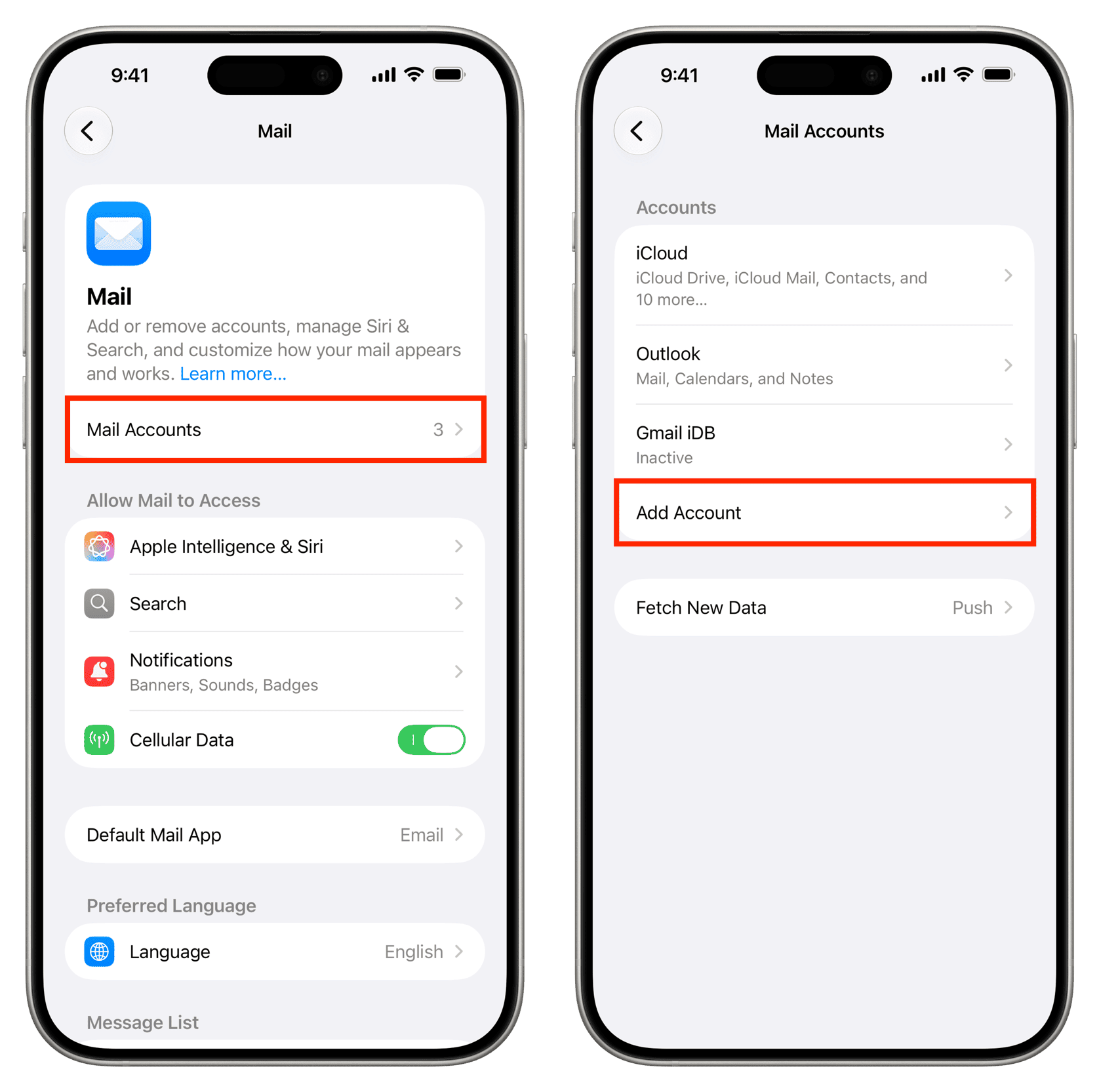
Tap Accounts and select your Gmail entry.
-
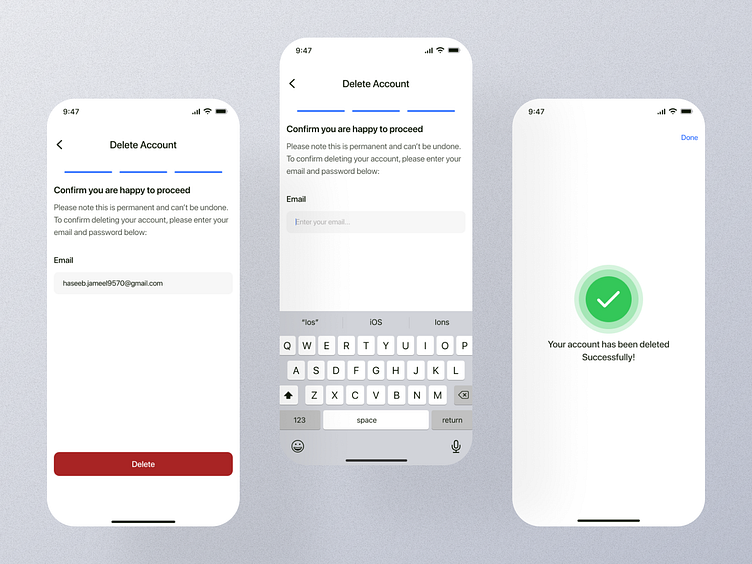
Tap Delete Account at the bottom of the screen.
-
Tap Add Account, select Google, and follow the on-screen browser prompts to log in again.
To verify success, open the Mail app to ensure folders and recent threads pull through immediately.
Solution 5: Reset System Network Settings
If network configurations or local DNS settings become unresponsive, resetting network settings forces your mobile OS to re-establish clean connections.
Resetting Network on Android
-
Open Settings and select System (or General Management).
-
Tap Reset options.
-
Select Reset Wi-Fi, mobile & Bluetooth.
-
Tap Reset settings and confirm with your device pin or lock pattern.
Resetting Network on iOS
-
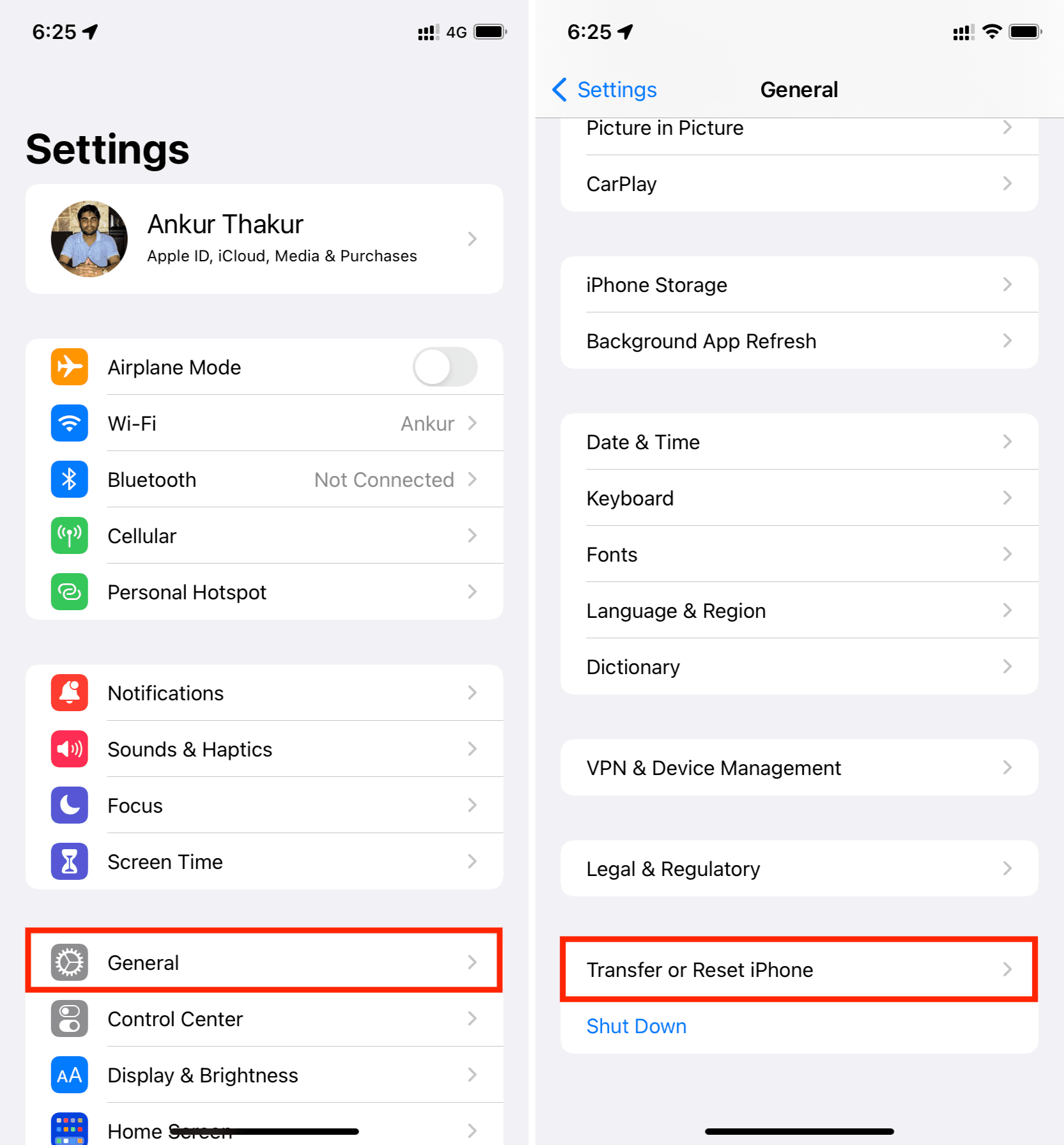
Open Settings and select General.
-
Scroll to the bottom and tap Transfer or Reset iPhone.
-
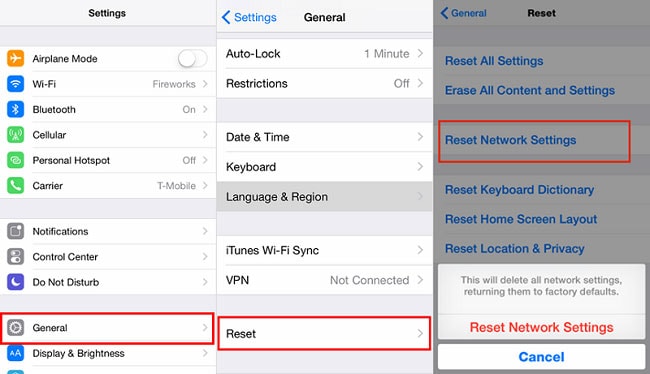
Tap Reset, then select Reset Network Settings.
-
Enter your passcode to execute the reboot cycle.
Once the phone restarts, reconnect to your Wi-Fi network, launch Gmail, and verify that synchronization operates without interruption.
Frequently Asked Questions
Why am I getting new email notifications on desktop but not on my phone?
This occurs when background data or battery optimization features restrict Gmail’s activity on mobile. Ensure background data usage is allowed in your phone’s app settings and turn off battery saver modes.
Will clearing Gmail app data delete my actual emails?
No. Your emails are stored securely on Google’s cloud servers. Clearing local app data only removes temporary files and resets local preference settings; your messages will re-download when you reopen the app.
Why does Gmail show “Sync is currently experiencing problems” error?
This error usually indicates a temporary server outage on Google’s end or a transient internet disruption. If your internet connection is stable, check the official Google Workspace Status Dashboard to see if Gmail services are temporarily down.
Maintaining active background sync settings, keeping the Gmail application updated, and managing storage space resolves most email synchronization failures. Following these structured steps restores immediate, reliable message updates across both Android and iOS devices.

Pony Lorenzo is the lead technical writer and managing editor at Finauraly Win. With extensive experience in operating system maintenance, software diagnostic testing, and digital productivity tools, Pony specializes in breaking down complex technical errors into actionable, step-by-step troubleshooting guides for Windows, macOS, Android, and Web applications.