
When your laptop takes three minutes to launch a browser or freezes every time you switch between open apps, wiping the storage drive and starting fresh feels like the only viable option. We have all seen the nuclear advice online: “Back up your files and reinstall the OS.”
While a clean install does give you a blank slate, it is often unnecessary overkill. Reinstalling an operating system costs hours of downtime: re-downloading software, re-authenticating accounts, adjusting display settings, and restoring workflow preferences. Worse yet, if the slowdown is caused by a failing solid-state drive, clogged cooling fans, or an aggressive cloud sync process, a fresh install will not fix the underlying problem at all.
Before spending your weekend reinstalling Windows or macOS, run through this systematic diagnostic triage. In 90% of cases, the bottleneck comes down to identifiable resource bottlenecks, disk constraints, or background contention that you can isolate and fix in minutes.
Quick Diagnostic Triage Table: Where to Look First
| Symptom | Probable Culprit (Windows) | Probable Culprit (macOS) | First Tool to Open |
| System freezes immediately after booting | Runaway startup services, antivirus startup scans | LaunchAgents, Login Items, broken helper daemons | Task Manager (Startup tab) / System Settings (Login Items) |
| Mouse stutters; typing lags behind screen | CPU saturation, thermal throttling, interrupt storms | WindowServer memory leak, kernel_task thermal lock | Resource Monitor / Activity Monitor (CPU tab) |
| Fans roar constantly with few apps open | Dust buildup, thermal paste dry-out, background updates | Dust-blocked vents, mds_stores Spotlight re-indexing |
Core Temp / Activity Monitor (Energy & CPU) |
| Switching apps causes multi-second pauses | Low physical RAM, aggressive paging file thrashing | High Memory Pressure (yellow/red), excessive swap | Task Manager (Performance > Memory) / Activity Monitor (Memory tab) |
| Apps crash, random BSODs, or beachballs | Corrupted system DLLs, failing disk sectors | Corrupted APFS container, permissions conflict | Command Prompt (SFC/DISM) / Disk Utility (First Aid) |
1. Inspect Startup Bloat and Lingering Background Daemons
The single most common reason a computer slows down progressively over several months is “startup creep.” Every utility, printer driver, launcher, and communication app wants permission to boot alongside the operating system.
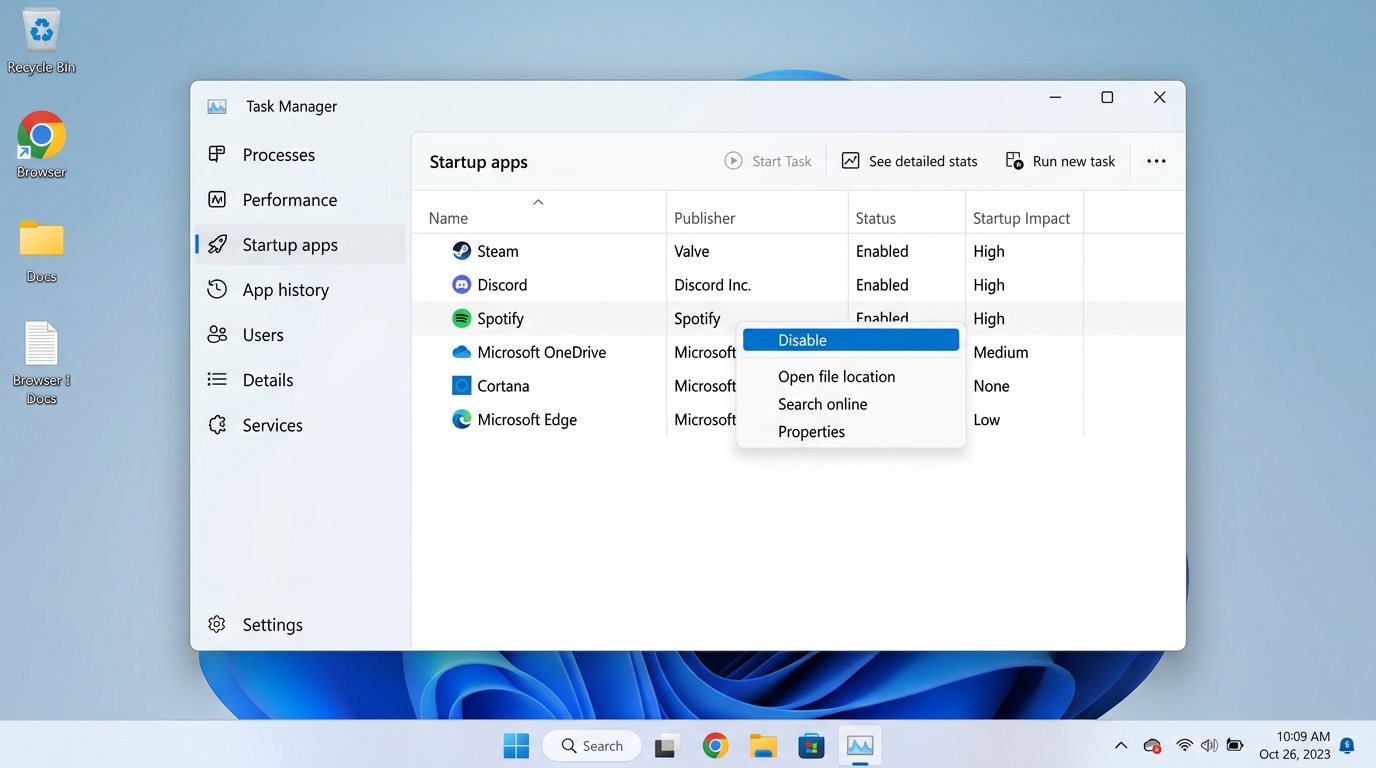
For Windows Users: Audit Startup Impact
-
Press
Ctrl + Shift + Escto launch Task Manager. -
Click the Startup apps icon on the left sidebar (the speedometer icon on Windows 11, or the “Startup” tab on Windows 10).
-
Sort the list by Startup impact.
-
Right-click and select Disable for apps rated High or Medium that do not need to run continuously (such as game launchers, PDF updaters, or third-party cloud syncers).
Note: Disabling an app from startup does not uninstall it. The software remains fully functional whenever you open it manual
For Mac Users: Clean Out Login Items and Background Daemons
-
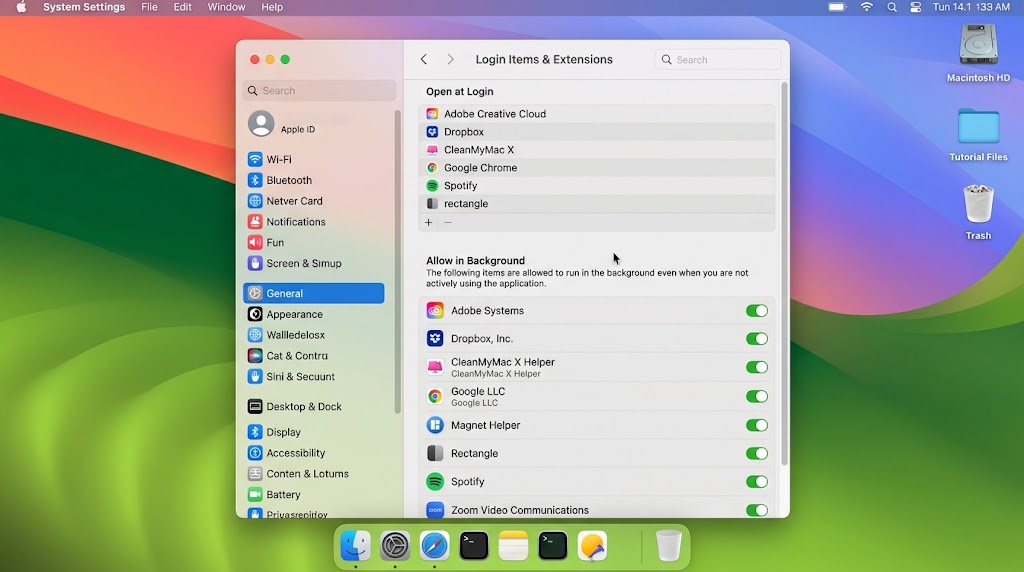
Open System Settings > General > Login Items & Extensions.
-
Under Open at Login, select unneeded helper utilities and click the minus (
–) button. -
Review the section labeled Allow in Background. Software vendors frequently bundle silent daemons that continuously ping their remote servers. Toggle off background privileges for apps you do not actively rely on.
2. Evaluate Active Resource Hogs and “Zombie” Processes
A single runaway background process can starve your system of resources without ever opening a visible window on your desktop.
Windows: Resource Monitor
While Task Manager provides an overview, Resource Monitor reveals exact I/O read/write queues and thread locks:
-
Press
Win + R, typeresmon, and pressEnter. -
Check the CPU and Disk tabs. Look for processes exhibiting consistent activity above 20–30% when your system is supposed to be idle.
-
If your storage drive is pinned at maximum capacity while performing basic tasks, explore our comprehensive walkthrough on how to fix 100% disk usage in Windows Task Manager to target misconfigured search indexing and virtual memory issues.
Mac: Activity Monitor & Memory Pressure
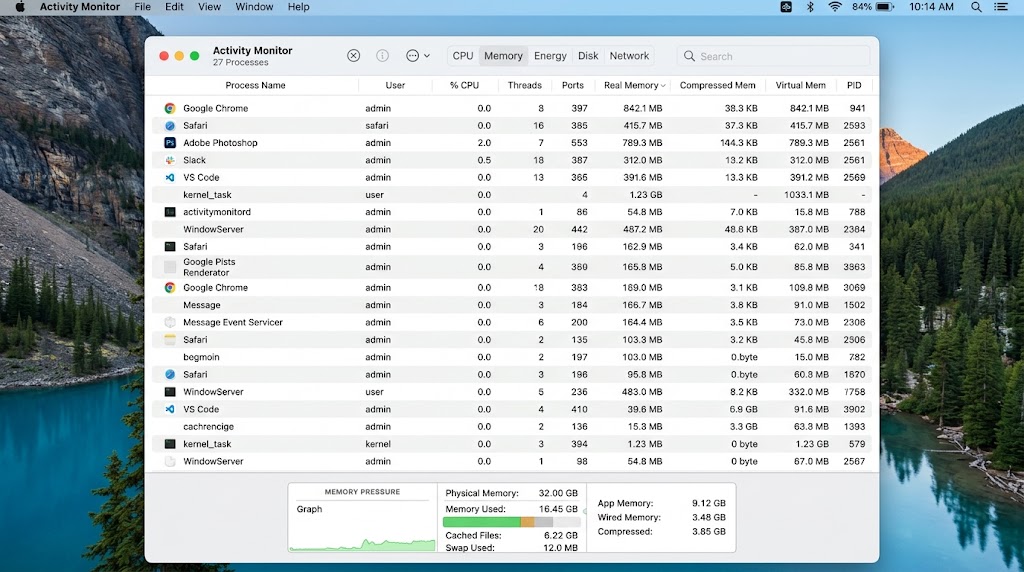
On macOS, raw RAM usage numbers can be misleading because modern Unix systems proactively cache data into empty RAM. Instead of focusing on free gigabytes, focus on the Memory Pressure metric:
-
Open Spotlight (
Cmd + Space), typeActivity Monitor, and pressEnter. -
Click the Memory tab at the top.
-
Observe the Memory Pressure graph in the bottom pane:
-
Green: Memory capacity is healthy.
-
Yellow: The system is managing load, but swapping will begin soon.
-
Red: The system is out of physical memory and thrashing the SSD with swap read/writes, which drastically degrades responsiveness.
-
If an application is unresponsive or consuming thousands of megabytes of leaked memory, consult our guide on how to force quit unresponsive apps on macOS using Terminal and Activity Monitor. For an official breakdown of how macOS categorizes wired, compressed, and app memory, review the documentation on viewing memory usage in Activity Monitor on Mac from Apple Support.
3. Verify Storage Headroom and SSD Health
Both Windows and macOS require substantial scratch space to manage virtual memory paging files, temporary installation caches, and filesystem indexing.
The 15%–20% Free Space Rule
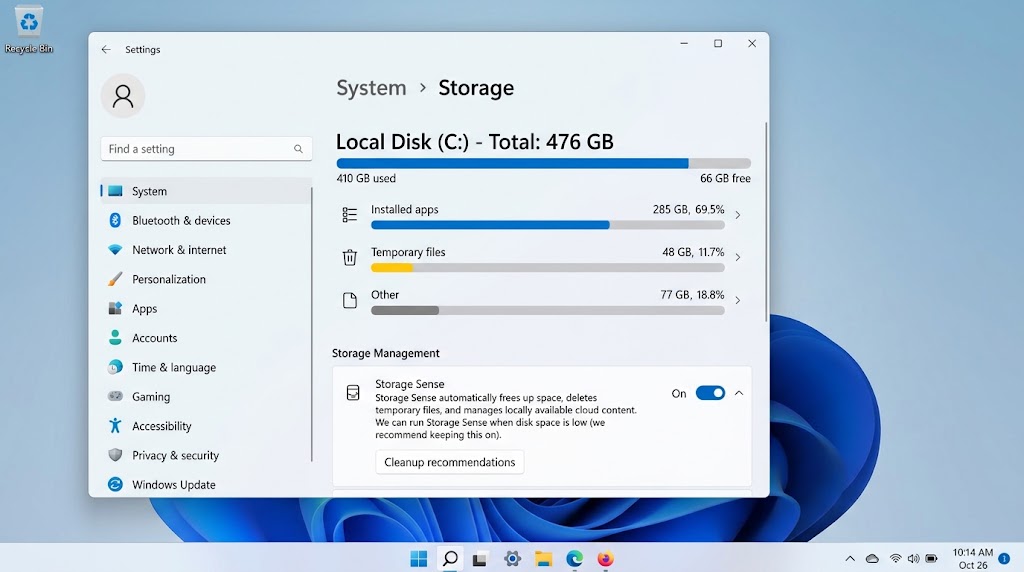
Solid-State Drives (SSDs) suffer performance degradation when filled beyond 80% to 85% capacity. SSD controllers rely on a feature called wear leveling and TRIM to distribute write cycles across available NAND flash memory cells. When an SSD is nearly full:
-
Write amplification increases dramatically.
-
The drive controller spends excessive cycles garbage-collecting blocks before writing new data.
-
Temporary swap files cannot allocate contiguous blocks, causing perceptible system stutter.
Actionable steps to free critical drive space:
-
Windows: Press
Win + I, navigate to System > Storage, and activate Storage Sense. Click Temporary files and purge old Windows update delivery cache files and temporary setup folders. -
Mac: Go to System Settings > General > Storage. Check the recommendations for offloading large downloads, Xcode derived data (if you code), or local iOS backups.
4. Check for Thermal Throttling Before Blaming Software
Laptops and compact desktop PCs often slow down not because of software issues, but because the CPU is protecting itself from heat damage. When cooling passages accumulate lint or thermal interface material degrades, processors automatically reduce clock speeds (sometimes from 3.5 GHz down to 800 MHz) to prevent thermal shutdown.
Identifying the Symptoms of Thermal Throttling
-
The computer runs smoothly for the first 10 minutes after a cold boot, then becomes sluggish.
-
The chassis feels uncomfortably hot to the touch around the hinge or underside exhaust.
-
Fans spin at maximum velocity even when simply viewing a static PDF or browsing a single webpage.
Diagnostic Tools:
-
Windows: Download a lightweight hardware monitor such as HWiNFO or Core Temp. Check your CPU temperatures under light load. Idle temperatures should ideally stay between 40°C and 55°C. If temperatures hover above 85°C–90°C while idle, thermal throttling is actively choking your processor.
-
Mac: If you see a process named
kernel_taskconsuming 300%–500% CPU in Activity Monitor, do not kill it. On macOS,kernel_taskdeliberately occupies CPU cycles to idle the cores and cool the machine down when internal sensors detect high temperatures.
The Fix: Use a can of compressed air directed into the intake and exhaust vents while the machine is powered off. For laptops older than 3 to 4 years, refreshing dried-out thermal paste on the heatsink often restores factory speeds without any OS modifications.
5. Verify Core System File Integrity
System updates interrupted by power loss, unexpected restarts, or hard crashes can damage protected core OS components. Rather than reinstalling the entire operating system, both platforms include built-in self-repair engines.
Repairing Windows with SFC and DISM
Windows incorporates the System File Checker (SFC) and Deployment Image Servicing and Management (DISM) utilities to verify system files against known healthy versions.
-
Right-click the Start Menu button and select Terminal (Admin) or Command Prompt (Admin).
-
Run the deployment image repair command:
DOSDISM /Online /Cleanup-Image /RestoreHealth -
Once the image check completes, run the system file integrity checker:
DOSsfc /scannow
For a complete walkthrough of command switches and troubleshooting repair errors, read our technical guide on how to repair corrupted system files using SFC and DISM commands in Windows. For additional optimization strategies, consult Microsoft’s official guide to improving PC performance in Windows.
Repairing macOS with First Aid
macOS includes a disk partition checking tool within Disk Utility:
-
Open Disk Utility (via Spotlight or Applications > Utilities).
-
Click View in the top menu bar and select Show All Devices.
-
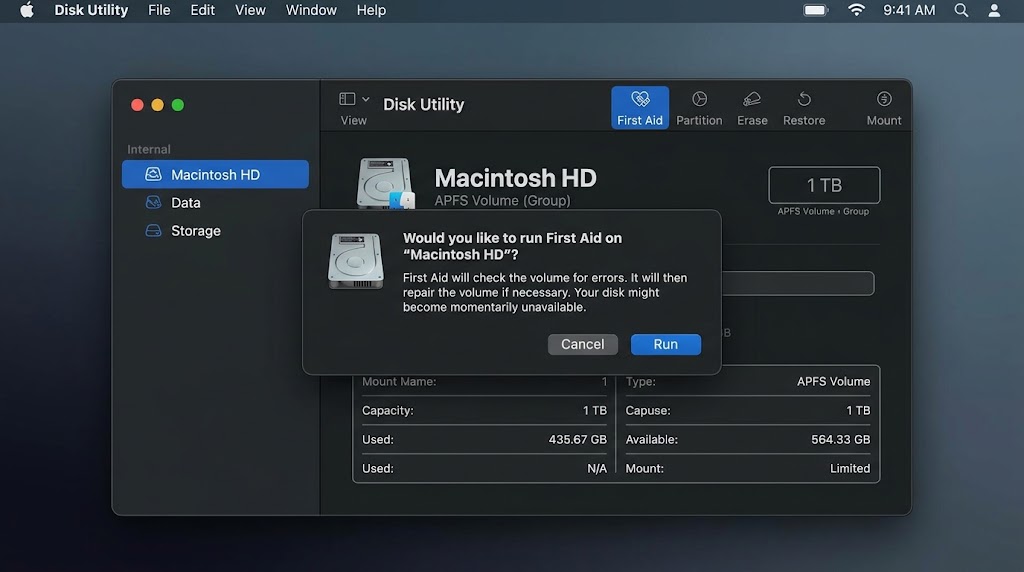
Select your primary volume container (e.g.,
Macintosh HD) and click the First Aid button in the toolbar. -
Click Run. First Aid verifies file catalog trees, directory structures, and extents overflow files, fixing subtle filesystem corruption in place.
6. Audit Browser Extensions and Hardware Acceleration
Modern work lives inside Google Chrome, Microsoft Edge, Brave, and Safari. Frequently, users mistake browser bloat for an operating system failure.
-
Extension Check: Open your browser’s extension manager (
chrome://extensionsoredge://extensions). Disable all non-essential add-ons. Extensions that run active page scripts (like coupon aggregators, grammar checkers, and ad blockers that have not been updated) often cause massive memory leaks over extended sessions. -
Hardware Acceleration: If video playback stutters or web pages freeze when scrolling, navigate to your browser’s Settings > System and toggle Use graphics acceleration when available. On older integrated GPUs, software rendering can sometimes perform more reliably than misbehaving display drivers.
When SHOULD You Actually Reinstall the Operating System?
Reinstallation is a valid technical troubleshooting step, but only when specific conditions are met. Reserve a full wipe and reinstall for these distinct situations:
-
Persistent Malware or Rootkit Infections: If root-level trojans or ransomware modify your boot sector or tamper with security certificates, an in-place repair cannot guarantee clean operation.
-
Major In-Place Upgrade Artifacts: If you upgraded across multiple operating system generations (e.g., Windows 10 to 11, or macOS Monterey directly to Sonoma) and retain legacy incompatible 32-bit drivers or broken kernel extensions.
-
Repeated Registry or BCD Corruption: When the Windows registry hive fails to mount consistently or BCD repair commands fail to survive reboots.
-
Hardware Upgrades: When migrating an existing drive to a completely new motherboard and chipset architecture where mismatched hardware abstraction layers cause instability.
Frequently Asked Questions (FAQ)
Will resetting my PC or Mac erase my personal files?
Both operating systems offer refresh options that preserve user data (such as “Reset this PC > Keep my files” in Windows, or reinstalling macOS from Recovery mode). However, applications, custom system configurations, and browser preferences will still be removed. Always back up your critical documents to an external drive or cloud service prior to executing any OS reset.
Does adding more RAM always make a slow computer faster?
Only if your system is currently running out of physical RAM and relying heavily on disk swap. If Task Manager or Activity Monitor shows that your memory utilization consistently stays below 70%, adding more RAM will yield no noticeable speed increase. In that case, the bottleneck is almost always drive speed, CPU throttling, or software conflicts.
How often should I reboot my computer?
Modern operating systems are designed to stay in sleep or standby mode for weeks at a time. However, rebooting once a week clears volatile RAM caches, restarts stalled background daemons, terminates orphaned memory-leak processes, and finalizes pending security patches.
Final Thoughts: Fix the Root Cause First
Before backing up your data and preparing a bootable USB drive, take fifteen minutes to inspect your startup items, examine active memory pressure, check storage headroom, and inspect cooling vents. In most cases, identifying and removing the specific resource bottleneck will return your machine to responsive, quiet operation without the headache of setting up your entire digital workspace from scratch.

Pony Lorenzo is the lead technical writer and managing editor at Finauraly Win. With extensive experience in operating system maintenance, software diagnostic testing, and digital productivity tools, Pony specializes in breaking down complex technical errors into actionable, step-by-step troubleshooting guides for Windows, macOS, Android, and Web applications.