

When an application freezes on macOS, it displays the dreaded spinning beachball and stops responding to clicks or keyboard shortcuts. This usually occurs due to memory leaks, corrupted preference files, or background threads hanging while waiting for system resources. Unresponsive software degrades system performance and prevents clean shutdowns.
This guide provides practical, technical methods to safely terminate non-responsive applications on your Mac. You will learn how to use system diagnostic tools and command-line interfaces to regain full control over your operating system without losing unsaved data in other programs.
Quick Checks Before You Begin
Try these quick recovery methods before using advanced system tools:
-
Press Option + Command + Esc on your keyboard to open the Force Quit Applications window. Select the frozen app and click Force Quit.
-
Right-click or Control-click the application icon in the Dock, hold down the Option key, and select Force Quit from the contextual menu.
-
Wait 60 to 90 seconds to ensure the app is not simply processing a heavy workload or performing background indexing.
Method 1: Terminate Apps via Activity Monitor
Activity Monitor is macOS’s graphical task manager. It provides real-time information about processor, memory, energy, disk, and network usage.
Step 1: Open Activity Monitor
-
Click the Spotlight icon (magnifying glass) in the top-right corner of your screen, or press Command + Spacebar.
-
Type
Activity Monitorin the search field and press Return. -
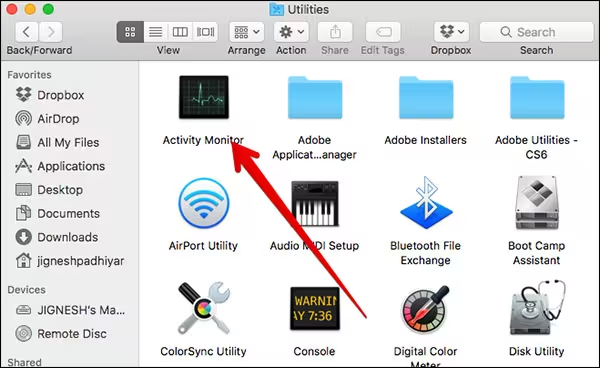
Alternatively, open Finder, navigate to Applications, double-click Utilities, and open Activity Monitor.
Step 2: Locate the Process
-
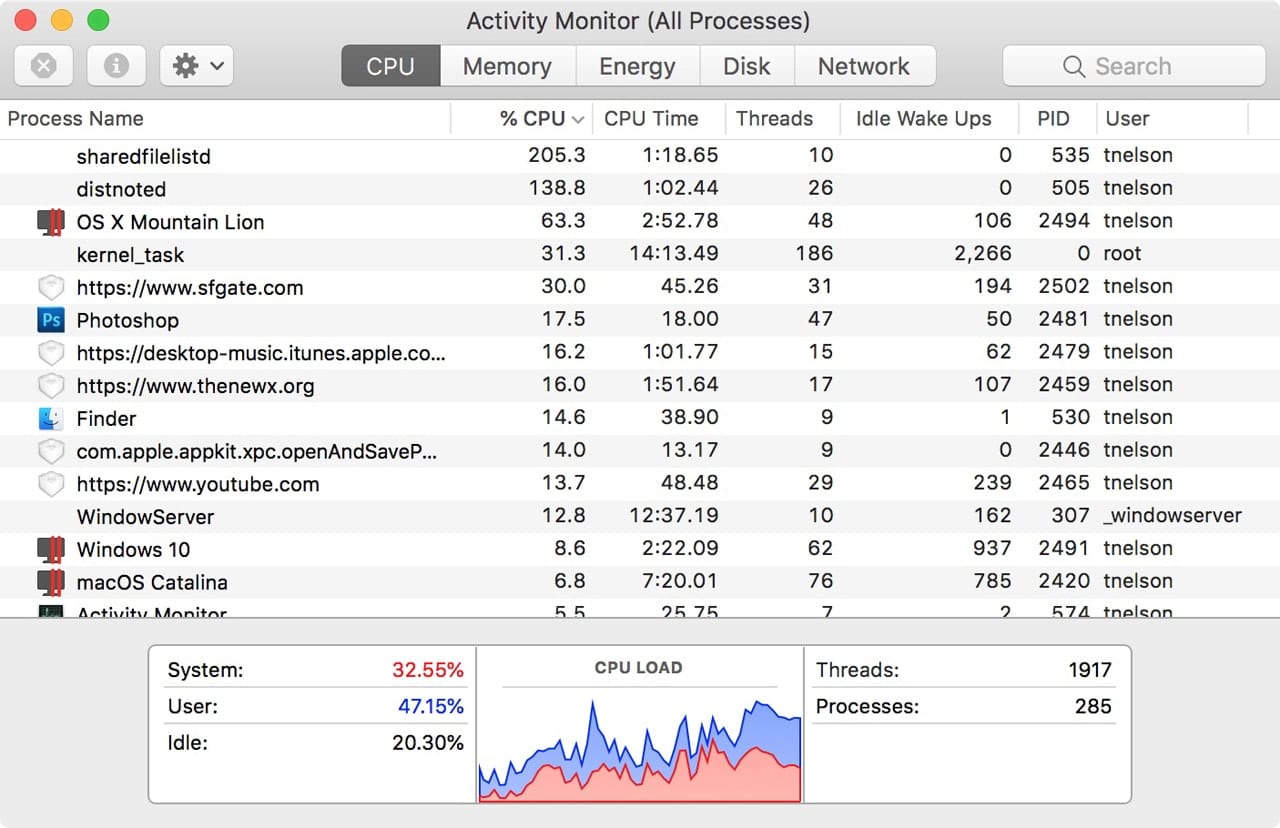
Click the CPU tab at the top of the window to sort active processes.
-
Unresponsive applications usually appear highlighted in red with the label (Not Responding) next to their name.
-
If the process is not immediately visible, use the Search bar in the top-right corner of the Activity Monitor interface to type the exact name of the app.
Step 3: Stop the App Process
-
Select the unresponsive application by clicking its line item in the list.
-
Click the Stop icon (a circle containing an “X”) located in the top-left toolbar of the window.
-
A dialogue prompt will appear asking for confirmation. Click Quit for a standard process termination request.
-
If the process remains active after 10 seconds, click the Stop button again and select Force Quit to instantly kill the process at the system kernel level.

Method 2: Terminate Apps via Terminal Using pkill and killall
The macOS Terminal allows you to send signals directly to running processes. This method is effective when the graphical user interface (GUI) becomes unresponsive.
Step 1: Launch macOS Terminal
-
Press Command + Spacebar to launch Spotlight.
-
Type
Terminaland press Return. -
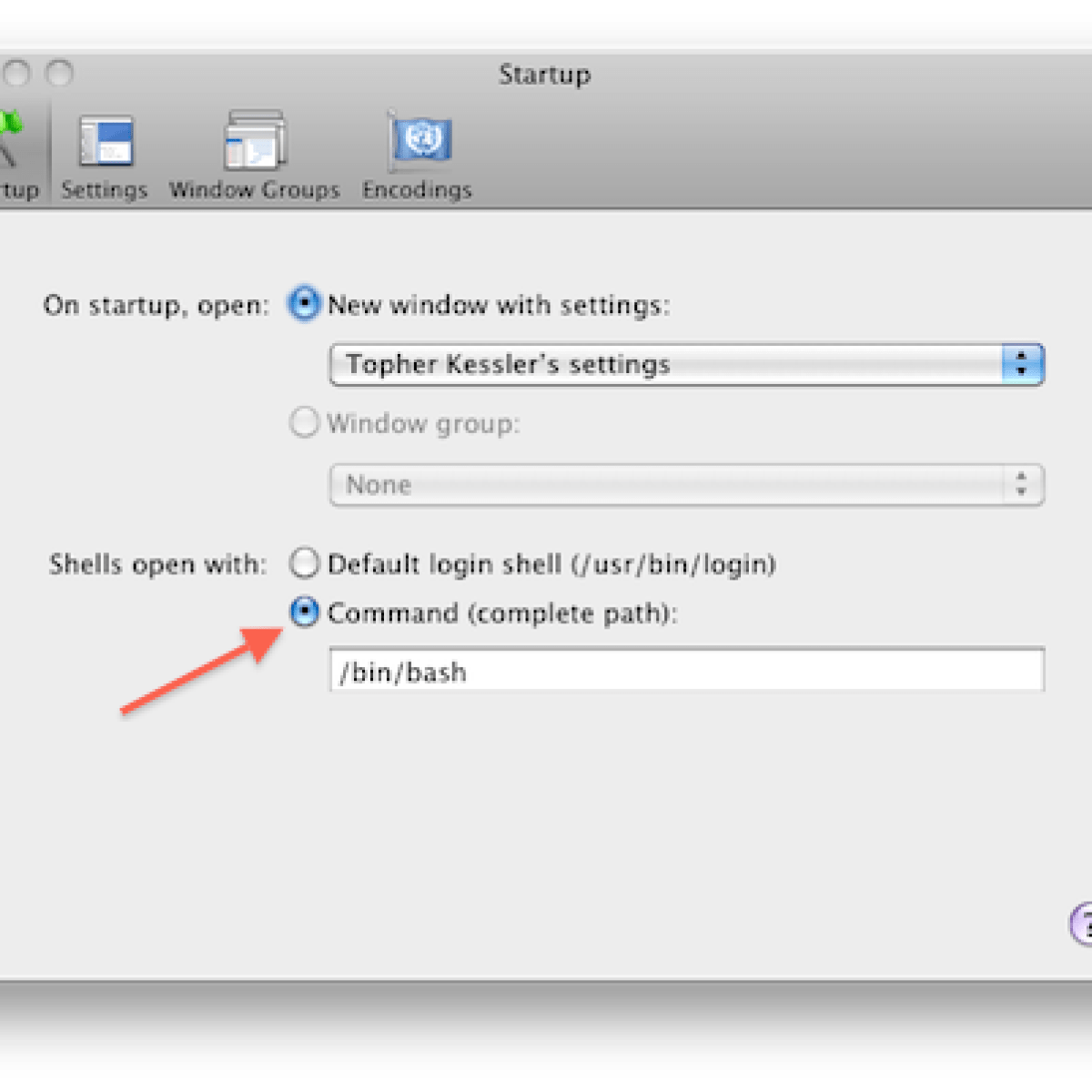
You can also open it directly via Finder > Applications > Utilities > Terminal.
Step 2: Execute the killall Command
The
killall command terminates processes based on their exact software name.-
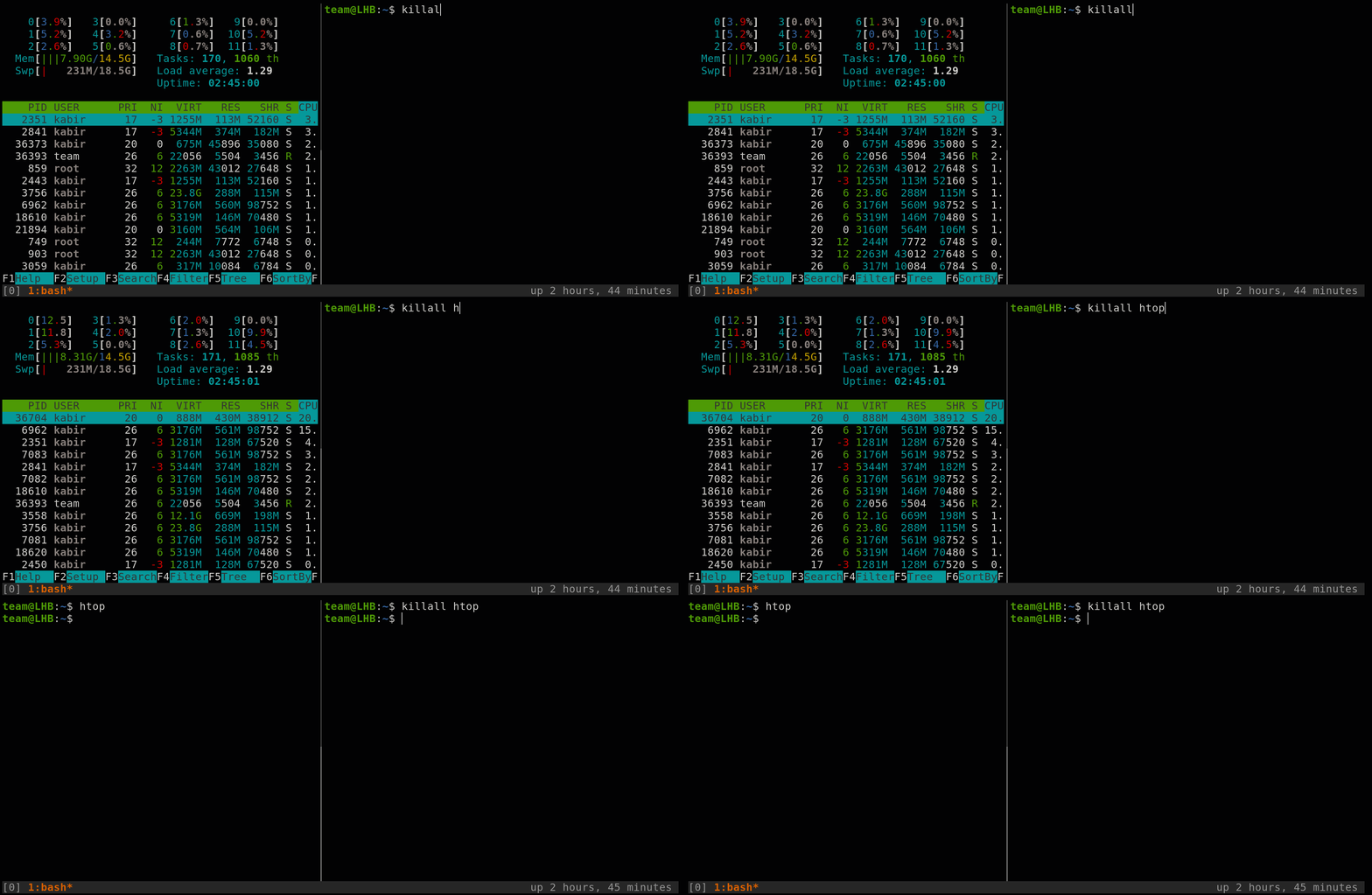
Type the following command in your terminal window, replacing
AppNamewith the exact case-sensitive name of the application:Bash
killall AppNameExample: To close Safari, typekillall Safariand press Return. -
If the application refuses to close using standard termination flags, send the SIGKILL signal (-9) to force immediate closure:
Bash
killall -9 AppName
Step 3: Execute the pkill Command
The
pkill command works similarly to killall, but it supports partial process names, making it helpful if you do not know the exact application identifier.-
Type the following command to target partial names:
Bash
pkill -i -9 "appname" -
The
-iflag makes the command case-insensitive, while-9applies a force-quit directive.
Method 3: Target Process ID (PID) via Terminal
Every running application and background daemon on macOS is assigned a unique numerical Process ID (PID). Killing a process via its PID is the most precise method available.
Step 1: Find the PID of the Unresponsive App
-
Open Terminal.
-
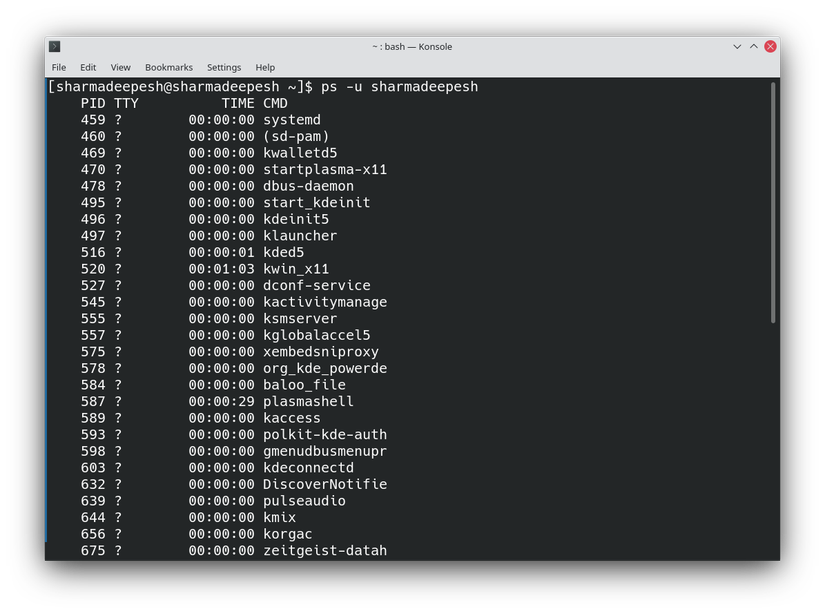
Type the following command to display a list of running processes containing your application’s name:
Bash
ps aux | grep -i "AppName" -
Press Return.
-
Examine the output columns. The second column contains the numerical PID associated with the target application.
Step 2: Send the Kill Signal
-
Once you identify the PID (e.g.,
1234), execute the following command:Bash
kill -9 1234 -
Press Return. macOS will instantly revoke hardware allocation for that specific process ID.
Method 4: Advanced System Recovery Options
If command-line tools fail to terminate a process, system resources may be locked by corrupted hardware calls or system kernel deadlocks.
Option A: Force Restart standard GUI
If your cursor moves but windows are entirely frozen, restart the macOS window management daemon:
-
Open Terminal.
-
Type the following command and press Return:
Bash
sudo killall WindowServer -
Enter your administrator password when prompted. This instantly logs you out, terminates hanging graphical sessions, and returns you to the login screen.
Option B: Perform a Hard System Shutdown
Use this option only as a last resort when the entire operating system is completely frozen and unresponsive to mouse or keyboard inputs.
-
Press and hold the physical Power Button (or Touch ID button) on your Mac.
-
Hold the button down for 5 to 10 seconds until the display screen turns entirely black.
-
Wait 15 seconds for internal storage drives to spin down fully, then press the Power Button once to turn the computer back on.
Frequently Asked Questions
Will forcing an application to quit cause permanent damage to my Mac?
No, force quitting an application does not harm your hardware or operating system. However, any unsaved work within that specific application will be lost because the program cannot perform its normal auto-save routines before closing.
Why does an app keep freezing even after I force quit and reopen it?
Repeated crashes usually indicate corrupted temporary cache files, broken preference settings (.plist files), or inadequate RAM. Try clearing the cache for that program or reinstalling the application to resolve underlying software conflicts.
What is the difference between standard Quit and Force Quit?
A standard Quit sends a polite request (SIGTERM) to the program, allowing it to save state data, clear temporary files, and close open database handles. Force Quit sends an immediate shutdown order (SIGKILL) that cuts off the app instantly at the system kernel level.
Forcing unresponsive applications to quit helps clear hung threads, free system resources, and keep your Mac running smoothly. Use Activity Monitor when working within the graphical interface, and rely on Terminal commands like
killall or kill -9 when the GUI stops responding.
Pony Lorenzo is the lead technical writer and managing editor at Finauraly Win. With extensive experience in operating system maintenance, software diagnostic testing, and digital productivity tools, Pony specializes in breaking down complex technical errors into actionable, step-by-step troubleshooting guides for Windows, macOS, Android, and Web applications.
1 thought on “How to Force Quit Unresponsive Apps on macOS Using Terminal and Activity Monitor?”